Filter event log data
Filtering event log data can help reduce the overall data that you're working with. Additionally, you can use the filtered data to create segments of data for specific analysis purposes. When you're working with Power Automate Process Mining, you have three logical ways to filter event log data:
Outside of process mining - Filtering data as you extract it from the source is the most efficient place to do the filtering. This approach is best for filtering event data that's inappropriate or too granular for use with process mining. Events that you filter at this level should be with the full team's knowledge because it affects the pool of events that you can use during process analysis. Reversal of this filtering is labor-intensive to undo because it requires you to return to the source rather than doing a simple refresh in Power Automate Process Mining.
Use Power Query during ingestion - If you're using the Dataflow approach to ingest the event log data into Power Automate Process Mining, then you can use Power Query to filter data from each data source that you're pulling data from. Similar considerations apply to this approach as with the Outside of process mining approach in terms of removing data that's inappropriate or too granular. It's easier to reverse this filtering by editing the dataflow and running a refresh.
Use Power Automate Process Mining desktop - The desktop application provides powerful filtering capability that you can use during analysis. Additionally, you can use these filters to create different views, and then you can use these views for analysis, such as comparing two processes to identify the differences.
In practice, you can use all three approaches together depending on your approach to ingesting data. The key factor to remember is that you can't analyze data that isn't available. Moreover, if you bring in too much irrelevant event log data, your process mining filters are more complex and likely consume more capacity that isn't necessary. Working with your whole team to develop a filtering strategy ensures that the most optimal filters are put into place.
Use Power Query to filter
Power Query offers many options for filtering the data. You can apply multiple approaches to ultimately reach your target criteria for filtering the event log.
By using the AutoFilter feature, you can view the first 1,000 distinct values and clear an item to filter it. For example, this approach would be beneficial if you want to remove all event log rows with a specific status.
The text, number, and date filter options allow you to filter rows based on a specific value along with an equality type, such as equals or before.
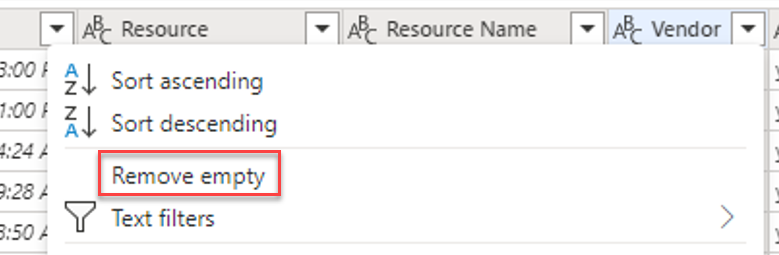
With the Remove empty option, you can remove rows that have null or blank values.
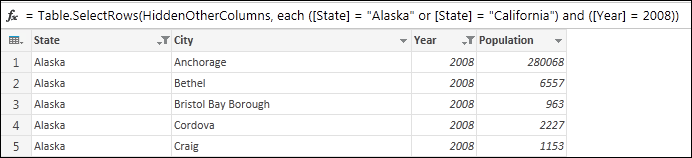
Filtering multiple columns allows for more complex criteria. For this approach, you would use the Select Rows function.
Review the full set of options for filtering by using Power Query.
Filter in Power Automate Process Mining desktop
Filters are a feature of the Power Automate Process Mining desktop app that allow you to use a subset of cases as part of your process analysis. You can use filters to help you identify and focus on parts of the process that might be more problematic. For example, by using filters, you can create subsets of cases that filter on the following criteria:
Define only a certain period.
Include only specific resources or scenarios in the process.
Exclude activities that aren't important for the current analytical problem.
Include only complete cases in your analysis.
You can save filters as views of a process in the desktop app. As a result, users who are performing the analysis can quickly switch between different filters. These filters offer the most flexibility for changing the criteria without the need to refresh the original ingested event log data.
The following video demonstrates how to use filters in the desktop app.