Load event log data
After you transform your event log data, the next step is to load it into process mining. You have two primary options for loading the data into process mining:
Use the Dataflow option - This option uses Power Query to do transformations as part of the process of loading the event log data. The Dataflow option uses connectors to connect to one or more data sources, and it can consolidate multiple sources as part of the transformations.
Use the Azure Data Lake option - This option requires that you pre transform your data and consolidate data from multiple sources.
Map to the process mining event log
Mapping to an event log happens with ingestion options, and it's where you identify to process mining the key attributes in your event log that you want to have available to process mining. You must map, at minimum, the case ID, activity name, and the event start attributes. You can also map other event-level and case-level attributes. Before performing the mapping, you should coordinate with your broader process mining team on which attributes to map.
The following image shows the mapping screen where you would pick the appropriate attributes from your source event log.
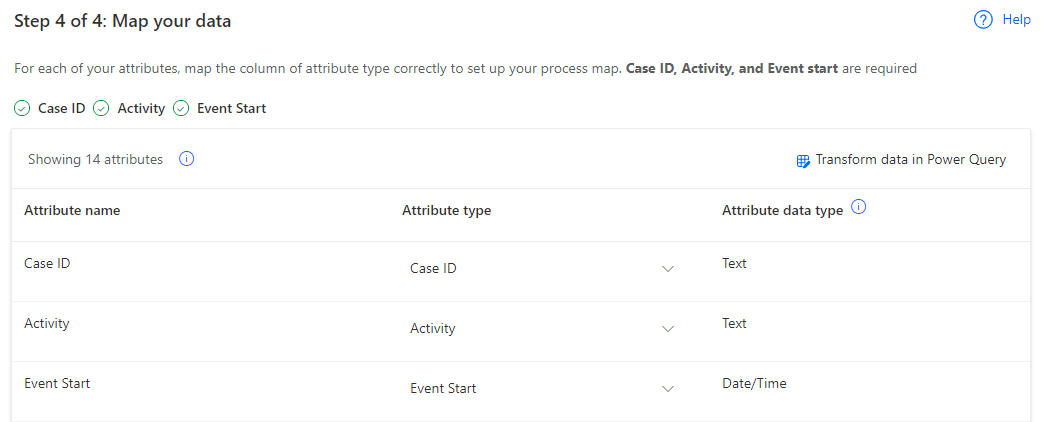
By default, the system configures all attributes from your source event log as event-level attributes. If you include fields that you never use, you can remove those fields during transformation so that they don't appear in the mapping screen or later during analysis. This approach can be helpful if your event log has many fields and they cause confusion or extra work during analysis.
The attribute type indicates what you're mapping the data source attribute as. The following image shows the available options.
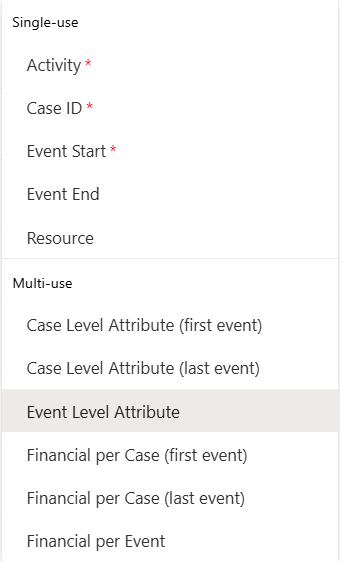
The options are divided into two types: single-use and multi-use. You can only use the single-use type once in your mapping. Otherwise, you receive an error message and need to resolve the error before saving. For a situation where two fields contain one single-use value, you should evaluate whether you can merge that value into a single field during transformation. For example, the case ID is in different fields in two systems, or the case ID consists of the combination of two fields.
The resource field is important to map if you want to use the social map options during analysis.
Edit mapping after initial analysis
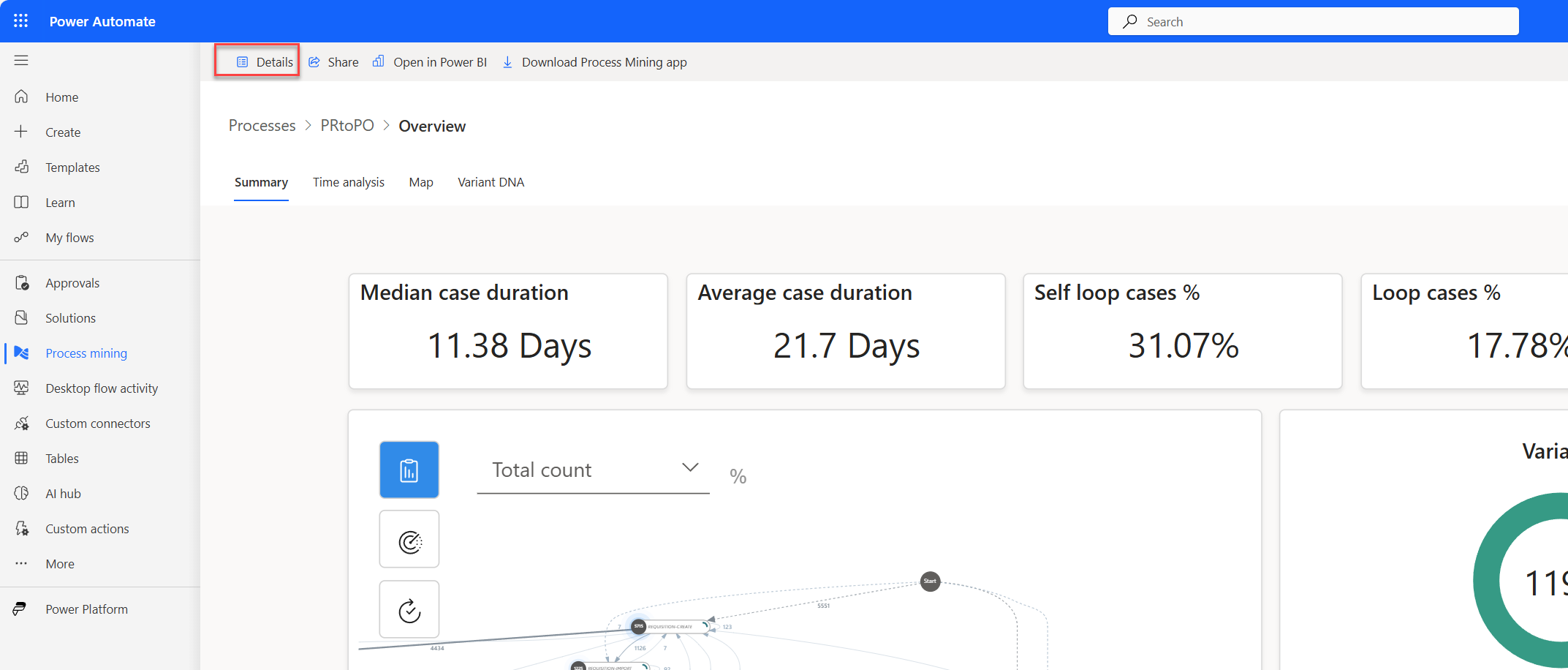
After your team starts analyzing the process, it's likely that you need to re-edit the mappings to correct or include more data. From the process report, you must first select the Details option on the command bar.
From the detail page, you can select the Setup option on the command bar.
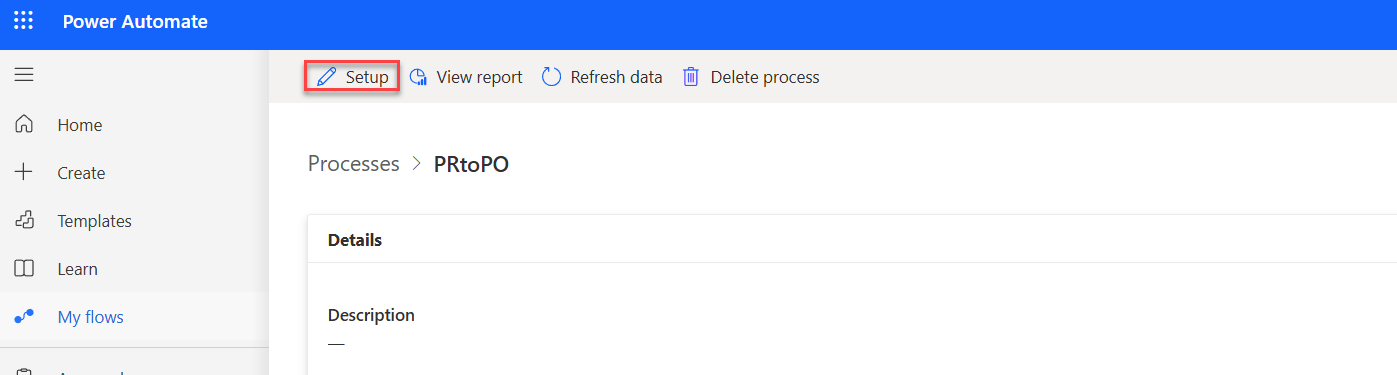
Now, you can re-edit the mappings and then save and analyze the process again.
Refresh from the source data
Refreshing allows you to bring in the latest data from your configured data source. You can start a manual refresh from the process report screen in Power Automate Process Mining for the web.
From the details screen in the data source panel, you can configure a schedule to refresh the data.
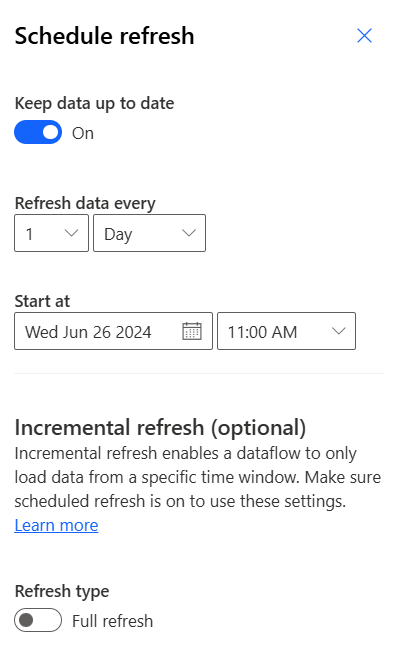
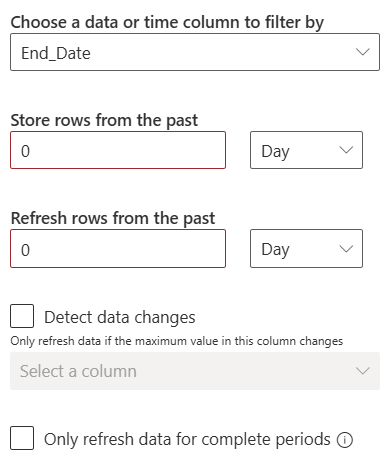
By default, the system completes a full refresh of the data from the event log. You can use the Refresh type toggle to select Incremental refresh, which allows a dataflow to only load data from a specific time window. When you turn on Incremental refresh, extra options become available for configuration, as shown in the following image.
The following video demonstrates how to map by using event logs in Microsoft Azure Data Lake.