Apply firewall profiles
Windows Firewall profiles apply different rules based on network trust: Domain for authenticated corporate domains, Private for trusted networks, and Public for untrusted networks. Windows activates the appropriate profile per network connection, allowing stricter controls on less-trusted networks; multiple profiles can be active simultaneously across different adapters.
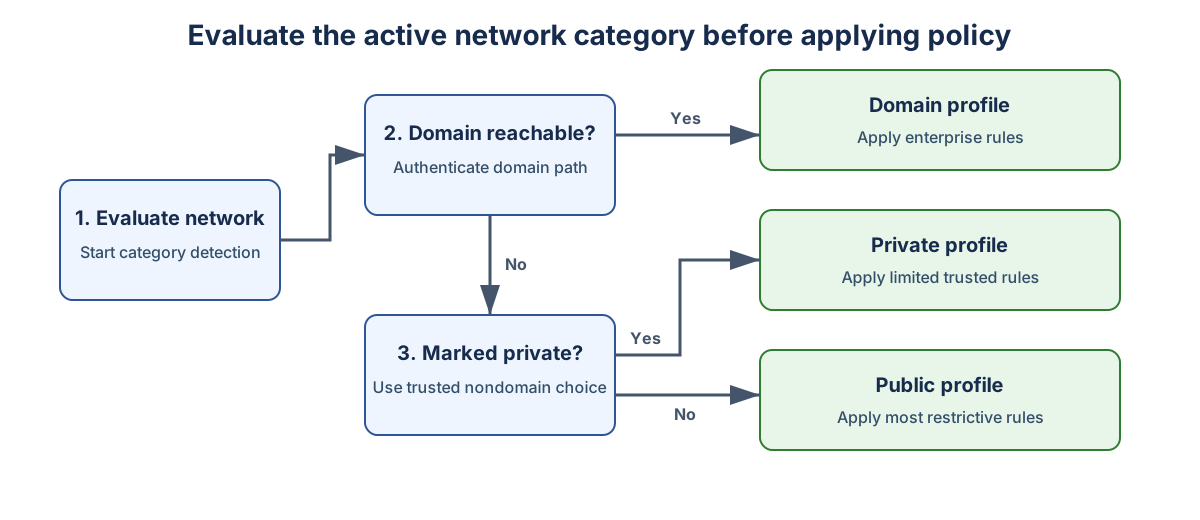
Firewall profiles select policy for the network category active on an interface. A rule that exists but doesn't apply to the active profile isn't an effective rule.
Understand profile selection
Windows supports three profiles:
| Profile | Intended condition | Typical policy |
|---|---|---|
| Domain | The device authenticates network access to a reachable domain controller | Enterprise-managed access |
| Private | An administrator or user marks a trusted nondomain network | Restricted local discovery |
| Public | The network is untrusted or unidentified | Most restrictive access |
The Domain profile isn't selected from a network name. Domain detection depends on successful domain network location processing. Name resolution, routing, authentication, or domain-controller reachability failures can move an interface to another profile.
Design every profile
In most scenarios, a server uses only the Domain profile. A server may enter Public or Private when there's a disruption like:
- Network adapter replacement
- Virtual machine migration
- Domain-controller outage
- Domain Name System failure
- Routing failure
- Startup timing changes
Recommended baseline:
- Enable the firewall on every profile.
- Block unmatched inbound traffic.
- Allow outbound traffic initially.
- Enable dropped-packet logging.
- Enable successful-connection logging where collection capacity supports it.
- Apply administrative exceptions only to the profiles that require them.
Separate mobile endpoint behavior
You can configure a mobile endpoint such as a Windows 11 laptop to allow corporate management access on the Domain profile but reject the same traffic on the Public profile.
Example:
- Domain: permit remote support from approved management systems.
- Private: permit only documented local services.
- Public: reject unsolicited inbound traffic.
Don't use the Private profile as a general bypass of traffic restrictions. You should configure the Private profile so its policy remains defensible if a user marks a home or partner network as private.
Inspect active profiles
Use the following commands to inspect which profiles are active:
Get-NetConnectionProfile |
  Select-Object InterfaceAlias, NetworkCategory, IPv4Connectivity, IPv6Connectivity

Get-NetFirewallProfile -PolicyStore ActiveStore |
  Select-Object Name, Enabled, DefaultInboundAction, DefaultOutboundAction
ActiveStore represents merged runtime policy. It's more useful for diagnosis than inspecting one persistent source alone.
Test profile failure states
Validate how the following network environments influence which profile is active:
- Normal domain connectivity
- Domain controller temporarily unreachable
- Device connected to an untrusted network
- Server interface recreated
- Virtual machine moved between network segments