Write effective prompts to optimize Copilot responses
To maximize the value of Copilot, crafting well-thought-out prompts is essential. Clear, concise, and specific instructions significantly improve the quality of results. Prompts are your way of communicating with Microsoft 365 Copilot, asking it to perform tasks such as creating, summarizing, editing, or transforming content. Think of prompting as having a conversation with an assistant, using clear and straightforward language while providing the necessary context.
Understand the basics of Copilot prompts
A Copilot prompt is simply a question or instruction you give to Copilot to help you get work done. To get the best results, remember these four essentials:
- Context: Why do you need this, and who's involved?
- Goal: What do you want Copilot to do?
- Source: Where should Copilot look for information?
- Expectations: How should Copilot deliver the answer?
Let's see how these work together in a real example:
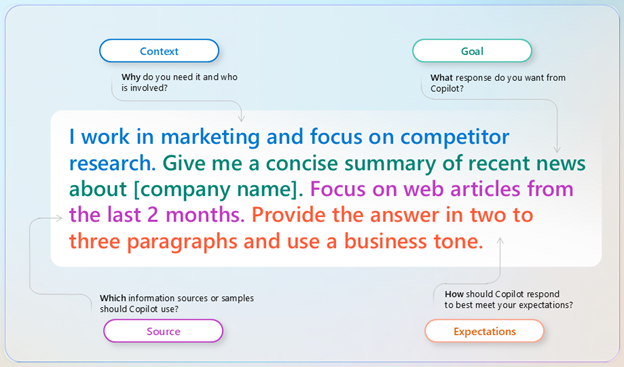
Prompting best practices
Now that you saw the four key elements essential for structuring a prompt to achieve optimal results, let's discuss how to maximize the benefits of using Copilot Chat by following best practices and avoiding common mistakes when crafting prompts.
Prompting do's and don'ts
| ✔️ Do | ❌ Don't |
|---|---|
| Be clear and specific | Be vague |
| Provide instructions on topic, purpose, tone, and required length | Avoid unclear language; be as specific as possible |
| Keep it conversational | Request inappropriate content |
| Frame prompts as a conversation; give feedback to Copilot based on response quality | Don't ask for unethical or illegal content |
| Give examples | Use slang or jargon |
| Use clear keywords or phrases when asking Copilot to write text | Avoid informal language that may cause low-quality responses |
| Ask for feedback | Give conflicting instructions |
| Request feedback to help Copilot understand your needs | Don't include multiple or conflicting pieces of information in one prompt |
| Write legibly | Interrupt/change topics abruptly |
| Use correct punctuation, capitalization, and grammar | Don't start a new task before finishing one |
| Check for accuracy | |
| Review Copilot's responses for accuracy, grammar, and style | |
| Provide details | |
| Give contextual details (for example, genre, characters, plot for a story) | |
| Be polite | |
| Use kind and respectful language | |
| Iterate and refine | |
| Refine prompt and try again if output isn't perfect |
Tip
Experiment with different prompts and refine them based on the output. The Copilot Prompt Gallery offers sample prompts to get you started.
Apply Copilot prompts to common business scenarios
Here are some practical ways to use Copilot prompts in daily tasks:
- Draft emails: Write an email congratulating the team on the successful project launch.
- Create presentations: Generate a 10-slide presentation on quarterly sales performance.
- Prepare for meetings: Based on my prior interactions with [/person], give me five things likely top of mind for our next meeting.
- Organize your time: Review my calendar and email from the last month and create 5 to 7 buckets for projects I spend most time on, with % of time spent and short descriptions.
- Forecast sales data: Generate a visual forecast of next year's sales using historical sales data trends, highlighting seasonal patterns, growth projections, and potential anomalies.
- Visualize top insights and trends: Analyze the open spreadsheet to extract top insights and trends, and generate a clear, compelling data visualization that highlights key patterns, outliers, and actionable takeaways.
By tailoring prompts to your specific needs, you can use Copilot to save time and improve efficiency.
Add references to your prompts
To make your prompts more specific and actionable, you can reference files, people, and topics directly within your prompt using special symbols. These references help Copilot understand the context and retrieve the most relevant information. Use "/" when you want Copilot to pull from a specific file or location, "#" to point to a topic, project, or meeting, and "@" to mention people or agents. This structure mirrors how you might tag or link content in Microsoft 365, making your prompts more powerful and precise.
| Symbol | Use Case | How to Use | Example Prompt |
|---|---|---|---|
/ |
Reference a person, file, or location | Type / followed by the name, file, or folder name to link directly to it |
Summarize the key points from /Q4MarketingStrategy.pptx |
# |
Reference a topic, meeting or event | Use # to tag a topic, meeting name, or recurring event |
What were the action items from #WeeklyOpsSync? |
@ |
Mention an agent | Use @ to employ an agent's functionality |
Compare the top 3 competitors in the CRM space. Focus on pricing, key features, and differentiators. |
Explore voice commands in Copilot Chat
Microsoft 365 Copilot offers a suite of voice-enabled features designed to enhance accessibility, productivity, and user engagement across its apps. These capabilities are described in the following table:
| Feature | Description | Benefits | How to Use | Example Scenarios |
|---|---|---|---|---|
| Dictation | Compose messages, documents, or notes using your voice | Hands-free productivity helps users with mobility or vision challenges, converts spoken words into written text in real time | Select the microphone icon labeled Start dictation. | Hands-Free Document Creation: Dictate a report or email while multitasking |
| Read Aloud | Copilot can read responses aloud directly from the chat pane in Word and PowerPoint (web, desktop, and Mac) | Supports multitasking, benefits users with visual impairments or reading difficulties, enhances workflow accessibility | Listen to Copilot's answers while focusing on other tasks | Accessible Meeting Prep: Listen to Copilot's summary of your calendar or meeting notes |
| Voice Chat | Engage in natural, two-way spoken conversations with Copilot | Maintain context throughout session, interactive Q&A | Select Start a new voice chat in the prompt box, or use Win+C or Copilot key on Windows | Interactive Q&A: Ask Copilot questions about your files or projects using voice chat, and receive spoken answers |
Note
We recognize that different people like to learn in different ways. You can choose to complete this module in video-based format or you can read the content as text and images. The text contains greater detail than the videos, so in some cases you might want to refer to it as supplemental material to the video presentation.