Describe the agent development process and build an agent
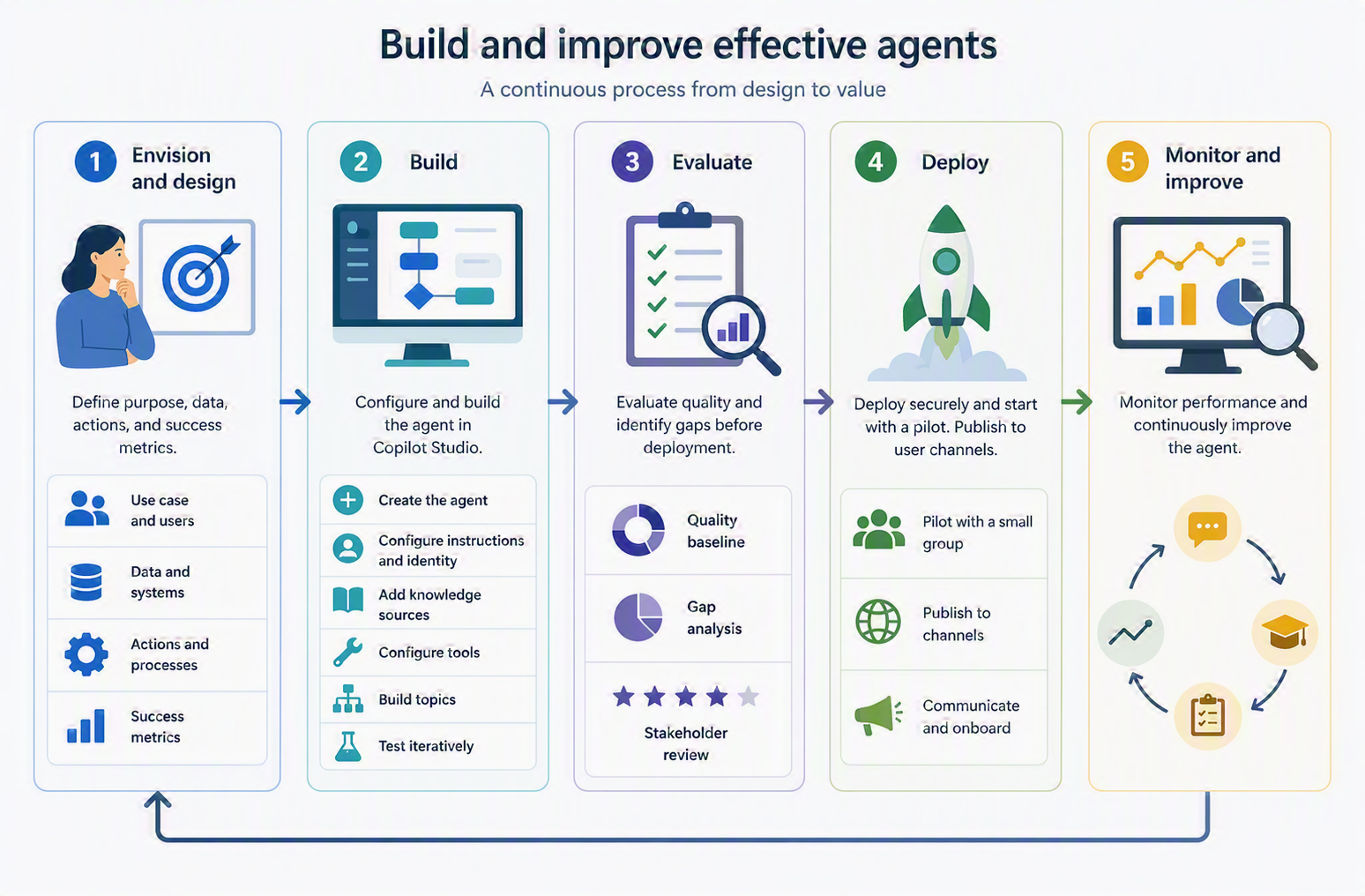
Building a successful agent is a design and delivery process that spans from identifying the right business scenario through continuous post-deployment improvement. Microsoft recommends a structured five-stage development process that aligns agent capabilities with business outcomes and ensures quality at each stage.
Stage 1: Envision and design
Every effective agent starts with a clear definition of purpose. The envisioning stage answers four key questions:
- What is the agent's primary use case? Define the specific scenario and users the agent will serve. Focused agents perform better and are faster to deliver.
- What data does the agent need? Identify knowledge sources and systems the agent will access. Confirm data is current, accurate, and accessible with appropriate permissions.
- What actions should the agent be able to take? Determine which business processes the agent should trigger. Define which actions require human approval and which can be fully automated.
- How will success be measured? Define metrics that indicate the agent is delivering value—resolution rate, deflection rate, user satisfaction score, or time savings. Establish a baseline before deployment.
Stage 2: Build
With the design defined, makers build the agent in the Copilot Studio authoring canvas. The build stage typically follows this sequence: create the agent by describing its purpose in natural language, configure instructions and identity, add knowledge sources, configure tools, build topics for structured conversation paths that must follow an exact flow, and test iteratively using the built-in test panel.
Stage 3: Evaluate
Before deploying the agent, run a formal evaluation using test sets and graders. This produces a documented quality baseline and surfaces any gaps in knowledge coverage, tool behavior, or topic accuracy. Both the maker and a domain-knowledgeable business stakeholder should review results—automated graders alone may not fully capture whether responses meet organizational standards.
Test sets
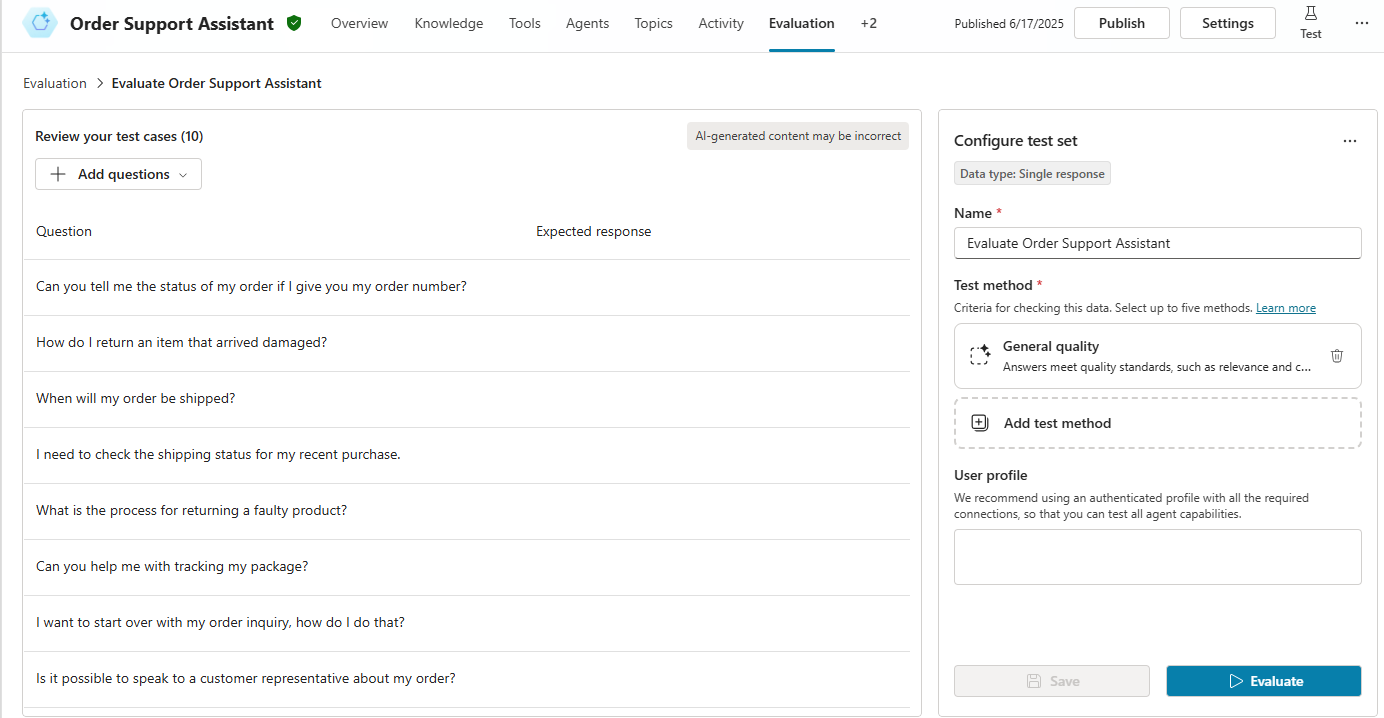
Copilot Studio evaluations are organized around test sets. A test set is a collection of test cases, where each test case represents a specific user input to evaluate. Test cases can include an expected response, enabling automated comparison between the actual and expected outcome. Each test set can contain up to 100 test cases, created in three ways:
- Manual creation: The maker writes individual test prompts and expected responses based on known user scenarios.
- AI-generated test sets: Copilot Studio generates test cases based on the agent's description, instructions, knowledge sources, and topics. A quick question set generates 10 cases for fast iteration; a full question set generates a larger set from a specified knowledge source.
- Import from CSV: Teams can build evaluation datasets collaboratively in a spreadsheet and import them into Copilot Studio.
Evaluation types
Two evaluation types are available:
- Single response evaluations: Each test case consists of a single user message and evaluates the agent's response in isolation. Fast to run and well-suited for testing knowledge retrieval accuracy and common question handling.
- Multi-turn conversation evaluations: Test cases simulate a realistic back-and-forth dialogue across multiple turns, testing whether the agent maintains context, handles follow-up questions, and completes multi-step processes as designed.
Evaluation methods
Four grading methods are available:
- Quality: Uses an AI model to assess whether the agent's response is accurate, relevant, complete, and well-grounded in available knowledge. Provides a score from 0 to 1 with a configurable pass threshold.
- Similarity: Compares the agent's response to the expected response using semantic similarity—measuring how closely the meaning matches even if exact wording differs.
- Text match: Checks whether specific text strings appear in the agent's response, useful for verifying that key facts, policy references, or required phrases are always included.
- Tool use: Validates whether the agent called a specific tool or invoked a specific topic in generating its response, confirming orchestration behavior matches the maker's intent.
Results are available for 89 days; makers can export to CSV for longer retention. Results show an overall pass rate, a per-case breakdown, and side-by-side version comparison to validate that a change improved quality without introducing regressions.
Stage 4: Deploy
When evaluation results meet the defined quality threshold, deploy the agent using Power Platform Pipelines to ensure the deployment is governed, logged, and reversible. Best practices include starting with a pilot group of 20–50 users to gather real-world feedback before a full rollout, publishing to the channels where target users spend their time, and communicating to users what the agent can help with and how to access it.
Stage 5: Monitor and improve
After deployment, the development process becomes an ongoing cycle. High abandonment on specific topics signals that users aren't finding help—a signal to refine topics or add missing knowledge. Escalation rate trends reveal whether the agent is becoming more capable. New conversation transcripts show how real users phrase questions, informing new trigger phrases and knowledge refinements. Scheduled re-evaluations catch regressions before they affect many users.
Contoso Professional Services in action
Contoso's team follows all five stages when building the Benefits Advisor agent. In the envisioning stage, they define success as a 30% reduction in HR helpdesk tickets during open enrollment. In the build stage, they connect SharePoint knowledge, configure a Leave Request agent flow, and write instructions scoping the agent to HR topics only. They run a 40-case evaluation before launch and pilot the agent with 25 employees in one regional office. After two weeks, analytics show a 42% ticket reduction and a CSAT score of 4.3 out of 5—above target—and the team rolls out the agent to all locations.
Build an agent in Copilot Studio
Copilot Studio provides a low-code authoring canvas where makers can build a working agent in a single session. The following walkthrough shows what that process looks like—from describing the agent in natural language to publishing it to users—using Contoso Professional Services' IT Support Agent as the example scenario.
Contoso's IT team wants an agent that answers common questions about VPN setup, password resets, and software access requests by drawing from IT documentation on SharePoint, and that can create a support ticket in Dataverse when the user needs further assistance.
Describing the agent
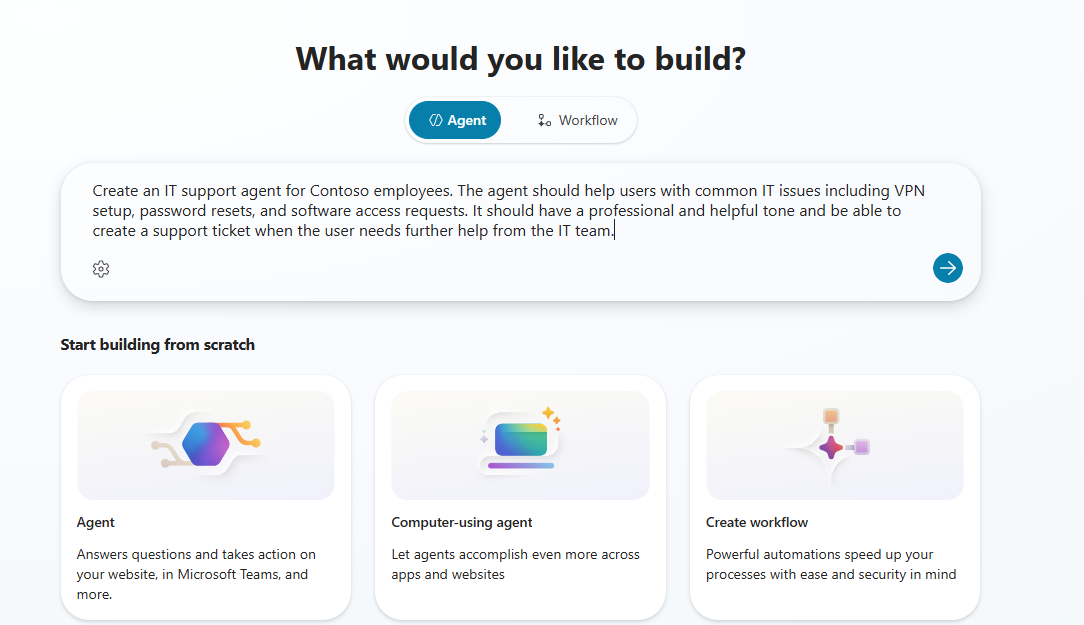
A maker begins in Copilot Studio by describing the agent's purpose in natural language. Copilot Studio uses this description to generate a starting configuration: a suggested name, initial instructions, and a placeholder for knowledge sources. The maker reviews the generated configuration and creates the agent.
For Contoso's IT Support Agent, the maker describes: an IT support agent for employees, covering VPN setup, password resets, and software access requests, with a professional and helpful tone, and the ability to create a support ticket when the user needs further help from the IT team.
Configuring instructions
After creating the agent, the maker reviews and refines the instructions in the agent's settings. Good instructions include:
- The agent's role and scope
- What to do when the agent cannot answer (for example, offer to create a support ticket)
- Tone guidance (professional, friendly, and concise)
- Scope restrictions (decline topics outside IT support)
Instructions written in plain language are interpreted by the AI model at runtime to guide responses consistently across all conversations.
Adding knowledge sources
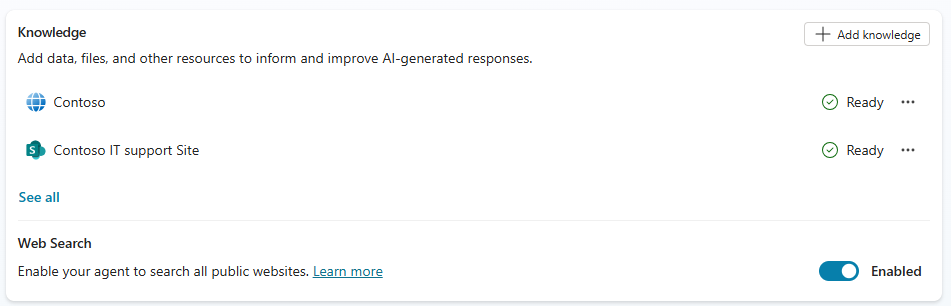
The maker adds a SharePoint site containing Contoso's IT documentation as a knowledge source. After indexing is complete, the knowledge source is available for retrieval. Multiple knowledge sources can be combined—for example, an internal SharePoint site for IT policies alongside a public Microsoft documentation URL for common troubleshooting guides.
Configuring tools
To enable ticket creation, the maker adds a Dataverse connector tool configured to create records in a Support Request table. The maker defines the input parameters the agent should collect before invoking the tool: the user's name, a description of the issue, and priority level. A clear tool description ensures the AI orchestrator knows when to invoke it—in this case, when the user asks for help from the IT team.
Testing the agent
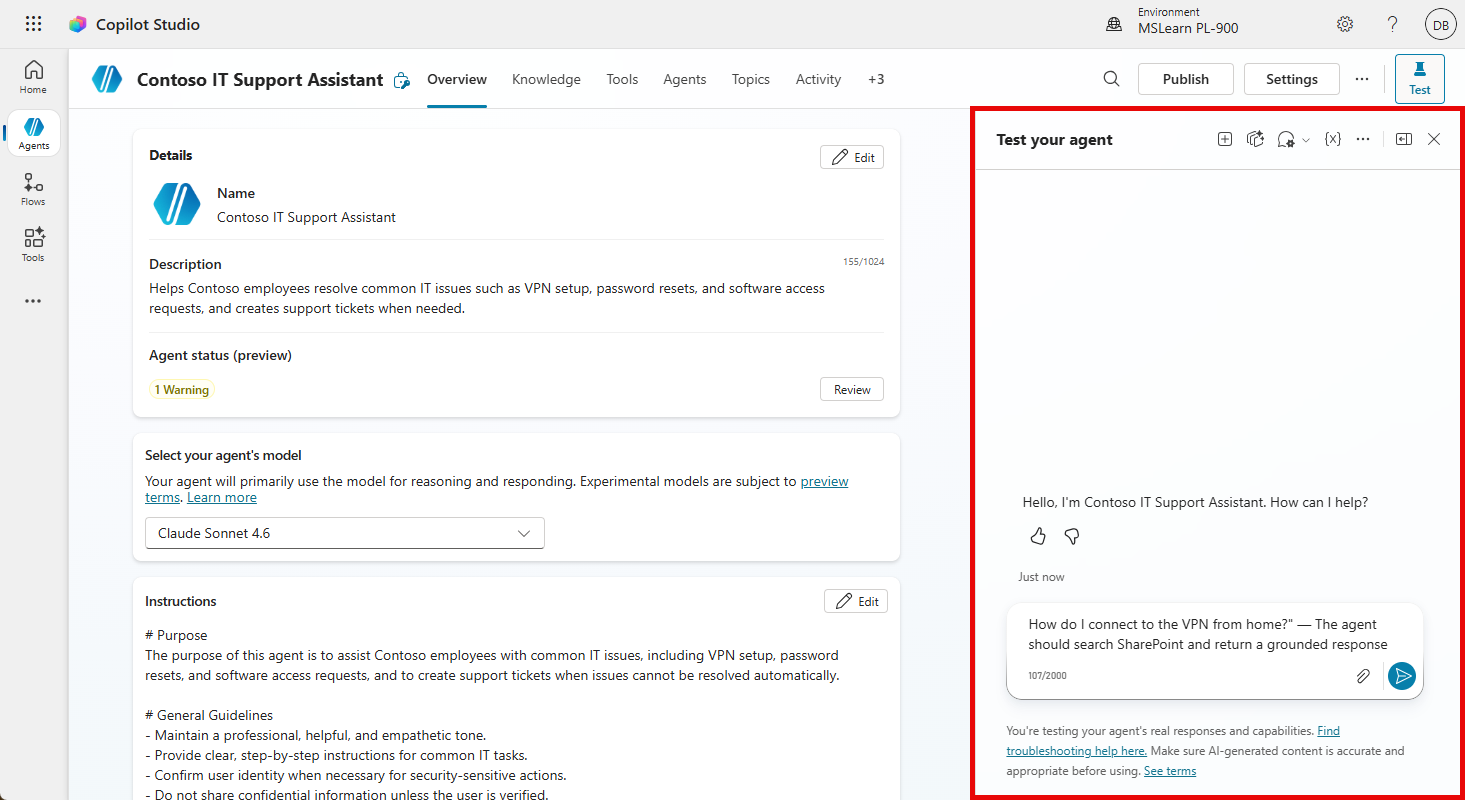
The test panel in Copilot Studio reflects configuration changes immediately, allowing the maker to validate behavior as they build. The maker tests three scenarios:
- "How do I connect to the VPN from home?" — the agent should search SharePoint and return a grounded response
- "My password has expired and I can't log in. What do I do?" — the agent should provide guidance from knowledge
- "None of these answers are helping me. I need to talk to someone from IT." — the agent should offer to create a support ticket and collect the required information
When a response is inaccurate or a tool isn't invoked at the right time, the maker refines the instructions or knowledge source configuration and retests immediately.
Running a baseline evaluation
Before publishing, the maker creates a test set using Copilot Studio's quick question generator, which produces 10 automatically generated test cases based on the agent's knowledge sources. The maker selects the Quality grader with a pass threshold of 0.7 and runs the evaluation. Results show per-case scores and an overall pass rate. Failing cases are investigated—gaps may be in the knowledge source coverage, the instructions, or the tool configuration—before publishing.
Publishing to users
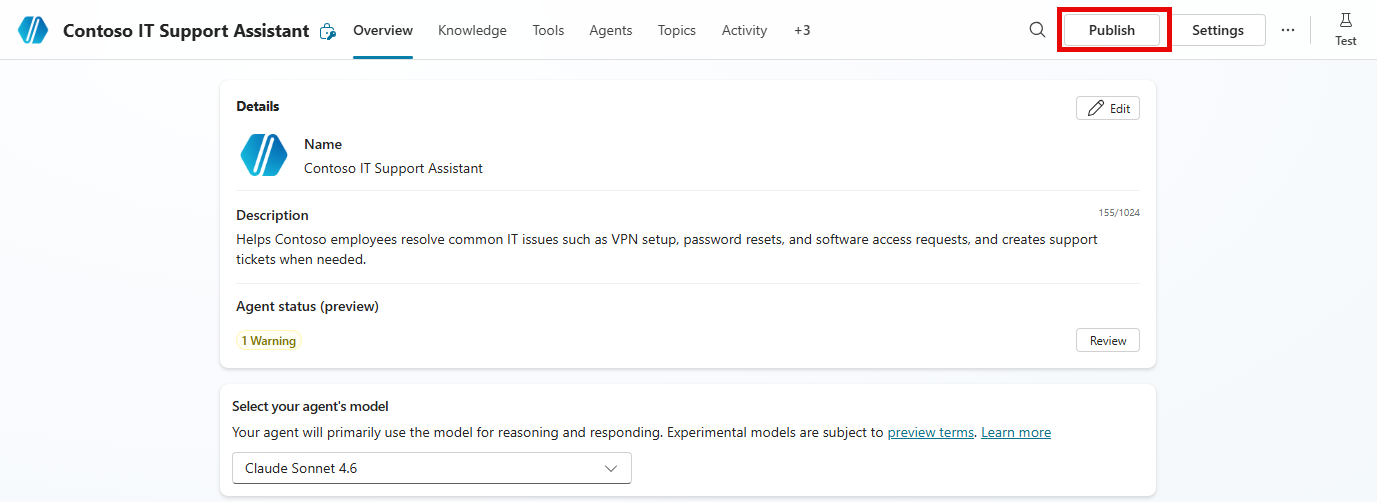
When the agent meets quality standards, the maker publishes it. For Contoso's employee-facing IT Support Agent, Microsoft Teams is the primary channel. After publishing, the agent appears as a Teams app and is accessible to employees via direct message. The maker monitors the analytics dashboard over the following weeks, watching adoption trends and abandonment rates to identify the next round of improvements.