Describe how Copilot Studio uses and processes data
Understanding how Copilot Studio handles your organizational data is essential for making informed decisions about what knowledge sources to connect, how to configure security, and which compliance requirements apply to your agent deployments. Microsoft has designed Copilot Studio with enterprise data protection at its core.
Your data stays within the Microsoft cloud
Copilot Studio is built on Microsoft Azure OpenAI Service and runs entirely within the Azure cloud. When users interact with your agent, their prompts and the agent's responses remain within the Microsoft cloud boundary. Microsoft does not use your prompts, responses, or the data accessed through your knowledge sources to train foundation AI models. This commitment means proprietary business information you connect to your agents—internal documents, CRM records, financial data—is used only to generate responses during the session and is never shared with other organizations or used to improve underlying AI models.
Retrieval-Augmented Generation
Copilot Studio uses Retrieval-Augmented Generation (RAG) to generate responses grounded in your organizational data. Rather than relying solely on the AI model's training knowledge, RAG works in three stages:
- Retrieval: When a user asks a question, Copilot Studio searches configured knowledge sources—SharePoint documents, websites, Dataverse records, or other connected content—and retrieves the most relevant passages.
- Augmentation: The retrieved content is combined with the user's original question and provided to the AI model as context.
- Generation: The AI model generates a response grounded in the retrieved content, citing sources where applicable, rather than speculating from general training knowledge that may be outdated or incorrect for your context.
Data residency and geographic controls
Copilot Studio follows the Power Platform geographic data residency model. When your organization creates an environment, it is associated with a specific geographic region, and Copilot Studio agent data and conversation logs are stored within that region by default. Some AI features that require additional compute—such as generative answers and certain knowledge retrieval capabilities—may require data movement to regions where those AI services are hosted. Administrators can control this behavior from the Power Platform admin center.
Security and access controls
Copilot Studio inherits the security model of the Power Platform environment in which it is deployed. Key controls include:
- User-level data access: Agents run as the authenticated user. When an agent retrieves information from SharePoint, Dataverse, or other secured systems, it can only access content that the signed-in user already has permission to see. The agent never has elevated privileges beyond those of the user.
- DLP policy enforcement: Power Platform DLP policies apply to Copilot Studio agents. If a connector is blocked by a DLP policy, agents cannot use it as a tool or knowledge source.
- Customer Lockbox: Copilot Studio supports Customer Lockbox, which requires explicit customer approval before Microsoft support personnel can access customer data during troubleshooting scenarios.
Responsible AI and content moderation
Copilot Studio includes built-in responsible AI content filters powered by Azure AI Content Safety. These filters review both user inputs and AI-generated responses for content that violates safety standards, including harmful, offensive, or sensitive material. Content moderation runs automatically and cannot be disabled by makers. Makers can supplement the built-in filters with custom topic-level instructions and safety guardrails—for example, configuring agents to decline topics outside their defined scope or redirect sensitive questions to a human representative.
The Copilot Studio data flow
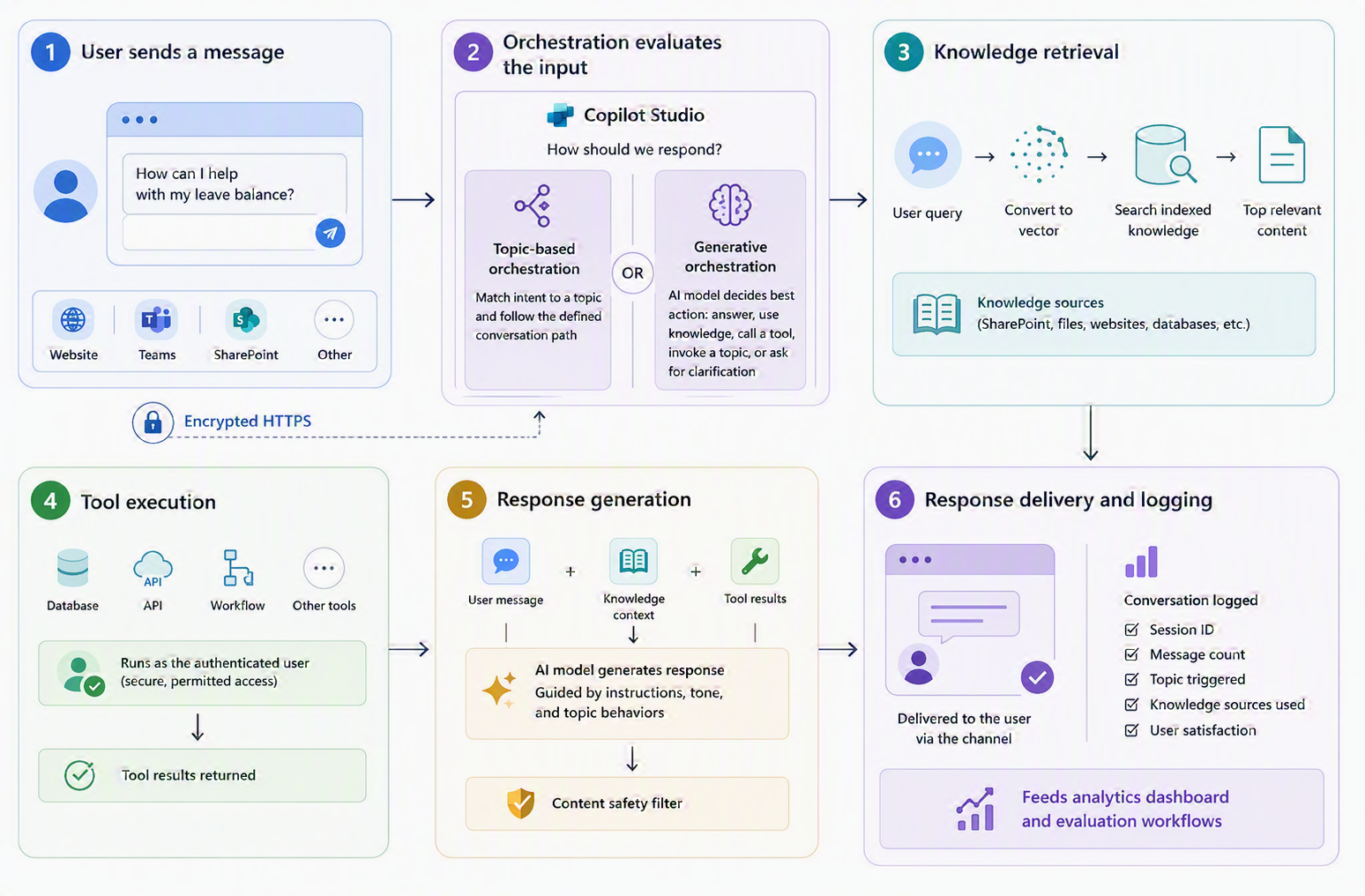
Understanding the end-to-end flow of data through a Copilot Studio agent helps makers design agents that are secure, performant, and reliable. From the moment a user sends a message to the moment a response appears on screen, several distinct processing steps occur.
Step 1: User sends a message
A user types a message or question in the agent's interface—whether an embedded chat window on a website, a Microsoft Teams conversation, a SharePoint page, or another published channel. The message is transmitted securely to the Copilot Studio service over an encrypted HTTPS connection.
Step 2: Orchestration evaluates the input
Copilot Studio evaluates the incoming message to determine how to respond. Two orchestration approaches are available:
- Topic-based orchestration: The agent matches the user's message against configured topic trigger phrases using an intent recognition model. If a match is found, the agent follows the conversation path defined for that topic.
- Generative orchestration: With generative AI orchestration enabled, the agent's AI model dynamically determines the best response strategy based on the user's intent, available knowledge sources, and configured tools—deciding at runtime whether to answer from knowledge, call a tool, invoke a topic, or ask a clarifying question.
Step 3: Knowledge retrieval
If the agent needs to answer from a knowledge source, it performs a retrieval step. The user's query is converted into a vector representation and matched against indexed content from configured knowledge sources. The most relevant content chunks are retrieved and assembled into context that is passed to the AI model.
Step 4: Tool execution
If the agent needs to take action—querying a database, calling an API, running a workflow—it invokes the appropriate tool. Tools run as the authenticated user, ensuring only permitted data and operations are accessible. Tool results are returned to the orchestration layer and may augment the AI model's response or be passed directly to the user.
Step 5: Response generation
The AI model combines the user's original message, retrieved knowledge context, and any tool results to generate a response. The model is guided by the agent's configured instructions, tone settings, and topic behaviors. The response is reviewed by the content safety filter before being returned.
Step 6: Response delivery and logging
The response is delivered to the user through the publishing channel. The conversation turn is logged in Copilot Studio's analytics system, recording metrics such as session ID, message count, topic triggered, knowledge sources used, and user satisfaction. These logs feed the analytics dashboard and support evaluation workflows.
Channels and publishing
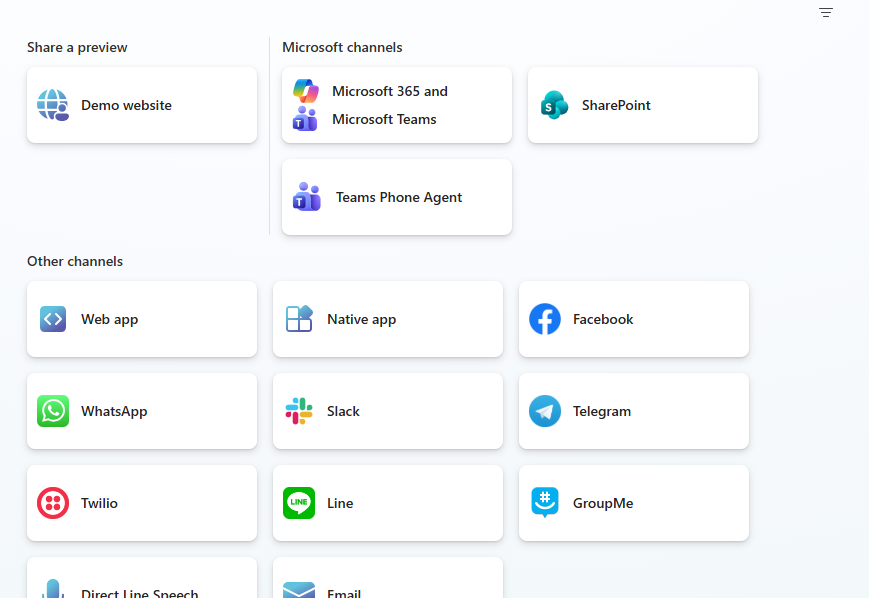
A single Copilot Studio agent can be published to multiple channels simultaneously:
- Microsoft Teams: The agent appears as a bot in Teams, accessible via direct message or added to team channels.
- Microsoft 365 Copilot: The agent is surfaced as a declarative or connected agent within the Microsoft 365 Copilot experience, accessible from Word, PowerPoint, Teams, and Outlook.
- Website embedding: The agent is embedded as a chat widget on internal or external websites using a simple iframe code snippet.
- SharePoint: The agent appears as a chat panel on SharePoint pages, allowing document sites to become interactive knowledge assistants.
- Custom channels via Direct Line: Professional developers can connect agents to custom applications using the Direct Line API, enabling integration with mobile apps, contact center platforms, and other custom surfaces.