Create agent flows
Agent flows are built directly into Microsoft Copilot Studio, in the same way that you would create agents or topics within an agent.
Creation methods
There are two primary ways to create an agent flow in Copilot Studio:
- Natural language: In everyday language, describe what you want the agent to do. Copilot Studio creates an agent flow based on your description. After the flow is created, you can modify it in the designer to add more actions.
- Designer: Build an agent flow by dragging components on a canvas in the visual designer. You can add actions, conditions, and loops, which allow you to create sophisticated automation scenarios.
Later units explore each of these options in more detail.
Triggers and actions
Each agent flow consists of two primary elements:
- Trigger: An event that starts a flow. Triggers can be instant, scheduled, or based on an event such receiving an email or adding a record to Dataverse. Various trigger options are available.
- Action: A task that an agent flow performs.
Simple example
The following image provides a simple example of the trigger and action concepts.
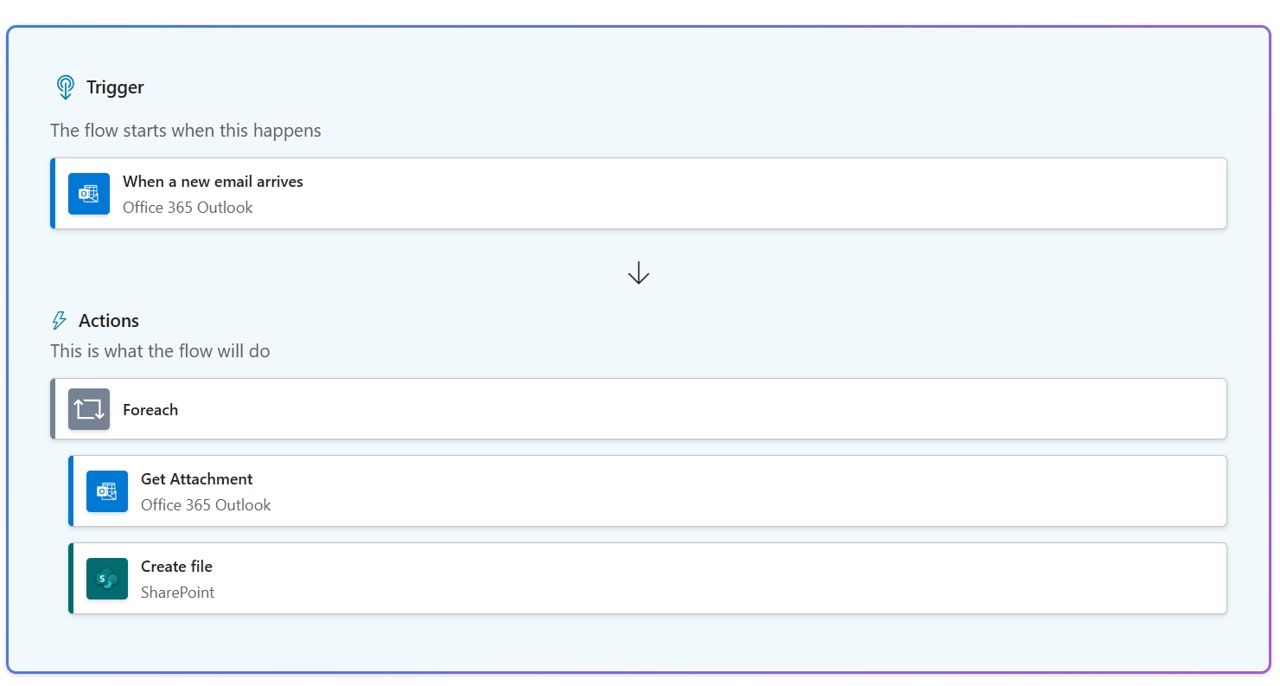
Invoice example
Consider another example. Let's say that you want to create an automated invoice approval system for when you receive invoices from a vendor. The specific details of the invoice are extracted, and the invoice is automatically entered into your organization's enterprise resource planning (ERP) system. After the invoice is approved, it can be automatically marked for payment and processed.
In this example, receipt of the invoice (whether it's received through email, uploaded from a portal, or attached through an agent conversation) is the trigger that starts the agent flow.
The actions that happen in the agent flow might be:
Use the AI Builder connector to extract specific details from the invoice (via the Extract information from an invoice action).
Use the Dynamics 365 Finance connector to create a new record in Dynamics 365 Finance.
Use Create an approval to send an invoice approval to a manager in Microsoft Teams.
After the invoice is approved, use the Dynamics 365 Finance connector to mark the invoice for payment.
Use the Outlook connector to send a message to the vendor about the status of the invoice.
This entire process can be triggered directly from an agent that you built in Copilot Studio.
Invoice example with multiple agent flows
Agent flows include a unique trigger called When an agent calls the flow. This trigger allows the agent flow to be used in other agents. You can then have multiple agent flows that you use as part of larger agent-based automation scenarios.
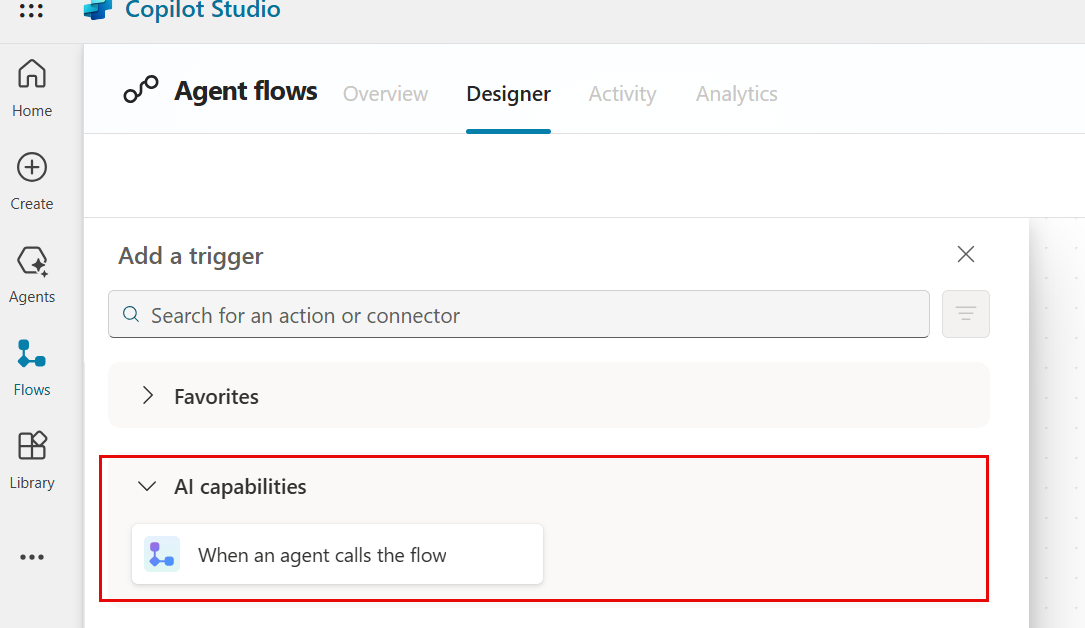
For example, let's say that your organization created an agent to assist customers with the invoice submission process. In this scenario, an agent can assist customers in answering questions and allow customers to directly upload the invoice through the agent. In this case, the trigger is When an agent calls the flow, and the attachment is the invoice.
These capabilities allow agent flows to easily scale in enterprise scenarios.