Design agent flows
When you design and build agent flows, the actions that are executed build on triggers and previous actions. For example, you might create an action that pulls the details from an added SharePoint file that triggered the agent flow. When you're creating agent flows, you can use multiple components to make your flow more flexible and dynamic.
Various options are available, but most agent flows use dynamic values, conditions, and expressions.
Dynamic values
Dynamic values are data that an agent flow's triggers and actions generate. They capture information from previous steps, such as responses from web requests, so that you can use that information in later actions.
Here's how dynamic values work:
- Every trigger and action in an agent flow produces data. For example, a Get Record action pulls all the data for a specific record. This data is available for use in other steps as dynamic content.
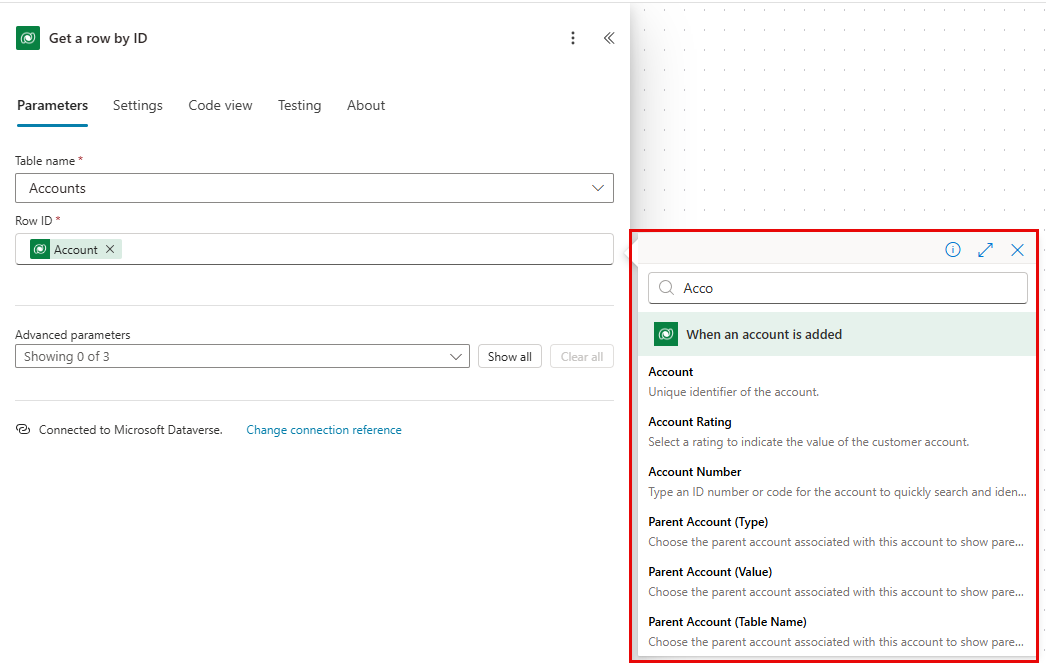
- In the visual designer for the agent flow, you find a Dynamic content section within each step's input fields. (It looks like a lightning bolt.) This section displays available dynamic content from previous steps.
- Select the desired dynamic content directly from the picker, or write expressions by using the Add Dynamic Content button.
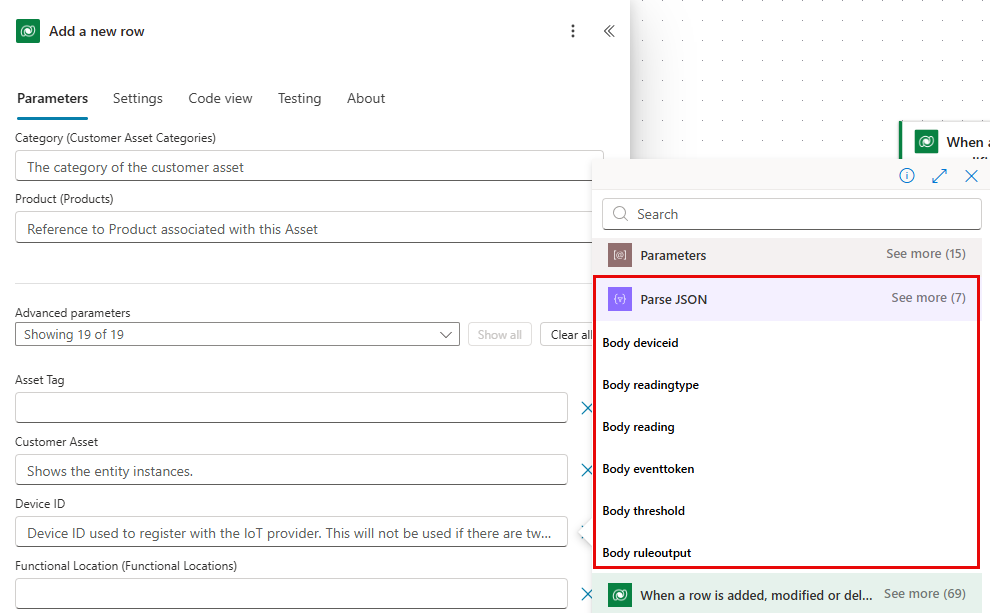
For example, a pharmaceutical organization uses Internet of Things (IoT) temperature sensors to monitor and control the temperature of rooms where it manufactures specific types of medications. If the temperature in those rooms goes above a specific threshold, the organization needs to be alerted so that it can diagnose the problem and take the necessary action.
Many IoT devices generate data in JSON responses. Let's say that an IoT device generates an error with the following JSON response:
{"deviceid":"nest1234","readingtype":"Temperature","reading":80,"eventtoken":"cfd5e690-ee88-4ca8-a75d-3b86ac61295c","threshold":70,"ruleoutput":"AlarmTemp","time":"2019-10-19T16:42:26.457Z"}
You can use the Parse JSON action to extract the necessary data and then use that value in a subsequent action, as illustrated in the following image.
Conditions
Conditions represent a way to control a cloud flow based on specific criteria. You use them to introduce decision-making logic and to execute different actions depending on whether a condition is true or false. Essentially, they function as if/then statements within your flow, so that you can create more dynamic and flexible automations.
Here's a more detailed explanation:
- Conditional logic: Conditions evaluate the criteria. The result (true or false) determines the path. If the condition is true, the flow proceeds down one specific path. If the condition is false, the flow follows another path.
- Types of conditions:
- Trigger conditions determine when a flow starts.
- Flow conditions control the execution of actions within a flow.
- Flexibility and automation: Conditions are crucial for creating complex and automated processes. Use them to adapt the flow's actions based on various inputs.
For example, let's say that you want to send an email only if a post on X with a specific keyword is reposted 100 times. You set up a condition to check the number of reposts and then decide whether to send the email based on that result.
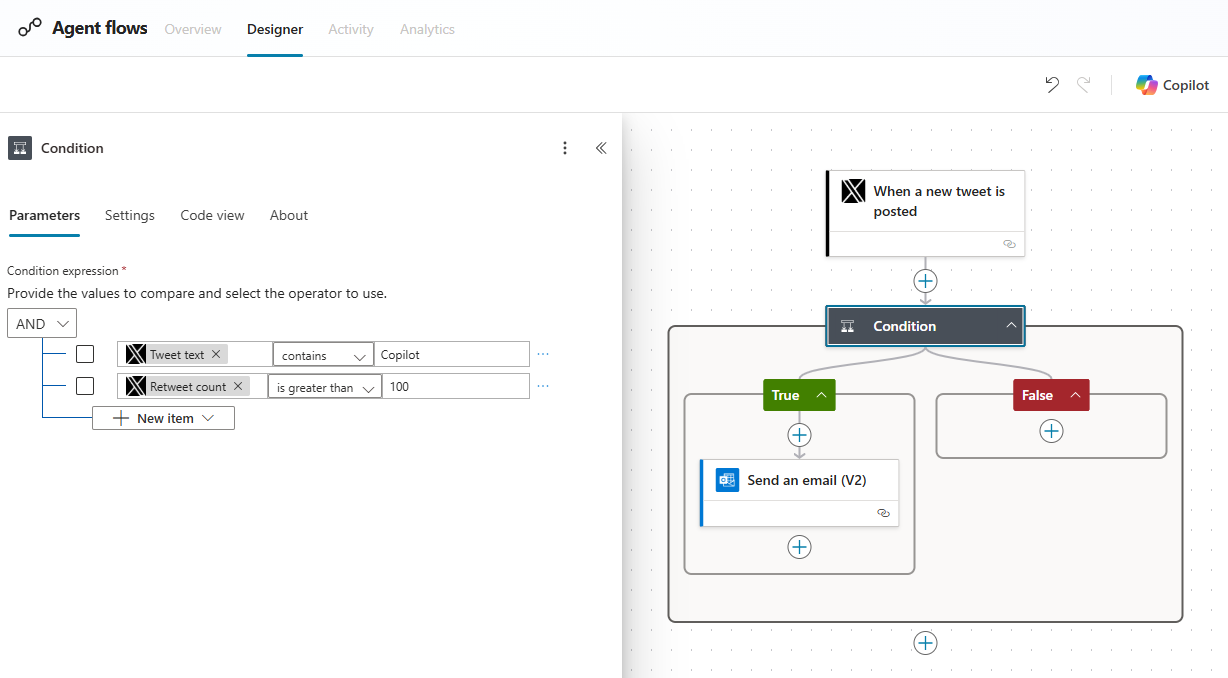
In the preceding image, the condition has two parts:
- It looks for a tweet that includes the word Copilot.
- It waits for the retweet (repost) count to exceed 100.
By adding multiple And conditions to the expression, you can create conditions that are more complex.
To learn more about conditions and for step-by-step guidance, see Add a condition to a cloud flow.
Expressions
Expressions allow you to manipulate, convert, or evaluate data, and perform complex logic within your flows. You can use them to process data, make decisions, and dynamically set values in your workflow steps.
Expressions include:
- Functions: Functions perform various actions, such as string manipulation, date and time operations, logical evaluations, and mathematical calculations.
- Dynamic content: You can include dynamic content from previous actions or triggers in your expressions.
- Copilot: You can use Microsoft Copilot to edit expressions in agent flows by expressing your requirements in natural language.
You can add an expression by selecting the Power Fx icon for the action item that you want to add the expression to. The following example scenario compares the sales figures of two products from a SharePoint list and sends an email if Product A's sales are higher than Product B's sales.
Create the flow
- Start with a trigger, such as When an item is created or modified in your SharePoint list.
- Add actions to get the sales figures for Product A and Product B from the SharePoint list.
- Add a condition to compare the sales figures.
Add the expression
- In the condition, you use an expression to compare the sales figures of Product A and Product B.
- In the condition card, select Edit in advanced mode. Use the following expressions:
triggerOutputs()?['body/ProductASales']dynamically gets the sales figure for Product A.triggerOutputs()?['body/ProductBSales']gets the sales figure for Product B.
- If the condition is true (Product A's sales are higher than Product B's), add an action to send an email. If the condition is false, you can add another action or leave it empty.
Other examples of how to use expressions include:
- Use
replace(),substring(), orsplit()to manipulate strings. - Use
utcnow(),adddays(), orformatDateTime()to work with dates and times. - Use
equals(),less(), oror()to compare values and make decisions. - Use
add(),sub(), ormul()to perform mathematical calculations.
By using expressions, you can create powerful and flexible cloud flows that can handle complex data-processing and automation tasks.