Manage agent flows
As you build your agent flows, you can use tools in Microsoft Copilot Studio to simplify the design experience and optimize an agent flow's performance. For example, if your flow has errors during the design process, you can't publish it. Or even after an agent flow is published, it might not perform as you expect. The following tools in Copilot Studio help you manage agent flows:
- Designer view modifications
- Versioning
- Error and warning identification
- Agent flow testing
Change how your flow is displayed
Because agent flows can range from simple to complex with multiple steps and conditions, you might find that you can't see everything. For example, you might have an agent flow that extracts invoice information from email attachments and then routes the invoice to a specific department based on what the invoice is for. You might find it handy to zoom in on the specific section.
In the Copilot Studio designer, the toolbar at the lower-left corner of the canvas controls the view:
- Expand/Collapse: Expand or collapse all action groups. For example, if an action has multiple conditions, select this icon to show the condition details.
- Zoom in: Increase the size of the flow on the canvas.
- Zoom out: Decrease the size of the flow on the canvas.
- Fit view: Resize the view to fit the entire flow on the canvas.
- Minimap: Go to a specific section of a large flow.
- Search: Look for an operation in your flow.
View flow versions
While you design an agent flow, you're likely to create multiple versions as it evolves. Every time you save an agent flow, a version history of the changes to the flow is recorded in Microsoft Dataverse. This history is beneficial, because you can see how the flow has evolved and (if necessary) revert to a different version. You can view it by selecting Version history.
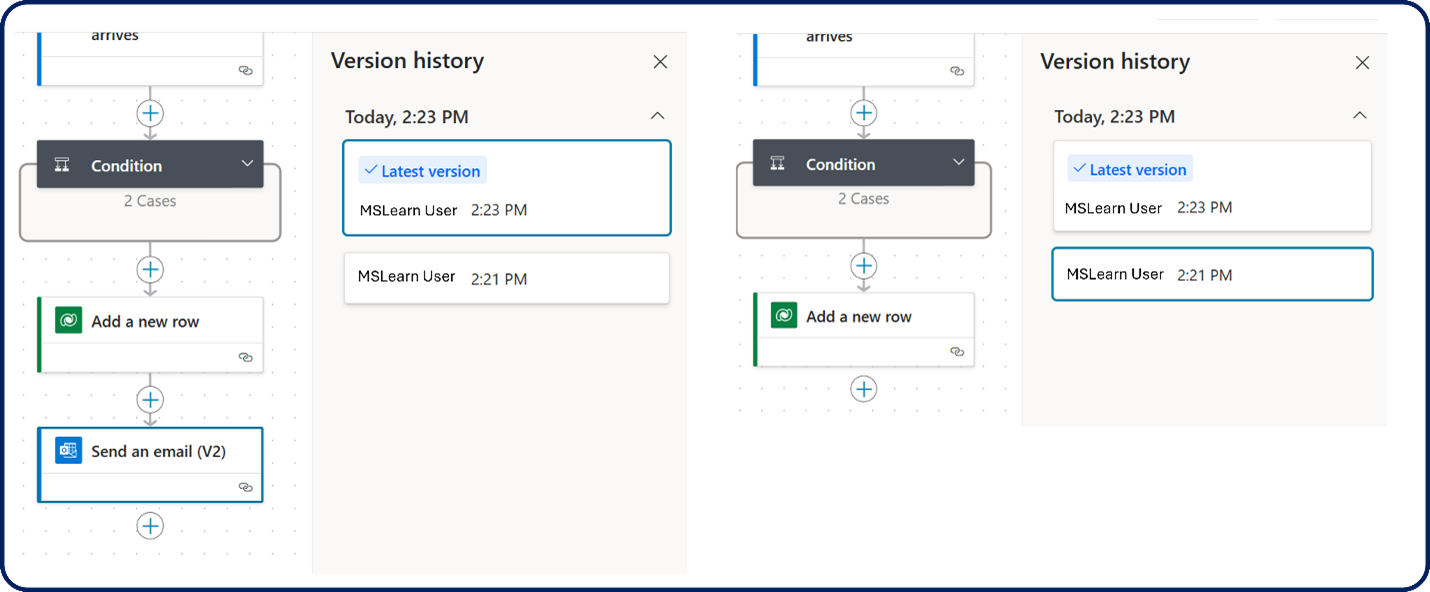
The latest version appears at the top of the version list. As you select each version, the designer reverts to the version that you selected. After you identify the version that you want to use, you can save the flow.
Important
To view the version history, you must save your agent flow at least once.
For more information and step-by-step instructions, see View version history.
Identify errors
As you add and configure actions in your agent flow, you might incorrectly configure something, not reference something correctly, or do something else that results in an error. Any errors in agent flow actions appear in red.
You can identify any errors in a flow by selecting Flow checker. The flow checker breaks down items of concern into two areas:
- Errors: Items that cause the flow not to operate. Any flow that contains errors can't be published. You need to correct them before publishing.
- Warnings: Items of concern that don't affect publishing.
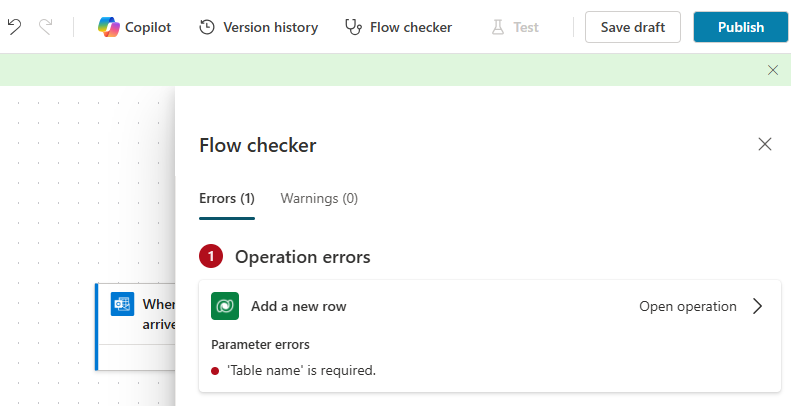
After you determine that your agent flow has no errors, you can publish it. To publish your flow, on the menu at the top of the canvas, select Publish.
Test your agent flow
Even if your agent flow has no errors and can be published, it might not behave as expected. The reason might be that you configured something incorrectly or a credential is wrong, among other possibilities. After you publish your flow, it's a good idea to test it.
You can run a test manually or automatically. After the test runs, you can check the output of each action to confirm that the flow is working.
For more information and step-by-step instructions, see Test your agent flow.