Work with prompt actions
As AI becomes more a part of our daily lives, it provides an opportunity to create intelligent automation solutions. For example, a medical organization might use an agent to collect patient information such as age, gender, and symptoms. That information can be summarized and passed on to a symptom checker, which identifies potential causes.
When you're creating agent flows, you can use the Run a Prompt action to integrate AI-generated responses into your cloud flows by using Microsoft Copilot Studio. These responses enable flows to send a prompt to a large language model (LLM) and receive a response that subsequent steps of the flow can use.
Examples of prompt actions
Reasons for using prompt actions can include:
- Interpreting unstructured data, such as summarizing emails or extracting key points from documents.
- Generating content, such as drafting emails, creating reports, or writing responses.
- Classifying or transforming data, such as categorizing support tickets or converting text formats.
- Automating decision-making based on natural language inputs.
For example, a global contact center that manages thousands of issues a week might use a Run a Prompt action on incoming support tickets that users submit via email. The action can summarize the submitted issue, generate a draft reply, and create and route a support ticket to the appropriate team.
Another example of the Run a Prompt action is assisting with employee onboarding. An organization can create an agent to answer questions from new hires. When a new hire submits a question through the agent, the prompt action can interpret the question, generate a meaningful and helpful response, and send the response back to the agent in real time.
Running prompts in agent flows can help streamline the actions that you run in a flow. An invoice example at the beginning of this module used the Extract information from an invoice action. You can execute that same concept by using a prompt action. With a prompt action, you have greater flexibility because you can specify the data that you want.
Prebuilt prompts
When you use the Run a Prompt action, you can use the Parameters tab to specify the prompt that you want to run. There are multiple prebuilt prompts to choose from:
- AI Evaluation Prompt: Determines if a test case response meets the requirements outlined in the prompt.
- AI Generate Sample Data from Prompt: Creates sample test cases based on the text from the prompt.
- AI Reply: Creates a contextual response based on the text from the prompt.
- AI Classify: Classifies the text from the prompt into the appropriate predefined categories.
- AI Sentiment: Identifies the sentiment of the text from the prompt.
- AI Summarize: Summarizes the text from the prompt.
- AI Extract: Extracts specific pieces of information from the prompt text.
Customized prompts
Each prompt has parameters that you need to define. You can also create your own prompts based on your specific needs. For example, the information in the following image defines the data to extract from a specific document.
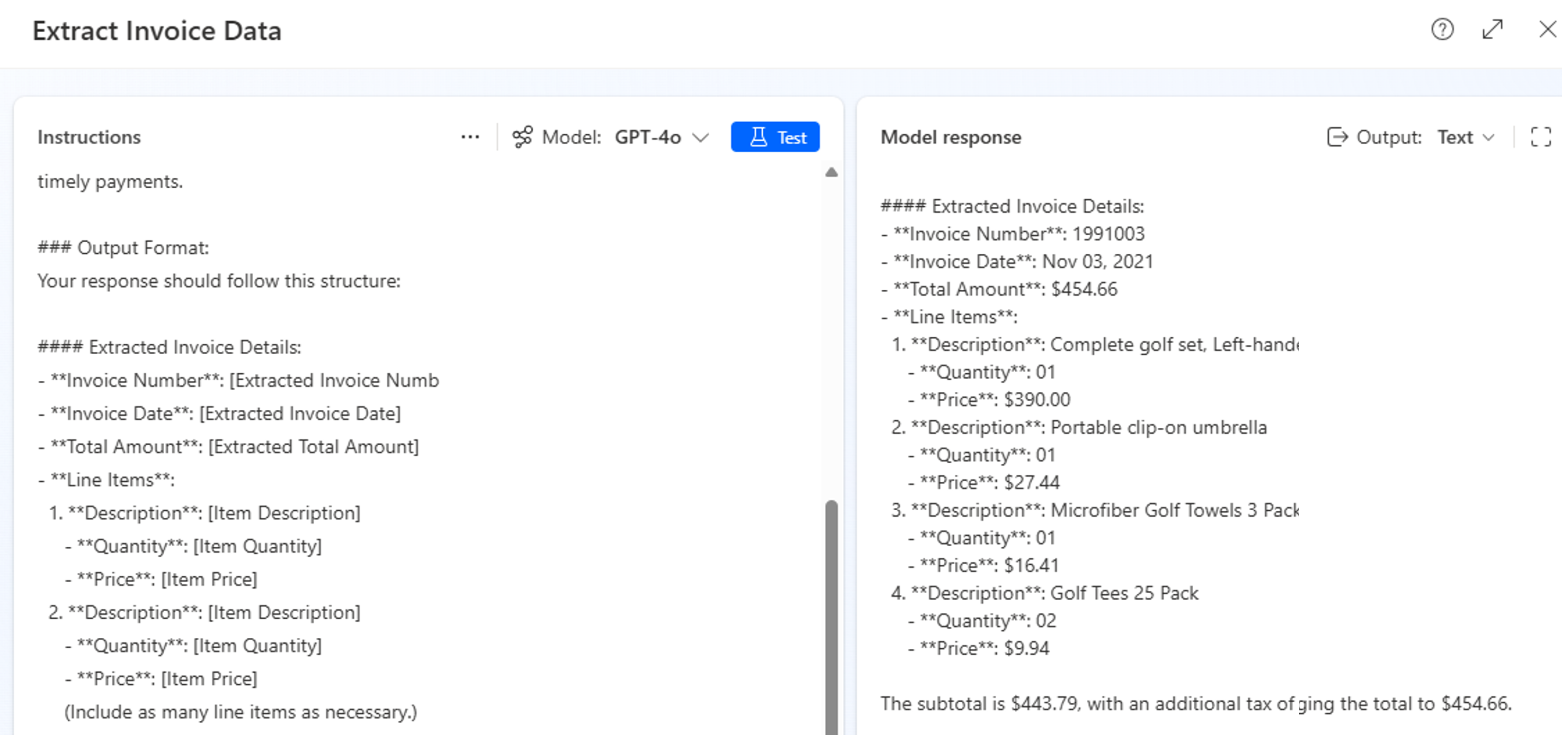
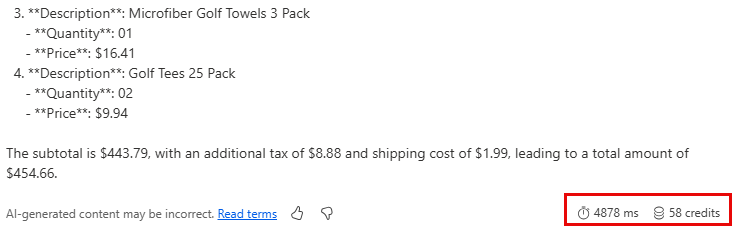
As the image shows, you can specify the LLM that you want to use with your prompt. You can also select Test to see what the extracted information will look like. When you test a prompt, Copilot Studio gives you an estimate of how long the prompt takes to run and the credits that the prompt consumes.
You can use the information from the prompt in later steps.