Explain how Unity Catalog governs Genie answers across surfaces
When a business user asks Genie a question in Microsoft Teams, they're querying production data. Understanding how that access is controlled—and where that control lives—helps all three roles reason about what answers are possible and who can see them.
Note
Consider this scenario: Sofia, the Contoso Bakehouse sales manager, chats with the Databricks app in Microsoft Teams and asks for Q1 franchise sales by country. Before she even finishes typing, a set of rules is already in place that determines exactly what data she can see—and no Genie setting can change them. Those rules come from Unity Catalog.
Unity Catalog as the governance layer
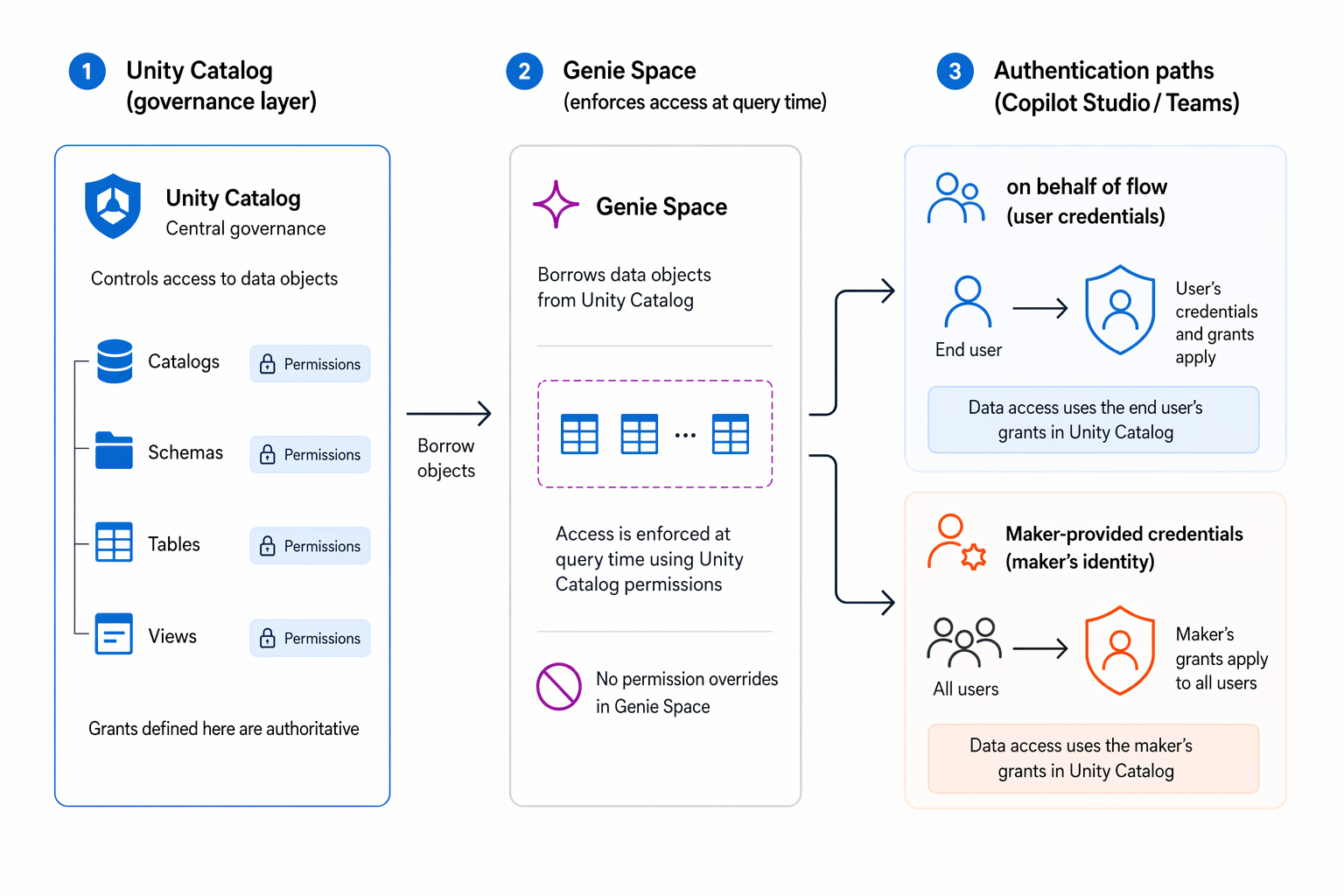
Unity Catalog is the security and governance layer for all data in Azure Databricks. It defines which catalogs, schemas, tables, and views each user or group can access, and at what permission level. Those rules apply uniformly—to notebooks, SQL queries, dashboards, and Genie Spaces.
When a Genie Space is created, it draws its tables from Unity Catalog. The permissions defined there are not copied or replicated into the space. They're enforced at query time, every time a question is asked.
Queries run as the authenticated user
When you ask a question through the Databricks app in Microsoft Teams, the query runs under your identity. Your Microsoft Entra ID credentials authenticate you to Databricks, and Unity Catalog applies your grants to every table the query touches. If you don't have SELECT on a particular table, Genie won't return data from it—even if that table is part of the Genie Space.
This behavior is consistent across every surface: the Databricks app in Microsoft Teams, the Azure Databricks UI, and the Genie mobile app. Same data, same rules, any surface.
No Genie-level permission overrides
There's no Genie Space setting that overrides Unity Catalog. You can't configure a space to give users access to tables they don't already have grants for. The space is bounded by what its users are already authorized to see.
This matters for administrators. When you share a Genie Space with a new user, you're giving them a conversational interface to data they already have permission to query. If they don't have the underlying data grants, they won't get results—even if the share succeeded.
Operational permission checklist before sharing
Before exposing a Genie Space in Microsoft Teams or through Copilot Studio, configure both space-level access and data-level access:
- In the Genie Space UI, assign one of these sharing permissions:
- CAN VIEW: Users can open and chat with the space.
- CAN USE: Users can chat and share the space with other users.
- In Unity Catalog and the workspace, each user who should receive results needs:
SELECTon every table the Genie Space queries.CAN USEon the SQL warehouse assigned to the space.- The consumer access or Databricks SQL entitlement in the workspace.
Grant data permissions at the catalog, schema, or table level based on your governance model. Unity Catalog inheritance applies, so schema-level grants cover all tables in that schema.
Maker-provided credentials in Copilot Studio
The Copilot Studio integration path introduces a governance nuance worth understanding early.
When a maker builds a Copilot Studio agent that connects to a Genie Space, they choose how the agent authenticates to Databricks:
- On-behalf-of (OBO) flow: The user's own credentials are passed through to Databricks. Unity Catalog applies each user's individual grants, exactly as in the direct-access case.
- Maker-provided credentials: All queries run as the maker's identity. Every user of the agent receives data under the maker's Unity Catalog grants, regardless of their own permissions.
Maker-provided credentials can result in users seeing data they're not individually authorized to access. Before choosing this option, confirm that the maker's grants represent the right scope of data for all agent users.