Diagnose performance with Copilot in Azure SQL Database
It's 2:00 AM. The on-call alert fires: CPU on the Contoso production database is pinned at 95% and the application team is reporting timeouts. You open the Azure portal, navigate to the database, and need to know which queries are driving the spike and why. Normally that means stitching together DMV queries, Query Store reports, and wait-statistic snapshots before you even start forming a hypothesis.
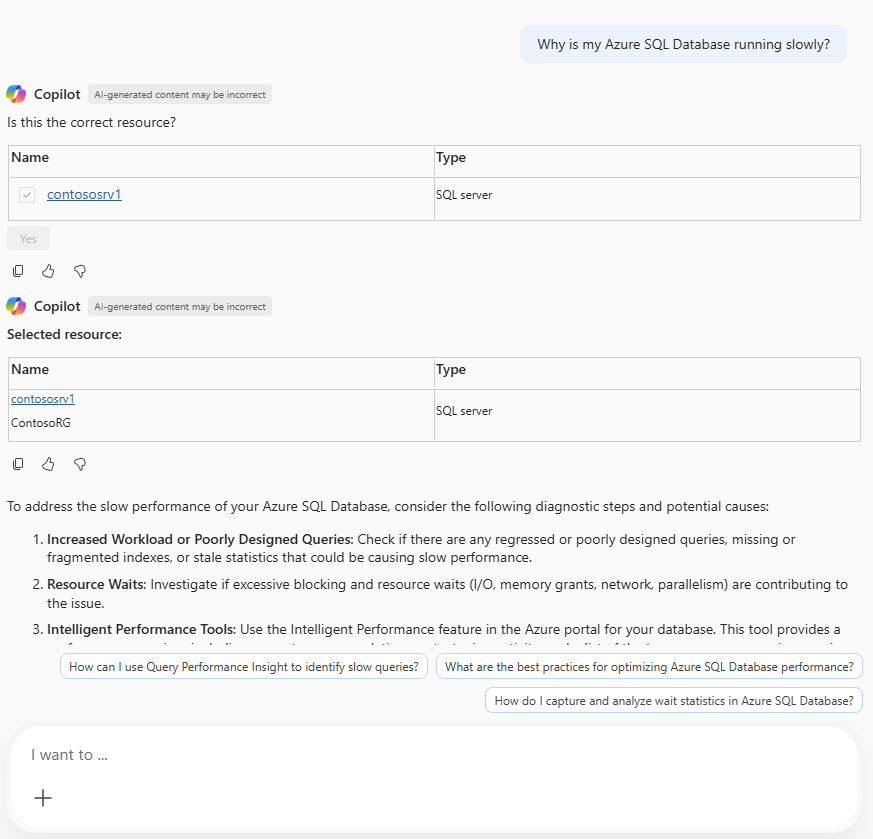
Microsoft Copilot in Azure compresses that first investigation pass into a single natural-language question. When you open the Copilot pane from a database page in the Azure portal, the same Copilot you use elsewhere in the portal now understands the context of the database you have open, so questions and answers are scoped to that resource.
Behind the scenes, Copilot grounds its answers in your database context together with public documentation, dynamic management views (DMVs), catalog views, Query Store, and Azure supportability diagnostics. From those sources, it explains performance behavior, suggests index changes, and interprets query plans in natural language. For a full list of supported capabilities, see Microsoft Copilot in Azure with Azure SQL Database.
Copilot returns analysis and recommendations. You're the one who applies any change to the database, so you stay in control of every action.
Note
This unit applies to Azure SQL Database only. The portal Copilot experience isn't available for Azure SQL Managed Instance or SQL Server. If you work with those engines, you can skip to the next unit and use GitHub Copilot in SSMS instead.
Ask a performance question in natural language
Open the Copilot pane on the Azure SQL Database page in the Azure portal and type or select your question as you would ask a colleague.
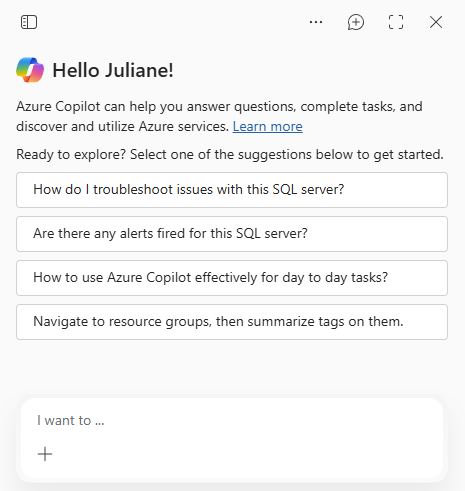
For example, you type: "Why is CPU high on this database right now?"
Copilot cross-references active requests, top resource-consuming queries from Query Store, and wait statistics. It produces a narrative explanation that names the top contributor queries, summarizes their execution plans, and explains why they're expensive, all without you writing a single line of T-SQL to get the first look.
Other questions you'd ask during a typical investigation:
- "What queries are causing the most blocking right now?"
- "Show me the top five queries by CPU in the last hour."
- "Are there any missing index recommendations for this database?"
- "Why did query 1234 regress yesterday at 14:00 UTC?"
Each question returns a focused, readable answer with the relevant query text, wait types, or plan details inline. Copy any query or recommendation into SSMS for deeper analysis.
Combine database watcher with Copilot
Database watcher collects time-series diagnostic data from your Azure SQL databases (CPU, memory, active sessions, blocking chains, wait statistics, and more) and stores it in Azure Data Explorer or a Fabric Real-Time Analytics database. Copilot in Azure SQL Database doesn't read from that store. The two tools complement each other: the watcher dashboard tells you when and where a problem occurred, and Copilot helps you investigate why on the live database.
A typical workflow looks like this:
- You notice a CPU spike in the watcher dashboard at 14:00 UTC yesterday.
- You open the affected database in the Azure portal and ask Copilot a time-scoped question, for example: "What were the top CPU-consuming queries on this database between 13:55 and 14:15 UTC yesterday, and did any of them have a plan change in that window?"
- Copilot answers from Query Store on the live database, naming the candidate queries and any recent plan changes. Use that as your starting hypothesis, then confirm it in Query Store before forcing a plan or making any other change.
Note
Copilot in Azure SQL Database grounds its answers in your database context, public documentation, DMVs, catalog views, Query Store, and Azure supportability diagnostics. It doesn't access your application data or business logic, and it doesn't query the database watcher data store.
Evaluate recommendations before applying them
Before you read the checklist, think back to the 2:00 AM scenario that opened this unit: Copilot just handed you a ranked list of CPU-heavy queries. What does Copilot not know about your database that could make its top recommendation risky to apply as-is? Hold that answer in mind—the following checks confirm whether you reached the same conclusions.
Every Copilot recommendation should pass your standard validation gate before you act on it. Work through these checks:
- Does the suggested index already exist? SQL Server may have an equivalent index under a different name. Query
sys.indexesandsys.index_columnsto confirm. - Is the missing index estimate realistic? The missing index DMVs report estimated improvement, not guaranteed improvement. Verify the recommendation against your actual workload mix, not just the single query Copilot identified.
- Does the T-SQL follow your naming and schema conventions? Copilot generates syntactically correct T-SQL, but it doesn't know your team's naming standards or schema ownership model.
- Does applying this require a maintenance window? Online index operations have lower risk, but large index builds still consume I/O and temporary space. Check your capacity before you start.
- Is the plan regression cause confirmed? For plan regression scenarios, confirm the forced plan in a nonproduction environment before forcing it in production.
Copilot sees a snapshot in time. You know the historical pattern, including seasonal load, batch job schedules, and recent schema changes. Combine both perspectives before applying any changes.
In the next unit, you move from the portal into the query editor. GitHub Copilot in SSMS and VS Code continues the acceleration, this time on the T-SQL you write directly.