Write T-SQL with GitHub Copilot in SSMS
An alert says the Contoso application is timing out, and you suspect a blocking chain. You need the T-SQL that identifies which sessions are blocking others—including the wait type and the exact statement each one is stuck on—and you need it before the next deployment window closes. You've diagnosed this before, so somewhere in your scripts folder is a query that does most of the job. But finding it, then adapting it to capture the statement text, takes longer than you'd like under pressure. This is where GitHub Copilot earns its place in the query editor.
As a DBA on the Contoso platform team, most of that T-SQL work happens in two places: SQL Server Management Studio (SSMS) for administrative scripting against production, and Visual Studio Code with the MSSQL extension for code-first work that lives in source control. GitHub Copilot integrates with both, and the setup and capabilities differ in each.
Set up GitHub Copilot for SQL Server tools
Before you can use Copilot to write T-SQL queries, you need to install the tooling and sign in to a GitHub account that has an active GitHub Copilot subscription.
SQL Server Management Studio
Start by installing the latest version of SSMS. Once that's done, open the Visual Studio Installer and add the AI Assistance workload to your SSMS installation.
The AI Assistance workload brings three Copilot capabilities into SSMS: inline ghost-text completions in the query editor, a chat window scoped to the database connected in the active tab, and slash commands like /explain and /fix that act on selected T-SQL. Each capability uses your active connection, so suggestions reference your real tables, columns, and indexes—not generic samples.
To unlock those capabilities, launch SSMS and, in the upper-right corner of the window, select the GitHub Copilot badge to sign in.
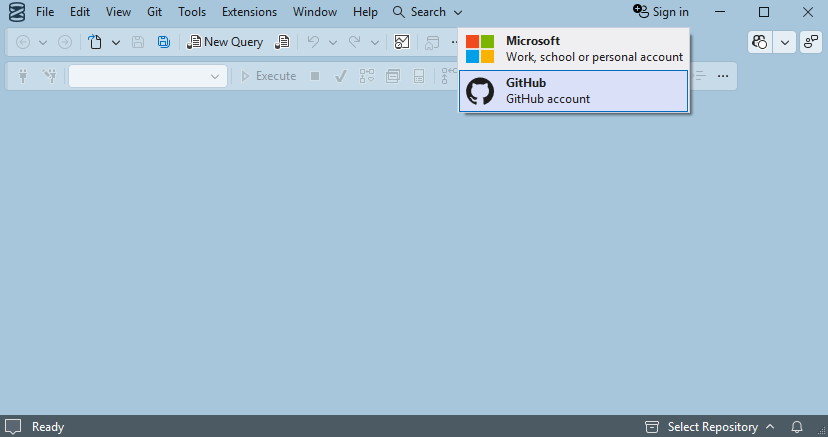
With sign-in complete and inline suggestions turned on, SSMS is ready to draft T-SQL alongside you in the query editor.
MSSQL extension for Visual Studio Code
The MSSQL extension pairs with the GitHub Copilot and Copilot Chat extensions to bring three Copilot capabilities into Visual Studio Code: inline ghost-text completions in .sql files, the @mssql chat participant that issues schema-aware suggestions against a connected database, and a Chat with this database action that scopes a chat session to a specific connection. Unlike SSMS, inline completions here don't read your schema—only the @mssql participant does—so reach for chat when you need suggestions that reference your real tables and columns.
Start by installing the SQL Server (mssql) extension from the Visual Studio Code Marketplace. Once that's done, open the Extensions view and install both the GitHub Copilot and GitHub Copilot Chat extensions. Then sign in by running GitHub Copilot: Sign in from the command palette, or by selecting the GitHub Copilot icon in the status bar.
Finally, open the Connections view, connect to your Azure SQL Database, right-click the database, and select Chat with this database to start a schema-aware chat session with the @mssql chat participant.
Understand schema awareness
Schema awareness behaves differently in each tool. In SSMS, code completions use the schema of the database connected in the active editor. In the MSSQL extension for Visual Studio Code, inline ghost text completions don't see your schema. For schema-aware suggestions that reference your actual tables and columns, address the @mssql chat participant in chat.
Note
GitHub Copilot requires a subscription (Individual, Business, or Enterprise). Many organizations include it in their developer tooling license.
Write DBA queries with inline completion
Inline completion is the fastest way to get a working query. You type a plain-English comment describing what you want, press Enter, and Copilot renders ghost text, a dimmed suggestion inline in the editor. Press Tab to accept.
The examples that follow show SSMS, where completions reference the schema of the connected database. In the MSSQL extension for Visual Studio Code, use the @mssql chat participant to get the same schema awareness.
Blocking investigation
Imagine a scenario where you receive an alert: the application team is reporting timeouts. You want to identify sessions that block others, along with the wait type and the exact statement each one blocks.
-- Find sessions currently blocking other sessions, with wait type and blocking chain depth

-- GitHub Copilot suggests:
SELECT
    r.session_id,
    r.blocking_session_id,
    r.wait_type,
    r.wait_time / 1000.0      AS wait_seconds,
    r.status,
    SUBSTRING(st.text, (r.statement_start_offset / 2) + 1,
        ((CASE r.statement_end_offset
              WHEN -1 THEN DATALENGTH(st.text)
              ELSE r.statement_end_offset
          END - r.statement_start_offset) / 2) + 1) AS current_statement
FROM sys.dm_exec_requests     AS r
CROSS APPLY sys.dm_exec_sql_text(r.sql_handle) AS st
WHERE r.blocking_session_id > 0
ORDER BY r.wait_time DESC;
You typed the comment; Copilot produced the full sys.dm_exec_requests and sys.dm_exec_sql_text join, including the statement-text extraction logic. The gray ghost text appeared; you pressed Tab.
Missing index scan
Before a maintenance window, you want to surface the index recommendations the query optimizer has accumulated for the current database and rank them by estimated impact.
-- List top missing index recommendations for the current database, ordered by estimated impact

-- GitHub Copilot suggests:
SELECT TOP 20
    mid.statement                     AS table_name,
    mig.equality_columns,
    mig.inequality_columns,
    mig.included_columns,
    ROUND(migs.avg_total_user_cost * migs.avg_user_impact
          * (migs.user_seeks + migs.user_scans), 0) AS estimated_impact
FROM sys.dm_db_missing_index_groups        AS mig
JOIN sys.dm_db_missing_index_group_stats   AS migs ON mig.index_group_handle = migs.group_handle
JOIN sys.dm_db_missing_index_details       AS mid  ON mig.index_handle = mid.index_handle
ORDER BY estimated_impact DESC;
The three-DMV join and the impact formula are easy to get wrong by hand. Copilot produces the correct join keys and the impact calculation in a single tab keystroke.
Generate procedures from natural-language comments
Copilot isn't limited to one-off queries. You can describe a stored procedure in a multi-line comment and let Copilot generate the full CREATE OR ALTER PROCEDURE block.
Before you read the result, predict two things: which DMV should Copilot use to measure fragmentation across every user table, and how should it keep tiny indexes from skewing the numbers? Compare your prediction to the generated procedure.
-- Create a stored procedure that checks index fragmentation for all user tables
-- in the current database, returning tables with fragmentation above a threshold
-- Parameters: @FragmentationThreshold FLOAT = 30.0

-- GitHub Copilot generates:
CREATE OR ALTER PROCEDURE dbo.usp_CheckIndexFragmentation
    @FragmentationThreshold FLOAT = 30.0
AS
BEGIN
    SET NOCOUNT ON;
    SELECT
        OBJECT_SCHEMA_NAME(ips.object_id)   AS schema_name,
        OBJECT_NAME(ips.object_id)          AS table_name,
        i.name                              AS index_name,
        ips.avg_fragmentation_in_percent,
        ips.page_count
    FROM sys.dm_db_index_physical_stats(DB_ID(), NULL, NULL, NULL, 'LIMITED') AS ips
    JOIN sys.indexes AS i ON ips.object_id = i.object_id
                          AND ips.index_id = i.index_id
    WHERE ips.avg_fragmentation_in_percent >= @FragmentationThreshold
      AND ips.page_count > 1000
      AND i.type_desc IN ('CLUSTERED', 'NONCLUSTERED')
    ORDER BY ips.avg_fragmentation_in_percent DESC;
END;
From a three-line natural-language comment, Copilot produced a production-ready fragmentation check procedure. It used the correct DMV (sys.dm_db_index_physical_stats in LIMITED mode for performance), filtered out small indexes by page_count, and scoped results to clustered and nonclustered indexes only. You review the logic, verify the parameter default, and commit it to source control.
Optimize, explain, and fix T-SQL
Inline completion is great when you know what you want to write. But many DBA work isn't about writing new queries—it's about making sense of queries that already exist, figuring out why they're slow, or untangling a procedure someone else wrote years ago. That's where Copilot chat comes in.
You open chat differently depending on the tool. In SSMS, select the GitHub Copilot badge in the upper-right corner of the window to open the chat pane. In Visual Studio Code, open the Chat view and address the @mssql chat participant so your question runs against the connected database. From either surface, the pattern is the same: select the query you want to work with, then ask Copilot a question in plain English.
Three scenarios come up again and again.
Optimize a slow query
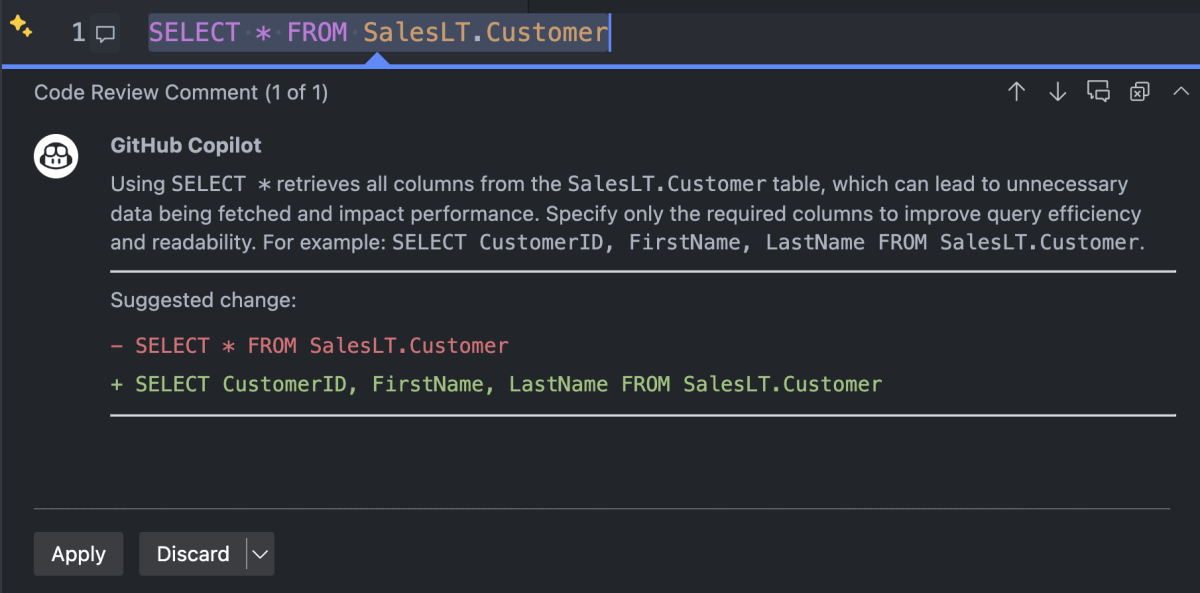
Imagine a report that used to run in seconds now takes minutes. You select the query and ask Copilot, "Why is this query slow and how can I improve it?"
Copilot reads the T-SQL and walks you through what it sees. Depending on the query, the suggestions might include:
- Adding a covering index on a column that's filtered often.
- Rewriting a
LEFT JOINthat theWHEREpredicate quietly turns into an inner join. - Applying
OPTION (RECOMPILE)to address parameter sniffing on a procedure where the data distribution is uneven.
One important caveat: Copilot reasons about the query text, not about what's actually happening at runtime. It can't see your execution plan, your statistics, or how much data each branch returns. Treat its suggestions as a starting point, then validate against the real execution plan before you change anything in production.
Explain an unfamiliar query
Sooner or later, you inherit a stored procedure someone else wrote: five joins, a CROSS APPLY, and a few nested subqueries, with no comments explaining what it does. Before you can safely change it, you have to work out what it returns and why.
Paste the query into chat and ask, "Explain this query in plain English." Copilot walks through each join, each subquery, and each CROSS APPLY, then describes what the result set represents. It's a fast way to get oriented—and a useful first draft of the documentation you wish had been there in the first place.
Fix a runtime error
When a query or stored procedure fails, paste both the error message and the offending code into chat. For an error like Conversion failed when converting the varchar value to data type int, Copilot points to the column where the implicit conversion happens, explains why it prevents an index seek, and suggests an explicit CAST that resolves it.
The combination of error message and code matters. The error alone tells Copilot what went wrong; the code shows it where. Together, you get a targeted fix instead of a generic suggestion.
Apply Copilot best practices for DBA work
Copilot quality scales with how precisely you describe your intent. The following practices consistently produce better results for DBA workloads.
| Practice | DBA example |
|---|---|
| Write descriptive comments | "Check redo queue size on all readable secondaries for the ContosoAG availability group" produces better results than "check AG". |
| Use your real schema names | When connected to your database, Copilot knows your actual table and column names. Reference them directly in comments. |
| Break complex scripts into steps | For a multi-phase maintenance script, write one comment per phase rather than one large block comment. |
| Review every suggestion | Always verify that suggested permissions are least-privilege. Copilot may suggest db_owner when db_datareader is sufficient. |
| Iterate if the first suggestion misses | Rephrase with scope: "for user databases only, excluding system databases" often sharpens DMV queries. |
| Validate in non-production first | Test any index creation or schema change that Copilot suggests in a nonproduction environment before you apply it to production. |
Copilot accelerates the authoring of DBA queries and procedures, but you own the review. The tool removes the friction of constructing complex DMV joins and msdb procedure calls, but your judgment about correctness, security, and impact doesn't change.
Copilot's usefulness extends beyond T-SQL. In the next unit, you use the same inline completion and chat capabilities to generate the Bicep templates, PowerShell scripts, and Azure CLI commands that form the other half of a DBA's daily work.