Create a Power Automate flow from scratch
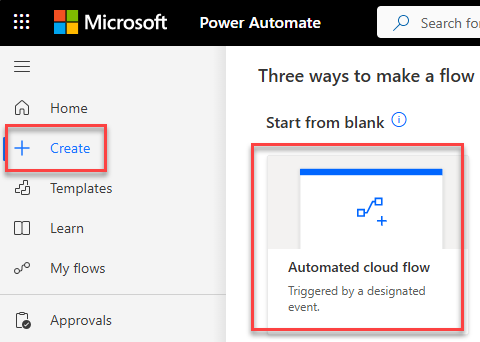
Sign in to Power Automate to get started with Power Automate. Select Create in the menu on the left and select the Automated cloud flow tile to create a new flow from scratch.
Specify an event to start the flow
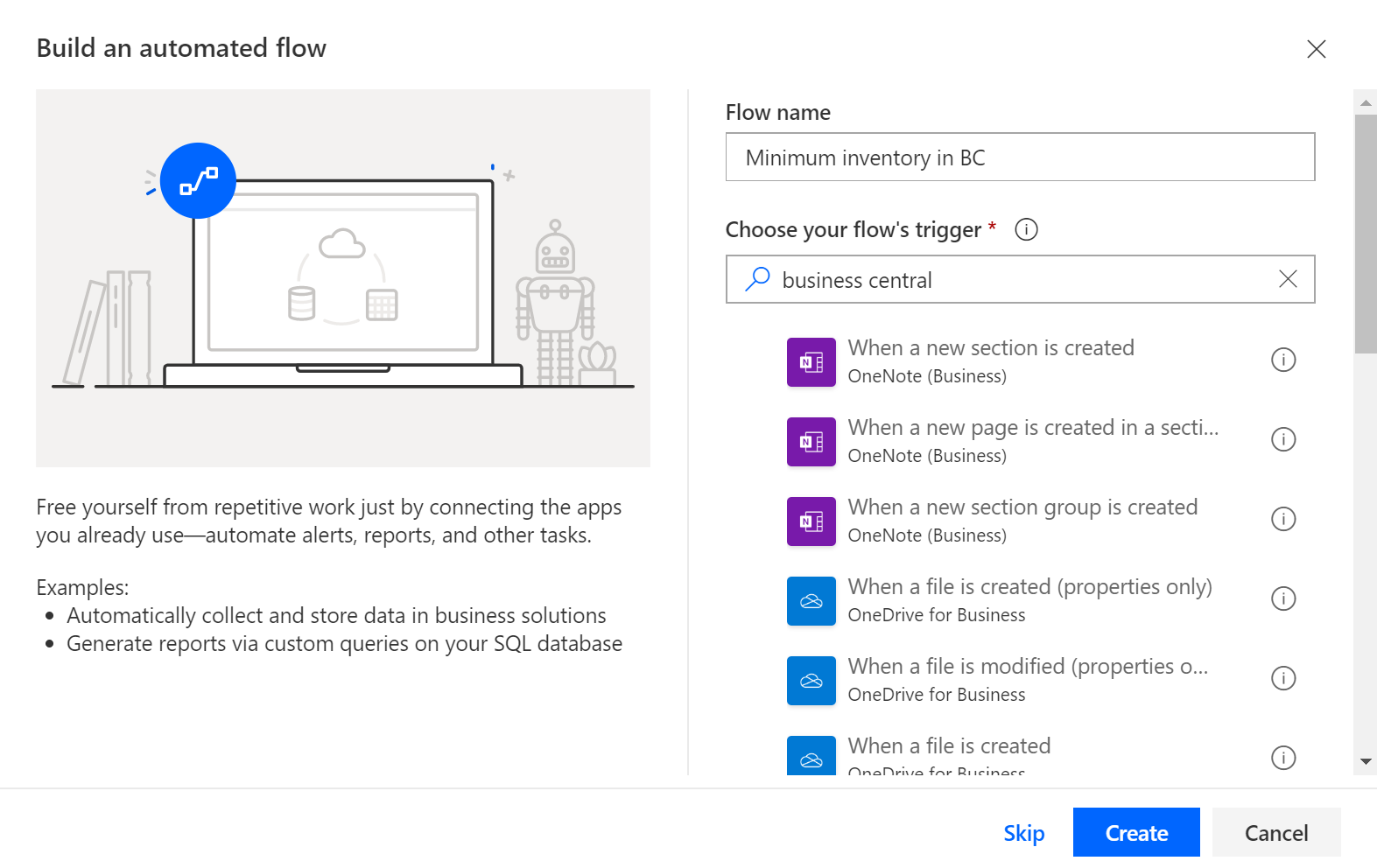
In this example, we create a flow that sends an email if the inventory for a specific item goes below a certain quantity. First, enter the Flow name and then find the Business Central trigger in the Choose your flow's trigger field. Select the trigger and then select Create.
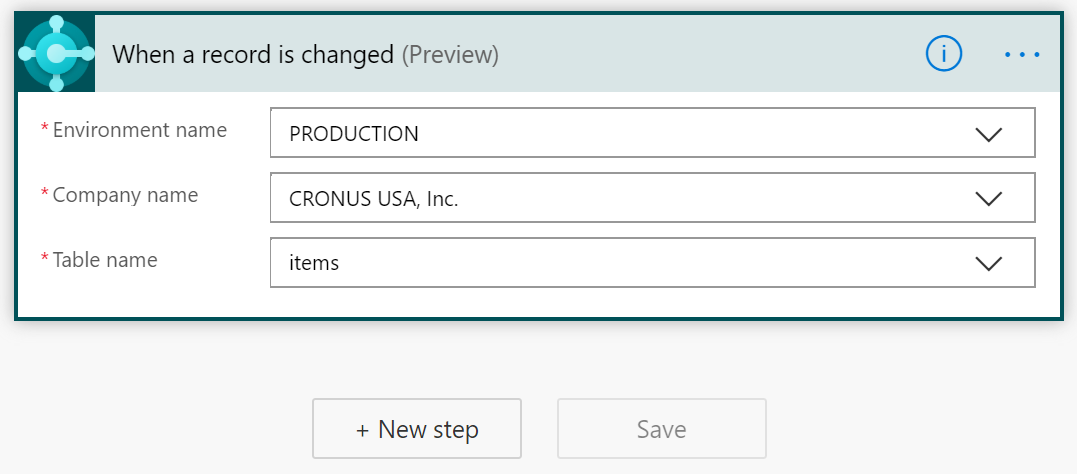
The system creates a new trigger as a first step when you create a flow. The Environment name is by default populated with the value PRODUCTION, but you can change it to SANDBOX (if you have a sandbox environment in Business Central). Next, you need to select the Company name and the Table name that the trigger monitors.
Specify an action
To continue with adding an action, click the +New step command. Watch the following demonstration on how to create an action in Power Automate.