Introduction
This module prepares you for analyzing a process using the Microsoft Power Automate process mining capabilities. You can get started from the Power Automate portal by selecting the Process mining option on the left navigation. From the landing page, you can create a new process, start from a blank process, or use sample data or a template.
Trying out process mining with sample data is the quickest way to experience the process mining tools. Two sample data templates are available for you to choose from: a finance process or a supply chain process. In both cases, when you select this option, the system ingests the sample data into your environment. Then, you can start analyzing the data.

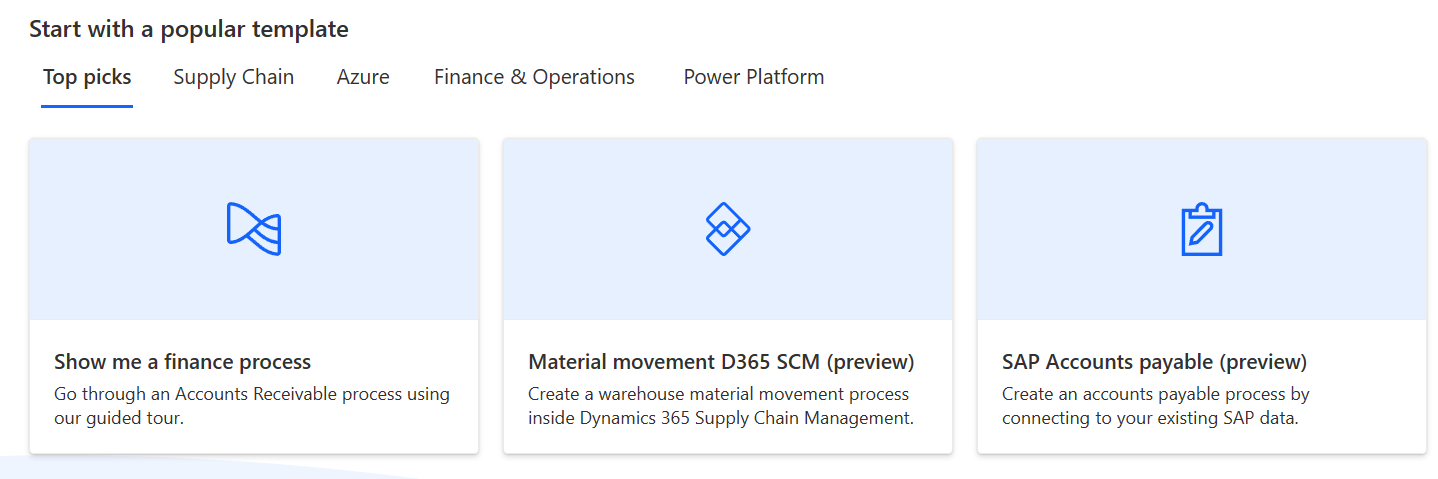
Start with a template
Using the templates is the fastest way to get started with your own data. The templates help make it easier for organizations to introduce their data to mine processes and gain insights with only a few selections. Take a minute to review the different templates that are available on the Power Automate portal. For example, the Microsoft Power Platform templates eliminate the need for you to identify and manipulate data before analyzing your process. In addition to helping speed ingestion of event log data, templates include insights that help you identify automation opportunities and address performance and compliance issues.
Start from blank
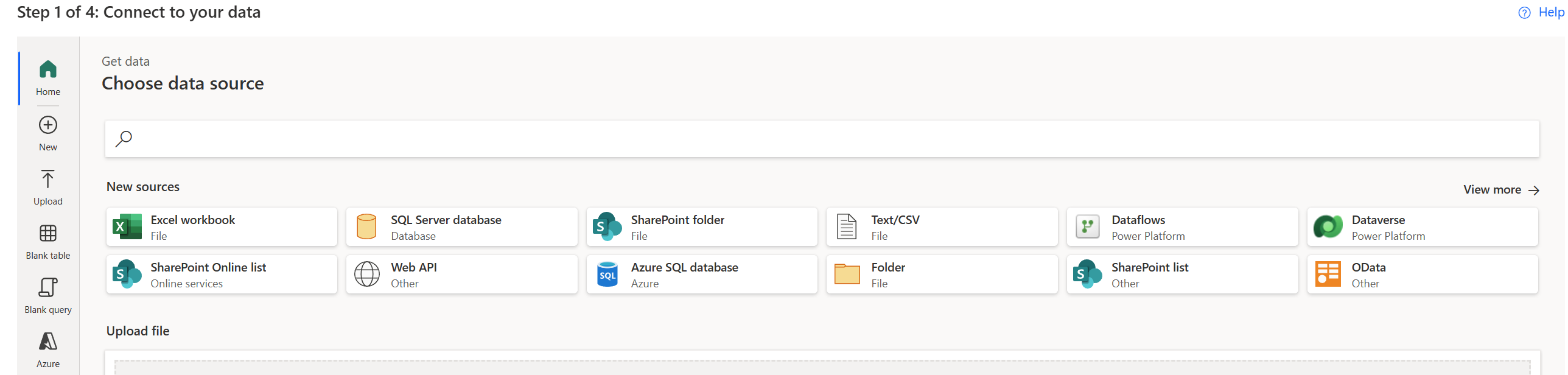
The Start from blank option provides the most flexibility, where you can ingest your event log data using Microsoft Power Platform Dataflows or Microsoft Azure Data Lake Storage.
When using the Dataflows option, you have the benefit of connecting to a database directly and keeping the process report up to date with the latest data from the data source. Power Query supports a large variety of connectors that provide a way for the process mining capability to connect and import data from the corresponding data source.
When you select the Azure Data Lake option, you can store and read event log data directly from Azure Data Lake Storage Gen2. Using this option simplifies extract, transform, and load (ETL) management by connecting directly to your storage account. You can refresh a process that's ingested from Azure Data Lake on a schedule by using a full or incremental refresh.
Process mining data requirements
For process mining to analyze a process, you must get log data from your application. For process mining to analyze the event log, the following fields are necessary:
Case ID (caseId when mapping) - Case ID should represent an instance of your process and is often the object that the process acts on. It can be a patient ID for an inpatient check-in process, an order ID for an order submission process, or a request ID for an approval process. This ID must be present for all activities in the log.
Activity Name (activityName when mapping) - Activities are the steps of your process, and activity names describe each step. In a typical approval process, the activity names might be submit request, request approved, request rejected, and revise request.
Start Timestamp (startTimestamp) and End Timestamp (endTimestamp) - Timestamps indicate the exact time that an event or activity took place. Event logs have only one timestamp. This field indicates the time that an event or activity occurs in the system. Activity logs have two timestamps: a start timestamp and an end timestamp. These timestamps indicate the start and end of each event or activity.
In addition to these core fields, we recommend that you use extra case and event fields. You can use these extra fields in the process analysis later. It's also important to ensure that you include all event data points in a process rather than only the end state.