Project sharing and data refresh
Project sharing
You can share the processes that you create with your colleagues. Additionally, you can specify whether you want them to only view the process and analytical data or if you want to grant them permission to make changes. You can share your processes with your colleagues as viewers or co-owners, depending on your preferences.
Viewer - Can view the process and all analytical data.
Co-owner - Can do everything except change the data.
To share your process, select the Details button or select the process name from the breadcrumbs.
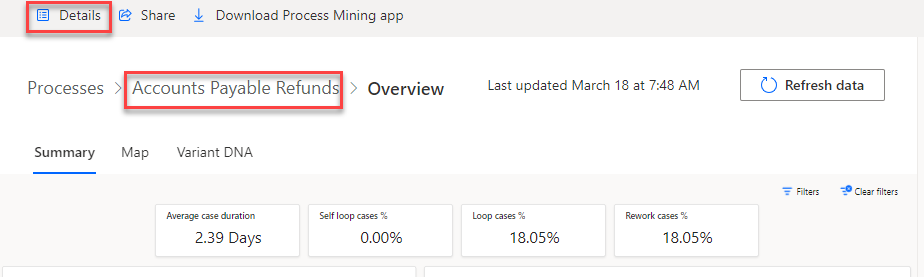
From the Details view, select the Manage button located in the Shared with pane.

After selecting the user you want to share the process with, you can select whether you want to share the process with the user as viewer or as co-owner. Viewer is the default selected option.
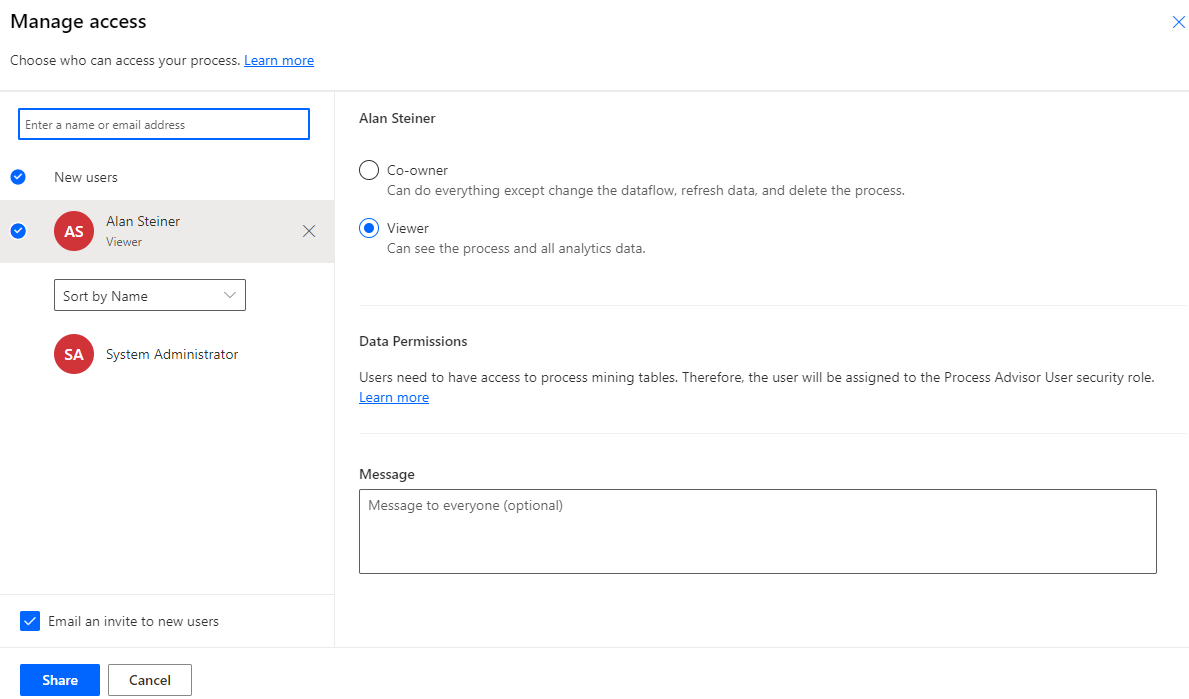
When you share a process with a user, the system automatically assigns them to the Process Mining User security role. If the user isn't already a member of the environment, the system automatically adds them to the environment.
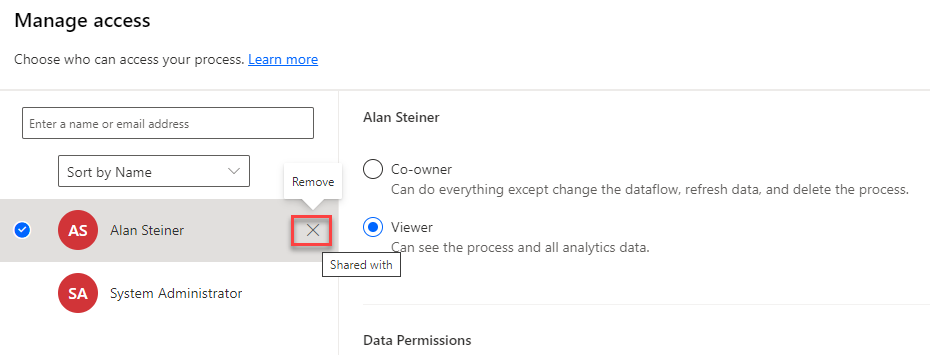
If you decide to stop sharing the process with a user, you can remove them. However, if you want to remove them entirely from the environment and the Process Mining User security role, you need to do so manually.
Data refresh
You can update your report with the latest data from your data source by selecting the Refresh data button. Refreshing the data is a resource-intensive process and might take a few minutes, or longer depending on the amount and complexity of your data source.

Additionally, you can set up an automatic data refresh according to your preferences. You can choose the frequency, whether it's a certain number of times each day, every week, or every month, to ensure your reports stay updated without manual intervention.
To schedule an automatic data refresh, select the Refresh settings button on the Data Source pane.
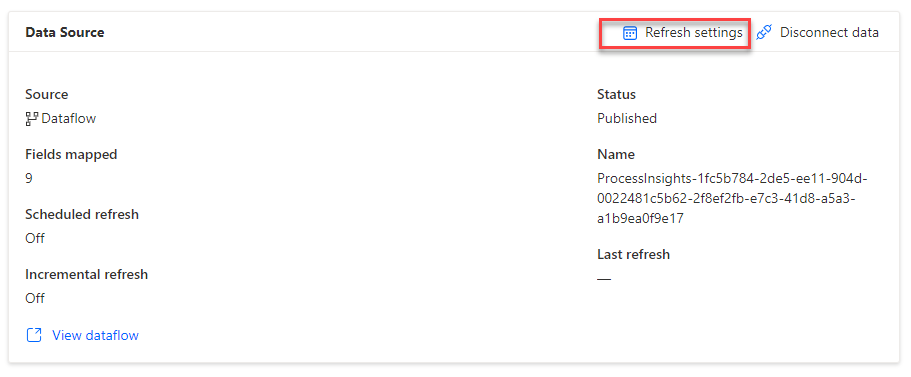
On the Schedule refresh pane, start by turning on the Keep data up to date option. Then, you can specify your preferred frequency and when the data refresh process should start.
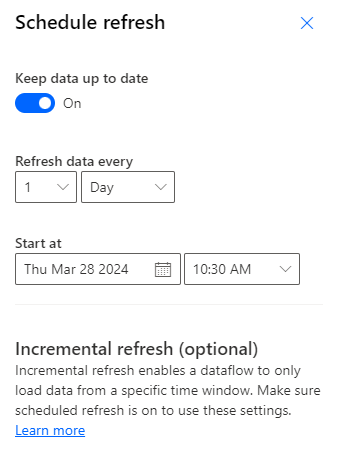
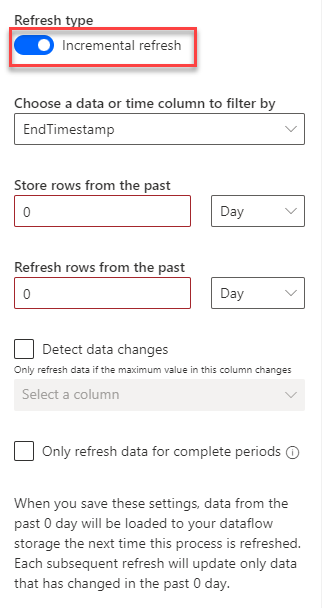
By default, the data refresh type is set to full refresh. However, you can change it to incremental, which offers several benefits, including:
Refresh occurs faster - Only data that's changed needs to be refreshed. For example, refresh only the last five days of a multiple-year dataflow.
Refresh is more reliable - For example, it's not necessary to maintain long-running connections to volatile source systems.
Resource consumption is reduced - Less data to refresh reduces overall consumption of memory and other resources.