Set up coupling criteria
To set up coupling criteria, follow these steps:
In Microsoft Dataverse, you can view the list of available tables. To find the Product table, enter Product in the Search field.
In the Product table, navigate to Product columns and data.
If you don't see all the columns, select the option Show existing column, select the column and select Save.
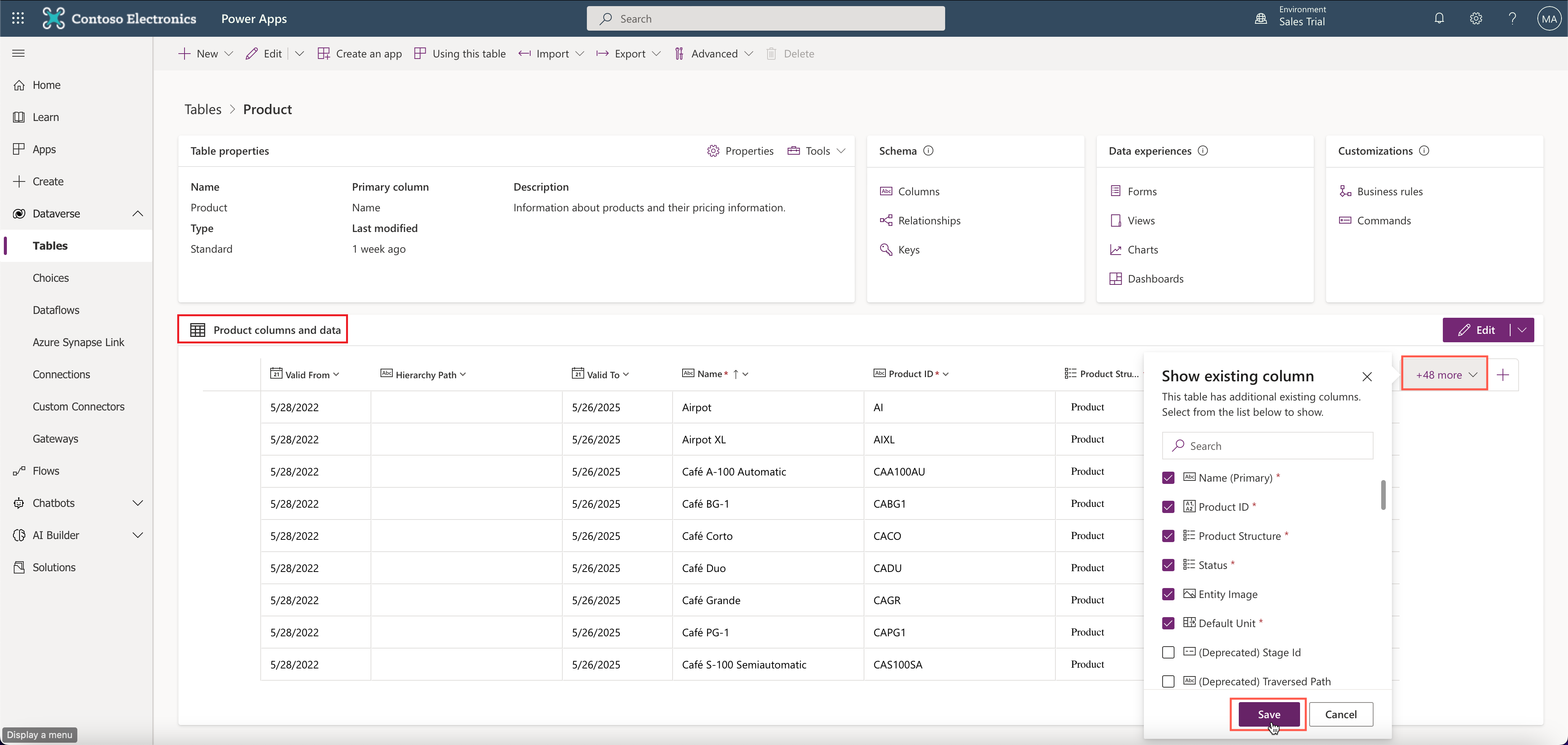
If you compare the data in the Dataverse Product table, which Dynamics 365 Sales uses and the data from the Item table in Dynamics 365 Business Central, you'll see that they contain different data.
Data for items from Dynamics 365 Business Central in Dataverse won't be visible because synchronization isn't turned on.
Before enabling synchronization, you'll need to check whether other related data structures need to be synced. In the case of Products-Items, the related table that you need to sync is the Unit of Measure table.
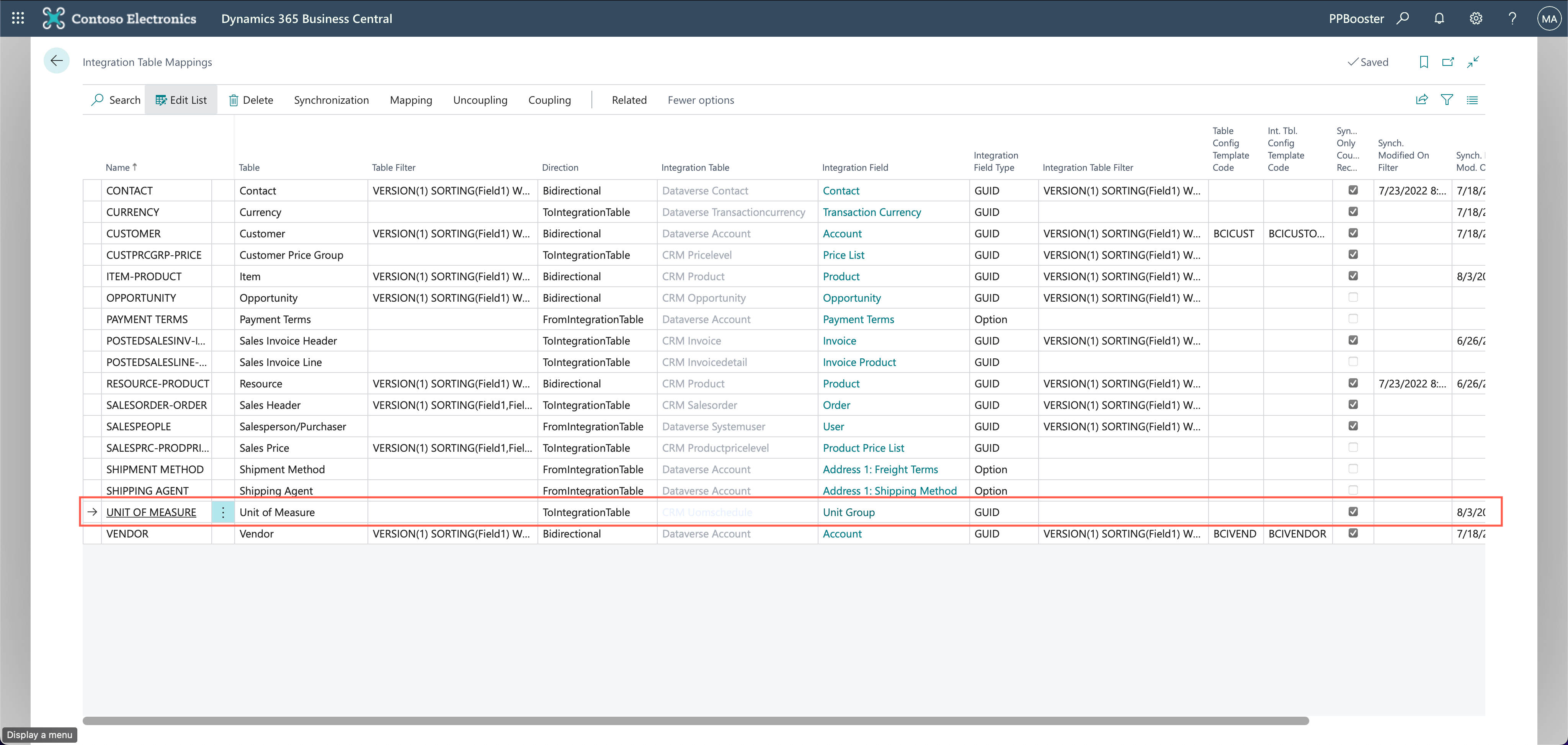
If you try to run the synchronization of the Item table without syncing the Unit of Measure table, the synchronization job won't run and will show an error. The item card will also show a similar notification.
To enable synchronization, make sure that you select the Set Up Coupling option first.
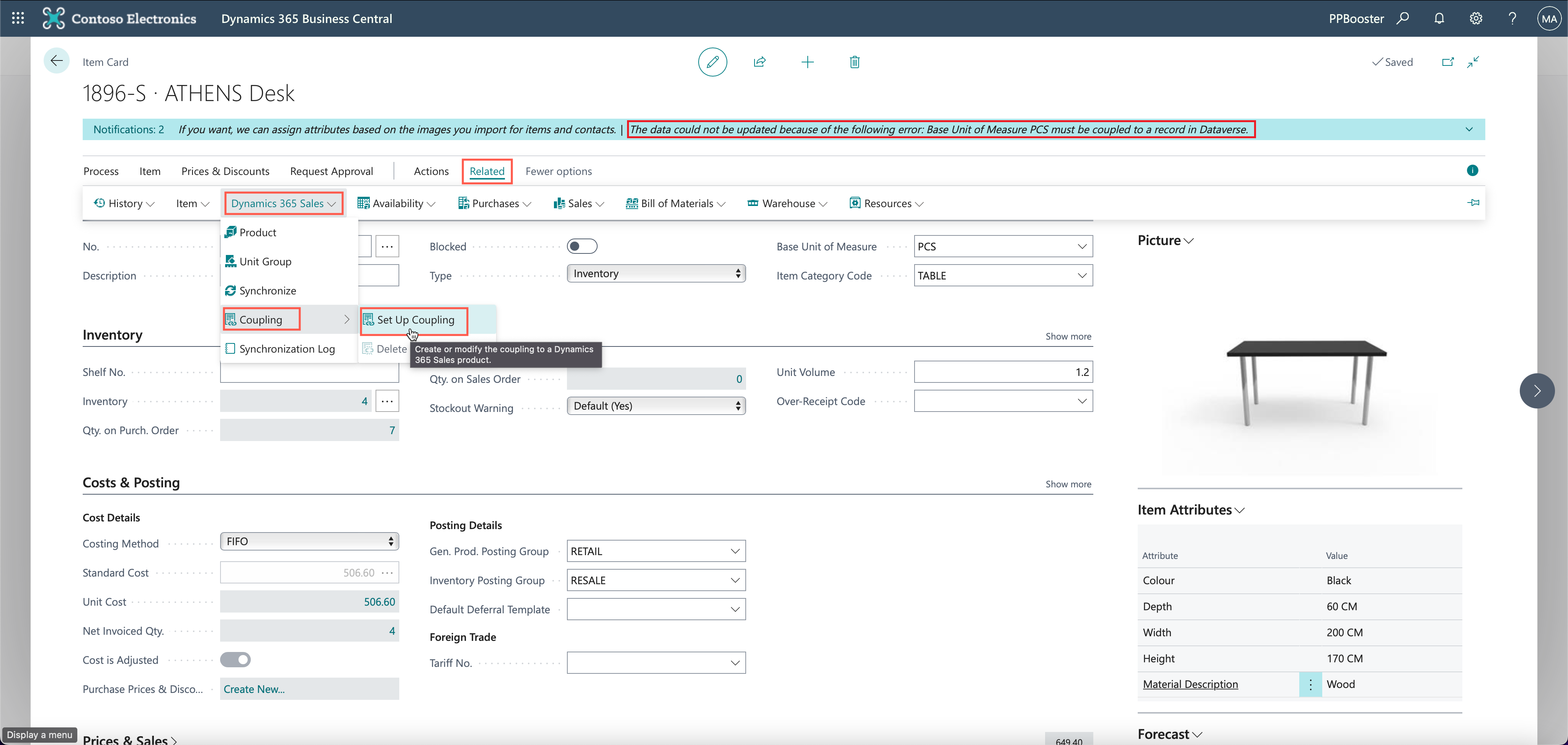
On the Dataverse Coupling Record (for item 1896-S) page in Business Central, activate the Create New option (a new record in Dataverse is automatically created and coupled to the related record in Business Central), and then select OK.
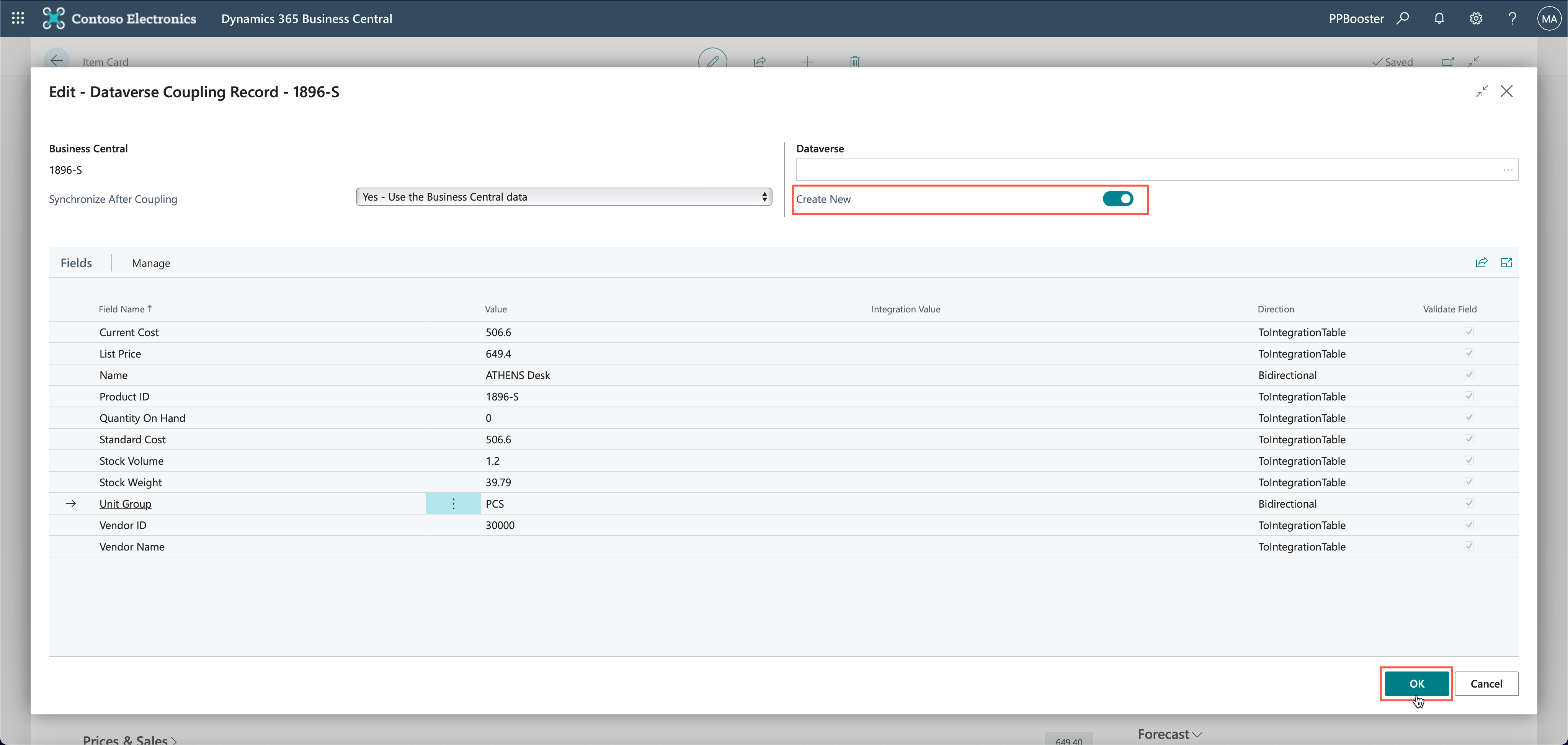
On the Integration Table Mappings page, run a full synchronization for Item-Product.
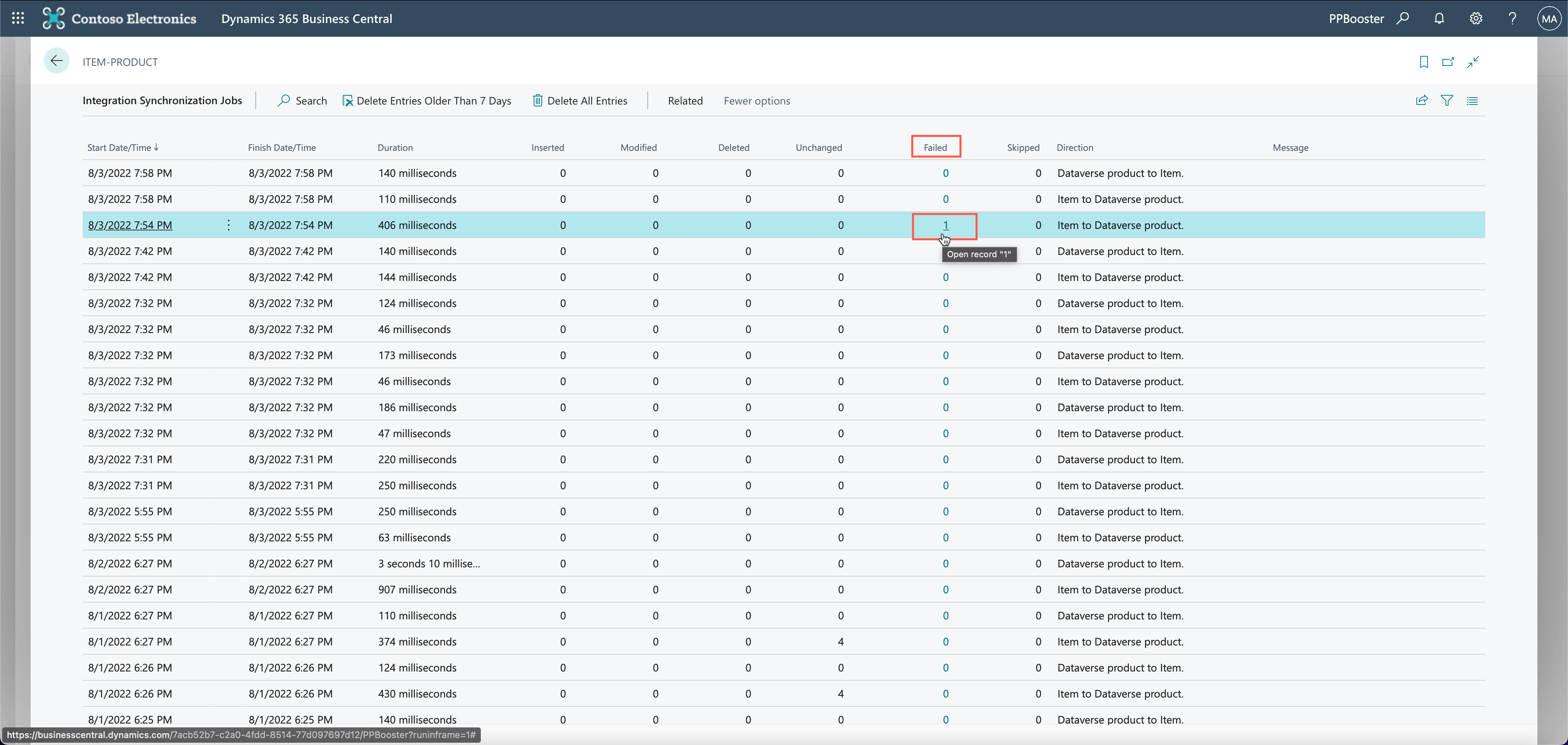
The Integration Synch. Job Log shows the list of logs and failed entries.
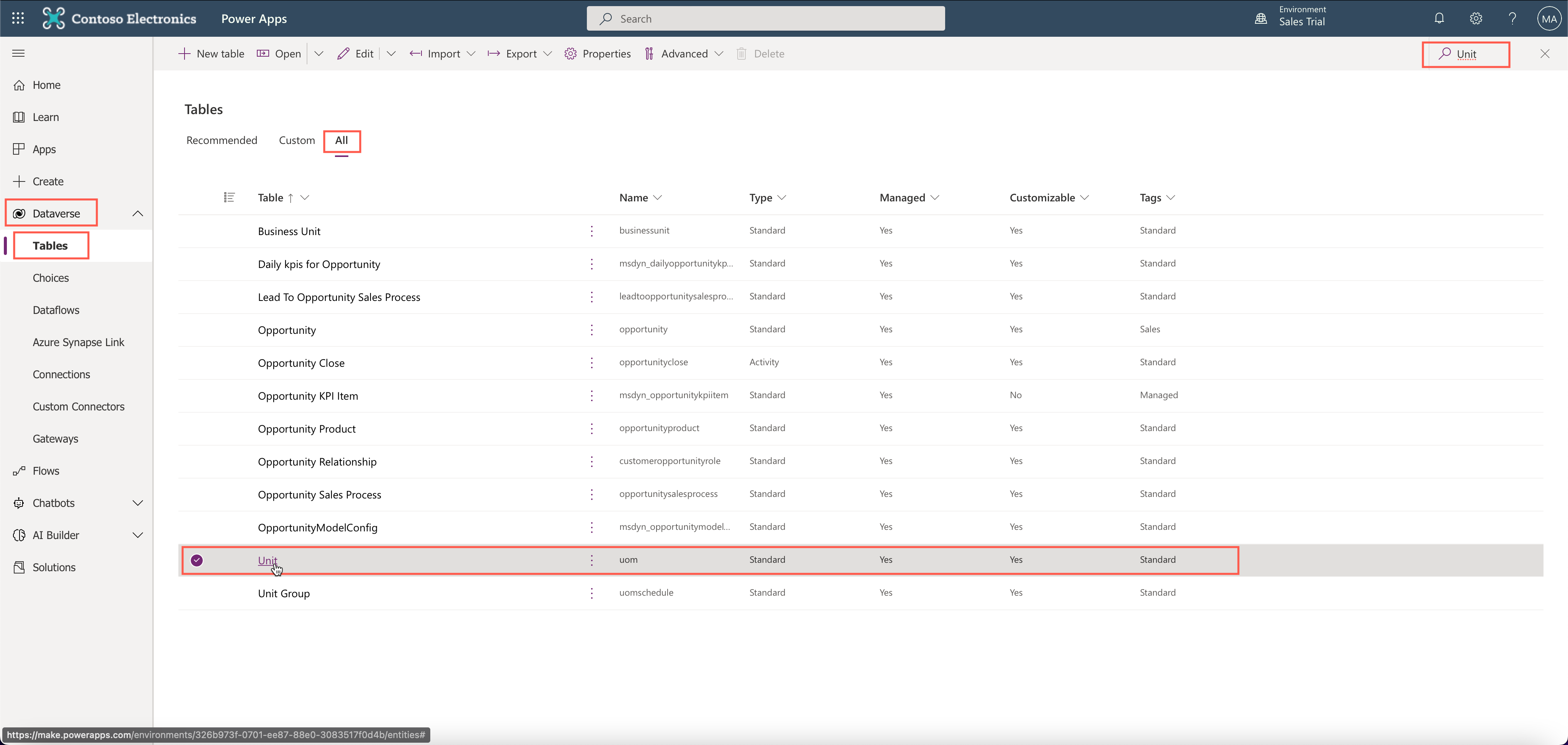
Comparing the data in the Dataverse table for Unit and the data from the Unit of Measure table in Dynamics 365 Business Central shows that contain different data.
To enable synchronization, you must first set up coupling to Dynamics 365 Sales for the unit of measure.
On the Unit of Measure table, you must go to the Related tab, and then select and expand the Dynamics 365 Sales tab, and from there, choose Set Up Coupling.
On the Dataverse Coupling Record - PCS page in Business Central, activate the Create New option (a new record in Dataverse is automatically created and coupled to the related record in Business Central), and then select OK.
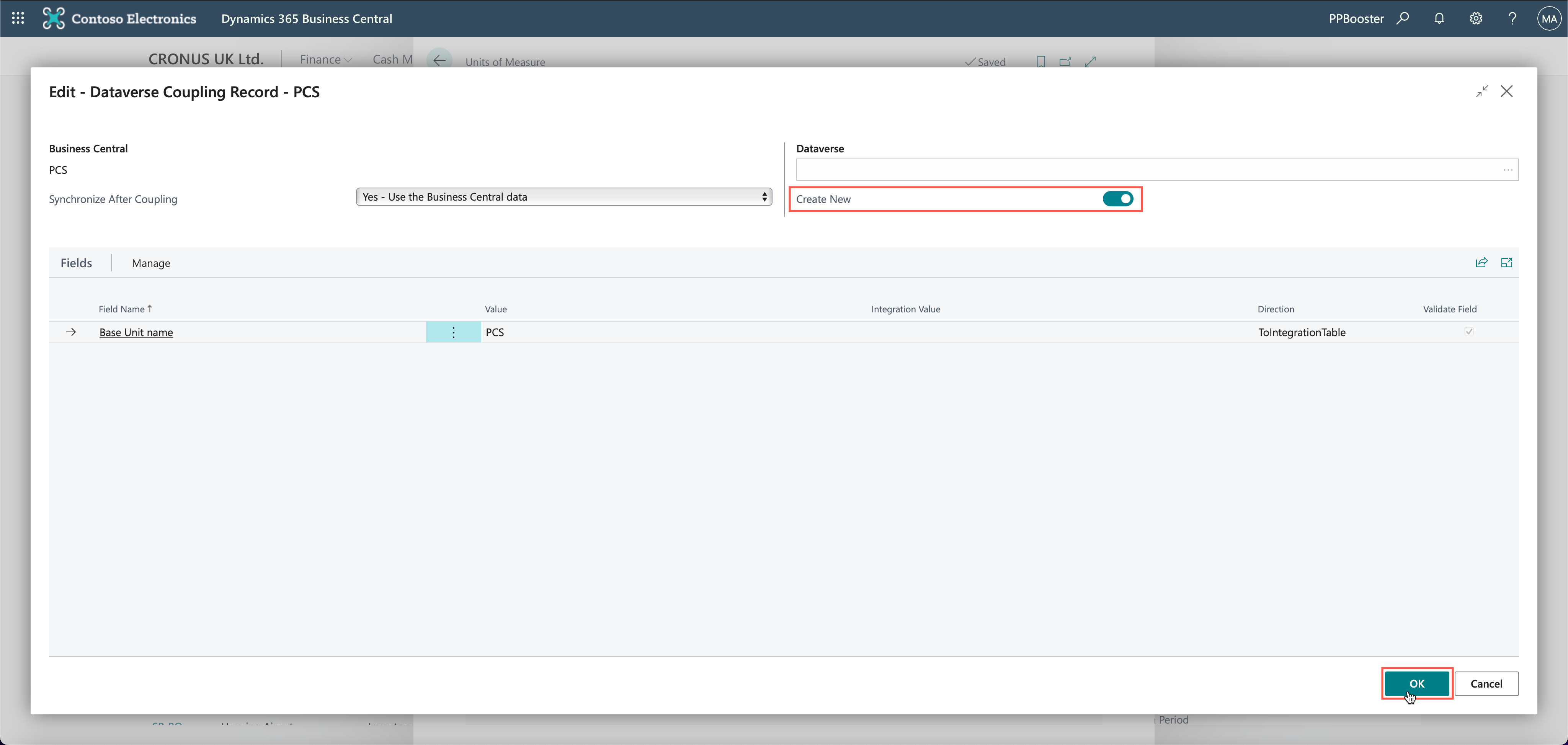
Repeat the previous process for the other units of measure (BOX, CAN).
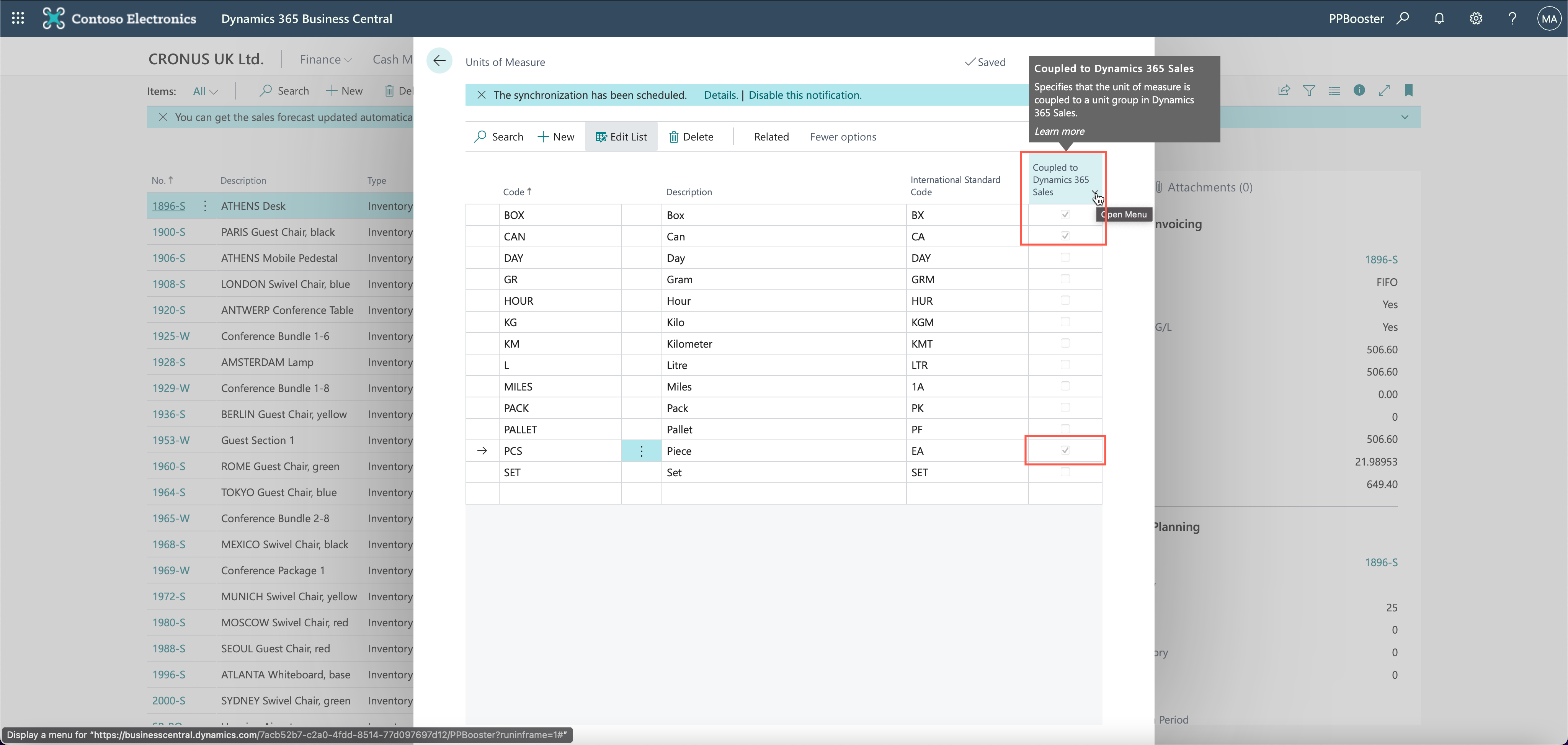
When you're finished, the Coupled to Dynamics 365 Sales field should have a check mark next to each unit of measure.
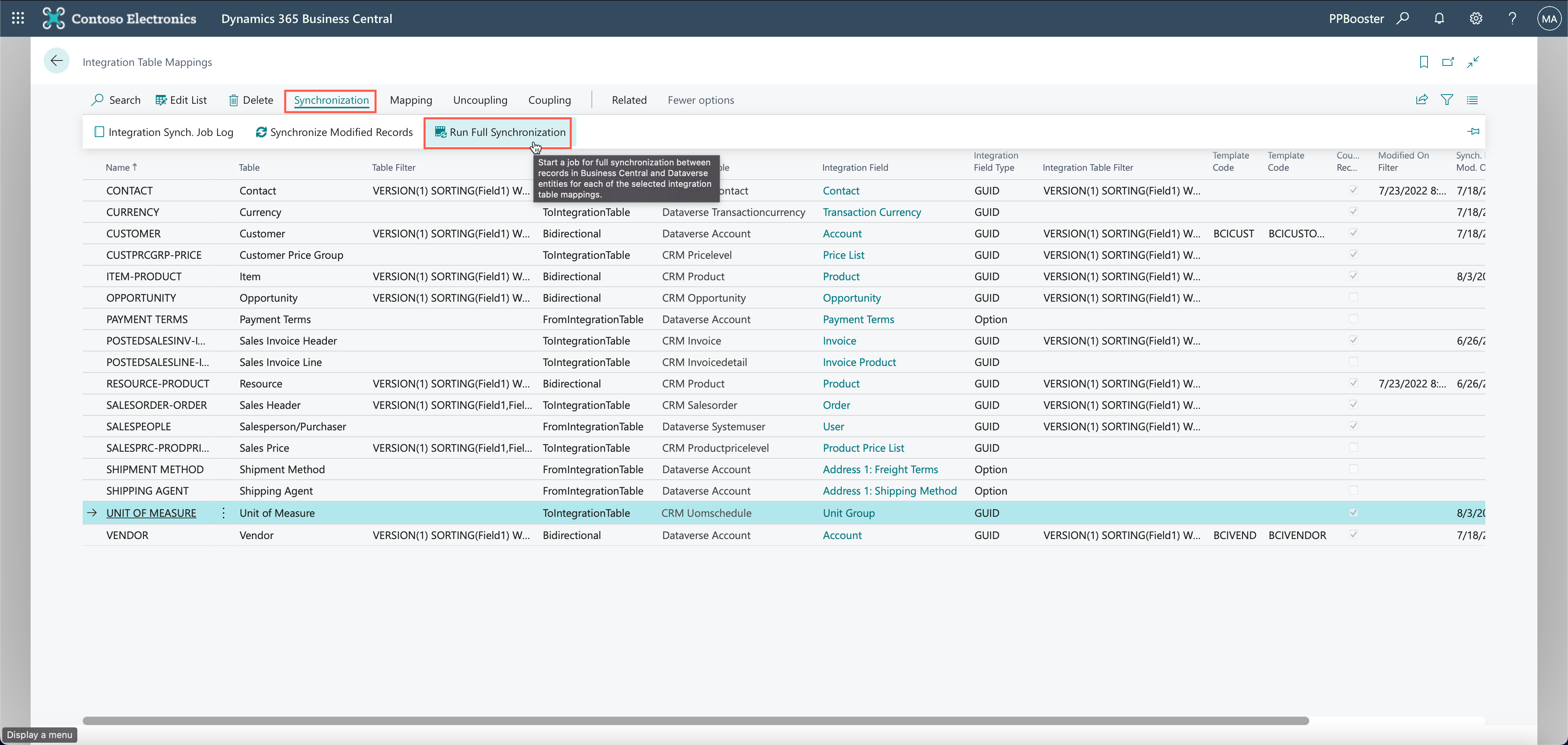
On the Integration Table Mappings page, run a full synchronization for the Unit of Measure table so all of the units of measure are snychronized.
The Integration Synch. Job Log shows the list of logs and Inserted entries. To check if the sync was successful, go to the Dataverse Unit table. The three units of measure (BOX, CAN, and PCS) should show in the Unit columns and data for the Unit table.
Your three units of measure (BOX, CAN, and PCS) are now synced to Dataverse.