Set up mailboxes
Email is where many business transactions start and end, and it's an essential integration capability for any customer engagement platform. Emails that originate from applications, such as Dynamics 365 apps or model-driven apps, should be sent and received through the same email account that people are using for all other communication. This approach provides a consistent experience for users and ensures that any email communication that's relevant to Microsoft Dataverse rows is being linked as needed.
Microsoft Dataverse works at the server level with email service, such as Microsoft Exchange and other email servers, to allow people to send outbound emails that originated as email activities in Dataverse. These emails appear in the sending user's outbox similar to other email activities, but the activities are tracked against Dataverse data. This method keeps the communication in one place.
Integration with email and Office tools is about allowing people to do their work from wherever they want. Basically, it means bringing the Dataverse data to them or bringing the tools into model-driven apps. Regardless, people can choose where they work.
How email integration works
Server profiles control email integration. Server profiles define connection information for the email server that is used to process emails that originate from or are associated with Dataverse rows. Multiple server options are available for you to select from when creating a server profile:
Exchange Server (on-premises) - Connects to a Microsoft Exchange email server that's located at the customer's location or on a virtual machine.
Exchange Online - Connects to a Microsoft Exchange Online email server that's in the cloud and is typically being hosted by Microsoft.
Gmail - Connects to a Gmail email server for processing.
Other (IMAP/POP/SMTP) - Use when you want to connect to a different type of email server based on your organizational needs.
Microsoft Exchange Online
A common email server scenario that's used with model-driven apps is Microsoft Exchange Online. In this scenario, the organization has an existing Microsoft Exchange Online subscription that they want to use with their Power Platform or Dynamics 365 implementation. Because Microsoft Dataverse and Microsoft Exchange Online are online services, connecting them is straightforward.
If your organization has Microsoft Exchange Online, a default profile for the email connection to Exchange Online is automatically created when you provision a Dataverse for Apps database. This connection already has the necessary credential and server information defined. To verify this profile, go to Settings for the environment that you want to work with in Microsoft Power Platform admin center. Then, select Server profiles in the Email section.
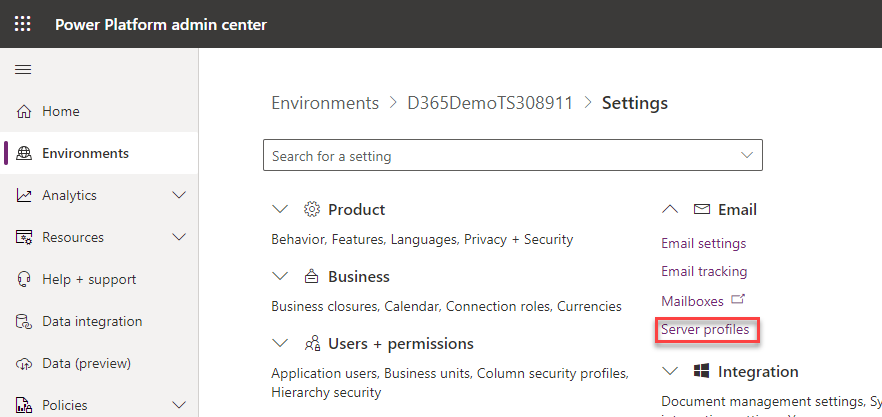
The Microsoft Exchange Online profile should be in the list of active profiles. If the Microsoft Exchange Online profile is missing, verify that you have an Exchange Online subscription and that it exists in the same tenant as your Dataverse subscription.
When the Microsoft Exchange Online profile was created, it was likely set as the default profile for the new mailboxes that were added to the system. If multiple email profiles are present in the system, select Microsoft Exchange Online profile from the list and then select Set as Default.
Advanced settings
The server profile form for the Microsoft Exchange Online profile allows for extra settings in the Advanced section:
State - Specifies if the email server profile is currently active and processing emails.
Process emails starting from - Directs the synchronization process to only process emails after the specified date and time for all mailboxes that are associated with this profile. This approach is useful if the organization added Dataverse or Dynamics 365 customer engagement apps to their tenant after they've already been using Exchange Online and they want to track only a few past emails in the context of the Dataverse applications.
Move failed emails to undeliverable folder - Creates an Undeliverable folder in the users’ mailboxes and moves emails that fail to be tracked in Dataverse to that folder.
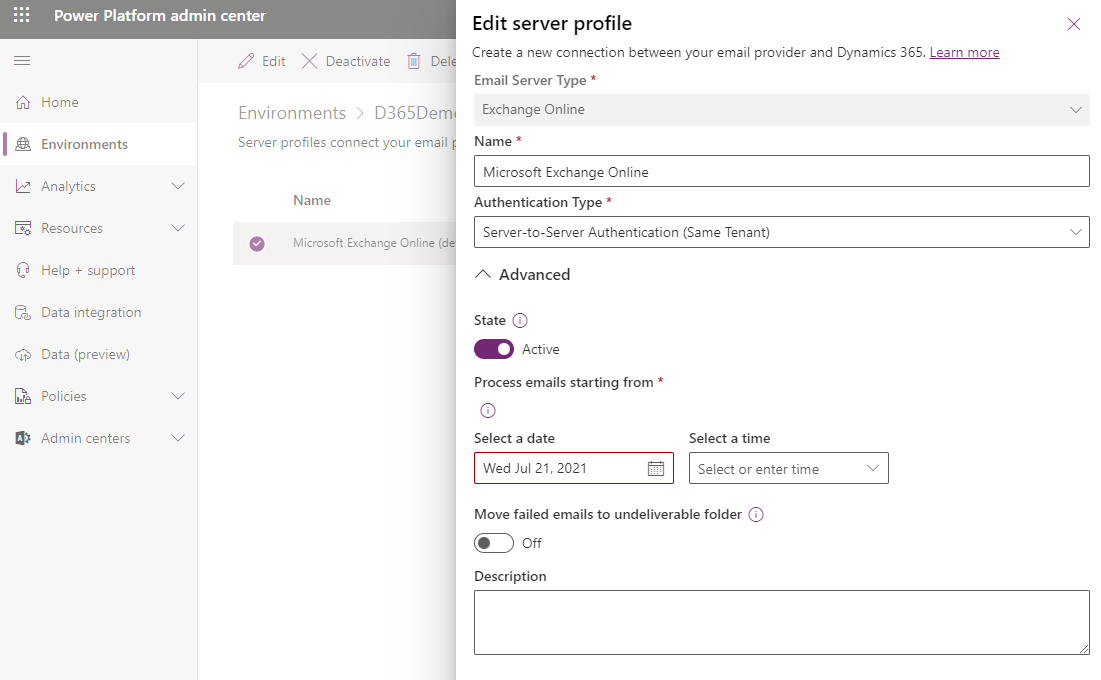
Several different email server profile server options are available, based on which type of email server your organization uses. For more information, and for instructions on setup, see the following documentation:
Mailboxes
You can use mailboxes in Microsoft Dataverse for Apps to connect the user and queue records from Dataverse-backed applications with their respective mailboxes on the email server so that you can track activities, such as emails or appointments. The mailboxes are only for connecting; they don't store information about the tracked activities. Mailboxes are automatically created when new users or queues are added to the system. Each user and queue record are associated with one mailbox only.
Mailbox records contain configuration information that's specific to an individual mailbox on the email server, such as their email address, mailbox credentials, and email synchronization method. To process email messages by using server-side synchronization for users and queues, you should associate their respective mailbox records with an email server profile record in Dataverse.
To access information about mailboxes and relevant settings, go to the Email section of the environment settings in Microsoft Power Apps admin center.
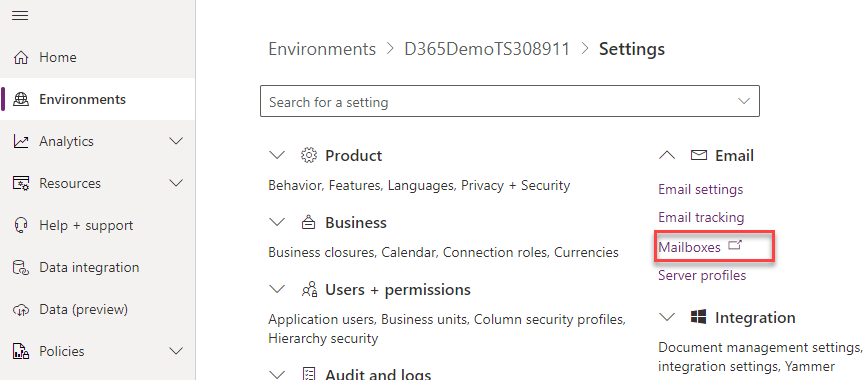
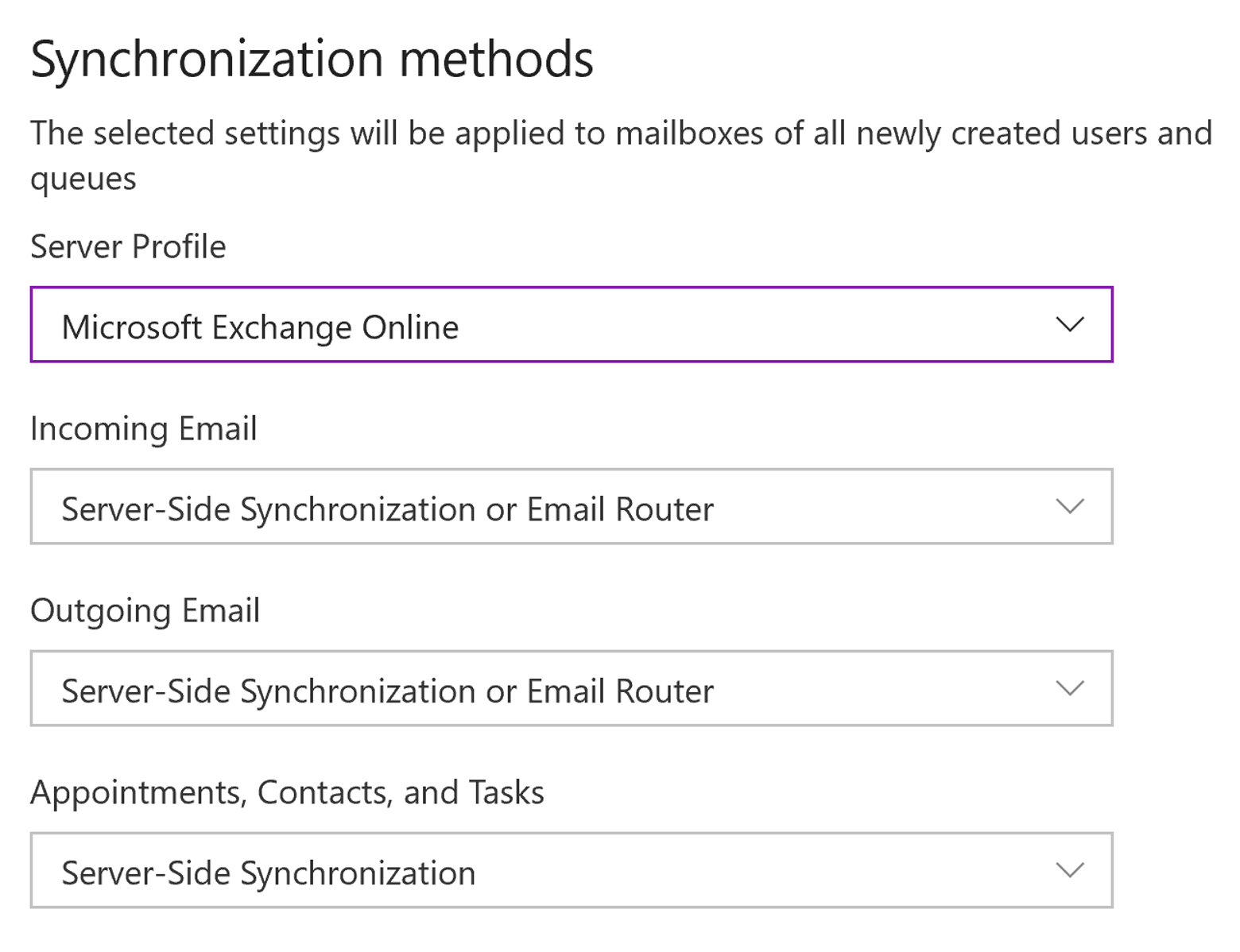
While you can define mailbox settings individually, you can set up default settings for newly created mailboxes by selecting Email settings and setting up Synchronization methods. After you've defined the email settings, from that point forward, whenever a new mailbox is created, it uses the configuration settings that you defined in the email settings. You can overwrite these settings on the individual mailboxes as needed.
Set up mailboxes
For existing users who were added to the system before email settings were defined, you might need to modify the email settings for the mailbox. We recommend that you use server-side synchronization for the Incoming Email and Outgoing Email options and for the Appointments, Contacts, and Tasks option. Server-side synchronization is explained in more detail later.
You can change the settings for multiple mailboxes by selecting the target mailboxes and using the Apply Default Email Settings command or by using the edit command and changing individual settings.
Approve email
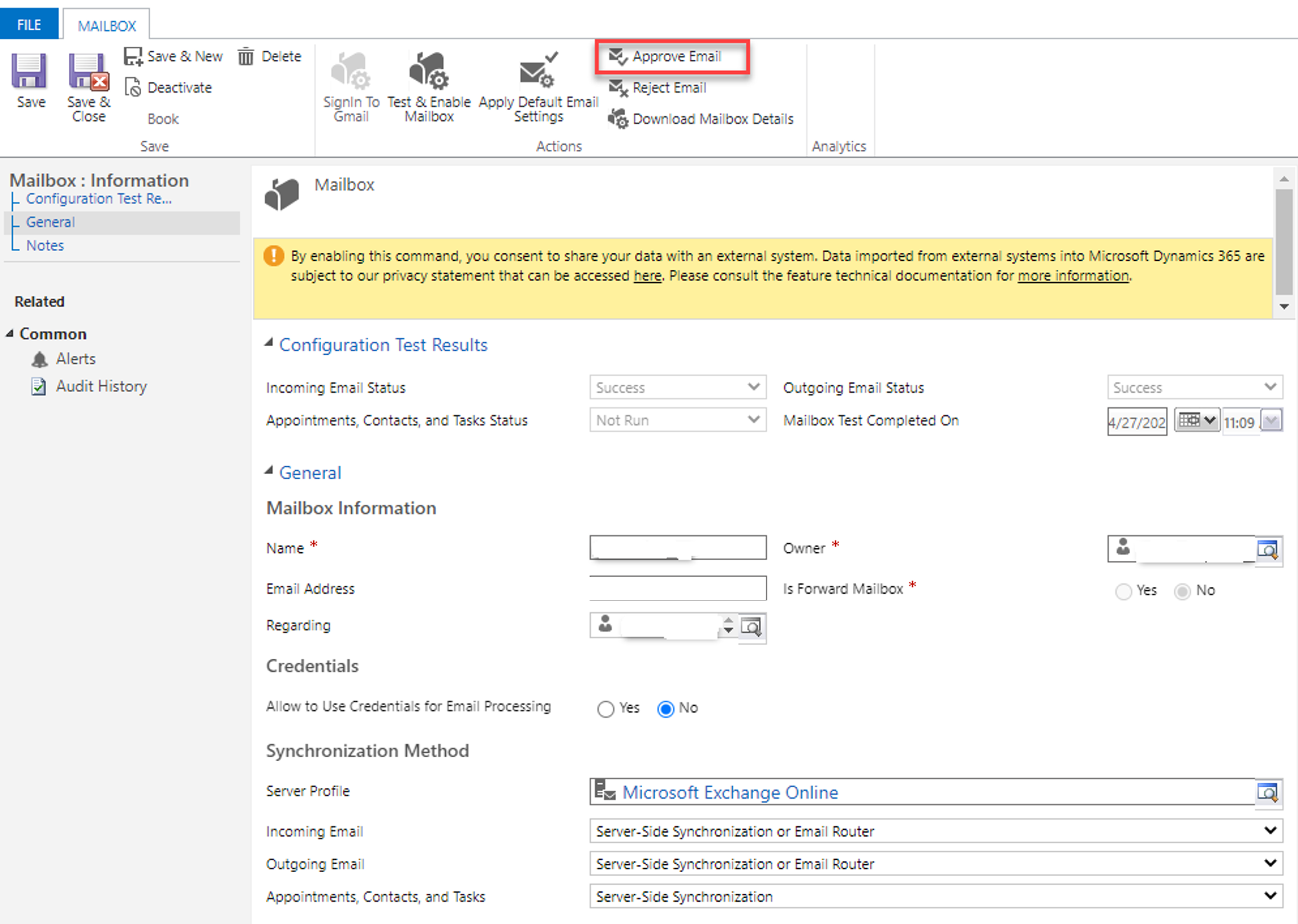
A mailbox can't process email until it's been approved. Approving a mailbox is basically telling the system that you've reviewed the mailbox and that it can begin processing email.
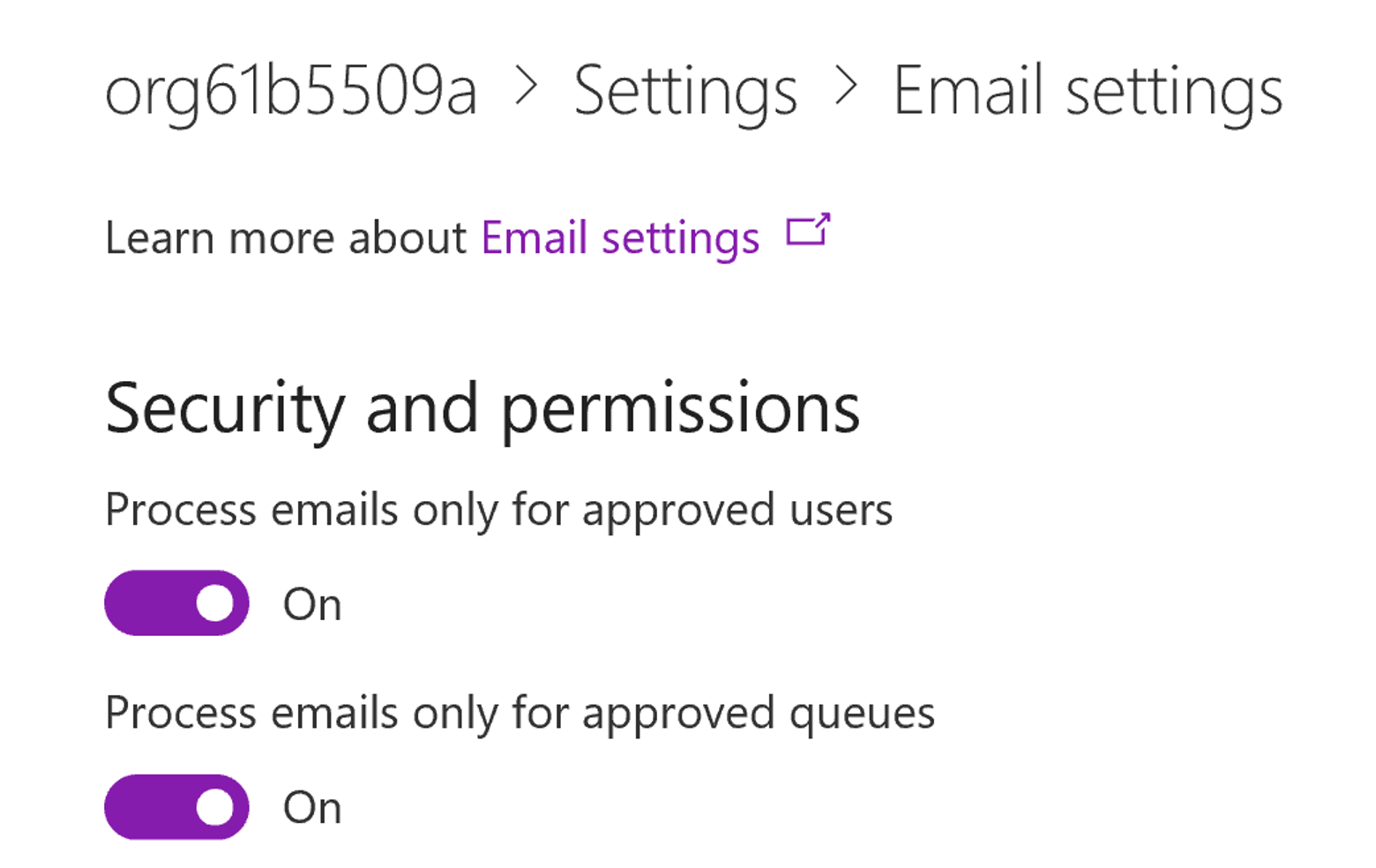
You can override the need for mailboxes to be approved in the Security and permissions section of the Email settings page. In this section, you can determine for individual users and queues whether server-side synchronization processes email for the users or queues whose email addresses the system administrator hasn't approved.
When Microsoft Exchange Online is used as a server profile, email addresses of new users are automatically approved. However, under certain circumstances, you might still need to approve the email address of each user mailbox or queue before the mailbox can process email. For example, approval is required if the user’s email address changes and unapproved mailboxes aren't allowed in the system.
Test configuration of mailboxes
Before the system processes approved mailboxes, you need to test and enable them. First, you run a test to ensure that Dataverse and the email server profile that are being used are communicating correctly. After you've completed the test, it will enable the mailbox for processing.
The process of testing and enabling differs based on the type of mailbox:
Individual mailbox - Open the mailbox record and select Test & Enable Mailboxes.
Multiple mailboxes - Select the mailboxes that you want to test and then select Test & Enable Mailboxes.
All mailboxes associated with an email server profile - Open the profile and select Test & Enable Mailboxes.
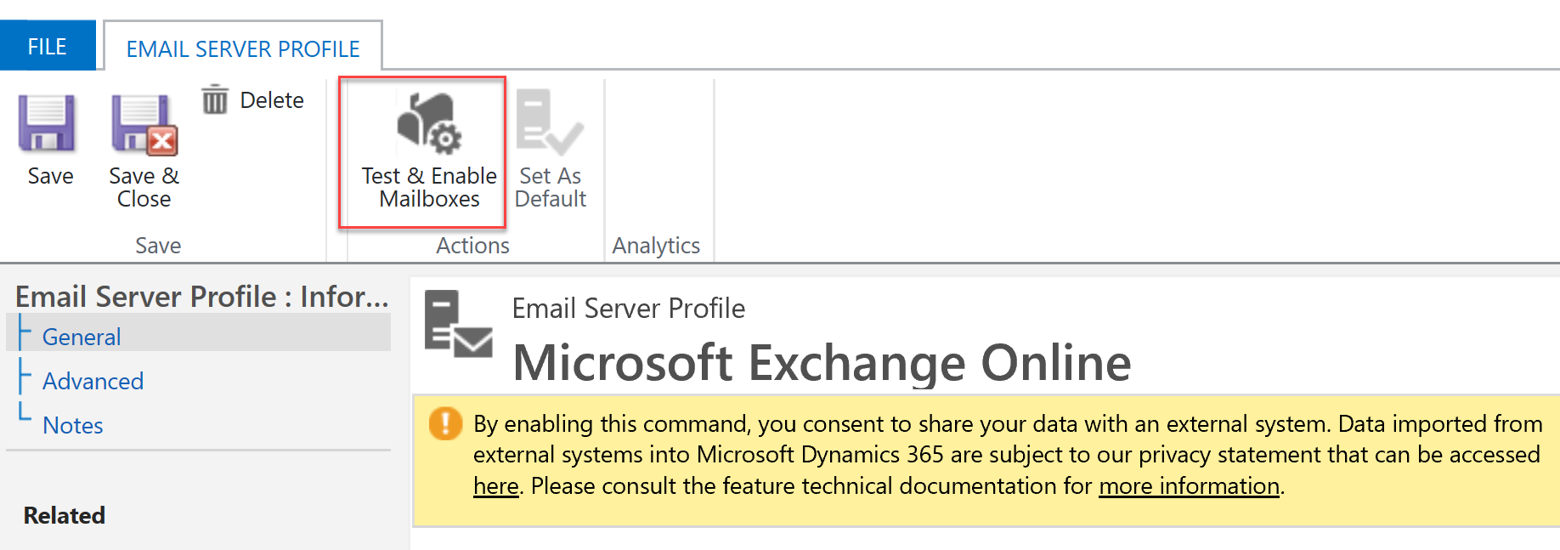
This process tests the incoming and outgoing email configuration of the selected mailboxes and enables them for email processing. When you test the email configuration, an asynchronous job runs in the background. The test might take a few minutes to complete.
If an error occurs in a mailbox, an alert is shown on the Alerts wall of the mailbox and the profile owner. Depending on the nature of the error, Dataverse might retry the processing or disable the mailbox for email processing.
You can access all failed mailboxes through the Test and Enable Failed view.
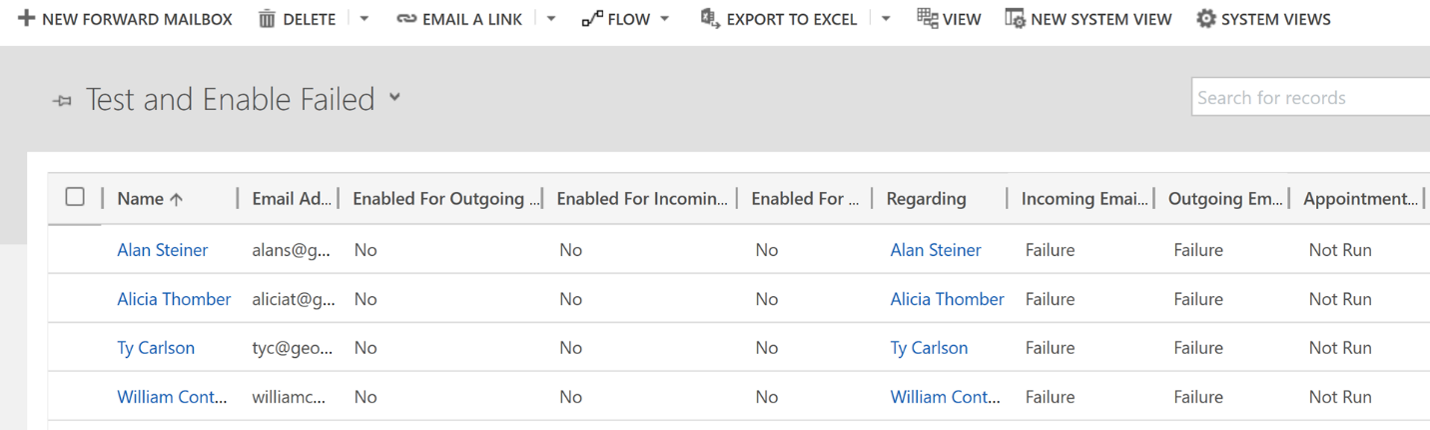
The results of the email configuration test are displayed in the Incoming Email Status, Outgoing Email Status, and the Appointments, Contacts, and Tasks Status fields of a mailbox record.
Important
Before a mailbox can process email, you'll need to approve the mailbox and then test and enable it. Failure to do so will result in mail not processing.
Typically, failing to approve, test, and enable the mailbox is the number one reason why a mailbox doesn't process email initially. If a mailbox isn't processing email, you should always return to the mailbox, approve it, and then test and enable it again before doing anything else.
Now that you've set up mailboxes, you can learn about server-side syncing in more detail.