Use Analyst agent to generate insights in Excel
The Analyst agent in Copilot is an AI-powered assistant designed to help you analyze data, generate insights, and create visualizations using natural language prompts. It functions like a skilled data scientist, enabling you to perform complex data analysis tasks without requiring advanced expertise.
Key features of the Analyst agent
- Natural language processing: Interact with your data using conversational prompts.
- Data integration: Analyze data from various sources, including Excel files and datasets.
- Insight generation: Receive summaries, trends, and key metrics from your data.
- Visualization creation: Automatically generate charts and graphs to represent your data visually.
- Python code execution: For advanced users, the Analyst agent can generate and execute Python code to perform complex calculations or data transformations.
How to use the Analyst agent in the Copilot desktop app
There are a few ways to access the Analyst agent. First, let’s look at how you can use the Copilot desktop app to analyze data that isn’t stored in Excel.
Access the Analyst agent
Sign in to microsoft365.com with your work or school account.
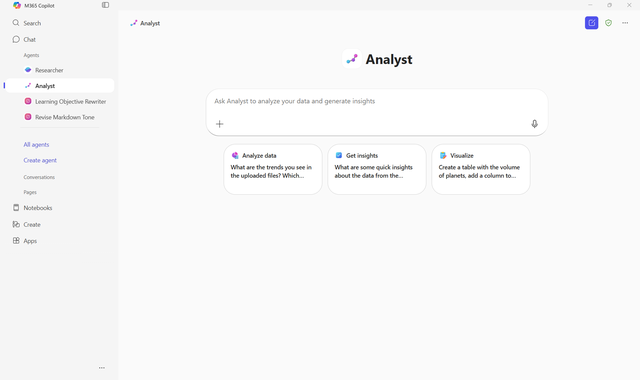
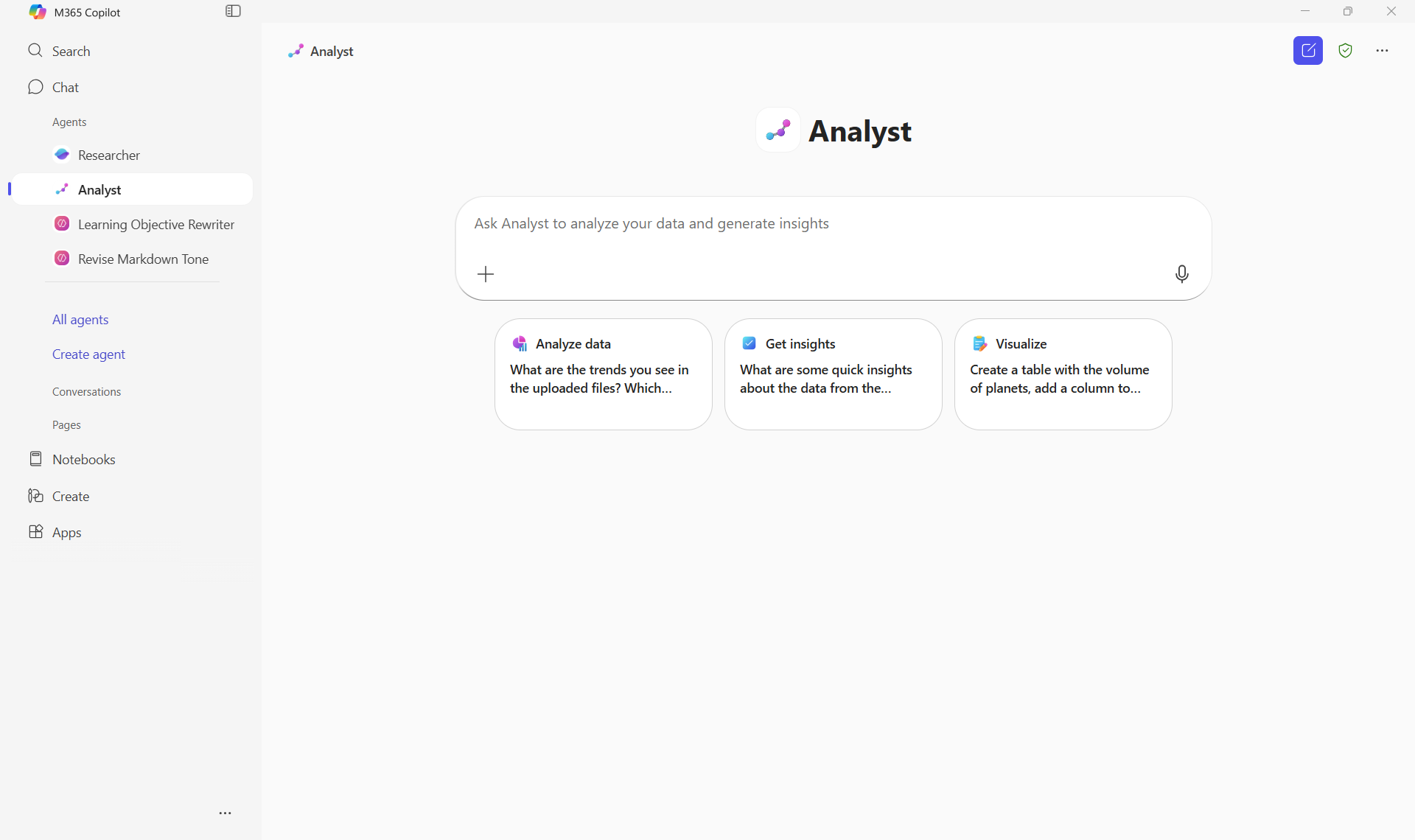
In the left navigation pane, select Agents.
Choose Analyst from the list of available agents.
Attach your data
- Select the + icon and select Attach content to upload the file(s) containing the data you want to analyze.
Interact with the Analyst agent
- Enter a question about the data you want to analyze. Examples:
"Compare sales performance by region and quarter.""Identify top-performing products based on customer engagement metrics."
Review the insights
- The Analyst agent processes your data and provides insights, including summaries, trends, and visualizations.
Important
While Copilot and the Analyst agent are powerful tools for generating insights, summaries, and visualizations, it’s essential to verify all AI-generated information. AI outputs might occasionally be incomplete, inaccurate, or misinterpreted, especially when working with complex financial data. Always cross-check results against source documents, datasets, or manual calculations before making decisions or sharing reports with stakeholders. This ensures data integrity, compliance, and reliable business outcomes.
Refine the output
- If needed, refine the insights by providing additional prompts or adjusting your queries.
By integrating the Analyst agent into your workflow, you can streamline the data analysis process, gain deeper insights, and enhance your decision-making capabilities.
Tip
- Be specific with your prompts: vague requests often generate incomplete or irrelevant results.
- Iterate on prompts: if the output is unclear, refine your language or break it into smaller steps.
- Secure your data: avoid sharing confidential data in prompts without proper permissions.
- Use Snap Layouts or multiple monitors to compare outputs from different Copilot responses or pass data between platforms.