Analyze financial trends and build a presentation using Analyst agent
You're tasked with preparing a Q1 financial results presentation. Your goal is to analyze three years of revenue and volume data, generate insights using Copilot, and create a stakeholder-ready slide deck.
Financial dataset (FY2022–FY2024)
| Year | Quarter | Revenue ($M) | Volume (Units K) | Operating Expenses ($M) | Net Profit ($M) |
|---|---|---|---|---|---|
| 2022 | Q1 | 48.2 | 210 | 32.5 | 15.7 |
| 2022 | Q2 | 50.1 | 215 | 33.0 | 17.1 |
| 2022 | Q3 | 52.4 | 225 | 34.2 | 18.2 |
| 2022 | Q4 | 54.0 | 230 | 35.1 | 18.9 |
| 2023 | Q1 | 55.8 | 238 | 36.0 | 19.8 |
| 2023 | Q2 | 57.9 | 245 | 37.4 | 20.5 |
| 2023 | Q3 | 60.3 | 255 | 38.0 | 22.3 |
| 2023 | Q4 | 62.1 | 260 | 39.2 | 22.9 |
| 2024 | Q1 | 65.0 | 272 | 41.0 | 24.0 |
| 2024 | Q2 | 67.8 | 280 | 42.1 | 25.7 |
| 2024 | Q3 | 69.5 | 290 | 43.0 | 26.5 |
| 2024 | Q4 | 72.0 | 298 | 44.5 | 27.5 |
Step 1: Open your workspace
- Open Excel with your financial dataset (three years of revenue and volume data). You can use the dataset provided here if needed.
- Open a new PowerPoint deck to build your presentation slides.
- Use Snap Layouts to arrange Excel and PowerPoint side by side so you can work between programs easily.
Step 2: Prompt Copilot in Excel
Select the Copilot icon on the Home Ribbon.
In the Copilot sidebar, select the hamburger menu to open the list of available agents. Then choose Analyst.
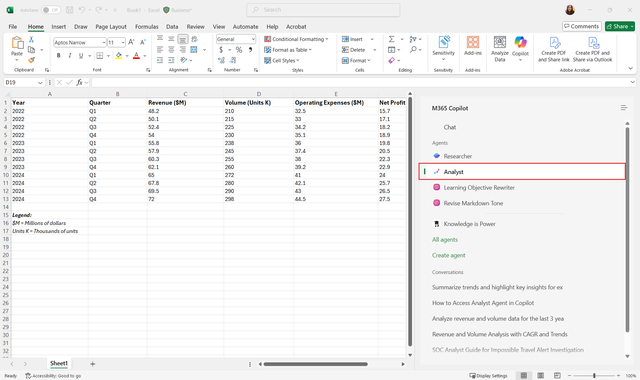
Enter a clear prompt, for example:
Calculate growth metrics:
"Calculate CAGR for Revenue and Volume from 2022 to 2024.""Calculate Year-over-Year % change for each quarter."
Generate textual insights:
"Summarize trends and higlight key insights for executives.""Identify top-performing quarters and regions."
Create charts:
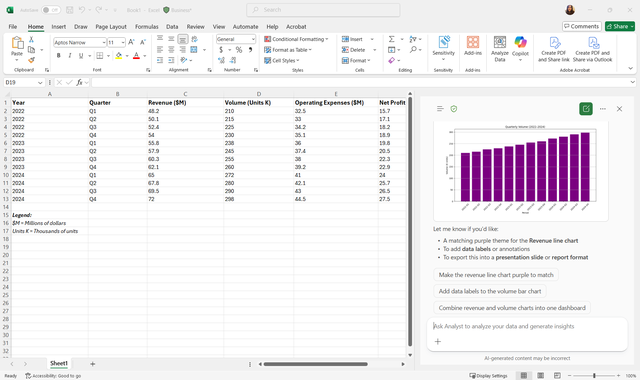
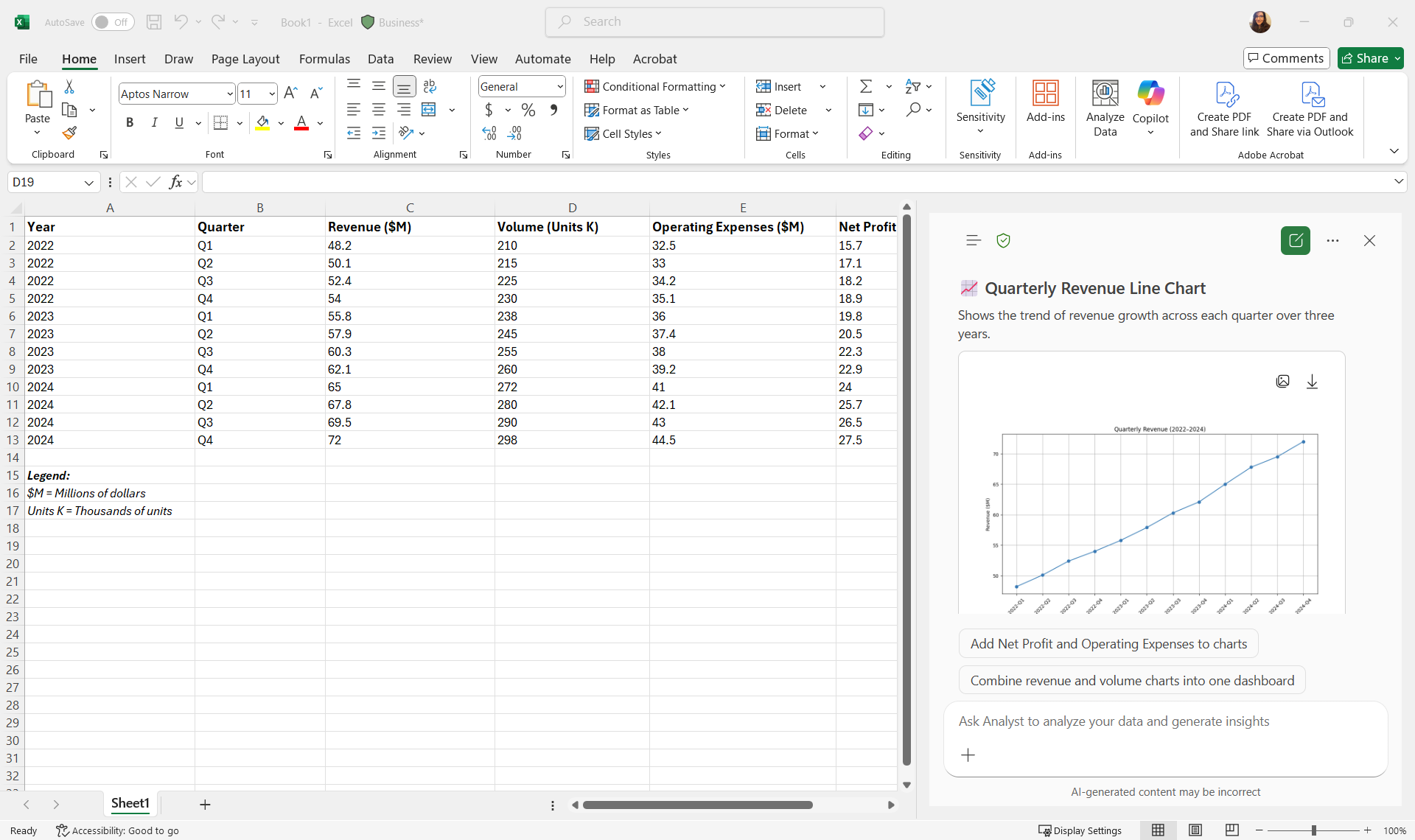
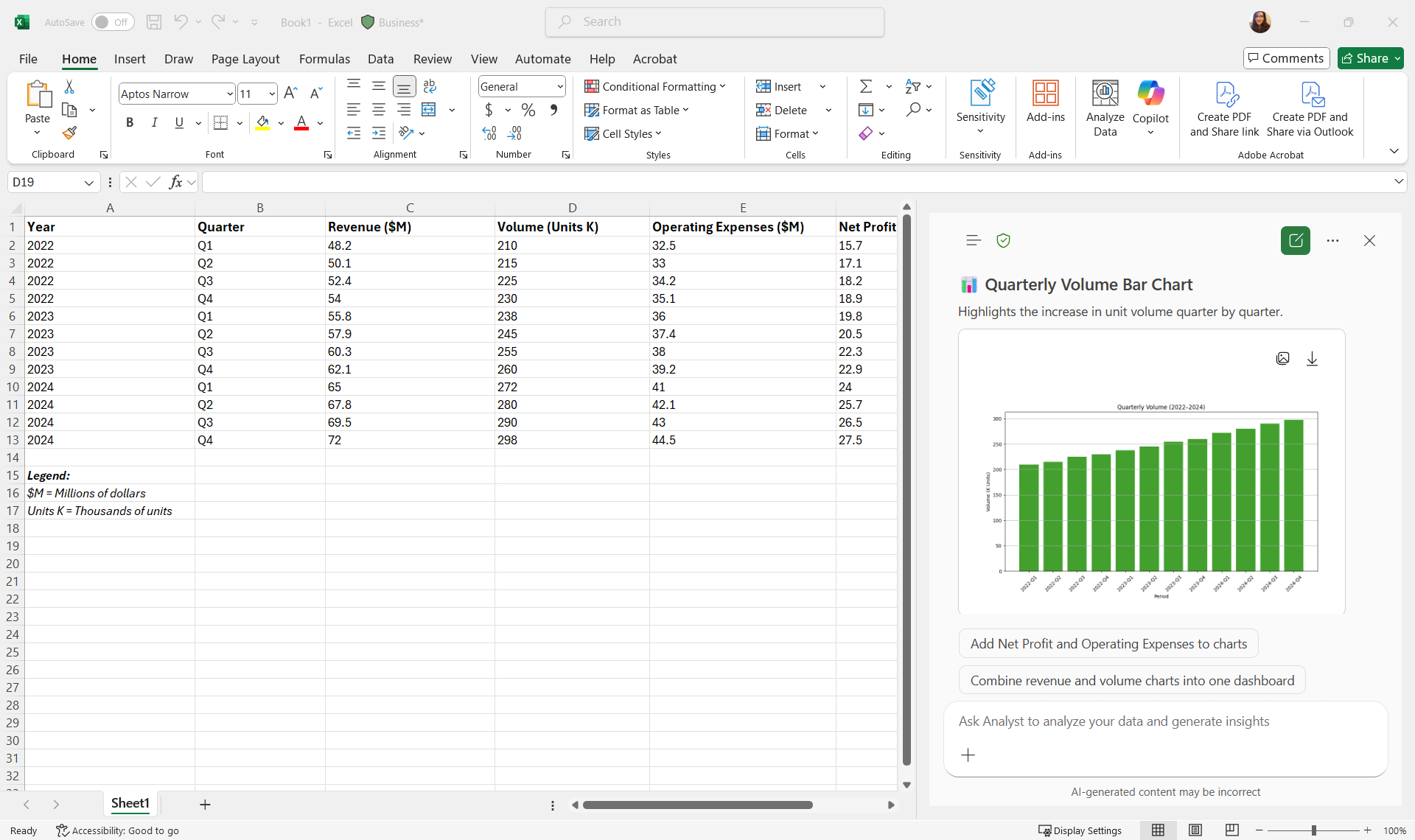
"Generate a line chart for Revenue over the last three years.""Generate a bar chart for Volume by quarter."
Press Enter. Copilot provides:
- Calculated CAGR for revenue and volume
- YoY percentage changes
- A textual summary of trends
Note
Copilot might ask a few follow-up questions to better understand your request. Answer these to help it generate accurate output.
Step 3: Review and refine insights
- Check Copilot’s calculations for accuracy.
- To refine results, use other prompts like:
"Summarize key trends in 2-3 sentences for executives.""Add a bulleted list of top performing regions."
Sample insights generated by Copilot
- Revenue growth: Revenue increased from USD48.2M in Q1 2022 to USD72.0M in Q4 2024.
- CAGR (Revenue): approx. 14.6%
- Volume growth: Volume increased from 210K units to 298K units over the same period.
- CAGR (Volume): approx. 12.4%
- Trend summary: Revenue growth slightly outpaces volume growth, suggesting improved pricing or product mix. Net profit margin remains steady around 35-38%.
Step 4: Generate graphs
Ask Copilot to create graphs for visual representation:
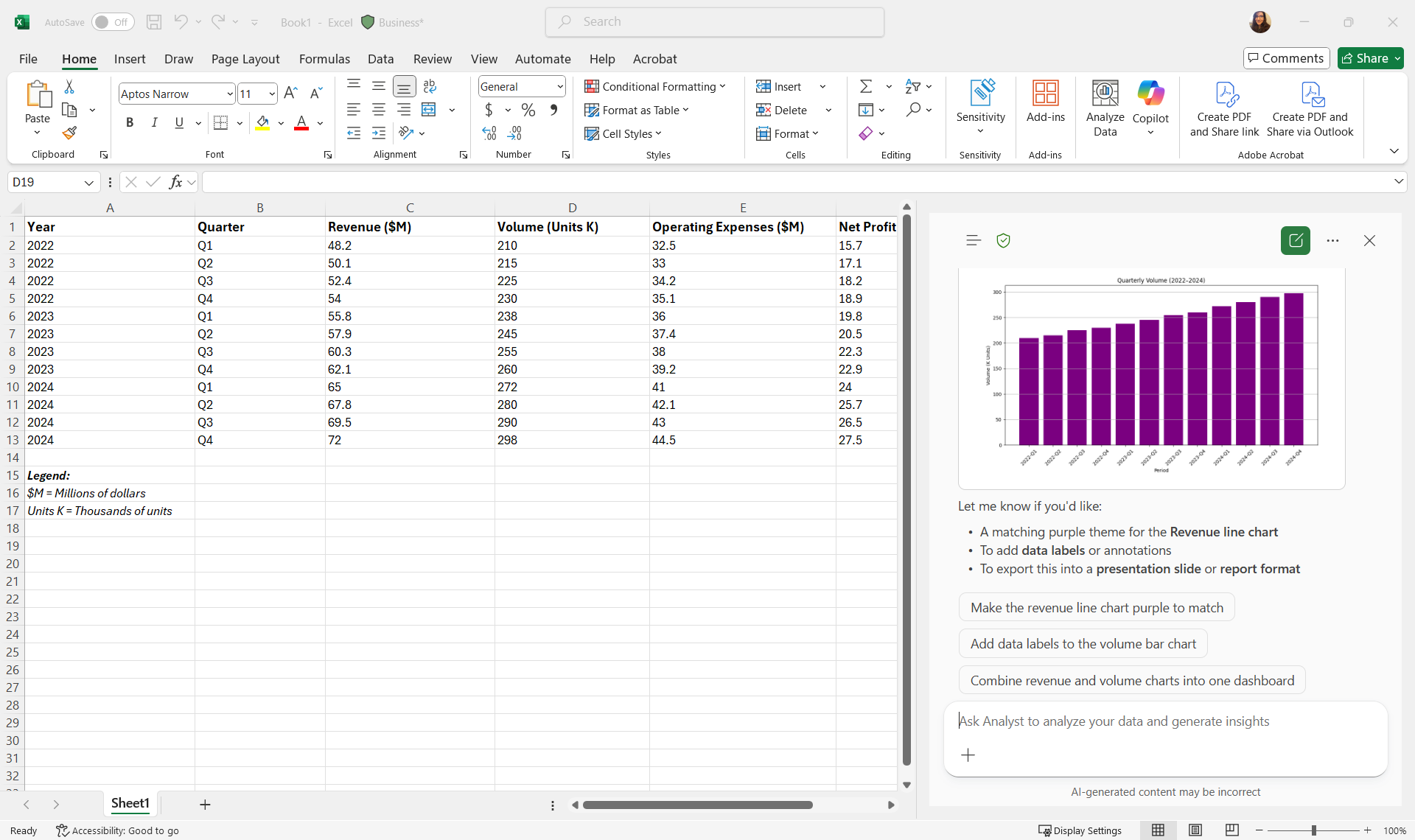
"Generate a line chart for revenue over the last 3 years and a bar chart for volume."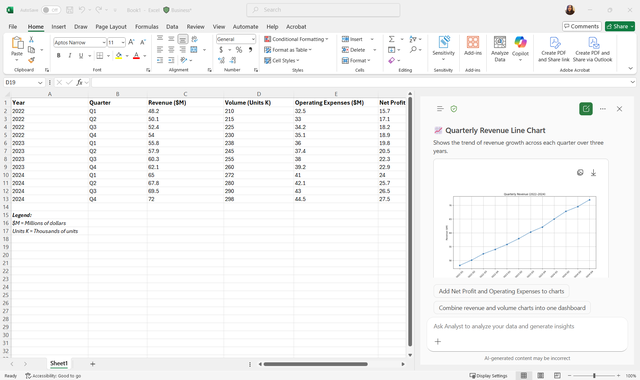
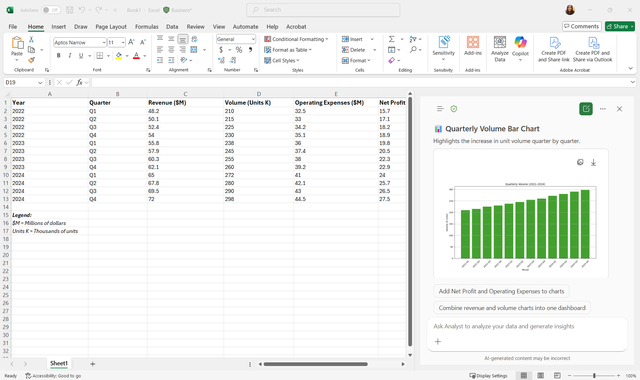
Verify chart titles, axis labels, and legends. You can use prompts to further customize the charts. For example, "Make the bars in our graph purple."
Step 5: Transfer graphs and insights to PowerPoint
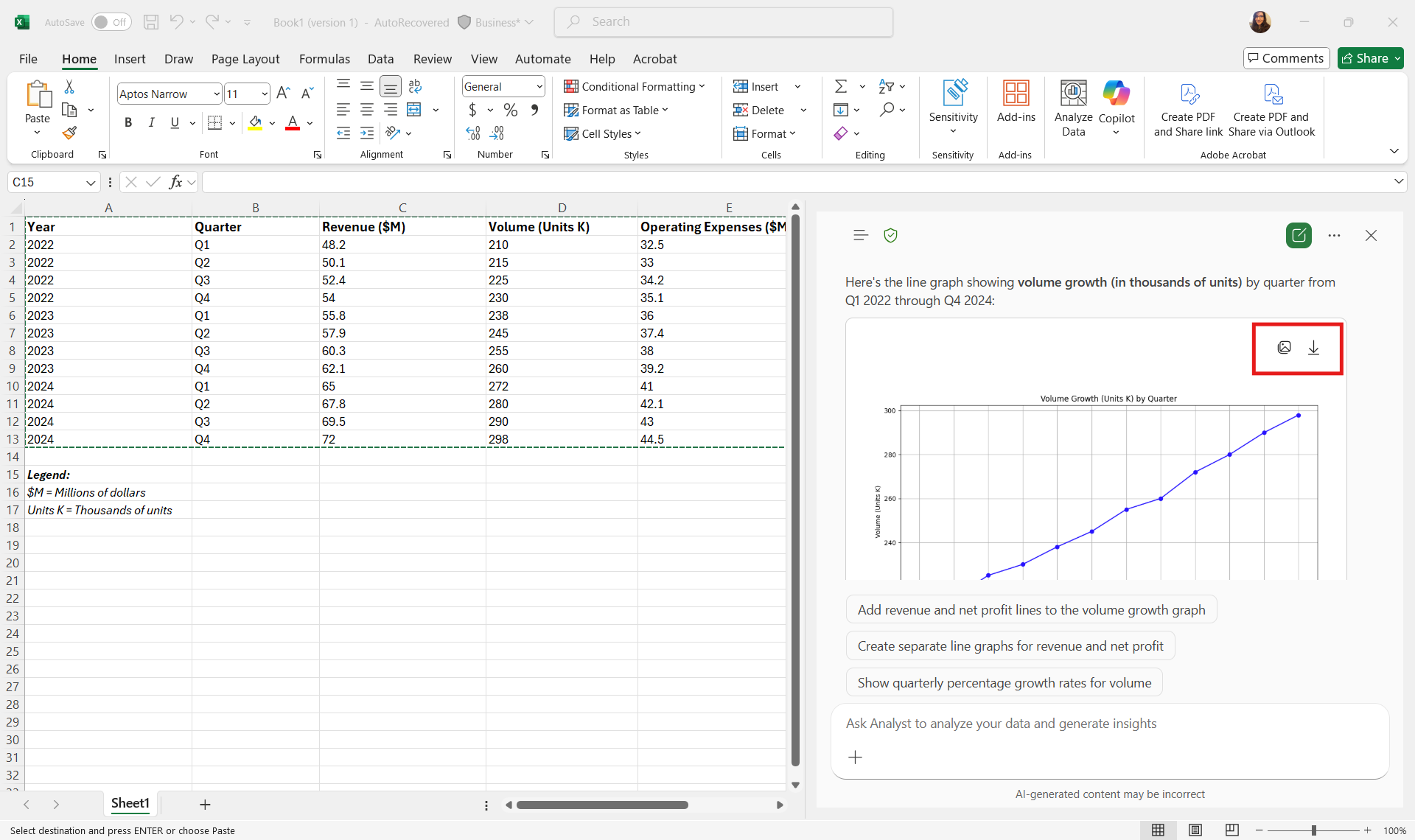
Copy or download the graphs from Excel.
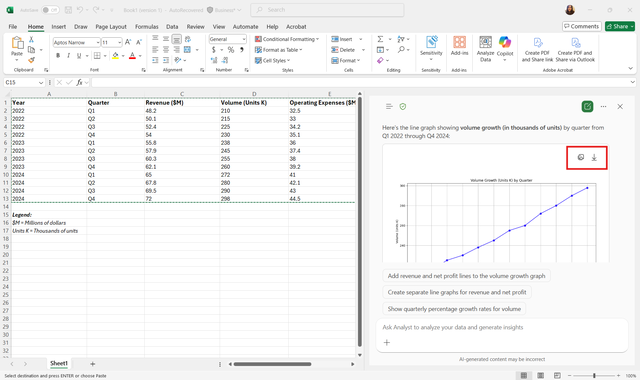
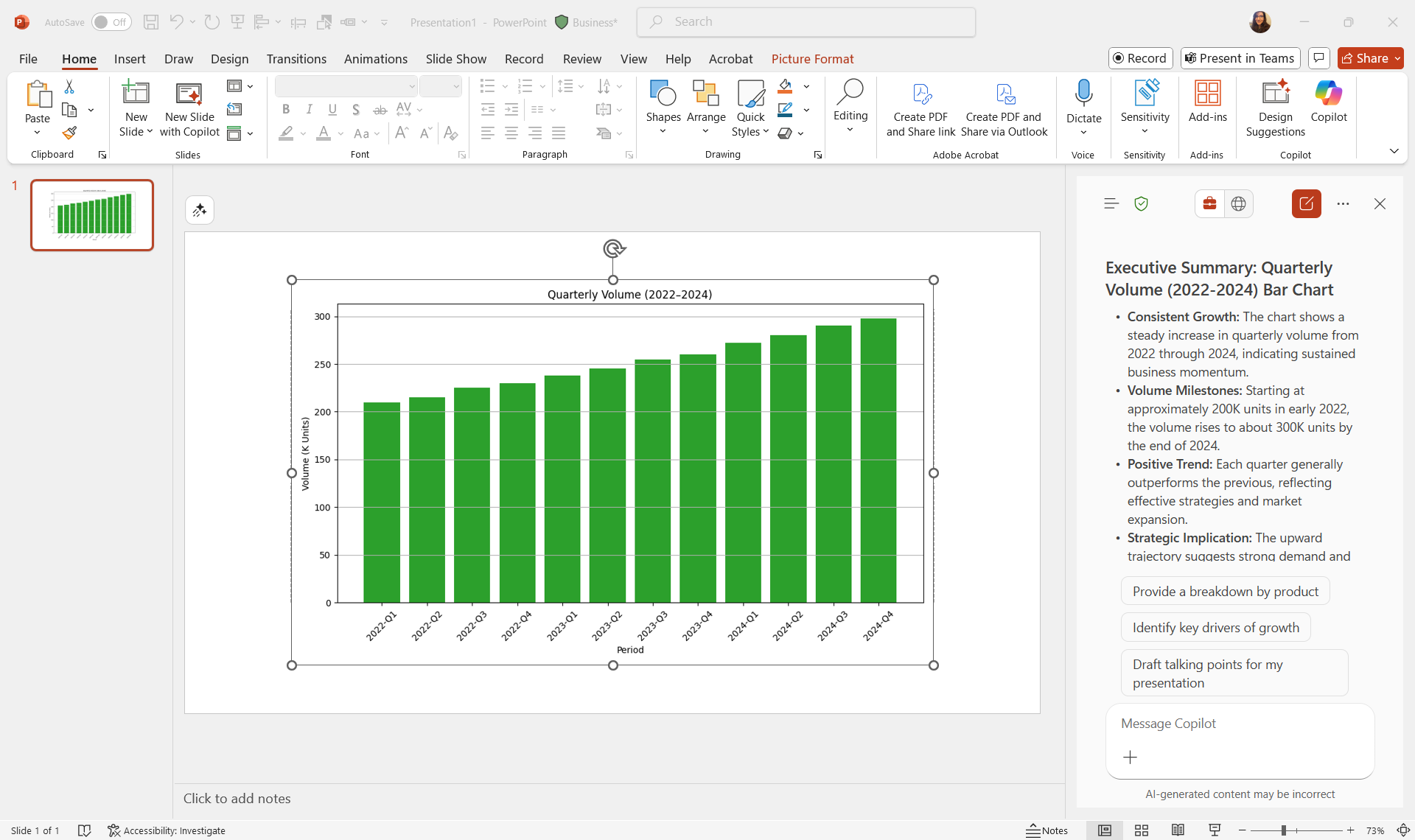
Paste the graphs into the corresponding PowerPoint slides.
Add Copilot-generated textual insights below or next to each graph.
Step 6: Refine presentation with Copilot
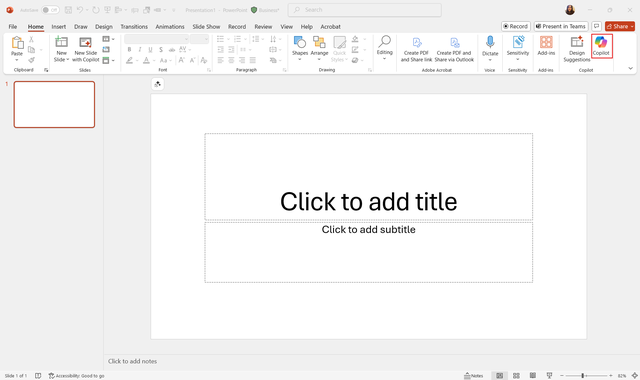
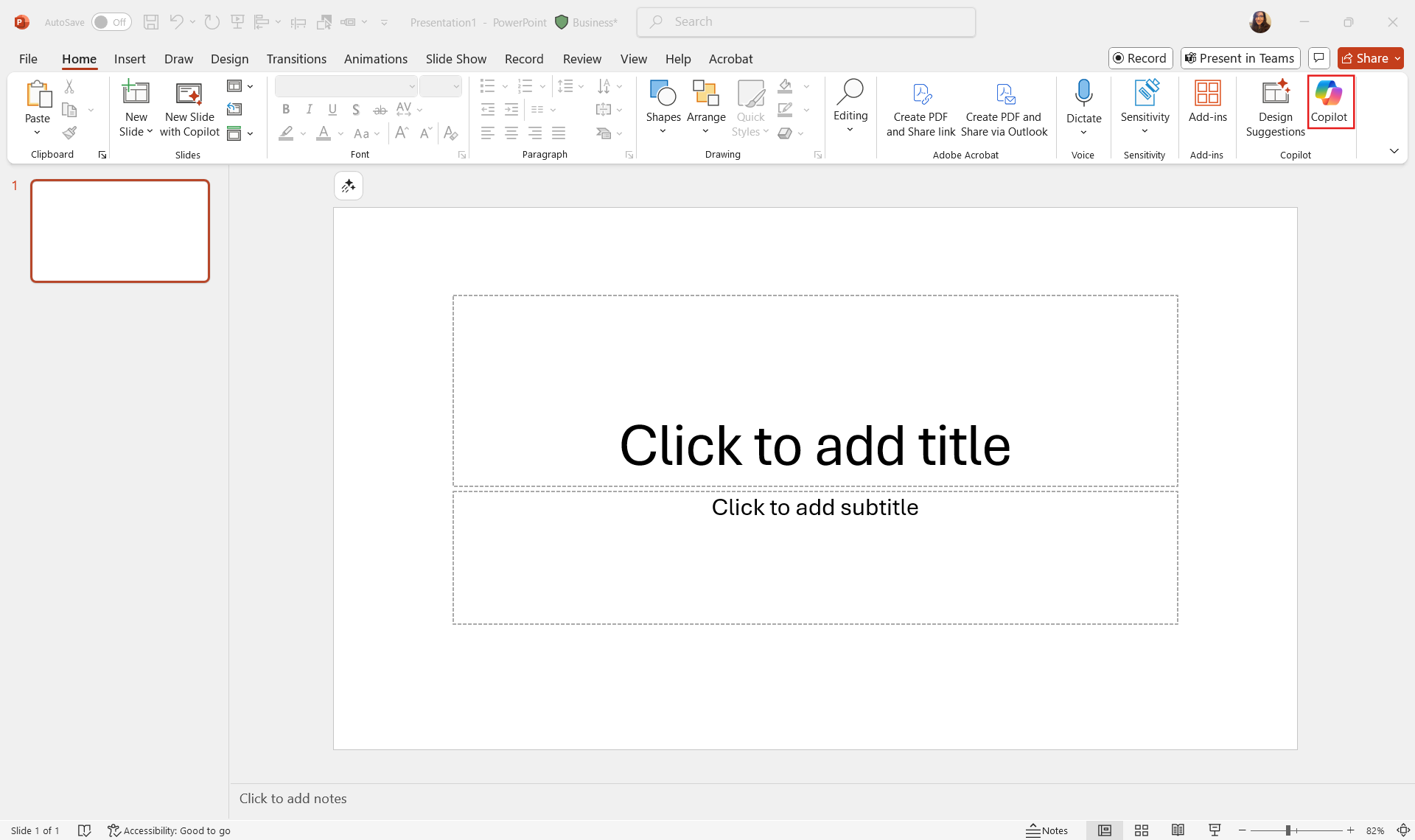
Select the Copilot icon in PowerPoint.
Enter prompts like:
"Summarize the charts into concise bullet points for executives.""Rewrite insights in a professional and clear tone."
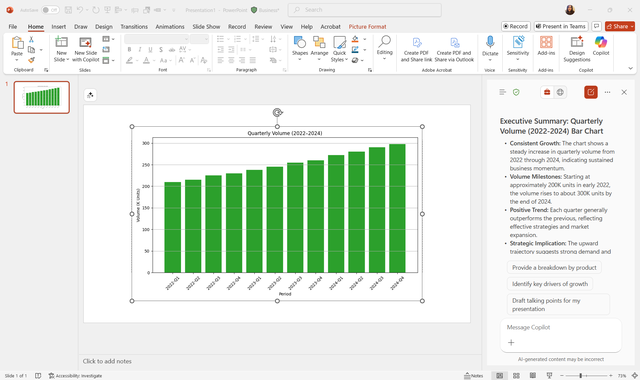
Review the suggestions and integrate them into your slides.
Step 7: Final review checklist
- Are CAGR and YoY calculations correct?
- Are charts clear and labeled appropriately?
- Are insights actionable and easy to understand?
- Is slide layout logical and visually consistent?
- Are recommendations highlighted for stakeholder decision-making?