Analyze regional sales versus forecast data in Excel using Copilot
You need to evaluate actual regional sales compared to forecast, identify discrepancies, and provide recommendations for stakeholders.
Example Regional Sales Data (FY2024 Q1)
| Region | Forecast ($M) | Actual Sales ($M) | Volume (Units K) | YoY Growth (%) |
|---|---|---|---|---|
| North | 12.5 | 13.2 | 150 | 8.0 |
| South | 10.0 | 9.5 | 120 | 4.2 |
| East | 11.0 | 11.8 | 130 | 7.3 |
| West | 9.0 | 8.4 | 110 | 2.5 |
| Central | 7.5 | 8.0 | 90 | 6.7 |
Steps
Open Excel with regional sales and forecast data.
Snap Excel alongside PowerPoint using Windows 11 Snap Layouts.
Prompt Copilot in Excel:
"Compare actual sales versus forecast for each region. Highlight regions exceeding or underperforming against forecast. Generate visual summaries."
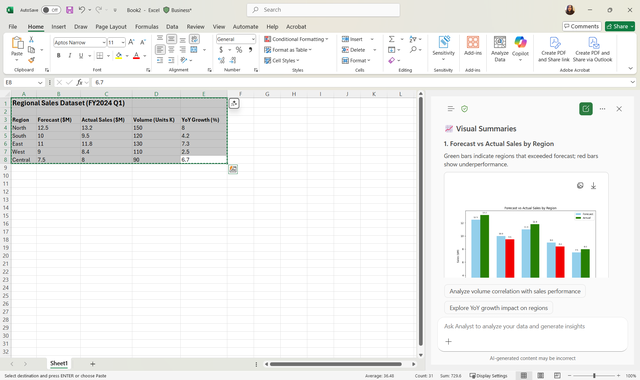
Review Copilot-generated tables, charts, and insights.
Refine the output with other prompts as needed:
- "Highlight top 3 overperforming and underperforming regions in bullet points."
- "Simplify language for executive audience."
Transfer charts and insights to PowerPoint by downloading or copying the information.
Use Copilot in PowerPoint to summarize findings and draft recommendations for each region.
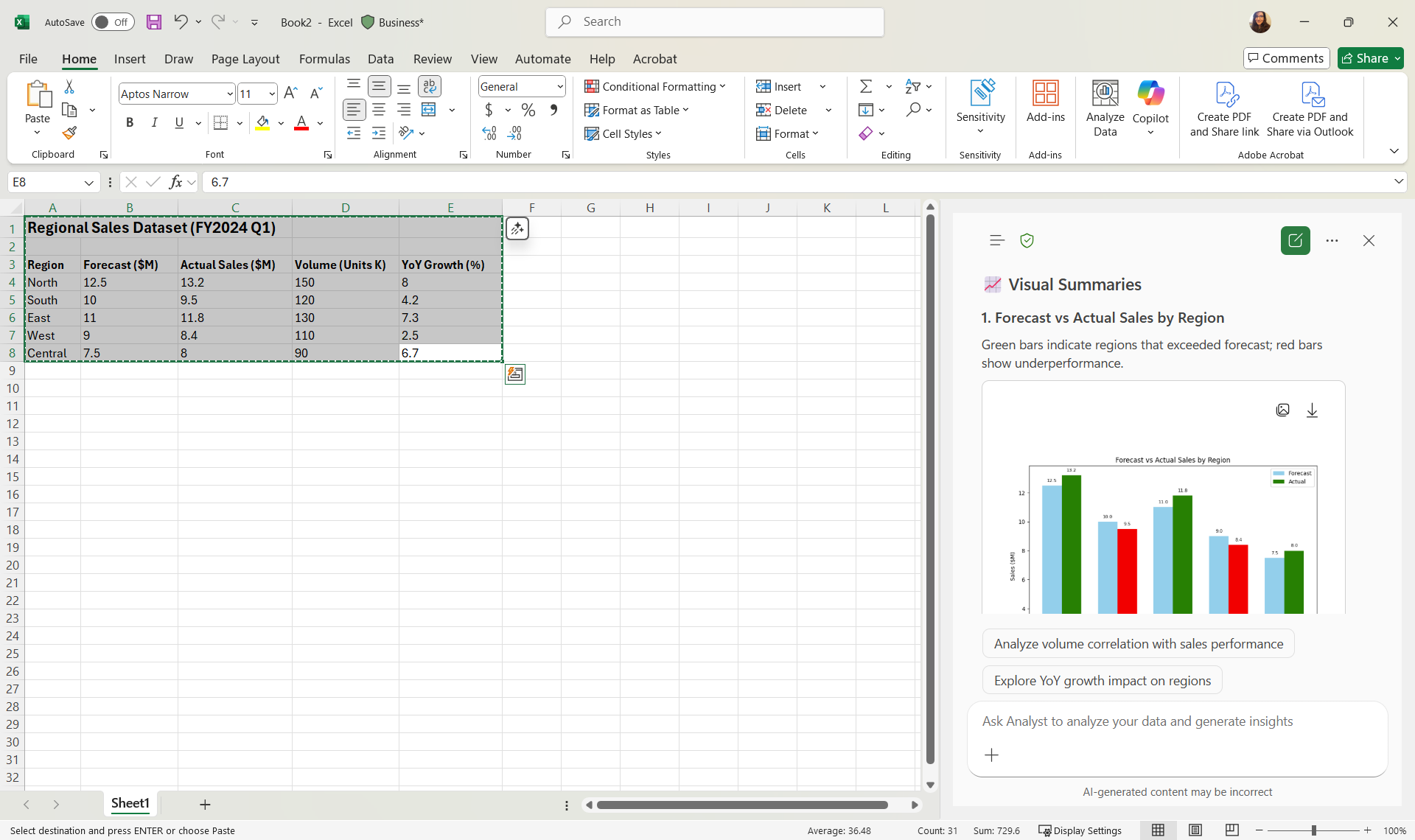
Other metrics learners can calculate with Copilot
- Variance vs Forecast:
Actual Sales - Forecast - Percent Over/Under Forecast:
(Actual Sales - Forecast) / Forecast * 100 - Highlight top 3 overperforming and underperforming regions.
Example Copilot prompts
"Compare actual sales vs forecast for each region and highlight top 3 overperformers and underperformers.""Generate a bar chart showing variance vs forecast by region.""Provide a summary of which regions are exceeding or missing forecast and by how much."