Choose the right Windows development capability
Understanding a capability is only the first step. Equally important is knowing when it can help solve a real-world problem.
Imagine you're helping a development team improve productivity and reduce complexity throughout the development process. Based on each scenario, determine which Windows capability would best meet the team's needs.
This exercise helps reinforce how different Windows development capabilities address common developer challenges, making it easier to identify and recommend the most relevant solution for a given scenario.
Scenario 1: Standardizing new developer onboarding
A software company hires several developers each month. New team members spend hours installing tools and configuring their devices before they can begin contributing to projects.
Which capability would help?
Windows Developer Configurations.
Why?
It enables teams to create a repeatable setup process that installs commonly used development tools and applies developer-focused settings. This helps reduce onboarding effort, promotes consistency across development environments, and allows developers to begin contributing more quickly.
Scenario 2: Supporting Linux-based development workflows
A developer primarily uses Windows but regularly works with Linux commands and containerized applications deployed to Linux environments. Switching between environments and tools adds extra time to tasks and slows down their workflow.
Which capabilities would help?
Coreutils for Windows and WSL containers.
Why?
These capabilities bring Linux command-line tools and container support directly to Windows, making it easier to work across Windows and Linux environments. Using consistent tools and containers can also help reduce configuration differences between developer machines and the environments where applications are deployed.
Because WSL containers are currently in public preview, teams should verify the latest release status and evaluate production readiness before adopting them for production workflows.
Scenario 3: Reducing troubleshooting interruptions
A developer is testing an application when a command-line tool returns an unexpected error. To troubleshoot the issue, they normally leave the terminal to search documentation, look up error messages, and research possible fixes. Moving between multiple tools interrupts their workflow and makes it harder to stay focused on the task they're trying to complete.
Which capability would help?
Intelligent Terminal.
Why?
It provides context-aware assistance directly within the terminal experience, helping developers stay focused, resolve issues more efficiently, and spend less time switching between development and troubleshooting tools.
Because Intelligent Terminal is currently in experimental preview, teams should verify the latest release status before recommending it for production use.
Scenario 4: Improving AI-assisted Windows development
A developer is building a native Windows application and uses an AI-powered coding assistant to help generate code, answer questions, and accelerate development tasks. As the project grows, the developer wants the AI assistant to incorporate Windows-specific development knowledge alongside its general programming capabilities.
Which capability would help?
Windows Development Skills.
Why?
It provides structured Windows application development knowledge that AI agents can use throughout the application development lifecycle. This helps developers receive guidance that aligns with Windows development tools, frameworks, and workflows—reducing the time spent adapting generic guidance to Windows-specific development tasks.
How to evaluate development workflows
While each scenario is unique, they all begin with the same question: what opportunities exist to improve the workflow?
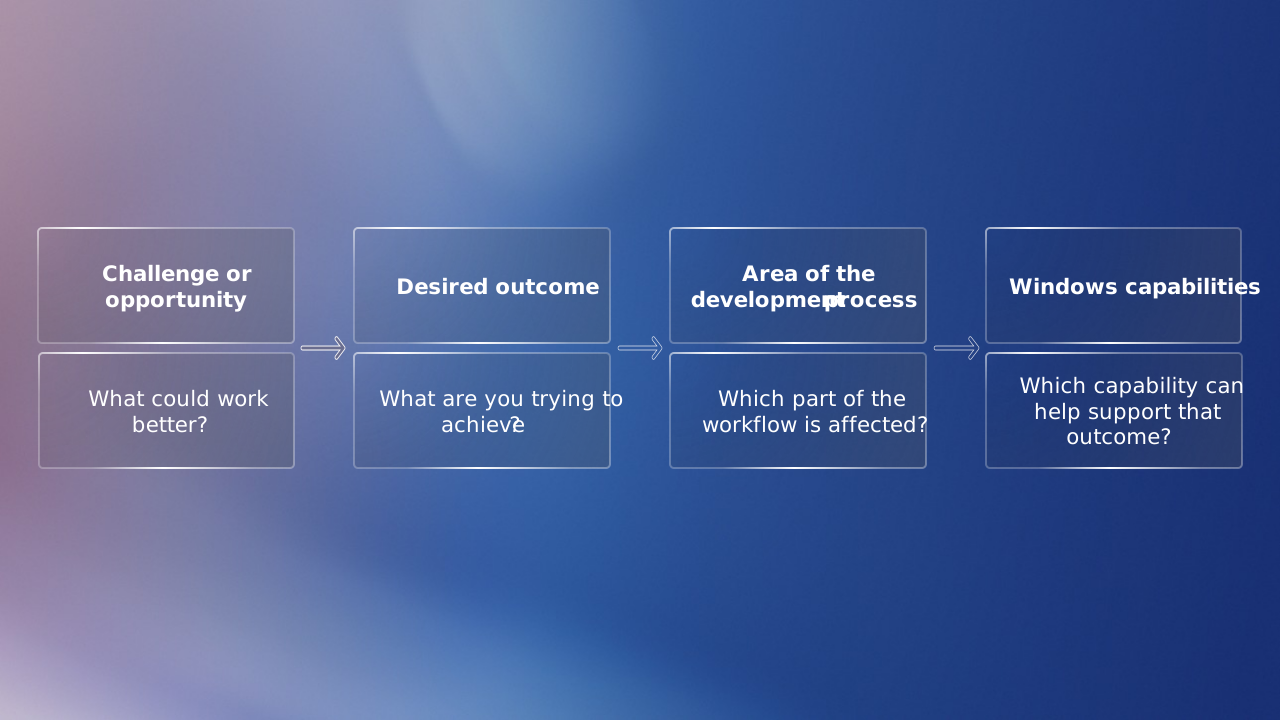
When evaluating a workflow, it can be helpful to follow a consistent process for identifying potential solutions:
- Identify the challenge or improvement opportunity.
- Determine the desired outcome.
- Consider which part of the development process is affected.
- Identify the capabilities that can help achieve that outcome.
This four-step approach can help you evaluate development workflows more consistently, making it easier to identify opportunities for improvement and determine which Windows capabilities are best suited to support a team's goals.
For example, consider a developer who frequently leaves the terminal to research errors and troubleshoot issues:
- Identify the challenge. Troubleshooting requires switching between multiple tools, interrupting a developer's focus, and slowing progress.
- Determine the desired outcome: Resolve issues more efficiently without leaving the terminal.
- Consider which part of the development process is affected: Development and debugging.
- Identify the capability that can help achieve that outcome: Intelligent Terminal.
By working through this process, you can identify which capabilities are best suited to address specific developer challenges.
Reflection
Think about a customer or development team you work with:
- Which of these scenarios is most relevant to their development environment?
- Which capability could help address their productivity challenges?
- How could standardized configurations, cross-platform workflows, or intelligent development tools help improve their development experience?
- Which capability would you be most likely to recommend, and why?