How to use Windows Studio Effects
Windows Studio Effects can be enabled and configured directly within Windows, making it easy to adjust settings before or during a meeting.
Access Windows Studio Effects settings
Windows Studio Effects can be enabled before or during a call using built-in Windows controls. You can access Windows Studio Effects in several ways, depending on your workflow.
Use Quick Settings (when you need fast access during a meeting or call)
This is the quickest way to turn Windows Studio Effects on or off or make small adjustments without leaving your current app.
- Select the Network, Sound, or Battery icon in the Quick Settings area on the taskbar.
- Select the Studio Effects tile.
- Turn effects on or off or adjust available settings.

Note
If Studio Effects isn’t visible in Quick Settings, you might need to add it. For more information, check out Notifications and Do Not Disturb in Windows. If it’s still not available, your device might not have a supported NPU.
Use the Settings app (when you want to configure Studio Effects in advance or adjust default behavior)
This is best for setup, personalization, or when you want to review all available camera-related options in one place.
- Select Start > Settings.
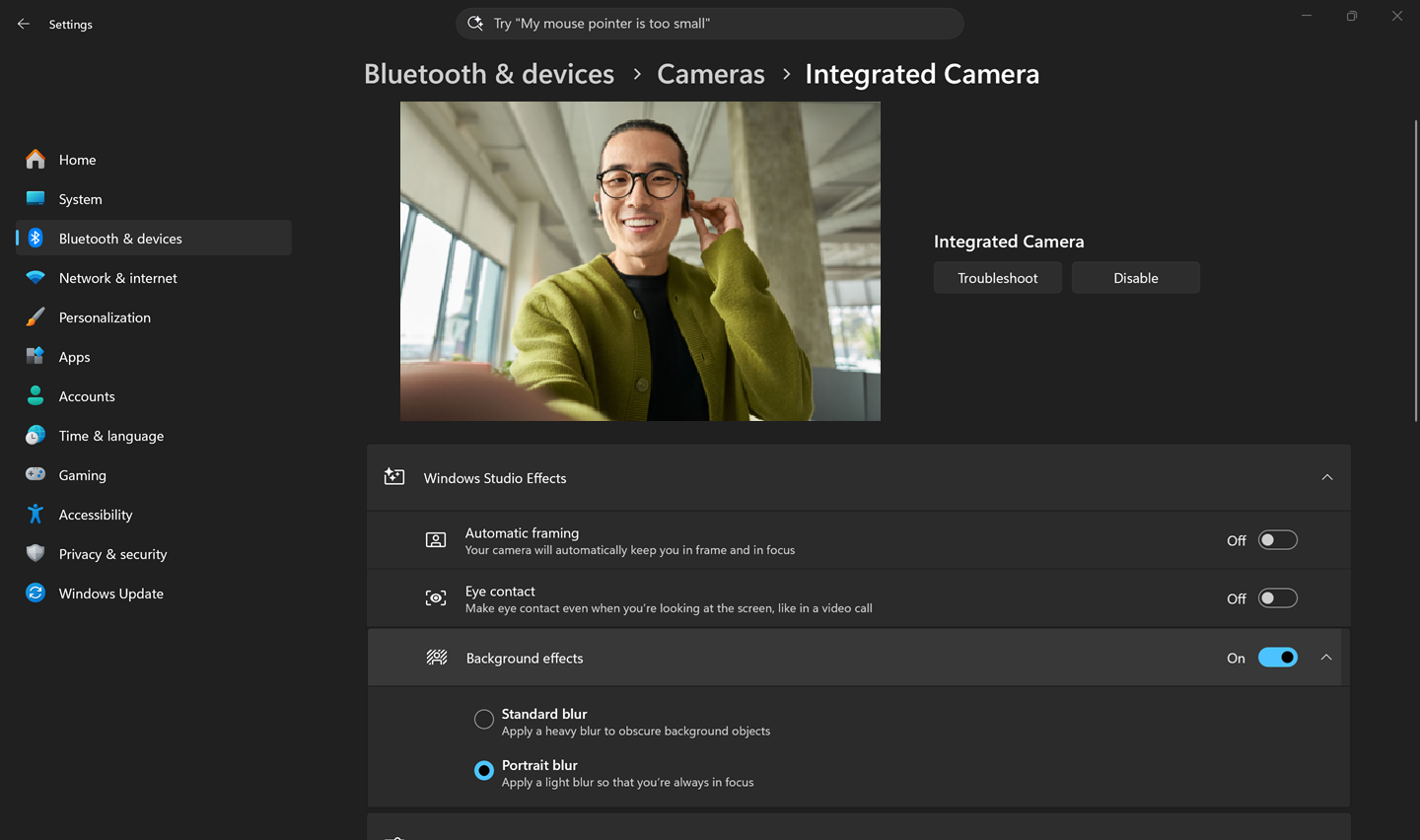
- Go to Bluetooth & devices > Cameras.
- Select your front-facing camera.
- Turn on or configure available Studio Effects.
Note
If Studio Effects options don’t appear, your device might not have a supported NPU.
Reset Studio Effects
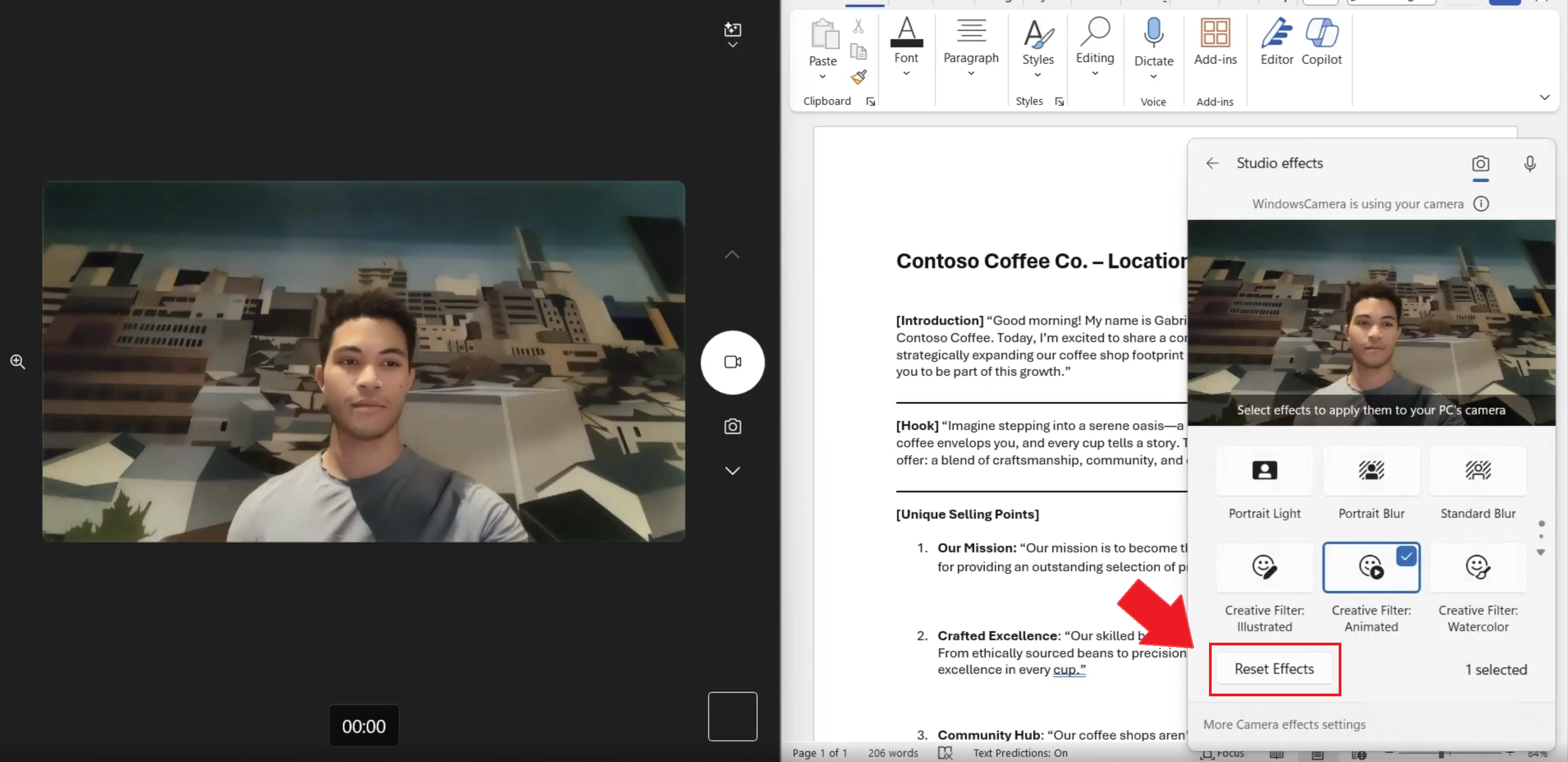
To restore default settings, select Reset effects in the Studio Effects panel.
Important
Camera effects—such as background blur, eye contact, and automatic framing—can impact system performance and battery life on some devices.