Automate tasks that run on their own
You already know the rhythm. Every Friday you pull together a status report. Every morning you catch up on what changed overnight. Some work you can even predict by what triggers it: an email from a key client means you drop what you're doing and respond. The work itself isn't hard. Remembering to start it, every single time, is one more thing on you.
Cowork can take that off your plate by running a task on its own. You set it up once, tell Cowork when to run it, and from then on the result is waiting for you. "When" can mean two things: on a schedule (a set rhythm, like every Friday) or in response to an event (the moment something happens, like a matching email arriving). You set up both the same way, by describing what you want, and both live in the same place.
Schedule a task to run on a set rhythm
The simplest way to schedule a task is to say what you want and when, right in the conversation. Cowork reads your request and sets up the schedule for you. For example:
- "Send me a daily briefing every morning at 9 AM."
- "Create a weekly status report every Friday."
You don't pick from a menu of frequencies or fill in a form. You describe the cadence in plain language, and Cowork turns it into a recurring schedule.
You can also start from the scheduled page in the left navigation pane and select Create. It opens a short guided conversation that asks what you want, how often it should run, and where to deliver the results. Either way, you get the same thing: a prompt Cowork runs for you on a set rhythm.
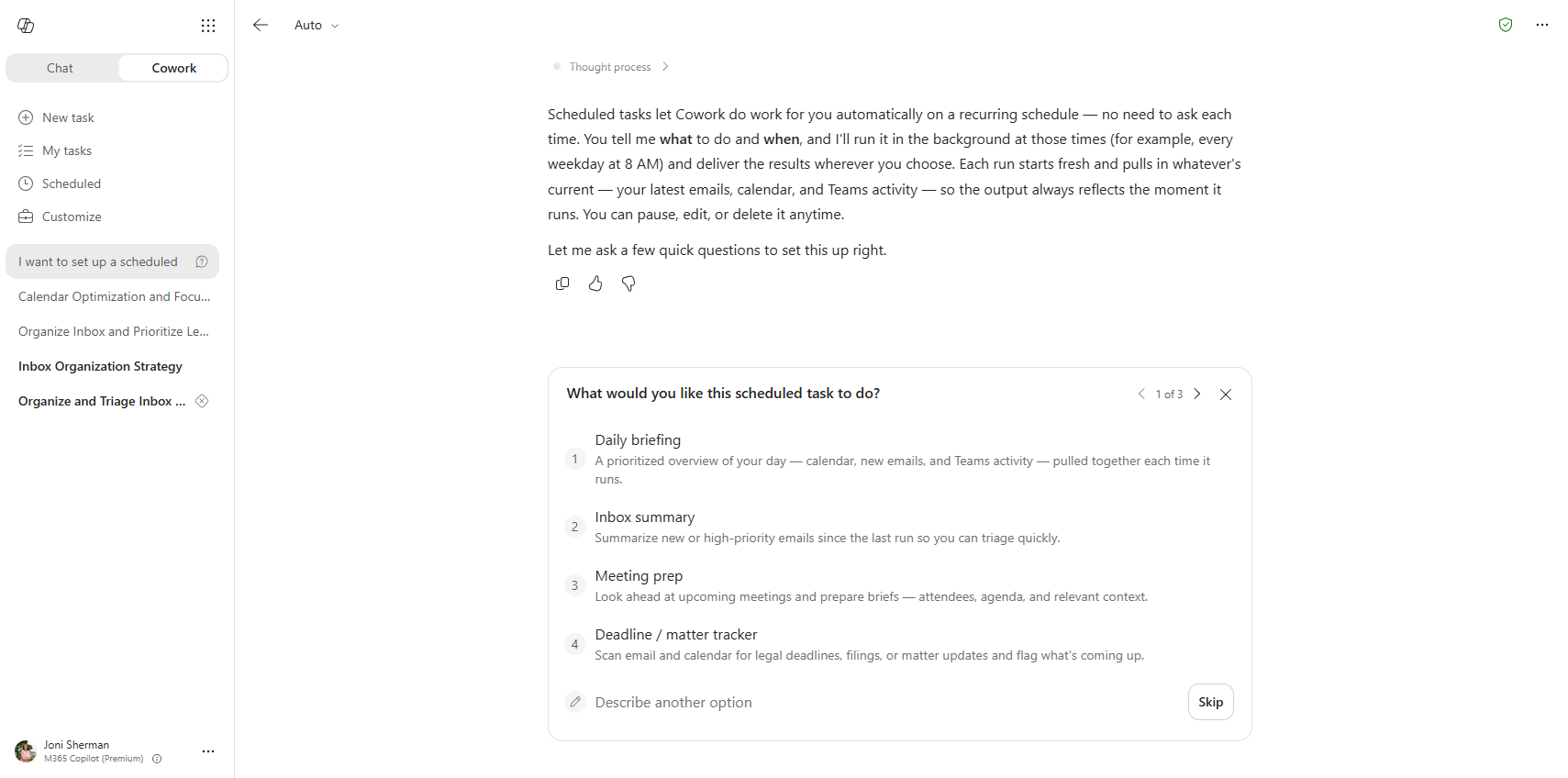
Choose how the first run starts
Before a schedule goes live, Cowork shows a confirmation card that summarizes what it set up: the name, how often it repeats, the time it runs, where it delivers the results, and a description of the work. The card includes a Run once now checkbox that controls how the first run starts:
- Leave Run once now selected, then choose Schedule, to start the task immediately. You can watch it work and approve any actions on the spot.
- Clear Run once now to skip the immediate run. The first run then happens at the next scheduled time.
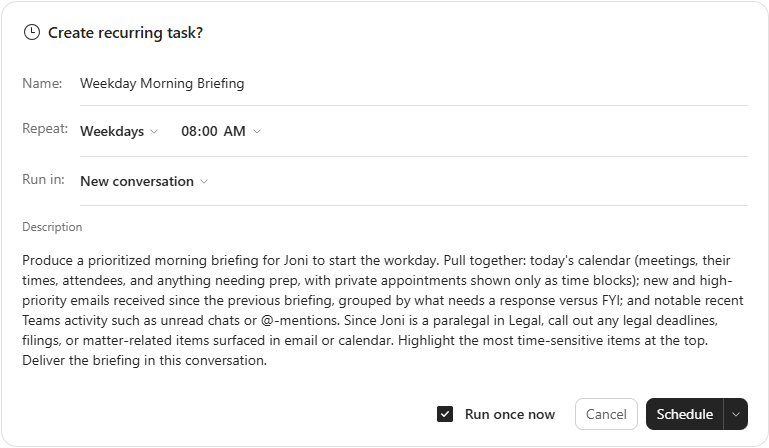
Running a new schedule once right away is a good way to confirm it does what you expect before you rely on it.
Trigger a task to run when something happens
Not all recurring work happens on the clock. Some of it depends on an event you can't predict the timing of, like an email about a deal you're tracking or a message in a channel you watch. Instead of checking for it yourself, you can set an event-driven task: you describe what to watch for and what to do, and Cowork notices the event and acts on it.
You set one up the same way you set up a schedule, by describing it. For example:
- "Whenever I receive an email about the Contoso renewal, summarize it and draft a reply for my review."
- "When I'm @mentioned in the Incident channel, email me a one-line summary."
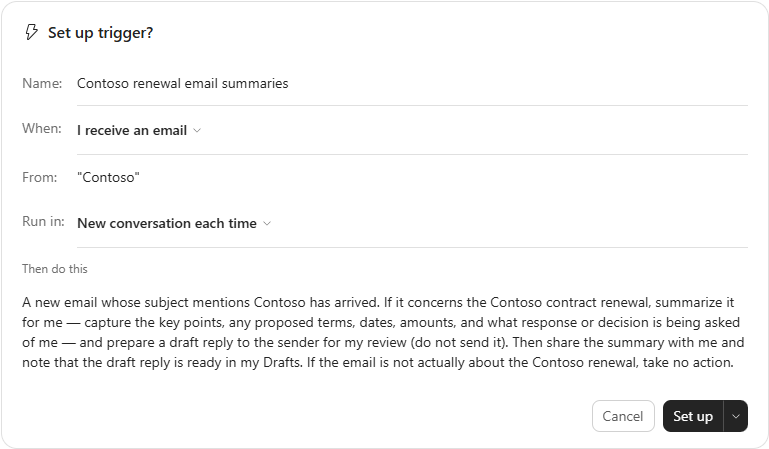
Cowork proposes the automation in a Set up trigger? card. You review and adjust it before anything is armed:
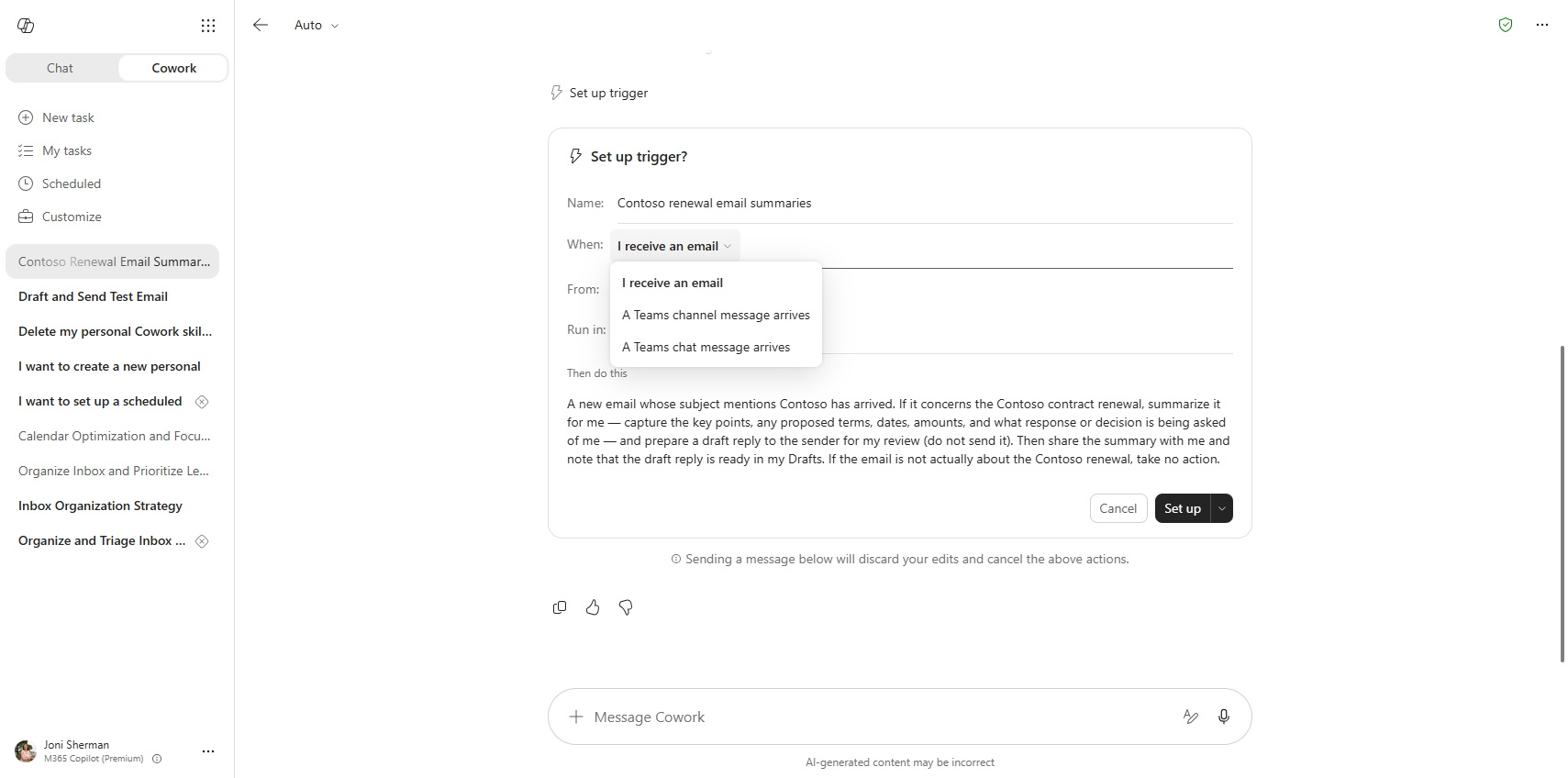
- When: the event that starts the task. Choose I receive an email, A Teams channel message arrives, or A Teams chat message arrives. For Teams triggers, you can limit it to messages that mention you.
- From: an optional filter that narrows which events count, such as a subject keyword or a specific sender.
- Run in: whether each event starts a new conversation or continues the current one.
- Then do this: the instructions Cowork follows when the event fires.
The When field is where you pick the kind of event to watch for.
The card also lists the permissions the task needs to run on your behalf. Review them, then select Set up to arm the task. From then on, Cowork watches for the event and runs your instructions when it fires. No schedule required.
Manage everything from the scheduled page
Schedules and event-driven tasks share one home: the scheduled page in the left navigation. An event-driven task appears here just like a schedule, showing its trigger and when it last fired. The one shown here hasn't fired yet.
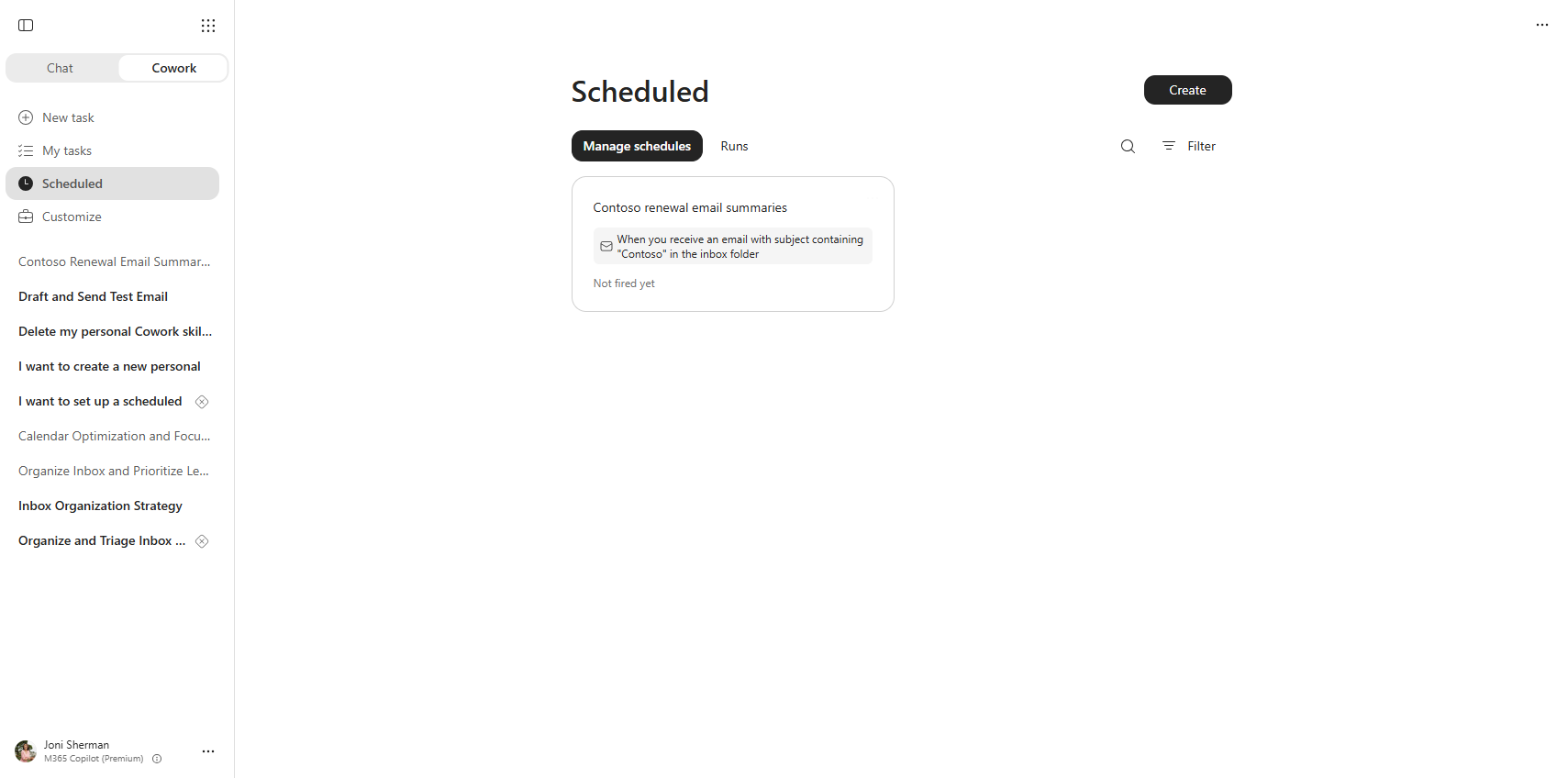
The page has two tabs:
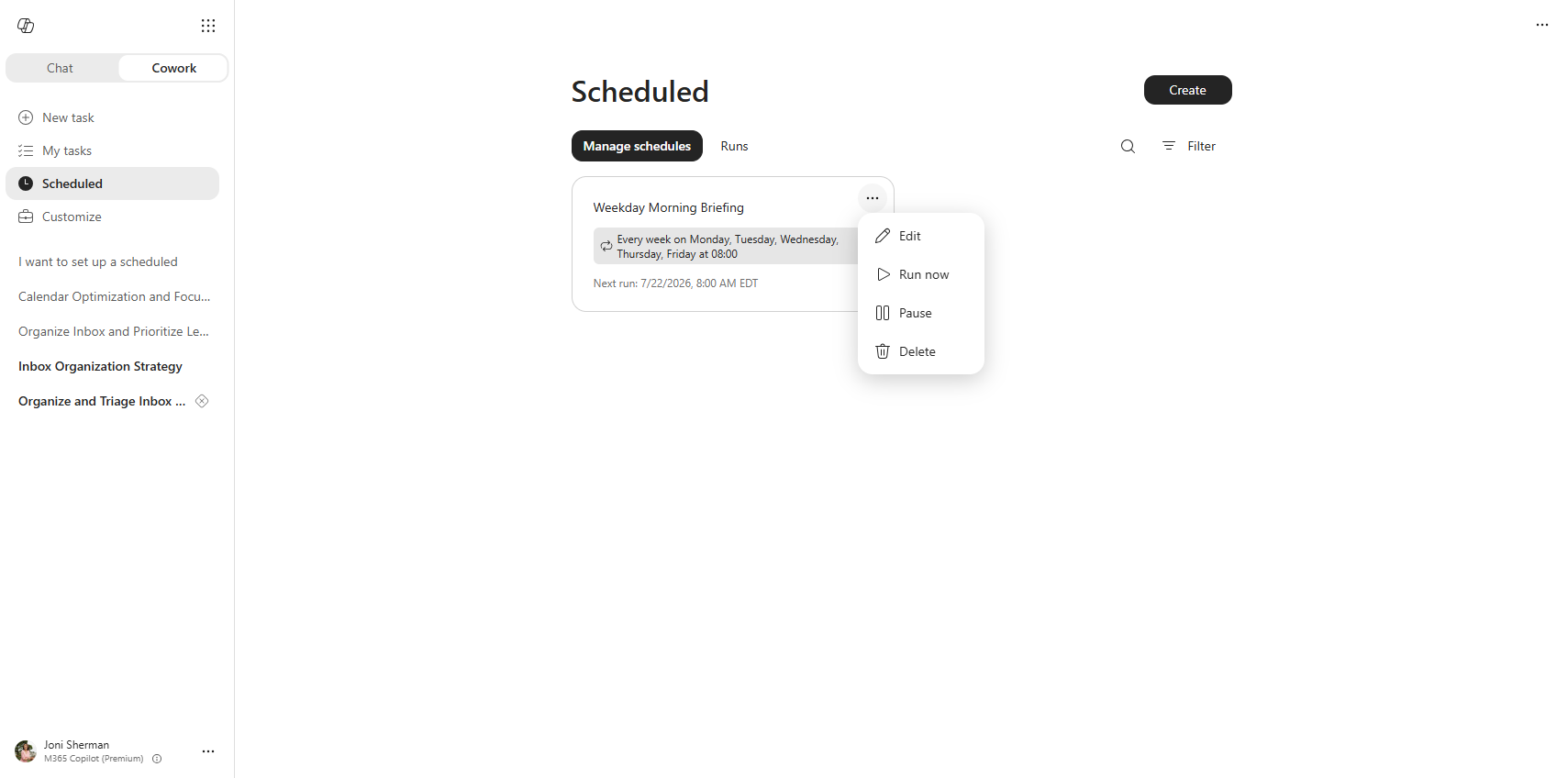
- Manage schedules shows the task definitions themselves. A scheduled task lists its cadence and next run time; an event-driven task lists its trigger and its state. From here you can edit a task, run a schedule now, pause one, resume it, or delete it.
- Runs shows each past and upcoming run, so you can see what already happened and what's coming next.
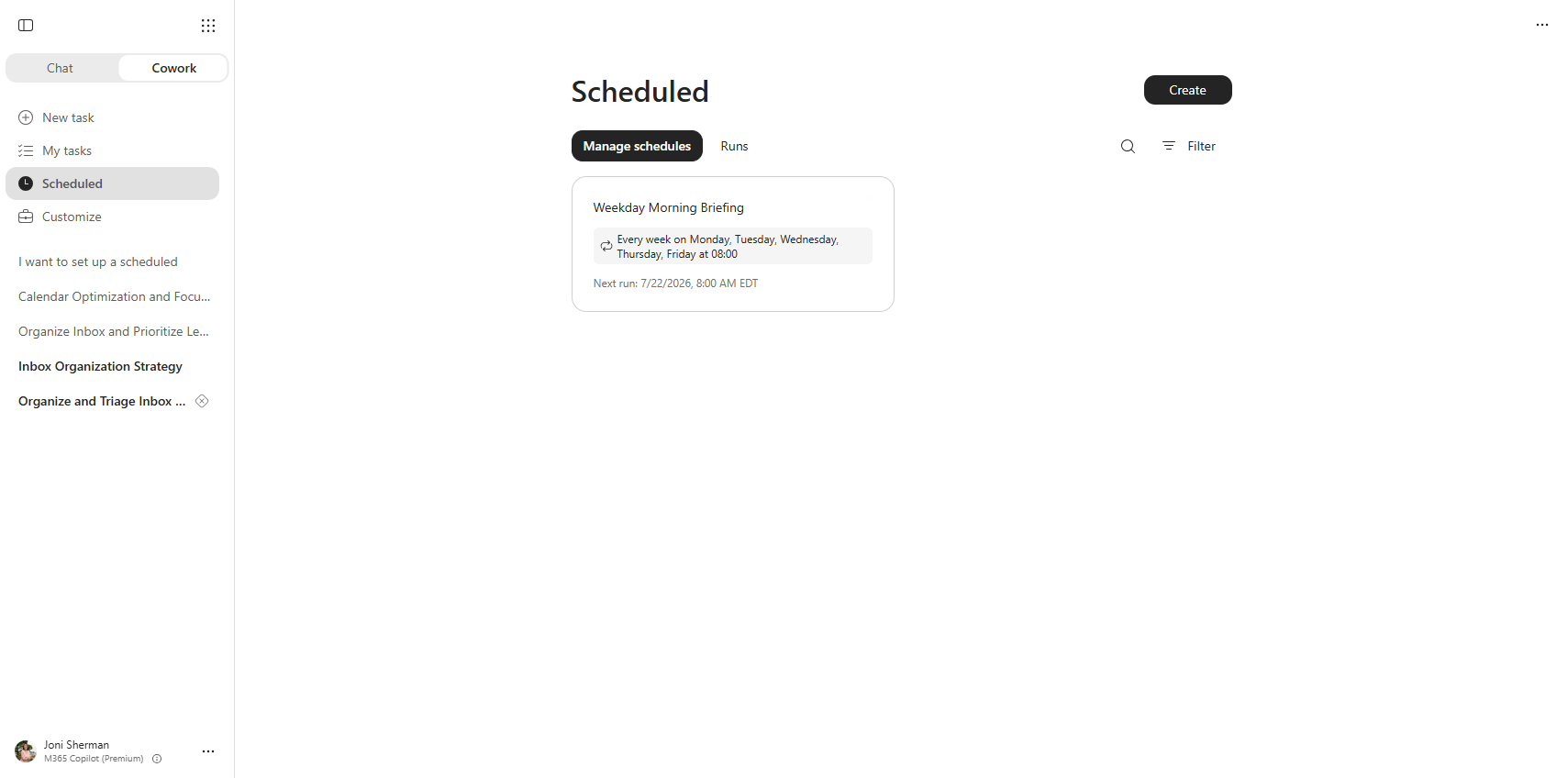
Each card has a More actions menu with the controls to manage it without leaving the page.
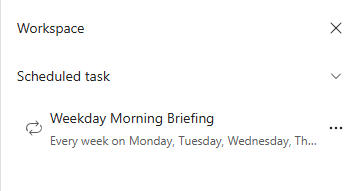
During a session, you can reach the same task from the workspace side panel, where the schedule or trigger you created appears with its own management options.
You can have up to five scheduled tasks at a time. If you reach the limit, pause or delete one you no longer need to make room for another.
Tasks that run on their own still ask before they act
A task runs on its own, but you decide how much it can do without checking in. By default, before a sensitive action like sending an email or posting in Teams, Cowork asks for your approval rather than acting on its own. You can keep that prompt on every time, or grant a standing approval so actions you trust go through automatically. Event-driven tasks follow this same draft-and-approve default. They run with your permissions, so they see only what you can see, and they deliver results only to you unless you approve otherwise. A later unit covers how to manage those approvals.
Tip
Not sure whether to schedule or trigger? Ask what the work waits on. If it waits on time, a day, or a rhythm, schedule it. If it waits on something happening, an email, or a message, trigger it.