Build your own Cowork skills
There's a difference between work that just needs to happen and work that needs to happen a specific way. Scheduling covers the first. For the second, you build a custom skill: the report that always follows the same structure, the emails that need to sound like you, the process with steps you'd otherwise re-explain every time.
A custom skill captures a way of working once, so Cowork applies it consistently every time your request matches. Instead of re-explaining the steps, the format, and the tone, you teach Cowork once and reuse it.
What a custom skill holds
A skill is instruction-focused: it tells Cowork how to approach a certain request. What you put in one is up to you, but most skills capture some mix of three things:
- A process: the steps to follow and the order to follow them in.
- A format: the structure, layout, or tone the result should take.
- Reference material: supporting files Cowork should draw on, like a metrics list, a style guide, or a template.
The other essential piece is the skill's description. It's not just a label. It's how Cowork decides when to reach for the skill. A good description names the situations the skill is for ("use when the user asks to draft a demand letter or an engagement letter") and, just as usefully, when it isn't ("don't use for contracts or court filings"). The sharper the description, the more reliably Cowork picks the right skill at the right moment.
Build a skill through a guided conversation
The easiest way to create a skill is to let Cowork build it with you. From the Customize page, open the Skills tab and select Add, or just tell Cowork in any conversation that you'd like to create a skill. Either way, Cowork starts a short guided flow: it asks what you want the skill to do, then works out the name, description, category, and instructions from your answers.
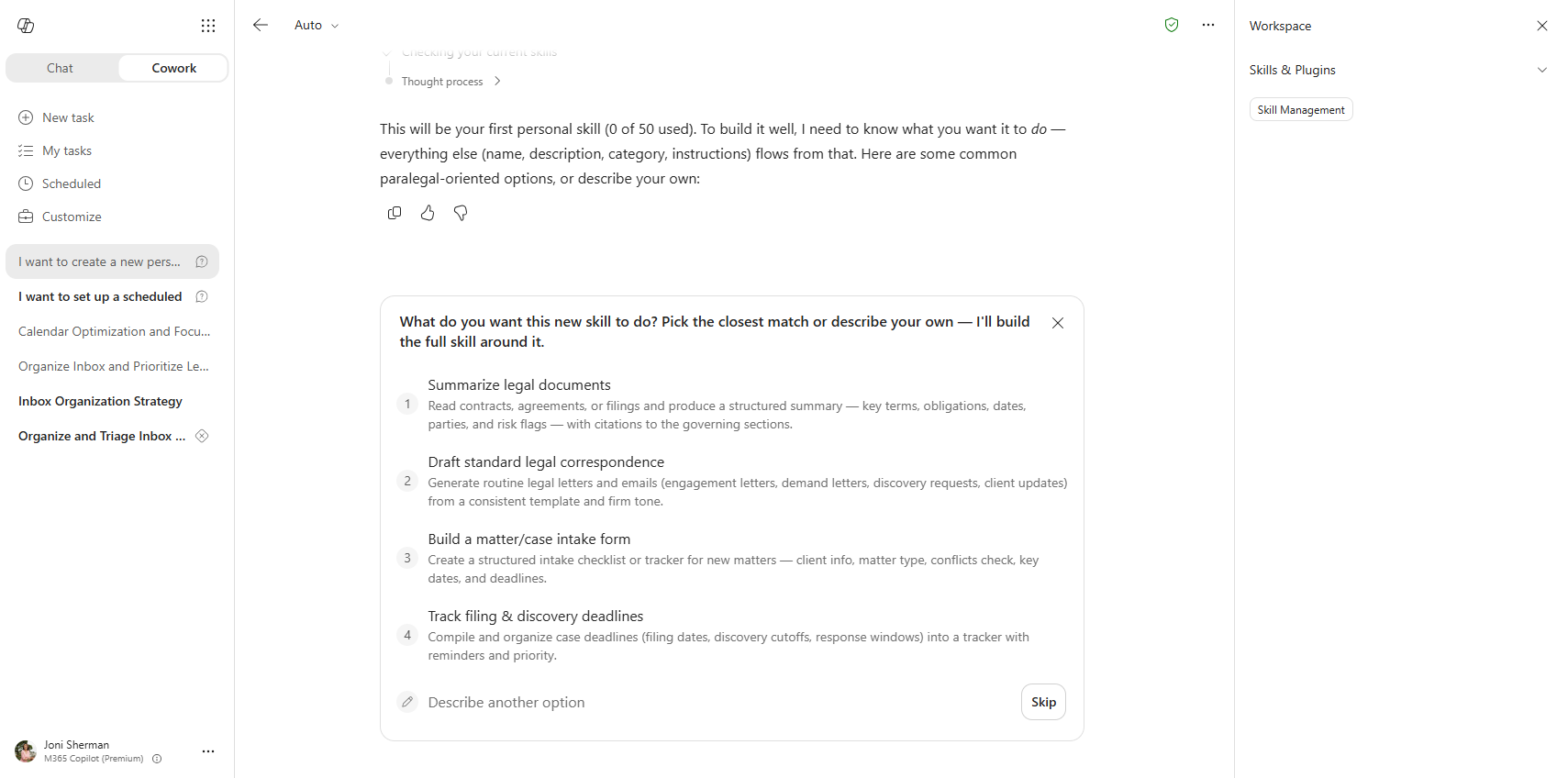
You describe the intent; Cowork drafts the full skill, checks its quality, and saves it. When it's done, the new skill is ready to use in your next conversation. No file editing required.
Build a skill by writing a SKILL.md file
If you'd rather author a skill directly, or you already have one written, you can create it as a file in OneDrive. Cowork discovers your custom skills automatically at the start of each session.
In your OneDrive, go to the
/Documents/Cowork/skills/folder. Create it if it doesn't exist.Add a subfolder named for your skill, such as
/Documents/Cowork/skills/weekly-report/.Inside it, create a file named
SKILL.md.Start the file with a short YAML frontmatter block that gives the skill a
nameand adescription, followed by the instructions in plain Markdown:--- name: Weekly Report description: Generates a weekly status report from my recent emails and calendar. Use when I ask for my weekly status or sprint summary. --- Gather my sent emails and calendar events from the past week, then create a summary document organized by project, using the layout in template.docx.
A skill can also include companion files: reference documents, templates, or scripts the instructions point to, stored alongside the SKILL.md in the same folder.
Manage and refine your skills
The Skills tab on the Customize page is where your skills live. It has two lists: Your skills, for the ones you created or added, and Built-in, for the skills that ship with Cowork like Word, Excel, and PDF. Built-in skills are always available and can't be turned off.
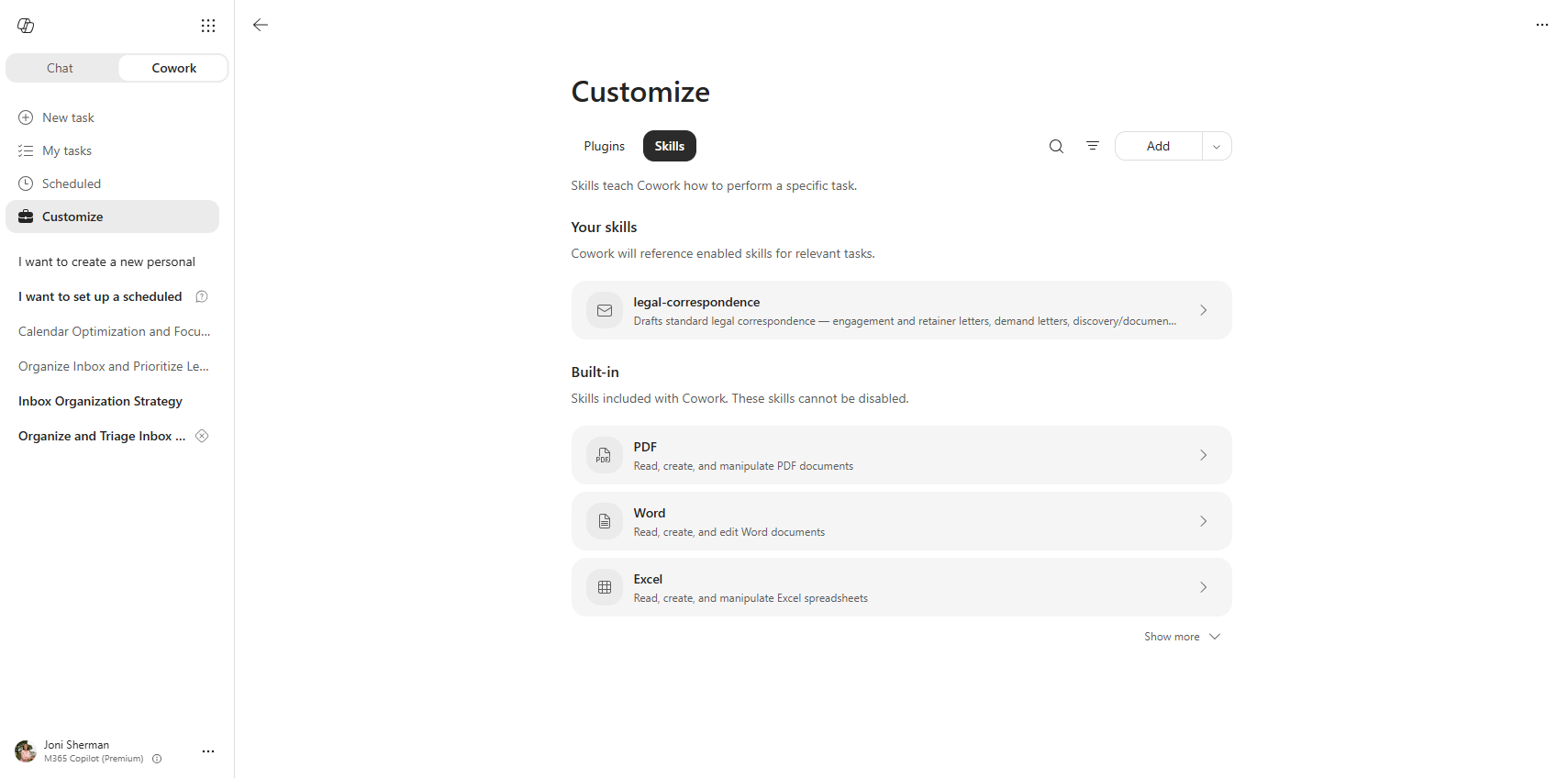
Select any skill to open its detail page, where you can review its description and triggers, share it, download the skill file, or delete it.
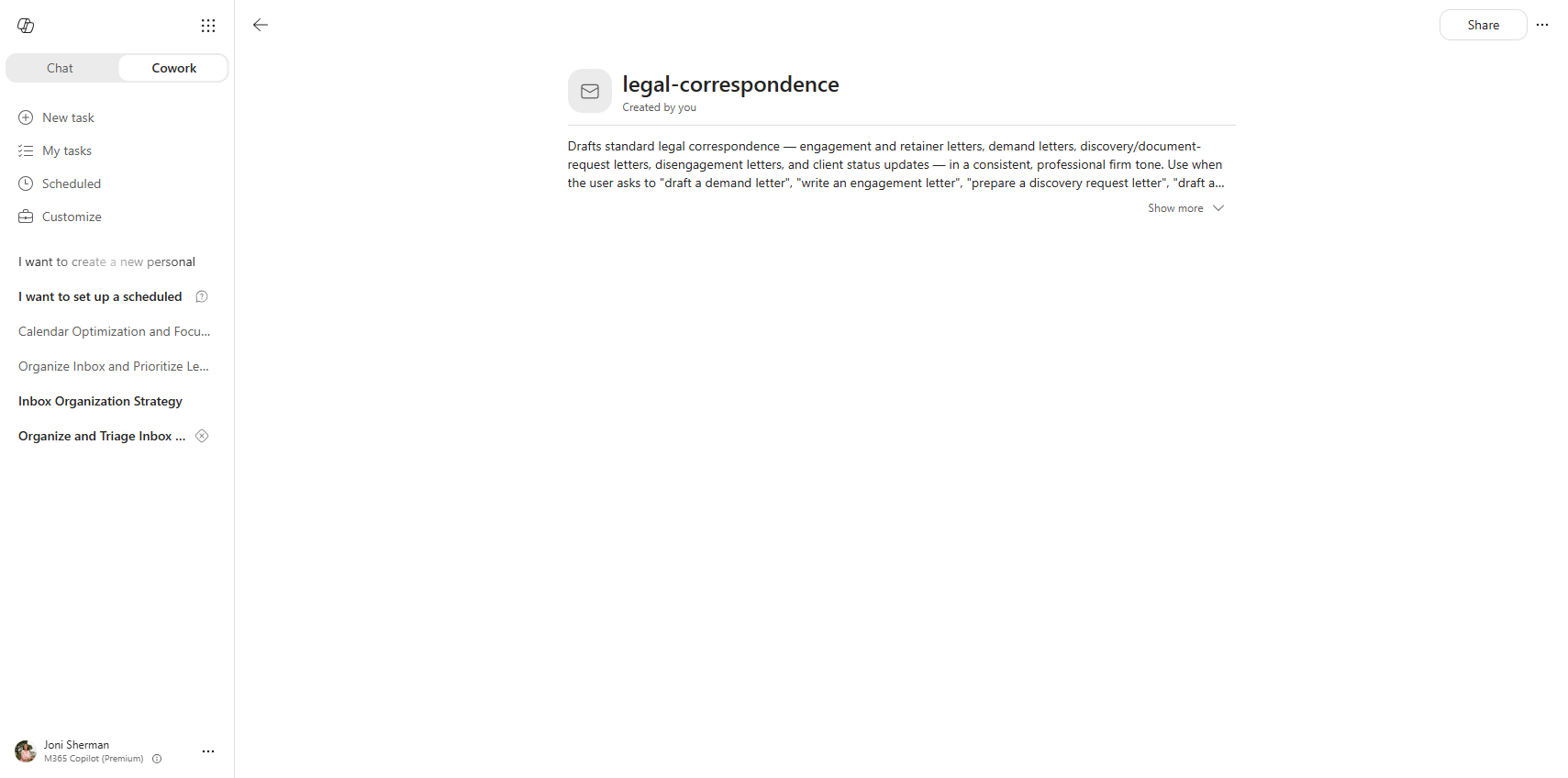
A skill isn't fixed once you create it. To change how it works, refine it the same way you built it: ask Cowork to adjust the skill, or edit the SKILL.md file directly in OneDrive. Because a skill runs as instructions, it's worth testing a new or changed skill in a new conversation before you rely on it in your main one.
Share a skill with your team
A skill you build doesn't have to stay yours alone. From the skill's detail page, select Share and choose who can use it:
- Only you keeps the skill private to your account.
- Specific users in your organization lets you add people by name, email, group, or team, so a process you refined becomes something your whole team can apply.
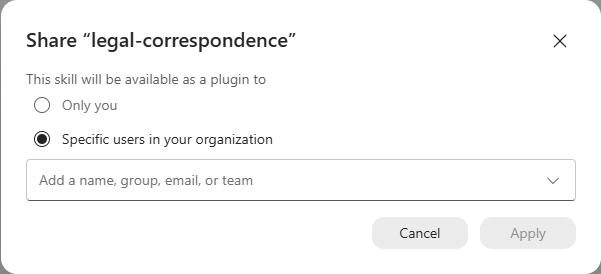
When you improve a skill later, you can re-share it to push the update to everyone you shared it with, so their copy stays current.
A skill, start to finish
Say every engagement letter you send should open the same way, use the same tone, and close with the same next-steps section. You tell Cowork you want a skill for drafting engagement letters. It asks a few questions, drafts the skill (the name, a description that tells it when to use the skill, and the instructions that capture your format), and saves it. From then on, whenever you ask Cowork to draft an engagement letter, it follows your process automatically. Later, you tighten the tone, reshare it with your team, and everyone's letters improve at once.
You can create up to 50 custom skills, and refine any of them as your process changes.
Tip
Put your effort into the description. Cowork uses it to decide when to apply the skill. A description that spells out the situations it's for, and the ones it isn't, is the difference between a skill that fires reliably and one that sits unused.