Extend Cowork with plugins and connectors
Built-in skills and the custom skills you create cover a lot of ground, but they work within the Microsoft 365 tools Cowork already knows. Some of your work depends on systems outside that boundary: a CRM, a project tracker, an analytics dashboard, a ticketing system. Plugins are how Cowork reaches into those.
You don't have to build or manage plugins to benefit from them. What helps is knowing they exist. When a task keeps bumping into a system Cowork can't see, connecting to it's something you can look into or ask IT about.
What plugins and connectors add
A plugin extends what Cowork can do. Each one adds skills, connectors, or both:
- Skills: new domain know-how, the same idea as the built-in and custom skills you've already seen, packaged by someone else. A plugin might add specialized capabilities for financial analysis, legal research, or a particular line-of-business process.
- Connectors: links to an external data source or service, so Cowork can retrieve or act on information that lives outside Microsoft 365.
You browse what's available from the Customize page, on the Plugins tab. Some plugins come from the Microsoft 365 marketplace; others your organization's admin makes available for you.
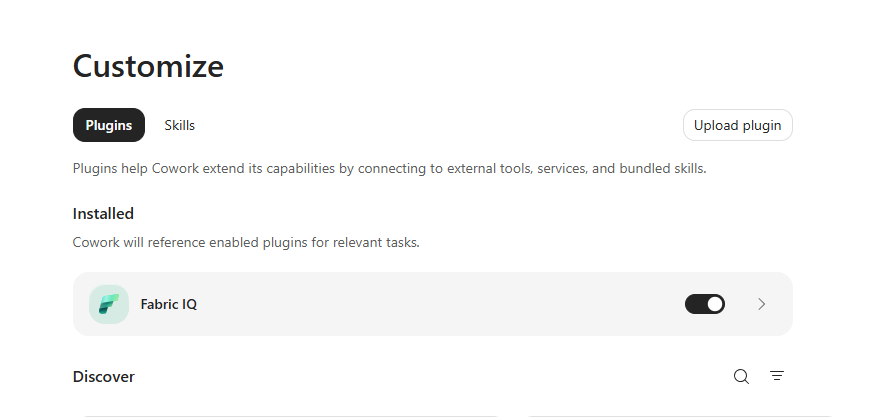
Open any plugin to see what it provides. A plugin's detail page lists the skills and connectors it brings.
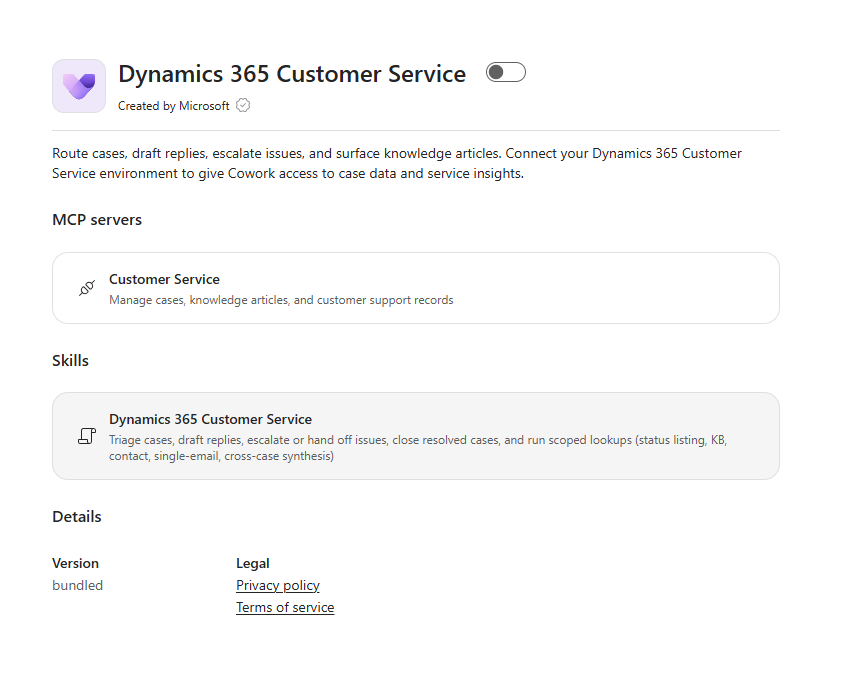
When you open a plugin's details, its connectors appear under a heading like MCP servers.
Note
MCP (Model Context Protocol) is the open standard Cowork uses to connect to an outside service. For Cowork plugins, an MCP server is the connector.
How they fit into your work
When a plugin is enabled, its skills join Cowork's built-in ones. You don't invoke them by hand. Cowork activates the right one based on what you're doing, and it shows up in the side panel just like any other skill. The first time Cowork uses a connector to reach an external service, you complete a one-time sign-in to authorize it.
Say your team tracks projects in a system outside Microsoft 365. With the right connector in place, the weekly status report Cowork already assembles for you can pull live data from that system directly, with no exporting or copying and pasting. The recurring work you set up stays the same. It just reaches further.
When to involve IT
Because plugins can reach outside Microsoft 365, they sit within your organization's governance, so IT is often part of the picture:
- Some plugins need approval first. If a plugin you expect isn't in the list, your admin might need to approve it for your organization before it appears.
- Admins can deploy plugins for you. Plugins your admin deploys show up automatically, and you can't remove them, though you can still enable or disable them for your own sessions.
- You still sign in yourself. Even for an admin-deployed connector, the one-time sign-in that authorizes access is yours to complete; an admin can't do it on your behalf.
- If you need something that isn't there, ask. IT can approve a plugin from the marketplace or work with a partner when a capability doesn't exist yet.
Note
We recognize that different people like to learn in different ways. You can choose to complete this module in video-based format or you can read the content as text and images. The text contains greater detail than the videos, so in some cases you might want to refer to it as supplemental material to the video presentation.