Create and activate a segment
As mentioned previously, a segment is a group of records that share commonality. For example, you might create a segment for records that are in the same geographic region. Alternatively, you might create a segment for records that derive from the same lead source with estimated values within a specific dollar amount.
Two primary ways to use segments in Sales accelerator are:
Associate records with sequences - Instead of manually assigning sequences to records, such as leads and opportunities, you can associate segments with sequences. The system automatically associates any records that fall into that segment with the sequence.
Assign records to sellers - When you create new records, such as leads, auto assignment rules can automatically assign records to users based on the segment that they belong to.
Important
This module focuses on how to create segments and associate them with sequences. It won't discuss how to use them for record assignments. For more information, see Manage assignment rules for routing.
To create segments, go to the Sales Insights settings area of the Dynamics 365 Sales Hub app. Under Sales accelerator, select Work assignment.
On the Work assignment page, choose a record type from the Record type list. By default, the lead and opportunity record types are available. However, you can enable other record types in the application. After you identify the record type that you want to use, select New segment.
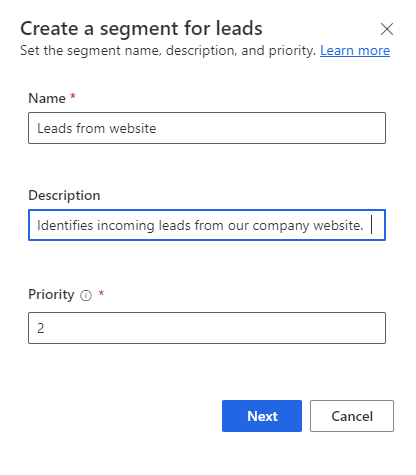
When creating a new segment, provide the following details:
Name - Defines the name that's used to identify this segment.
Description - Provides users with a short description about the type of records that this segment contains.
Priority - You'd use the Priority field when a record matches the criteria in multiple segments. The system assigns records that meet the criteria for multiple segments to the one with the higher priority. You can change the priority of a segment anytime. By default, the priority is set to the last segment that you created. However, the default, out-of-the-box segment is always prioritized last in the list.
The segment designer page is where you define the actual criteria for the segment.
The page contains four tabs:
Segment definition - Use to define the criteria for the segment.
Assignment rules - Displays any assignment rules that are associated with this segment. You can also define new assignment rules for the segment from here.
Attached sequence - Identifies the sequence that the segment is connected to. A segment can only be connected to one sequence.
Segmented (Records) - Based on the record type you selected, it'll display the records that meet the segment condition. For example, if you selected Lead for the record type, any leads that meet the segment criteria are displayed.
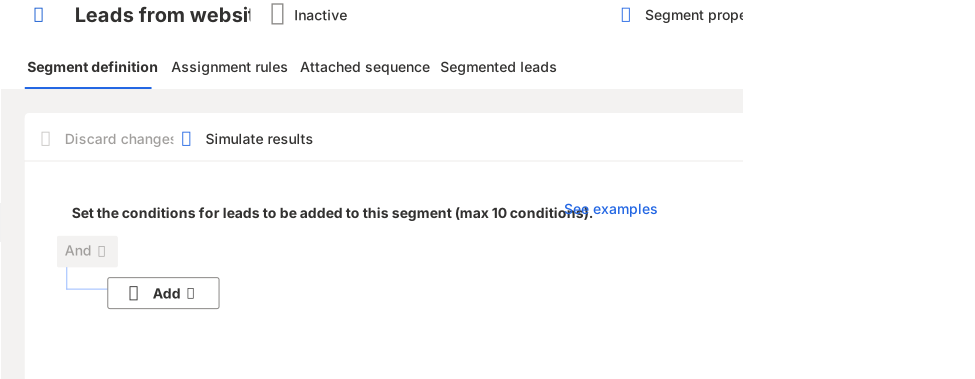
To define conditions, select the + Add dropdown menu and then select from the following options:
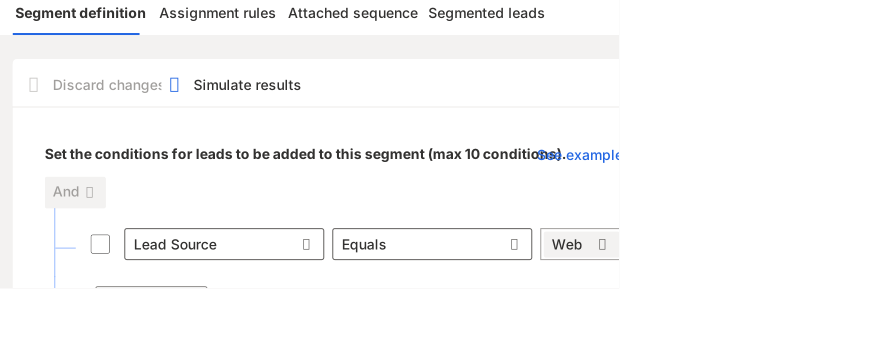
Add row - Defines conditions for when you should apply the segment based on the type of record that the segment is based on. For example, you can add rows to specify that the system should apply this segment to leads that are created with a Lead Source of Web.
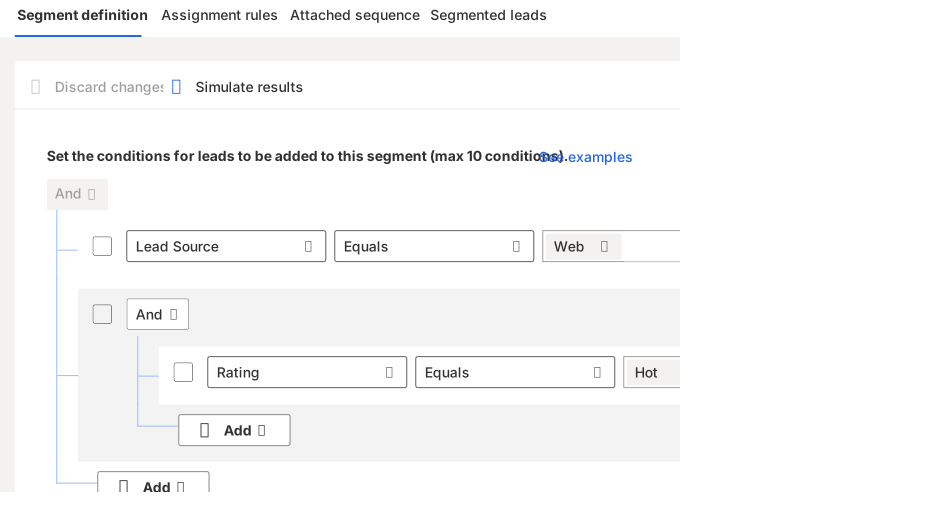
Add group - Add multiple conditions as a group to your segment if you want to filter leads by using more than one field. For example, you could filter on leads with a Lead Source of Web and a Rating of Hot.
Add related entity - Add a condition based on the attributes of related entities. For example, you could filter on details from the account record that's associated with the lead.
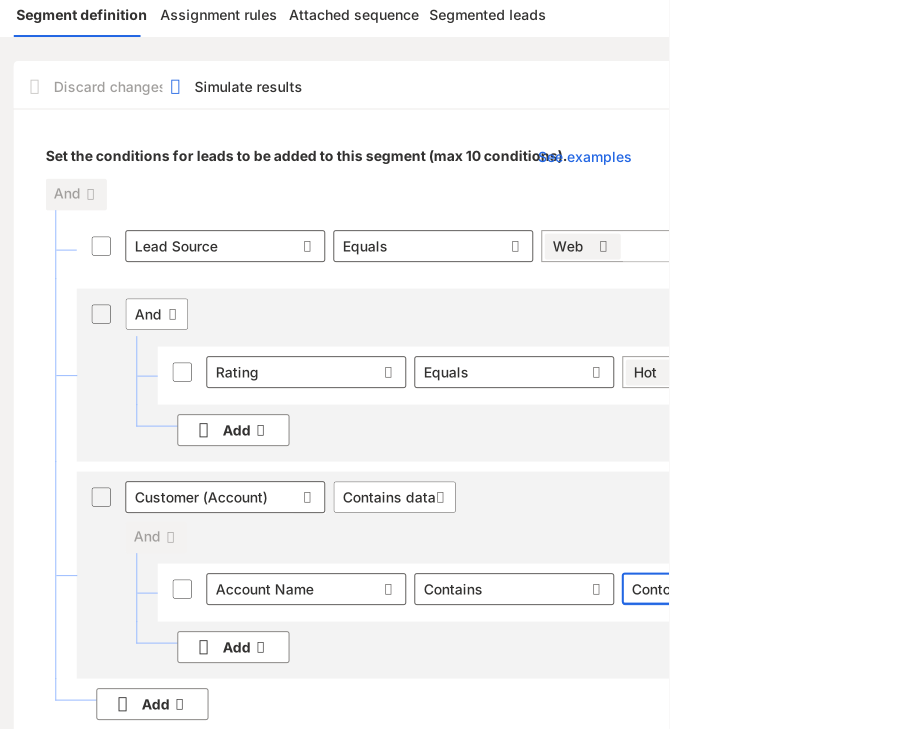
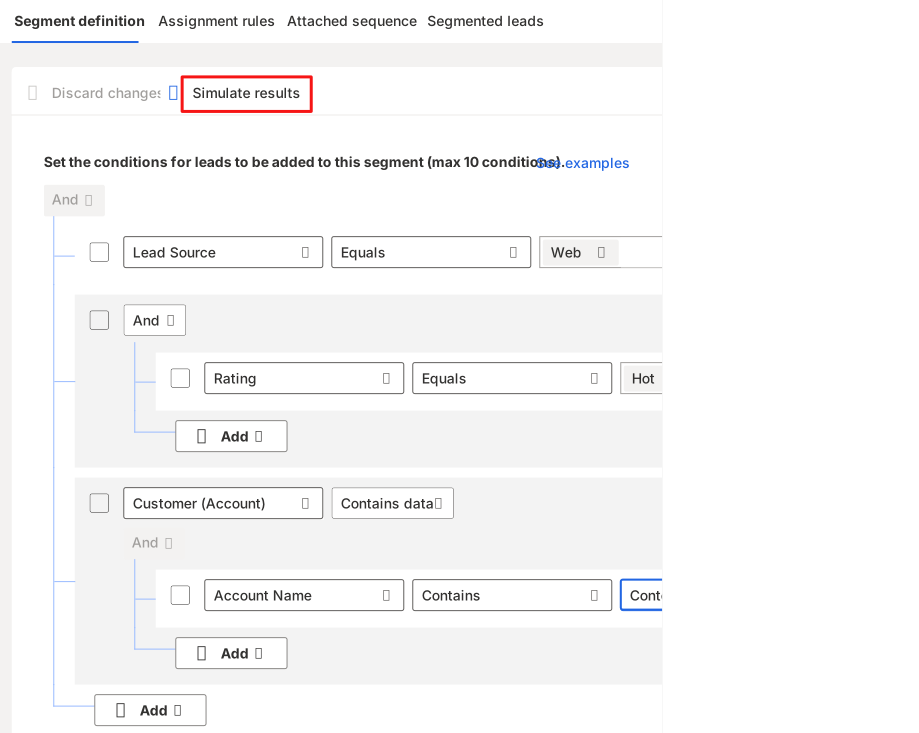
After you define the conditions, select Simulate results to verify that the conditions for the segment work as defined.
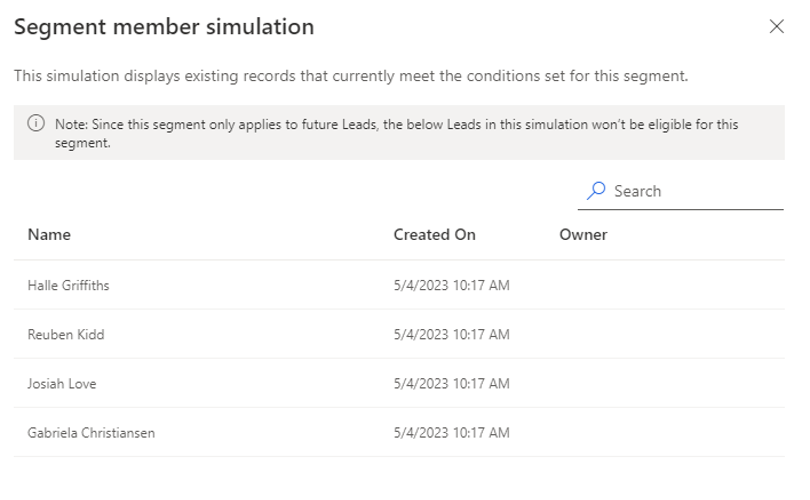
Now, a list of records displays that satisfy the conditions that you've defined for the segment in the application.
Important
The records that are displayed in these examples are only simulated results; they might not be records that you can apply the segment to.
When you're satisfied with your segment, select Activate to make the sequence live. When it's activated, you can connect the segment to a sequence or a record.
For more information, see Create and activate segments in sales accelerator.