Analysis, modeling, and reporting
In modern finance, the bottleneck is rarely a lack of data—it's the sheer amount of time required to transform that data into a cohesive story. The ultimate objective of an analyst or finance manager during dedicated production time is to turn data into insight and clarity.
However, achieving this goal traditionally requires constant context-switching. Finance professionals routinely lose valuable cognitive momentum jumping between specialized analytics software, document editors, local file directories, and communication channels.
To get the most out of your analysis, your operating system and productivity apps need to work together seamlessly. When you combine the system-level capabilities of a Copilot+ PC with Microsoft 365 Copilot, you can move from a raw source to a finished report in a fraction of the time.
For example, imagine you need to analyze a live, foreign-language earnings webcast or a video presentation from a global competitor. With a feature like Live Captions, you translate spoken audio (from 40+ languages) into English subtitles directly on your screen in real time as you watch. With Copilot in Excel, you can then analyze and summarize key metrics—helping to bridge the gap between hardware-enabled OS features and your workspace.
Analysis setup with Copilot in Excel
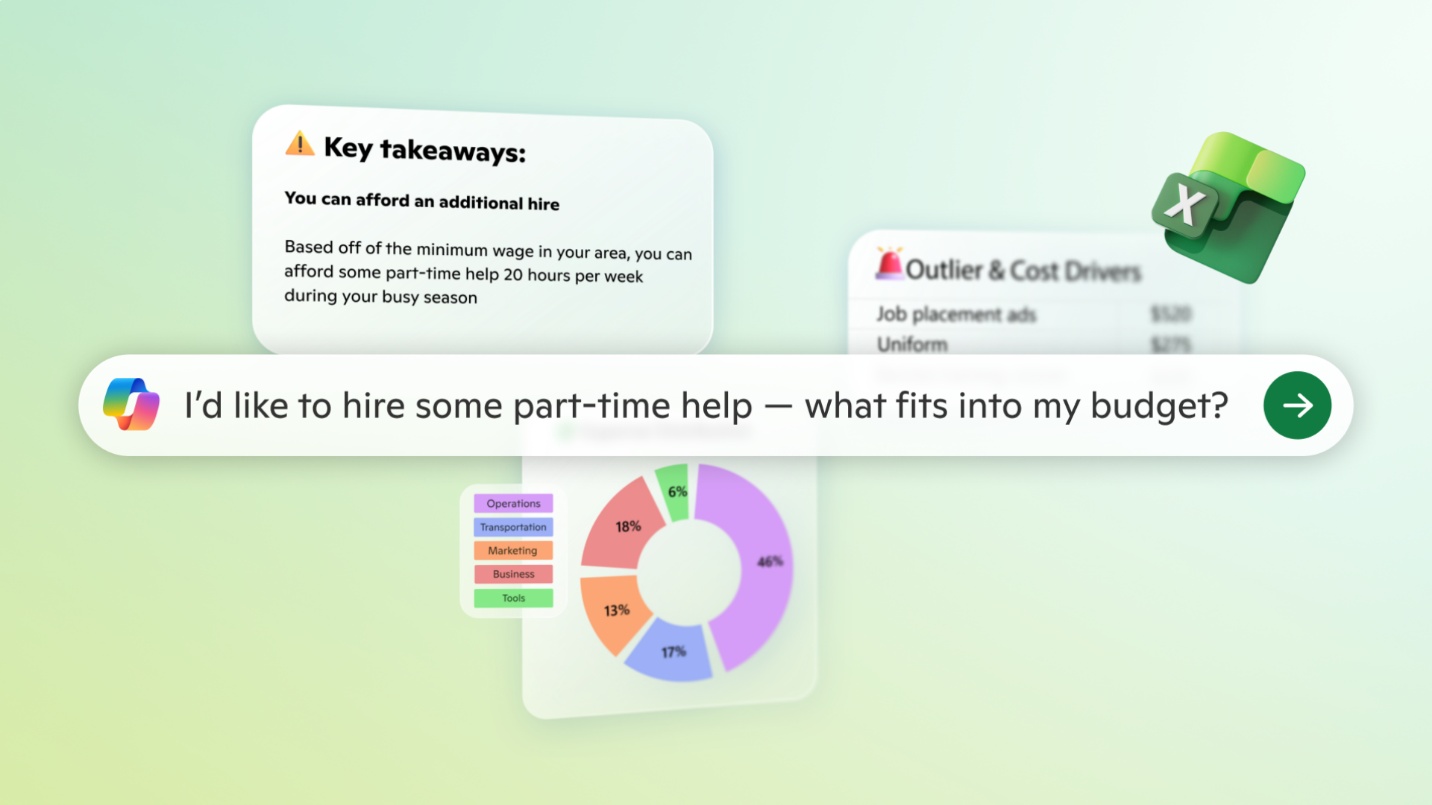
Imagine that you're working in a massive multi-tab financial model from a different department, and you need to quickly brief the leadership team on performance anomalies. The spreadsheet is densely packed with hundreds of rows of historical actuals, projections, and complex formulas.
You know there are significant variances in the data but finding them manually requires you to write a dozen new formulas, build conditional formatting rules across multiple tabs, and trace individual cells to understand what is driving the discrepancies. With limited time, you don't have the bandwidth to set up the data for analysis, you need to get straight to insights. With Copilot in Excel, this task goes from a multi-step diagnostic process into a conversation-driven exercise.
To use Copilot in Excel, do the following:
- Open your workbook in Excel.
- Select the Copilot icon in the lower-right corner of Excel.
- Choose between Allow editing, Plan, and Chat only. For this exercise, you'll select Allow editing.
- Type in your prompt in the prompt box. For this exercise, type in the following prompt:
"Review this financial model and highlight material variances versus forecast. Identify drivers and summarize key takeaways."
Instead of treating Excel as a static calculator where you must build every analytical framework from scratch, this prompt allows Finance professionals to use Copilot as an on-demand data analyst to assist with analysis by identifying patterns and summarizing insights. This prompt helps to condense rows of complex numerical data into clear, bulleted insights that you can instantly review, validate, and drop into your final presentation. Remember that Copilot-generated insights should be validated before use.
Narrative development with Copilot in Word
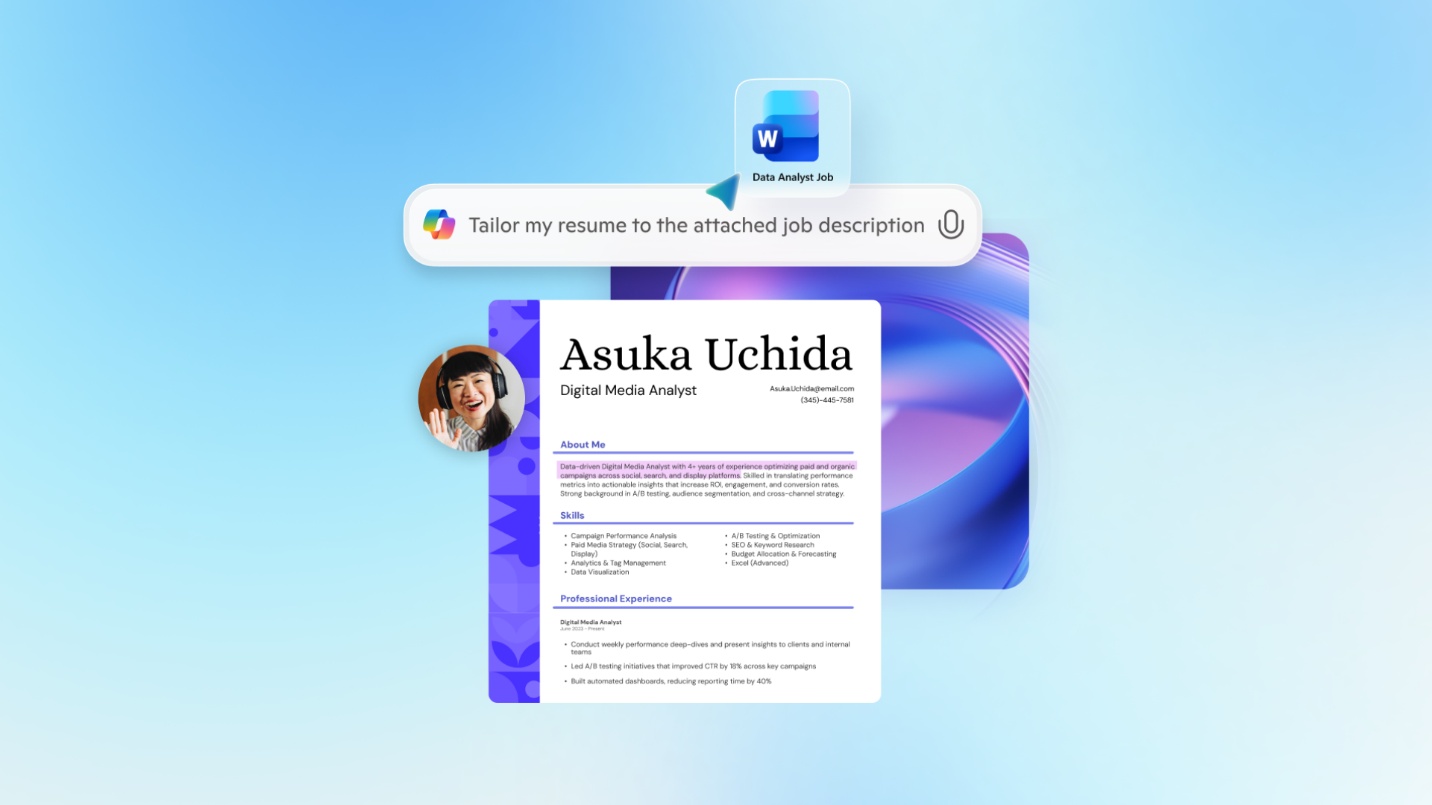
You have wrapped up a deep-dive data analysis in Excel and successfully identified the core drivers behind this month's financial performance. However, your next task is often the most time-consuming: translating those rows of data into a formal, structured executive summary in Word for the monthly leadership document.
Instead of focusing on your strategic recommendations, you're spending time trying to figure out how to structure the opening paragraphs, organize the risks, and make sure the tone matches corporate standards. You need a way to instantly convert your analytical data into a well-crafted narrative baseline so you can focus entirely on refining the message.
With Copilot in Word, you can move past the "blank page" phase and straight into the editing and finalizing phase. Let's explore how to use it:
- Open Microsoft Word.
- Start a new blank Word document.
- Select the Copilot icon in the lower-right corner of Word.
- Type your prompt in the prompt box. For this exercise, type in the following:
"Draft a concise financial summary explaining this month's performance, including risks, opportunities, and recommendations."
Instead of treating document creation as a separate, manual writing exercise, this prompt can help bridge the gap between quantitative figures and qualitative storytelling by generating a structured draft that you can refine. With the help of Copilot, you're able to produce a report that is a forward-looking strategic document, and not just a list of facts.
Writing support with Click to Do
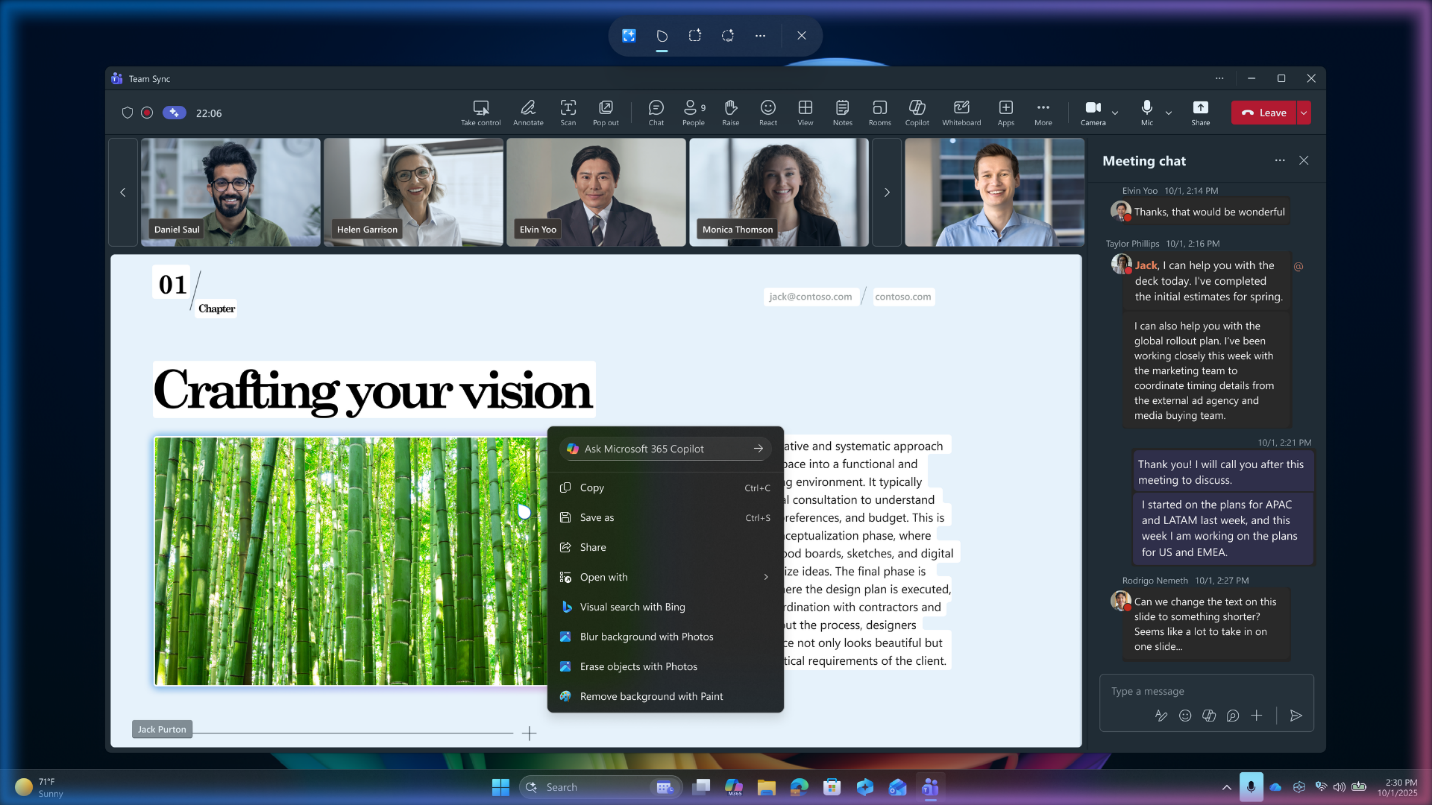
Imagine that you've just finished a highly detailed financial analysis regarding an unexpected variance in supply chain logistics. To explain the numbers thoroughly, you drafted a comprehensive explanation in your PowerPoint deck. The problem is that the paragraph is incredibly dense—packed with technical accounting terms, complex tax implications, and deep internal finance jargon.
Later this afternoon, you must present this slide to a group of nonfinance regional executives. If you show them the technical text, they'll likely get lost in financial mechanics rather than grasping the business impact. You need to rapidly distill this paragraph into a message that resonates with operational leaders, but you don't want to break your flow. With Click to Do on your Copilot+ PC, you can bridge the gap between complex text and tailored business communication. Let's explore how to use it:
- Open your presentation in PowerPoint.
- Click to Do can be activated in a number of ways. One way to do it is by pressing Windows key + mouse click. You'll see a subtle visual change on screen letting you know Click to Do is active.
- Select the paragraph you want to edit, then select Rewrite and choose the style you want.
- Review the suggested rewrite, then copy and paste it into your document.
Note
Click to Do availability varies by device, region, language, and character set. Click to Do may invoke some services that may require a subscription. Rewrite suggestions aren't automatically inserted and require manual confirmation. You can also activate Click to Do by pressing Windows key + Q, with a right swipe on touch-enabled PCs, from the Snipping Tool menu if Snipping Tool is installed, or by searching for Click to Do in Windows Search. Click to Do is a device-wide feature that allows actions to be taken from content on your screen.
Find historical context fast with Improved Windows Search
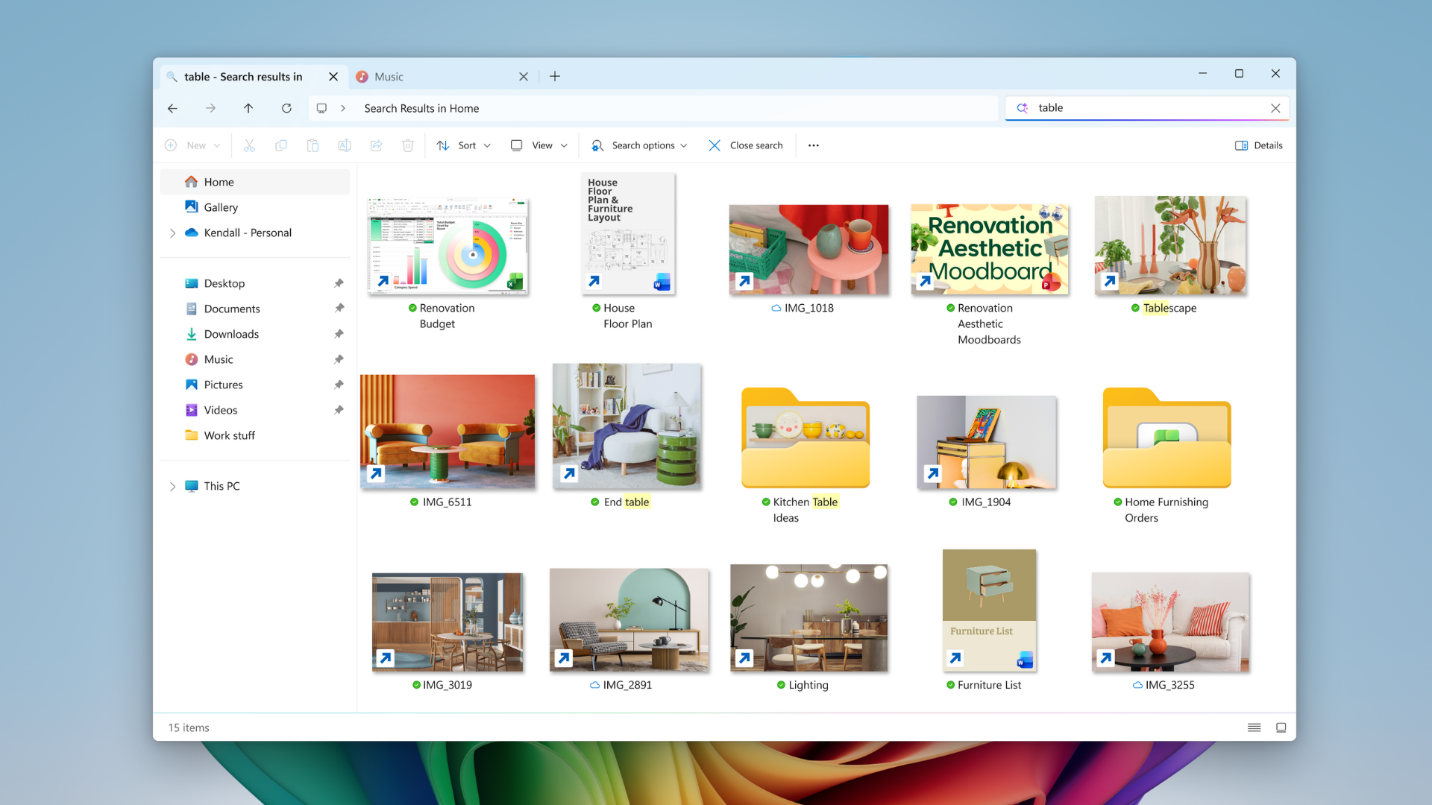
You're finalizing the corporate budget projections for the upcoming fiscal year when the CFO tasks you with comparing your proposed numbers against a specific multi-regional forecast model built two years ago.
You know the file exists, but it was created before the department reorganized its shared directories. You can't remember the exact filename—it might be saved under an old client code, a former colleague's initials, or a generic title like "Forecast_v3_final_EDITED.xlsx." You try a traditional keyword search, but it surfaces hundreds of unrelated spreadsheets containing the word "Forecast." With Improved Windows Search on Copilot+ PCs, you can use natural language to find the file you're looking for without going through multiple folders. Here's how to use this feature:
- Open Improved Windows Search by selecting the search box on the taskbar or pressing Windows key + S. Alternatively, you can summon Improved Windows Search by pressing the Windows key on your keyboard.
- In the search box, use natural language to describe the content of the previous forecast model that you're looking for, such as "Q2 forecast deck with regional breakdown."
- Improved Windows Search will surface relevant files based on their content, not just the file name.
- If you need to narrow the results down further, select Filters, then choose Documents to focus on files only.
- Quickly confirm that you have selected the right file by hovering over the result to preview the file before opening it.
Note
Improved Windows Search supports common file formats, including:
- Word documents
- Excel spreadsheets
- PowerPoint presentations
- Text files
- PDF files
- Image formats including JPEG, PNG, GIF, BMP, and ICO
Improved Windows Search allows you to utilize two distinct ways to find your content. There are scenarios where natural language is better than traditional filtering and vice versa. Let's explore those scenarios briefly:
| Scenario | Use natural language when... | Use traditional filtering when... |
|---|---|---|
| Asset recall | You remember the concept or context, but not the name | You know the exact file name or specific metadata |
| Visual content | You're tracking down untagged imagery or design files | You're filtering strictly by file type or extension |
| Campaign context | You remember when or why you worked on it relative to your schedule | You have a precise date range or folder path |
Natural language in Improved Windows Search is most helpful when you know what you're looking for but not what it's called or where it's located. Traditional filtering helps when you have more familiarity with file names and folder organization. Both help you find your files, but in different ways.