Stakeholder review
After the deep analytical work is complete, the financial lifecycle shifts toward communication. The ultimate test of any financial model or quarterly narrative happens during collaborative review sessions. The primary objective during a stakeholder review is to align stakeholders on results and decisions.
However, live finance meetings are notoriously complex. They move quickly, juggling multiple figures, shifting operational constraints, and competing priorities from cross-functional leaders. This can be a challenge, but with the combination of Copilot+ PC and Copilot in Microsoft 365 applications, it becomes more manageable.
The following features help you deliver highly professional, accessible, and seamless communication when engaging stakeholders during weekly finance meetings.
Stay engaged with Live Captions
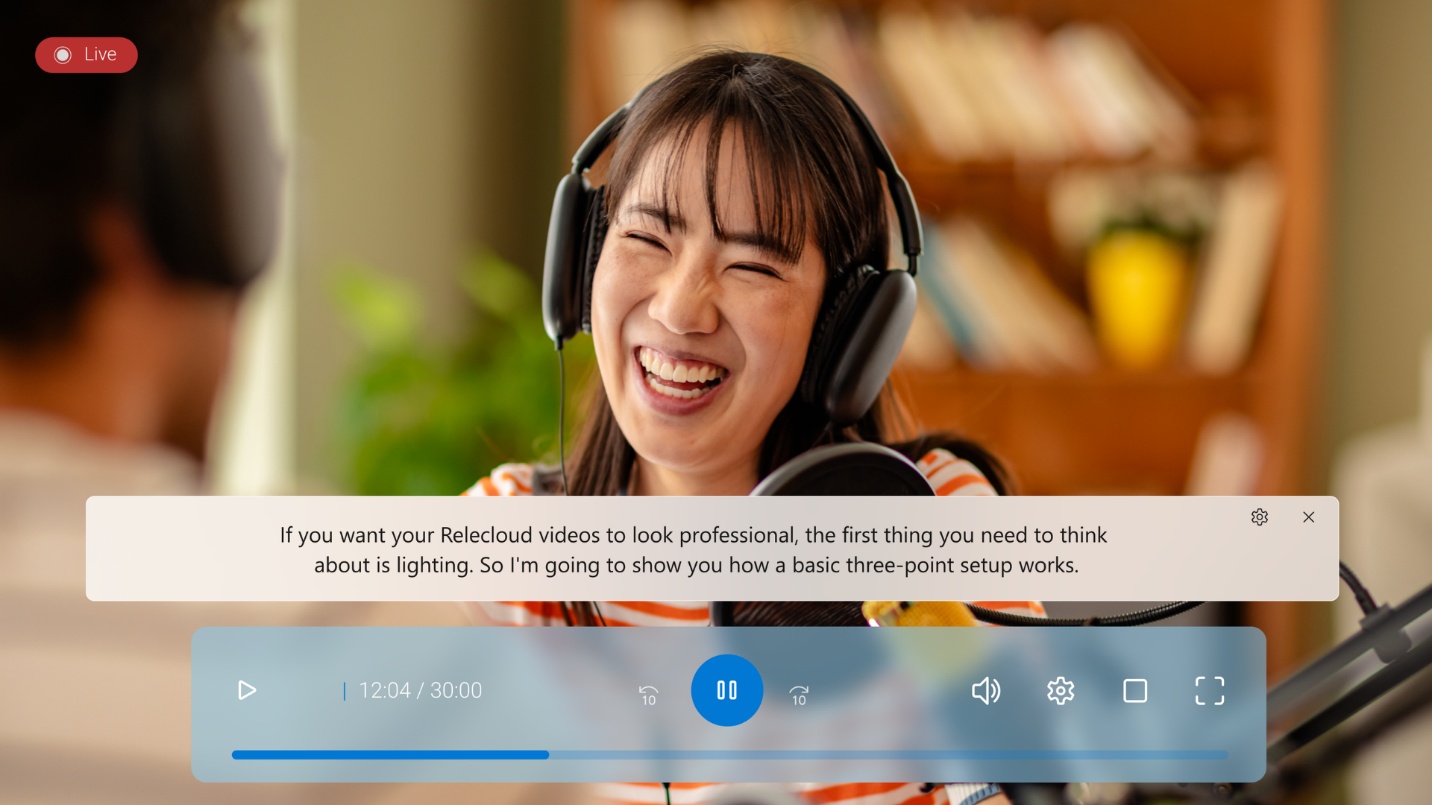
Imagine you are in a multi-regional financial review meeting conducted via Teams. The purpose of the meeting is to finalize international operational expenditures across global subsidiaries. The call features leaders from offices in different regions.
Because many speakers are presenting from busy environments or dialing in via fluctuating cell connections, the audio quality varies. Compounding this, complex financial jargon, foreign currency terminology, and regional accent differences make it difficult to follow every detail of the rapid-fire dialogue. With Live Captions on Copilot+ PC, you can avoid misinterpreting figures and reduce the need for repeated clarification. Here's how to use it:
- Start or join your Teams meeting with your stakeholders as you normally would.
- Follow the conversation with Live Captions by pressing Windows key + Ctrl + L and Live Captions will display the spoken content on your screen in real time. Alternatively, Live Captions can be opened through Accessibility in Quick Settings, in Settings > Accessibility > Captions, or by searching "Live Captions" in Windows Search.
- If participants are speaking different languages, enable translation in Teams so captions appear in your preferred language.
Tip
To enable translation in Microsoft Teams, follow these steps:
- Open Microsoft Teams.
- In the top right corner, select Settings and more.
- Select Settings.
- Go to General.
- Scroll down to the Translation section.
- Configure your translation preferences by selecting your preferred message translation language and how to manage messages in other languages. Note that availability and translation accuracy can vary by language pair and that translation needs to be enabled per meeting.
- Chat translation must be enabled by your organization's IT administrator. If you don't see the translation options in your settings, contact your IT support team. Inline messaging translation is generally available across commercial subscriptions but may be restricted or disabled in specific regional or government cloud environments.
While both Live Captions and captions in Teams handle real-time captions, they serve different roles in your daily workflow.
Live Captions (on-device): Translates and captions any audio playing through your PC hardware (like an external webinar or media file completely offline).
Teams Captions (cloud-based): Captures spoken audio inside a live Teams meeting to power collaboration tools like speaker attribution, searchable transcripts, and Copilot recaps.
Use Live Captions for private, on-device translation of external media. Use Teams captions when you need a collaborative, searchable record of a team meeting. Let's explore the differences between the two:
| Category | Live Captions (Windows) | Teams captions |
|---|---|---|
| Scope | Device-wide (all audio) | Teams meetings only |
| Audio source | Any audio playing on the PC (apps, videos, calls) | Spoken conversation within a Teams meeting |
| Activation | OS-level feature (always available once enabled) | Enabled per meeting in Teams |
| Processing | On-device (local AI) | Cloud-based (Teams services) |
| Privacy | Audio stays on device | Audio processed in Microsoft cloud |
| Speaker identification | Not available | Yes (speaker attribution) |
| Context awareness | None (audio-only) | Meeting-aware (participants, flow) |
| Persistence | Not saved (ephemeral) | Can generate transcripts and recaps |
| Advanced features | Real-time captions, translation (on supported devices) | Transcripts, recordings, Copilot integration |
| Primary use case | Personal accessibility across all content | Meeting accessibility and collaboration |
| Best for | "Caption anything I hear" | "Follow and review a meeting" |
Look and sound engaged with Windows Studio Effects
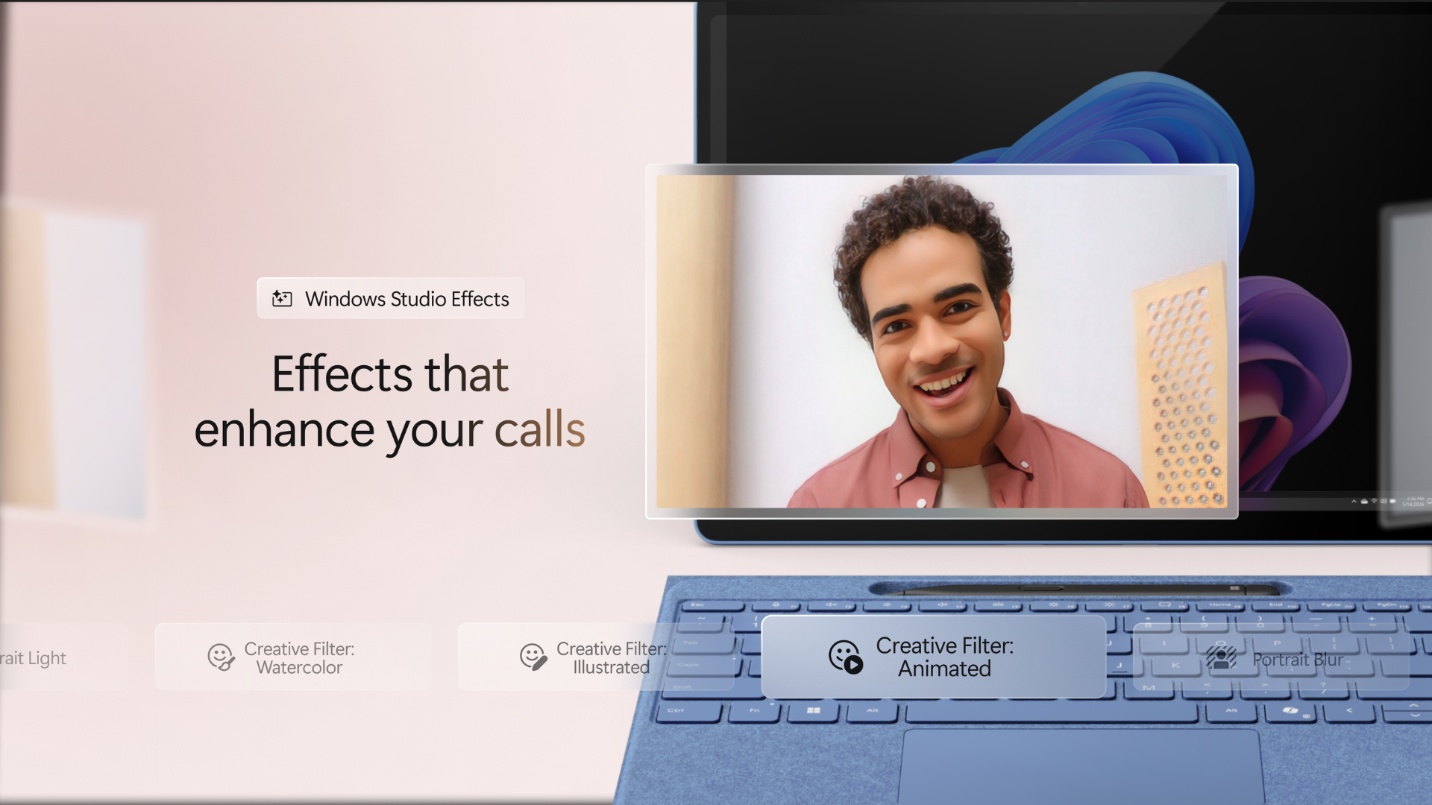
Imagine that you're working from a loud environment between client visits, and you have to jump directly into a meeting with the executive board to secure budget approval for a new initiative.
However, the physical environment poses challenges with background noise and distractions. Additionally, you worry that looking away from the screen to check your spreadsheets make you appear disconnected and unprepared. With Windows Studio Effects on your Copilot+ PC, you can look and sound engaged regardless of your physical surroundings. Here's how to use it:
- Open Quick Settings by selecting the Network/Battery/Sound icon on the task bar. Alternatively, Studio Effects can be launched via Settings > Camera, through in-app camera settings (in apps like Teams), or by searching for "Studio Effects" in Windows Search.
- Select the Studio Effects tile.
- In the Studio Effects tile, use the icons in the top-right to switch between Camera and Audio settings.
- Review the available Camera and Audio options, then toggle each on or off as needed.
- Return to Studio Effects at any time to change your settings.
Windows Studio Effects enable Finance professionals to:
- Look more professional with background blur, auto framing, and eye contact to help you stay polished and camera-ready.
- Be heard clearly with voice focus that reduces background noise in noisy spaces, so your voice comes through crisp and clear.
- Achieve consistent quality in live meetings and recording content since the same enhancements apply whether you're live in meetings or recording content.
- Work across many existing apps across multiple web conferencing apps—so you don't need to change tools or workflows.
Capture live notes with Copilot in Teams
Imagine that you're facilitating a cross-functional review session to decide on department budget allocations for the next fiscal year. The meeting is highly collaborative and fast-paced with the heads of other departments requesting extra funding while several sidebar conversations are happening simultaneously in the chat.
As the meeting host, you're consumed by managing the conversation and deeply engaged in the discussion, but you don't have the bandwidth to pause and write down every single decision or assignment. At the end of the call, you need to send out a recap email quickly, but you have another meeting coming up. This can pose challenges, but with Copilot in Teams, your meetings can be summarized, and decisions can be identified so teams can stay aligned without manual note taking. Here's how to use Copilot in Teams:
- Open the meeting chat in Teams.
- Select the Copilot button in the top right corner.
- In the prompt box, enter the following prompt:
"Track questions, decisions, and follow-ups. After the meeting, draft a summary email with agreed actions and deadlines."
Note
Copilot doesn't passively record or capture audio in the background. It can only analyze the meeting and respond to your prompts if transcription or recording is actively running. Ensure transcription is turned on at the start of your meeting so Copilot has the necessary data to generate your summary.
By using this prompt in Copilot in Teams the manual effort required for meeting documentation is reduced. Instead of forcing you to choose between actively leading a high-stakes meeting or taking accurate notes, this prompt turns Copilot into an automated meeting summary assistant that synthesizes multi-party agreements into execution-ready documentation. This specific prompt doesn't just provide a generic transcript. It can help identify and organize conversations, separating unresolved inquiries from finalized budget approvals and explicit commitments.