Plan the day
IT professionals must balance the challenge of planned maintenance with reactive work as issues arise. This creates potential blocks in productivity and missed opportunities. With Copilot+ PCs and Microsoft 365 Copilot, you can focus on what matters and stay organized. This workflow is especially useful during on-call rotations, maintenance windows, or any shift where planned work must stay on track alongside incoming issues.
Block time with Microsoft 365 Copilot
Let's start by using Microsoft 365 Copilot Chat to set up focus time. Open the Copilot app on your Copilot+ PC and enter the following prompt:
"Based on my calendar, active incidents, and change workflows, block focused time for system maintenance and add buffers around on-call meetings."
This prompt ensures that you have time to focus on your tasks by dedicating time for system maintenance. By reading your calendar, Copilot also ensures that you don't miss important meetings—striking a balance of productivity and availability.
Note
Results for this prompt depend on calendar and service integrations being available.
Start a focus session with Agent in Settings
Next, use Agent in Settings on your Copilot+ PC to start a focus session. There are two ways to access Agent in Settings:
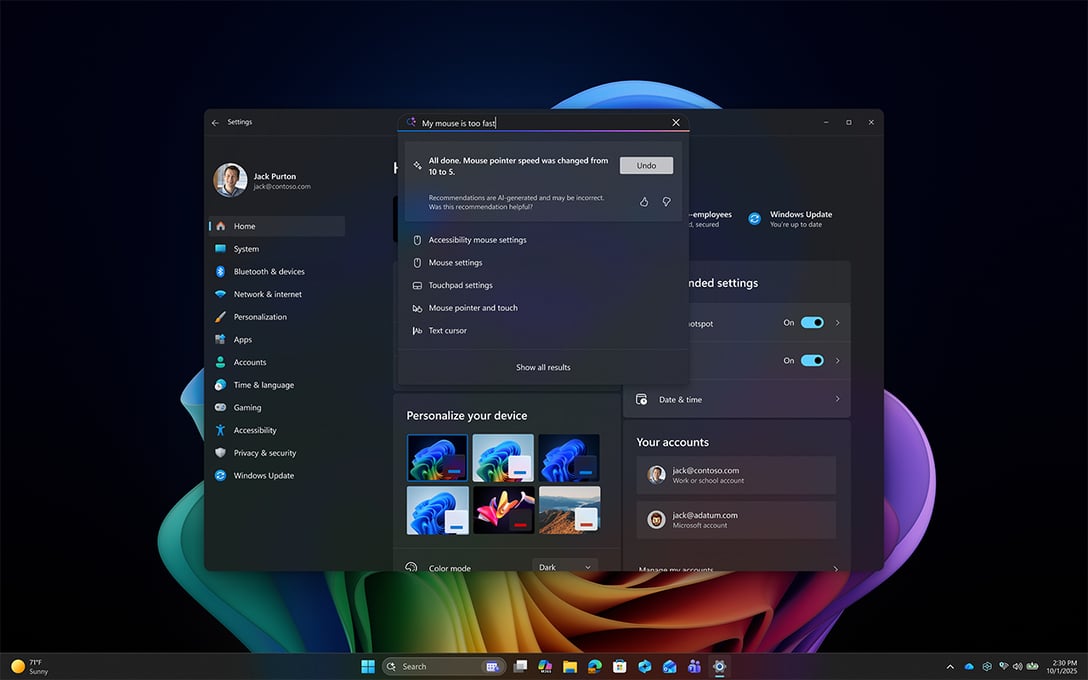
- Press Windows key + I.
- Navigate to the Settings app through the Start Menu.
Now that Settings are open, do the following:
- In the top search bar, type: "Focus time for 90 minutes"
- As you type, the agent surfaces relevant Don't Disturb settings.
- Select Apply under the search box to accept the recommended change.
By using Microsoft 365 Copilot's integration in your calendar and the on-device AI models of your Copilot+ PC, you can now have time to focus on your planned maintenance while also balancing reactive work that comes through on your calendar. This maximizes your productivity while keeping your work organized.