Stakeholder update and coordination
IT professionals are often asked to be the bridge between business stakeholders and technical teams. It's essential for them to keep these two groups aligned so that operational efficiency continues. These communications often happen during Teams meetings—where Copilot+ PC hardware and Microsoft 365 Copilot features help IT professionals update and coordinate with stakeholders.
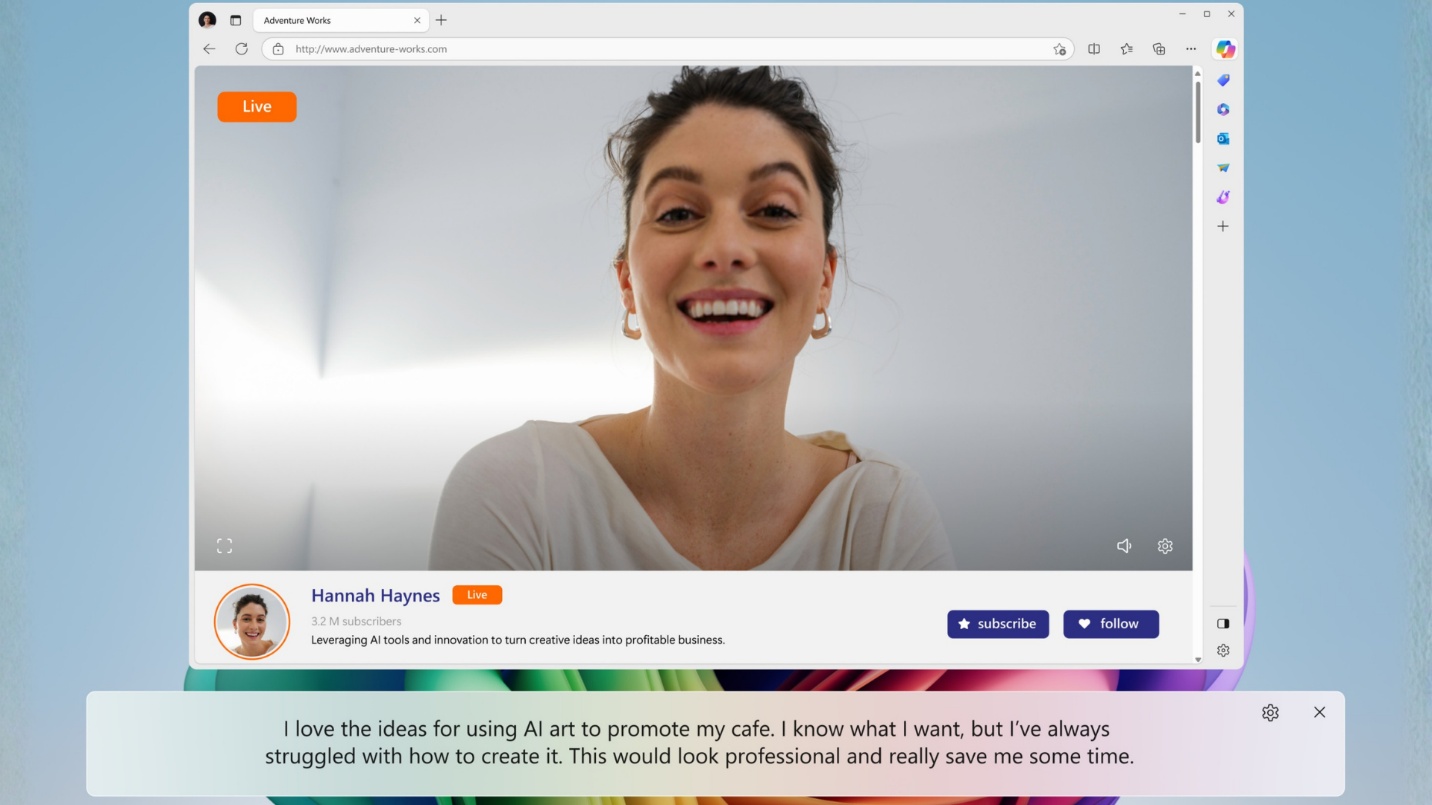
Enhance conversations with Live Captions
Note
Live Captions and captions in Teams are similar but serve different purposes. Live Captions display spoken audio as captions across your device. Team captions, on the other hand, display captions only within a Teams meeting or call.
With Copilot+ PCs you can see real-time translated subtitles for live or recorded audio on your device—making it easier to follow along, collaborate, and stay included. This is especially useful for IT professionals who have conversations with cross-functional or regional stakeholders. Live Captions helps them communicate more clearly with real-time translations in Teams. Here's how to use this feature:
- Start or join your Teams meeting with your stakeholders as you normally would.
- Follow the conversation with Live Captions by pressing Windows key + Ctrl + L and Live Captions will display the spoken content on your screen in real time.
- If participants are speaking different languages, enable translation in the Teams settings so captions appear in your preferred language.
Tip
To enable translation in Microsoft Teams, follow these steps: Open Microsoft Teams. In the top right corner, select Settings and more. Select Settings. Go to General. Scroll down to the Translation section. Configure your translation preferences by selecting your preferred message translation language and how to handle messages in other languages.
Communicate clearly with Windows Studio Effects
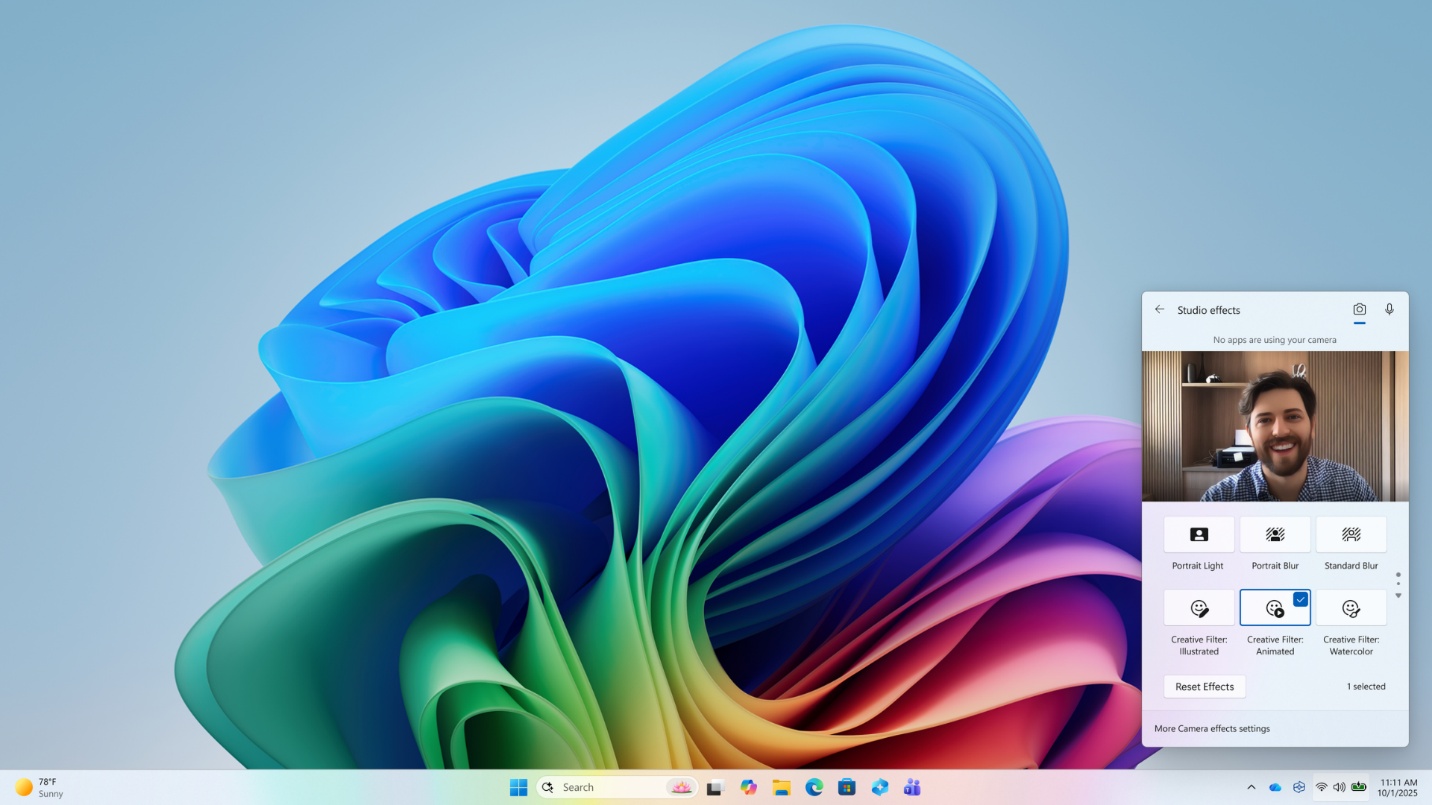
With Windows Studio Effects on Copilot+ PCs, your audio and video on calls and recordings across web and conferencing apps are enhanced—ensuring that you look and sound your best. This feature enables IT professionals to communicate clearly with stakeholders through effects like background blur, eye contact, and vocal focus. When enabled, Windows Studio Effects apply to most videoconferencing applications, here's how to activate it:
- Open Quick Settings by selecting the Network/Battery/Sound icon on the taskbar.
- Select the Studio Effects tile.
- In the Studio Effects tile, use the icons in the top-right to switch between Camera and Audio settings.
- Review the available Camera and Audio options, then toggle each effect on or off as needed.
- Return to Studio Effects at any time to change your settings.
Windows Studio Effects enable IT professionals to:
- Look more professional with background blur, auto framing, and eye contact to help you stay polished and camera-ready.
- Be heard clearly with voice focus that reduces background noise in noisy spaces, so your voice comes through crisp and clear.
- Achieve consistent quality since the same enhancements apply whether you're live in meetings or recording content.
- Works with many existing apps across multiple web conferencing apps—so you don't need to change tools or workflows.
Capture live notes in Teams
When meeting with stakeholders, it's important to keep track of action plans and agreed-upon next steps. Copilot in Teams helps you capture meeting insights in real time, track action items, and generate follow-up communications. During a meeting, it summarizes discussions, identifies decisions, and organizes next steps so teams stay aligned without manual notetaking. Here's how to use Copilot in Teams:
- Open the meeting chat in Teams.
- Select the Copilot button in the top right corner.
- In the prompt box enter the following prompt:
"Track questions about system impact, document the agreed-upon next steps, and draft a follow-up email that includes timelines and owner assignments. After the meeting, send the summary email to all attendees."
Because Copilot is connected throughout your Office apps, it can connect with Outlook to send follow-ups—simplifying your communications on essential projects.
Tip
Automatically drafting or sending follow-up emails depends on your organization's tenant configuration and your Microsoft 365 Copilot permissions. Always review Copilot-generated notes and summaries for accuracy before sharing them with attendees.