Create a leadership update with Copilot in PowerPoint
You've reviewed contracts, compliance trackers, stakeholder feedback, and policy updates. Now it's time to brief leadership on key issues, recommendations, and decisions.
With limited time left in the workday, creating a presentation from scratch might not be practical. Copilot in PowerPoint can help you get started by quickly pulling together a first draft based on your notes and findings.
To create a leadership presentation:
- Open Microsoft PowerPoint.
- Select Copilot.
- Enter the following prompt: “Create a 5-slide leadership update summarizing key legal issues, areas requiring review, proposed mitigations, open questions, and decisions needed for review.”
Prompts like this can help legal professionals organize complex review work into a concise, structured presentation. They provide a strong starting point that you can review, refine, and tailor before sharing with leadership.
Tip
If you need to present the update live or in a recorded session, consider using Windows Studio Effects to help you deliver a more polished presentation.
End-of-day wrap-up
You've accomplished a lot today. Before wrapping up, take a few minutes to summarize completed work, review open issues, and prepare for upcoming priorities. Copilot in Outlook, Copilot in Teams, and Microsoft 365 Copilot Chat can help create updates, identify action items, and organize work for the next day.
Copilot can help summarize:
- Matters that have been reviewed.
- Unaddressed issues, gaps, or areas for legal review.
- Pending stakeholder actions.
- Priorities for the next day.
Create a recap of the workday
Do the following to draft an end-of-day update:
- Open Copilot in Outlook or Teams.
- Enter the following prompt: “Draft my end-of-day legal update: matters reviewed, open issues requiring follow-up, and top three priorities for tomorrow.”
You can also use this shorter prompt: “Create my end-of-day legal update with key issues and priorities.”
Tip
Review the update before sending to confirm that confidential, privileged, or sensitive information is appropriate for the audience.
Schedule tomorrow’s review time
Use Microsoft 365 Copilot Chat to prepare for tomorrow.
Enter the following prompt: “Block 9:00–10:30 tomorrow for contract reviews. Add prep notes.”
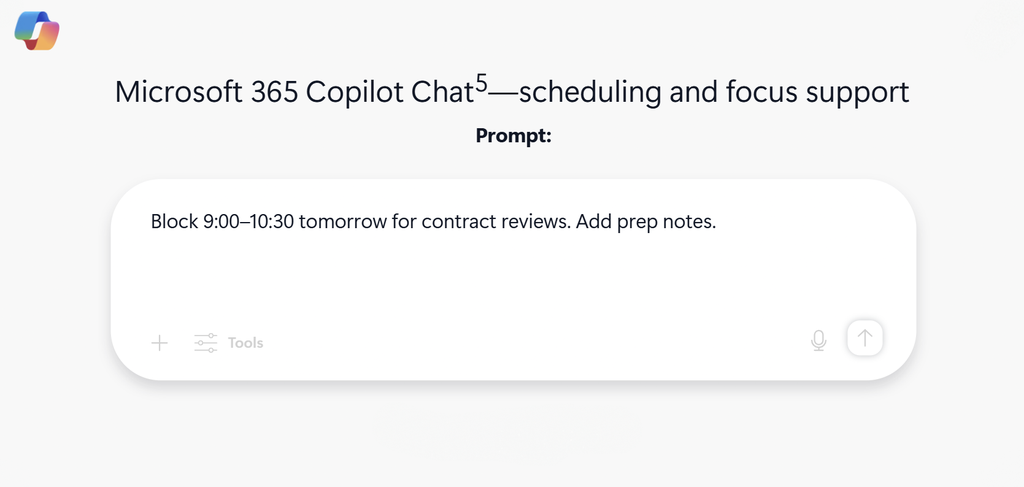
Copilot can help draft the calendar block and include context to prepare you for your next review.
Note
Microsoft 365 Copilot experiences require an eligible Microsoft 365 subscription, license, and organizational permissions. Scheduling actions might require user confirmation before being finalized. Calendar availability and scheduling capabilities depend on your Microsoft 365 configuration and permissions.
Reset device settings with Agent in Settings
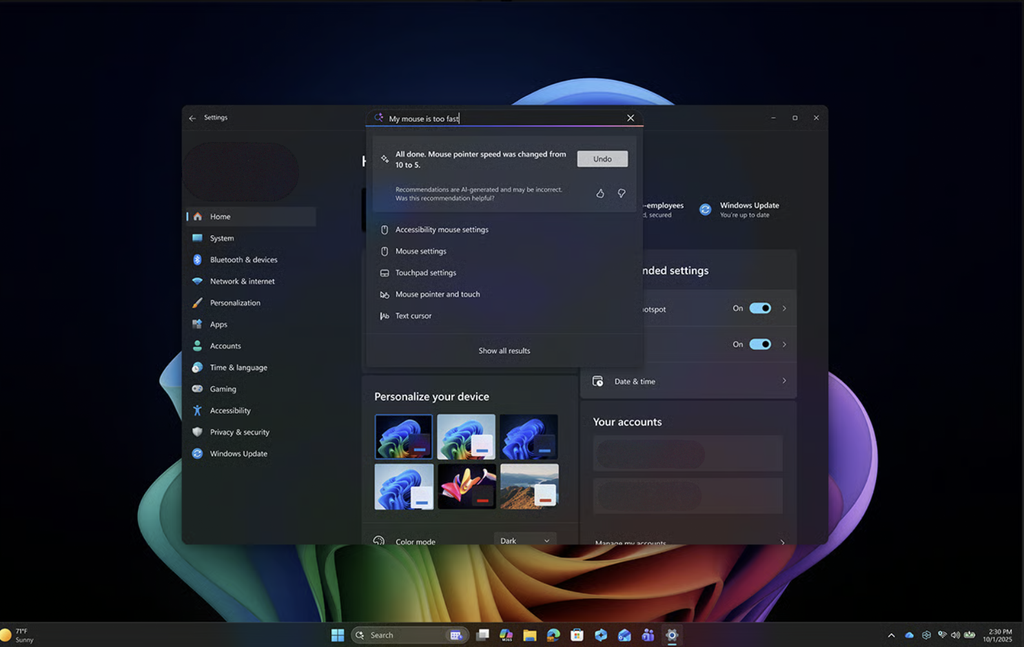
After using Focus mode or Do Not Disturb during the day, you can use Agent in Settings to restore your preferred device settings.
To restore your device settings, do the following:
- Press Windows key + I to open Settings.
- In the search box, type: “Turn off Focus mode” or “Restore standard notifications”
- Review the suggested setting change.
- Select Apply to confirm.
This helps easily reset your device so you’re ready to start fresh the next workday.
Reflect on the day
Throughout these sections, you followed a typical legal workday—from prioritizing incoming requests and reviewing contracts to collaborating with stakeholders, analyzing compliance information, and preparing leadership updates.
Along the way, you used Microsoft 365 Copilot and Copilot+ PC experiences such as Improved Windows Search, Click to Do, Recall, Live Captions, Windows Studio Effects, and Agent in Settings to support common legal workflows. Together, these experiences can help reduce manual effort, improve access to information, and streamline everyday tasks.
Next, test your understanding of the tools and workflows covered in this module.