Content brief
Imagine you're tasked with completing a marketing campaign and must meet a deadline while pulling from multiple data sources. As a marketing professional, producing on-brand assets in a timely manner is crucial to the execution of your role. When creating these assets, it's important to maintain an established look and feel for your organization while also working efficiently to deliver finished products before deadlines. With the combination of Copilot in Microsoft 365 apps and on-device AI features in Copilot+ PCs you can save more time and streamline your process.
Brief consolidation with Copilot in Word
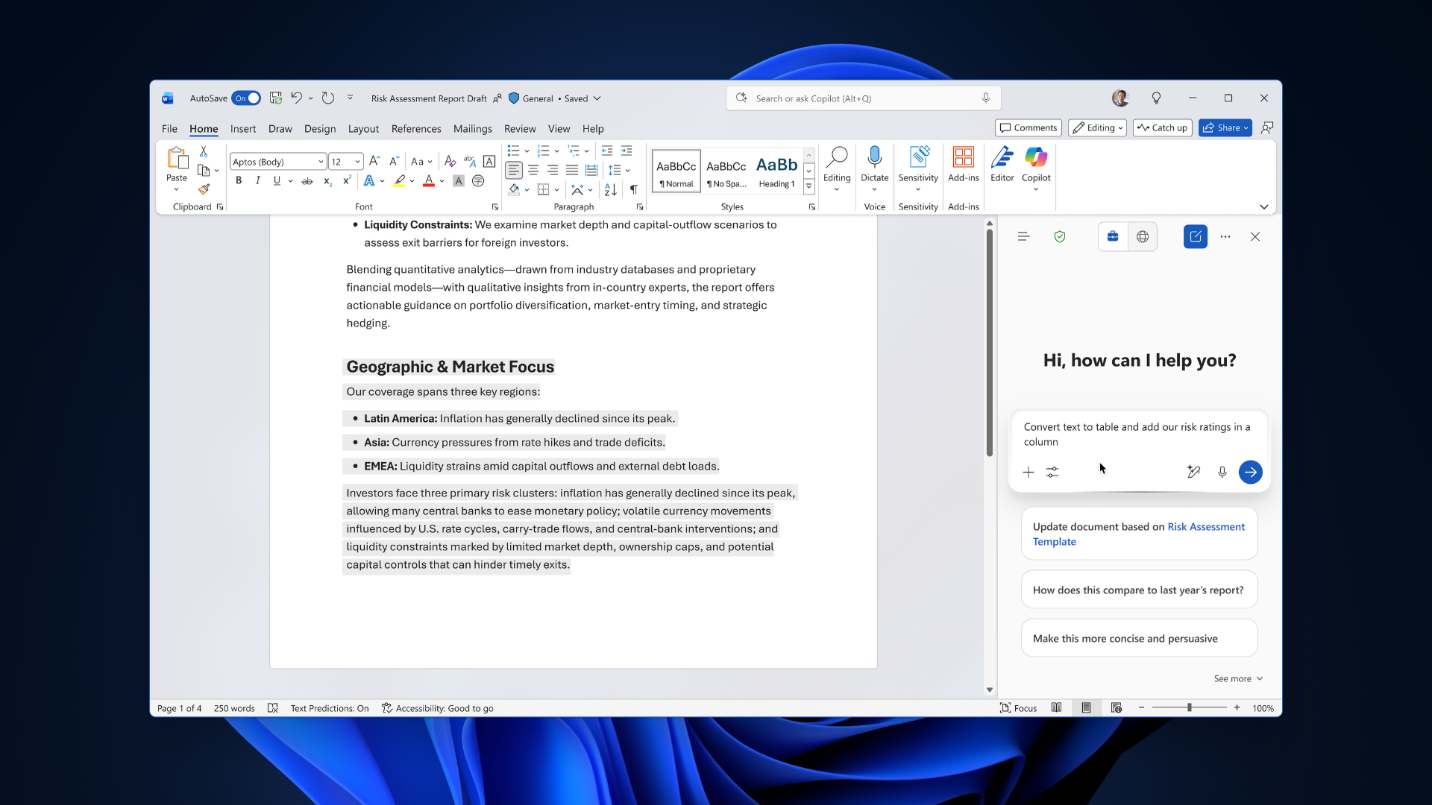
Imagine that you've gathered the necessary research for a project but need to align teams quickly. Typically, a team spends weeks gathering data, conducting focus groups, and synthesizing customer insights. A major bottleneck occurs when transitioning that research into an actionable strategy.
Marketing teams are typically overloaded with data like long research summaries, customer interview transcripts, and market analysis reports. Manually combing through these documents to extract core themes and format them into a standard one-page brief takes hours of drafting.
By using Copilot in Word, AI assistance allows marketing professionals to rapidly bridge the gap between insights and execution. Crucially, this synthesis happens at the very beginning of the lifecycle, establishing a solid strategic foundation before creative production ever begins. In a short time, Copilot analyzes existing data repositories and structures them into a highly targeted, standard marketing framework.
Note
Copilot's access to files depends on file permissions and tenant configuration.
Do the following to use Copilot in Word to consolidate the information at your disposal:
- Open Microsoft Word.
- Locate the Copilot button in the bottom right corner of the page.
- In the prompt box, enter the following prompt:
"Create a one-page creative brief for the Q2 'Switch' campaign using last week's research summary and customer insights. Include audience, value prop, CTA, and KPIs."
Note
For the best result, it's recommended that user have access to the referenced research files in the same workspace.
This prompt helps accelerate workflows by automating the synthesis of complex internal campaign data into clear, cross-functional alignment tools, allowing creative teams to begin asset production faster.
Devising a first draft with Copilot in PowerPoint
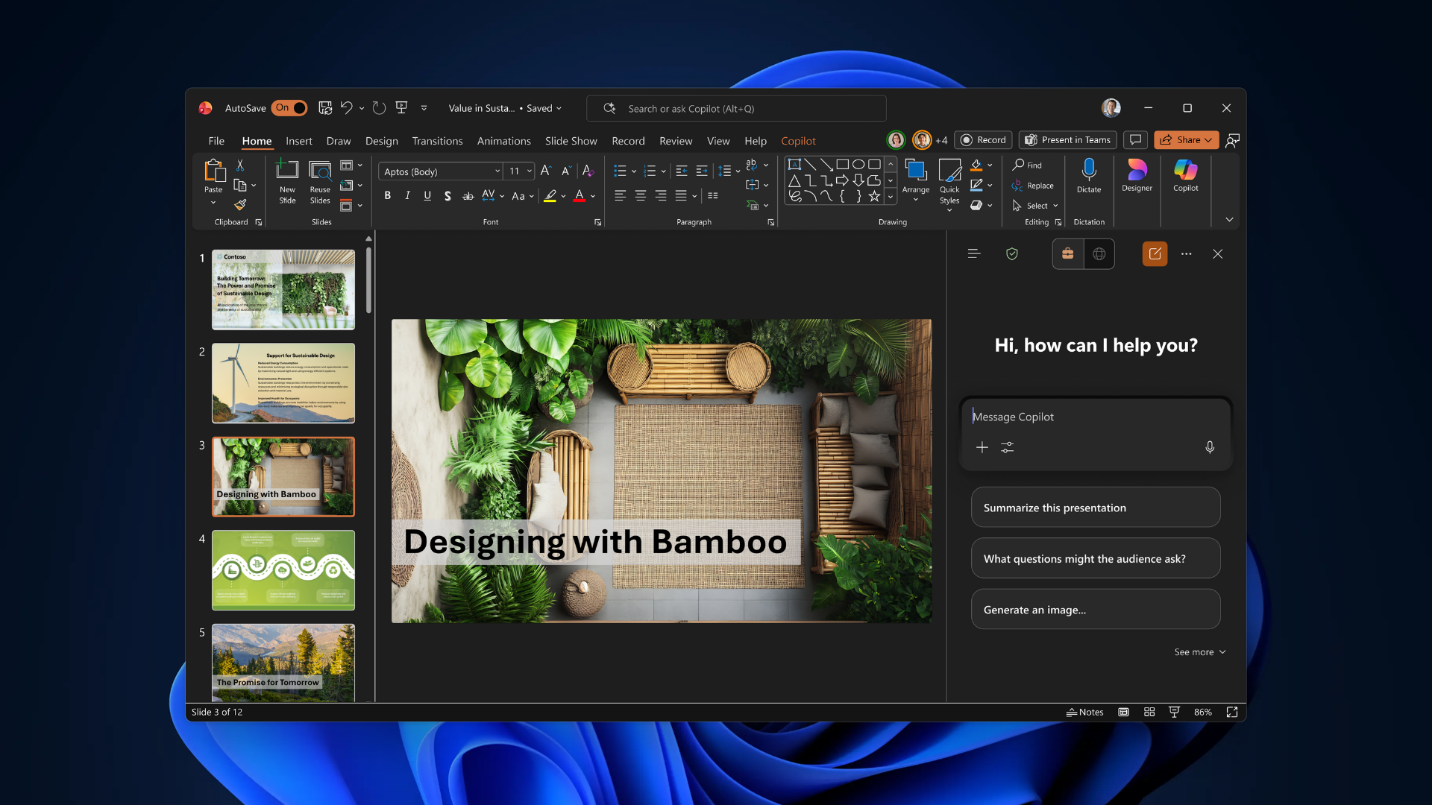
After creating a brief, you need stakeholder buy-in. The natural next step is taking their formulated strategy from the creative brief into a pitch to external partners, agencies, or internal executives to secure buy-in and resources. Converting a text document into a presentation usually involves manual copying, pasting, and restructuring. Marketers often spend hours figuring out how to arrange information visually.
With Copilot in PowerPoint, the tedious layout transition is handled seamlessly. By pointing Copilot to the brief, it parses the core strategy and maps it directly onto a presentation structure, generating a partner-ready first draft that can then be refined and polished.
Do the following to use Copilot in PowerPoint to help create a partner-ready deck:
- Open Microsoft PowerPoint.
- Locate the Copilot button in the bottom right corner of the page.
- In the prompt box, enter the following prompt: "Draft a six-slide partner-ready deck from this brief. Slide 1: problem framing; slide 2: offer; slide 3: proof; slide 4: CTA (call to action); slide 5: timeline; slide 6: next steps."
This prompt helps to eliminate formatting bottlenecks and manual document translation, allowing marketers to transition seamlessly from planning to pitching while maintaining strict narrative control over slide structures.
Tip
Always remember to review slide accuracy and branding before sharing with external stakeholders.
Writing support with Click to Do
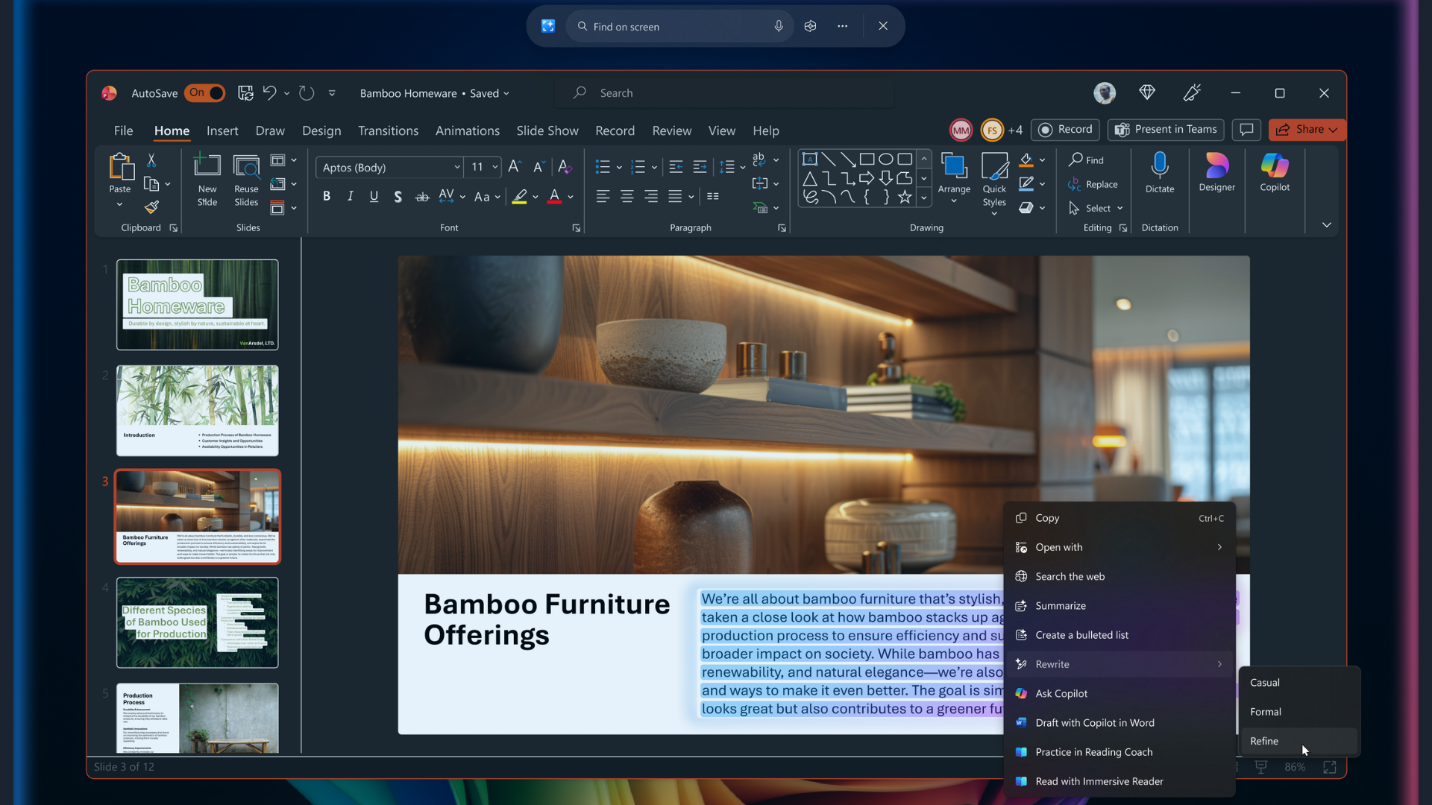
Consider a situation where you have a document in Word that will be sent to an executive audience. Upon review, you conclude that the tone is too casual for the intended audience and needs to be rewritten. With Click to Do on your Copilot+ PC, you can quickly rewrite text to match the tone and length that you're looking for, a tool that is especially useful during final review and polish stages. To use Click to Do, do the following:
- Open your document in Microsoft Word.
- Activate Click to Do by pressing Windows key + mouse click. You'll see a subtle visual change on screen letting you know Click to Do is active.
- Select the paragraph you want to edit, then select Rewrite and choose the style you want.
- Review the suggested rewrite, then copy and paste it into your document.
Note
Click to Do availability varies by device, region, language, and character set. Click to Do may invoke some services that may require a subscription. Rewrite suggestions aren't automatically inserted and require manual confirmation.
Tip
You can also activate Click to Do by pressing Windows Key + Q, with a right swipe on touch enabled PCs, from the Snipping Tool menu if Snipping Tool is installed, or search for Click to Do in Windows Search.
Find supporting assets with Improved Windows Search

Imagine that you need to locate prior creative decks for comparison purposes for a new project that your team is working on. In the past, this meant spending time combing through various file locations, trying to remember which file was the correct one. With Improved Windows Search on Copilot+ PC, you can find the decks you need without remembering the file name. By using natural language, Improved Windows Search helps you find the file you need without digging through folders—making it efficient when preparing for a review or reusing past assets. Here's how to use it:
- Open Improved Windows Search by selecting the search box on the taskbar or pressing Windows key + S. Alternatively, you can summon Improved Windows Search by pressing the Windows key on your keyboard.
- In the search box, use natural language to describe the content of the previous creative materials that you're looking for, such as "Branding guide for channel partners."
- Improved Windows Search surfaces relevant files based on their content, not just their file name.
- If you need to narrow the results down further, select Filters, then choose Documents to focus on files only.
- Quickly confirm that you have selected the right file by hovering over the result to preview the file before opening it.
Note
Improved Windows Search supports common file formats, including: Word documents Excel spreadsheets PowerPoint presentations Text files PDF files Image formats including JPEG, PNG, GIF, BMP, and ICO
Improved Windows Search allows you to utilize two distinct ways to find your content. There are scenarios where natural language is better than traditional filtering and vice versa. Let's explore those scenarios briefly:
| Scenario | Use natural language when... | Use traditional filtering when... |
|---|---|---|
| Asset recall | You remember the concept or context, but not the name | You know the exact file name or specific metadata |
| Visual content | You're tracking down untagged imagery or design files | You're filtering strictly by file type or extension |
| Campaign context | You remember when or why you worked on it relative to your schedule | You have a precise date range or folder path |