Stakeholder review
When aligning with Sales and Product teams before a launch, it's crucial to align messaging and next steps with sales and product teams. This can be a challenging task, but with the combination of Copilot+ PC features and Copilot in Microsoft 365 applications, it becomes much more manageable.
The following features help you deliver highly professional, accessible, and seamless communication when engaging with sales and product teams.
Stay engaged with Live Captions
Note
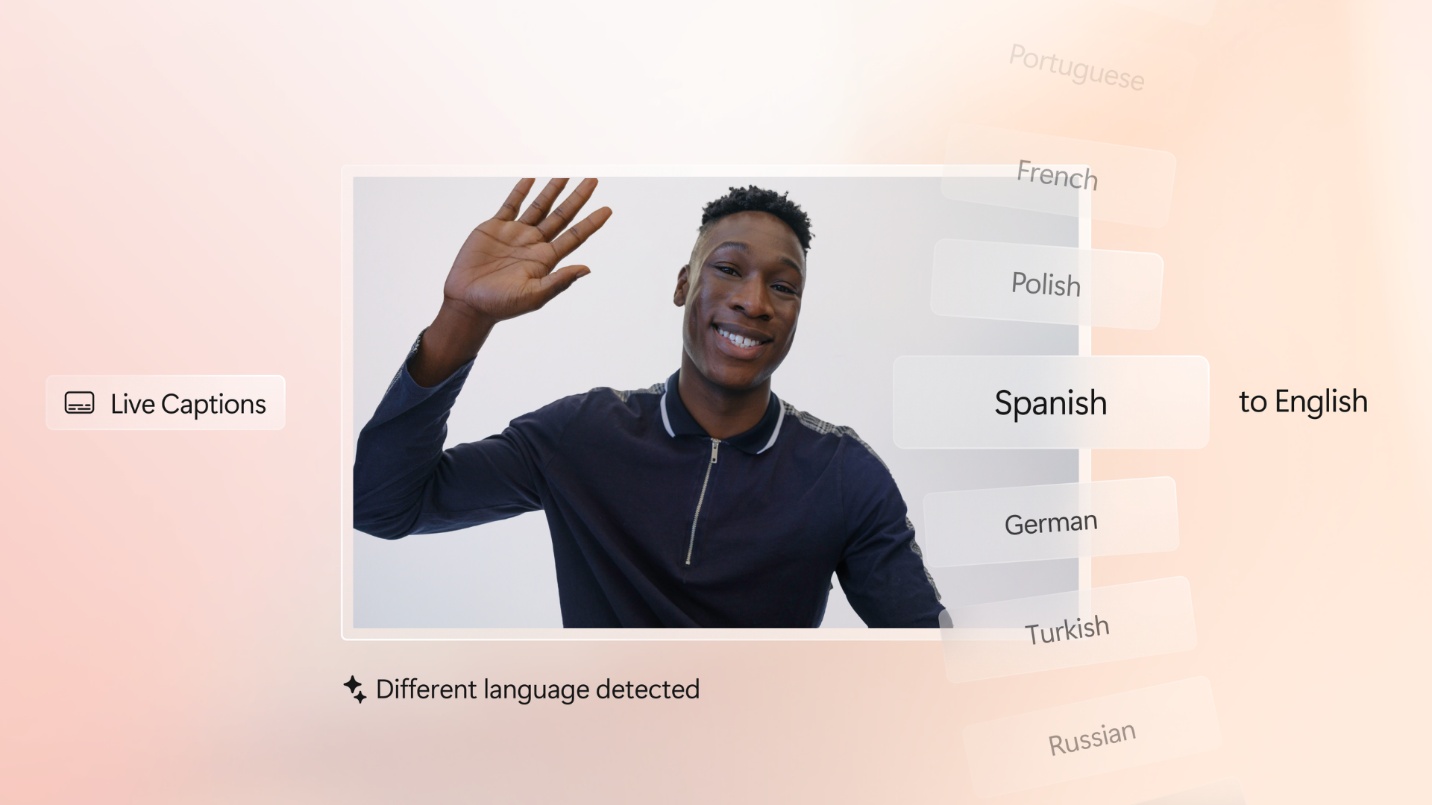
Live Captions and captions in Teams are similar but serve different purposes. Live Captions is a device-wide accessibility feature that captions any audio on your PC, while Teams captions are meeting-specific and add collaboration features like speaker identification, transcripts, and recaps.
Before exploring Live Captions in more detail, let's review the differences between Live Captions and Teams captions:
| Category | Live Captions (Windows) | Teams captions |
|---|---|---|
| Scope | Device-wide (all audio) | Teams meetings only |
| Audio source | Any audio playing on the PC (apps, videos, calls) | Spoken conversation within a Teams meeting |
| Activation | OS-level feature (always available once enabled) | Enabled per meeting in Teams |
| Processing | On-device (local AI) | Cloud-based (Teams services) |
| Privacy | Audio stays on device | Audio processed in Microsoft cloud |
| Speaker identification | Not available | Yes (speaker attribution) |
| Context awareness | None (audio-only) | Meeting-aware (participants, flow) |
| Persistence | Not saved (ephemeral) | Can generate transcripts and recaps |
| Advanced features | Real-time captions, translation (on supported devices) | Transcripts, recordings, Copilot integration |
| Primary use case | Personal accessibility across all content | Meeting accessibility and collaboration |
| Best for | "Caption anything I hear" | "Follow and review a meeting" |
With Copilot+ PCs you can see real-time translated subtitles for live or recorded audio on your device—making it easier to follow along, collaborate, and stay included. This is especially useful for marketing professionals who have conversations with multilingual stakeholders. Live Captions helps them communicate more clearly with real-time translation in Teams. Here's how to use this feature:
- Start or join your Teams meeting with your stakeholders as you normally would.
- Follow the conversation with Live Captions by pressing Windows key + Ctrl + L and Live Captions will display the spoken content on your screen in real time. Alternatively, Live Captions can be opened through Accessibility in Quick Settings, Settings > Accessibility > Captions, or by searching "Live Captions" in Windows Search.
- If participants are speaking different languages, enable translation in the Teams settings so captions appear in your preferred language.
Tip
To enable translation in Microsoft Teams, follow these steps:
- Open Microsoft Teams.
- In the top right corner, select Settings and more.
- Select Settings.
- Go to General.
- Scroll down to the Translation section.
- Configure your translation preferences by selecting your preferred message translation language and how to manage messages in other languages. Note that language availability and translation accuracy can vary by language pair and that translation needs to be enabled per meeting.
Look and sound engaged with Windows Studio Effects
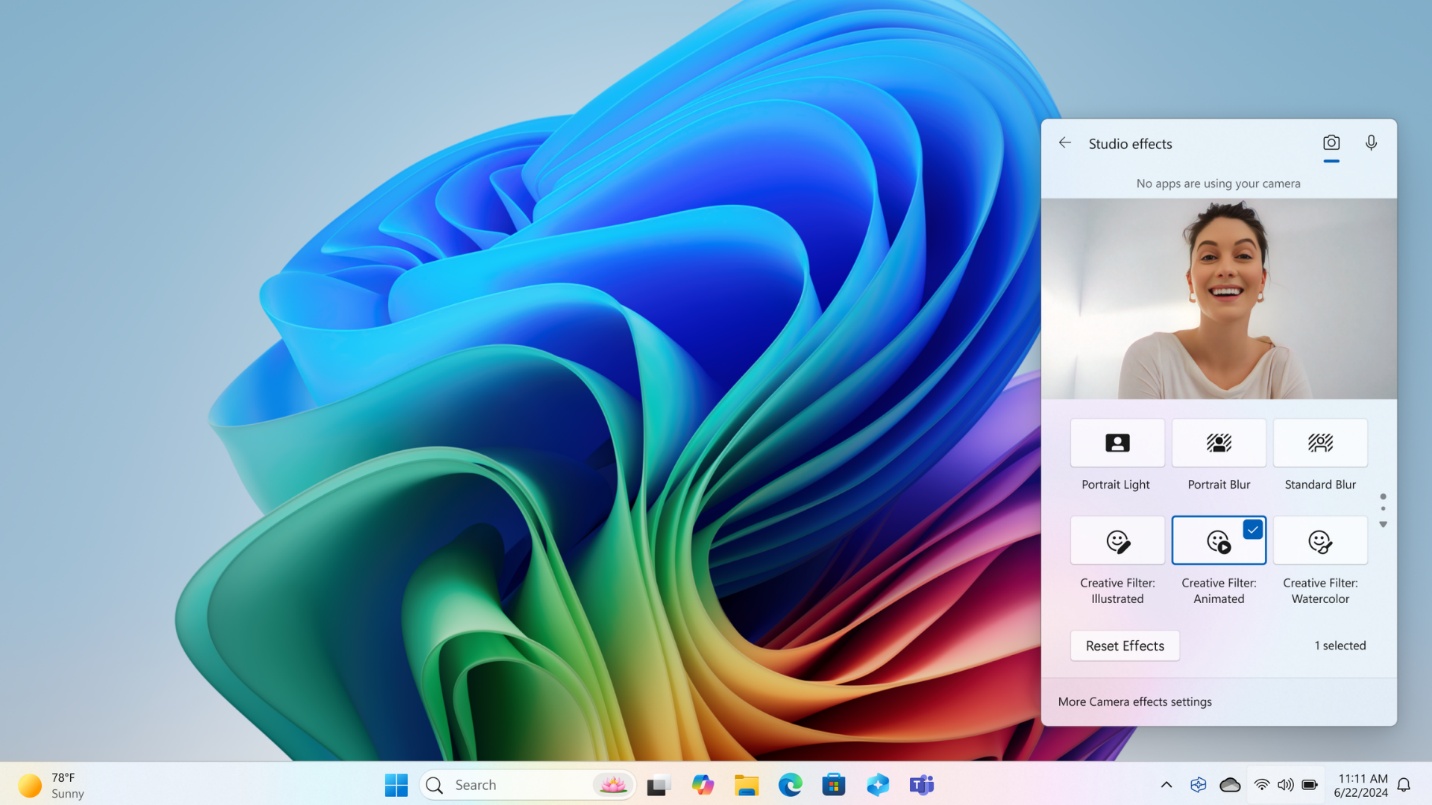
With Windows Studio Effects on Copilot+ PCs, your audio and video on calls and recordings across web and conferencing apps are enhanced—ensuring that you look and sound your best. This feature enables marketing professionals to maintain a clear presence during meetings through effects like background blur, eye contact, and voice focus. These features are ideal for marketing professionals during multilingual meetings, external partner calls, or recorded presentations. When enabled, Windows Studio Effects apply to most videoconferencing solutions. Here's how to activate it:
- Open Quick Settings by selecting the Network/Battery/Sound icon on the task bar. Alternatively, Studio Effects can be launched via Settings > Camera, in-app camera settings (in apps like Teams), or searching for "Studio Effects" in Windows Search.
- Select the Studio Effects tile.
- In the Studio Effects tile, use the icons in the top-right to switch between Camera and Audio settings.
- Review the available Camera and Audio options, then toggle each effect on or off as needed.
- Return to Studio Effects at any time to change your settings.
Windows Studio Effects enable marketing professionals to:
- Look more professional with background blur, auto framing, and eye contact to help you stay polished and camera-ready.
- Be heard clearly with voice focus that reduces background noise in noisy spaces, so your voice comes through crisp and clear.
- Achieve consistent quality since the same enhancements apply whether you're live in meetings or recording content.
- Works with many existing apps across multiple web conferencing apps—so you don't need to change tools or workflows.
Keep track with Copilot in Teams
When meeting with stakeholders where decisions and objections are discussed, it's important to keep track of action plans and agreed-upon next steps. Copilot in Teams allows you to capture meeting insights in real time, track action items, and generate follow-up communications on demand when prompted. During a meeting, you can prompt Copilot to summarize discussions, identify decisions, and organize next steps so teams stay aligned without manual note taking. Here's how to use Copilot in Teams:
- Open the meeting chat in Teams.
- Select the Copilot button in the top right corner.
- In the prompt box, enter the following prompt:
"Track objections about offer packaging, propose alternatives, and draft a follow-up email with two pricing options and linked collateral"
Because Copilot is connected throughout your Office apps, it can connect with Outlook to send follow-ups—simplifying your communications on essential projects.
Tip
Automatically drafting or sending follow-up emails depends on your organization's tenant configuration and your Microsoft 365 Copilot permissions. Always review Copilot-generated notes and summaries for accuracy before sharing them with attendees.