Start strong
Business users in operations are tasked with turning everyday operational moments like planning, coordination, issue resolution, and reporting into smooth and efficient workflows. With the combination of Copilot+ PCs and Microsoft 365 Copilot, they can enhance their team's ability to analyze operations, respond to proposals, and maintain standards of excellence across compliance protocols, SLA tracking, and delivery timelines.
Catch up with Copilot in Outlook
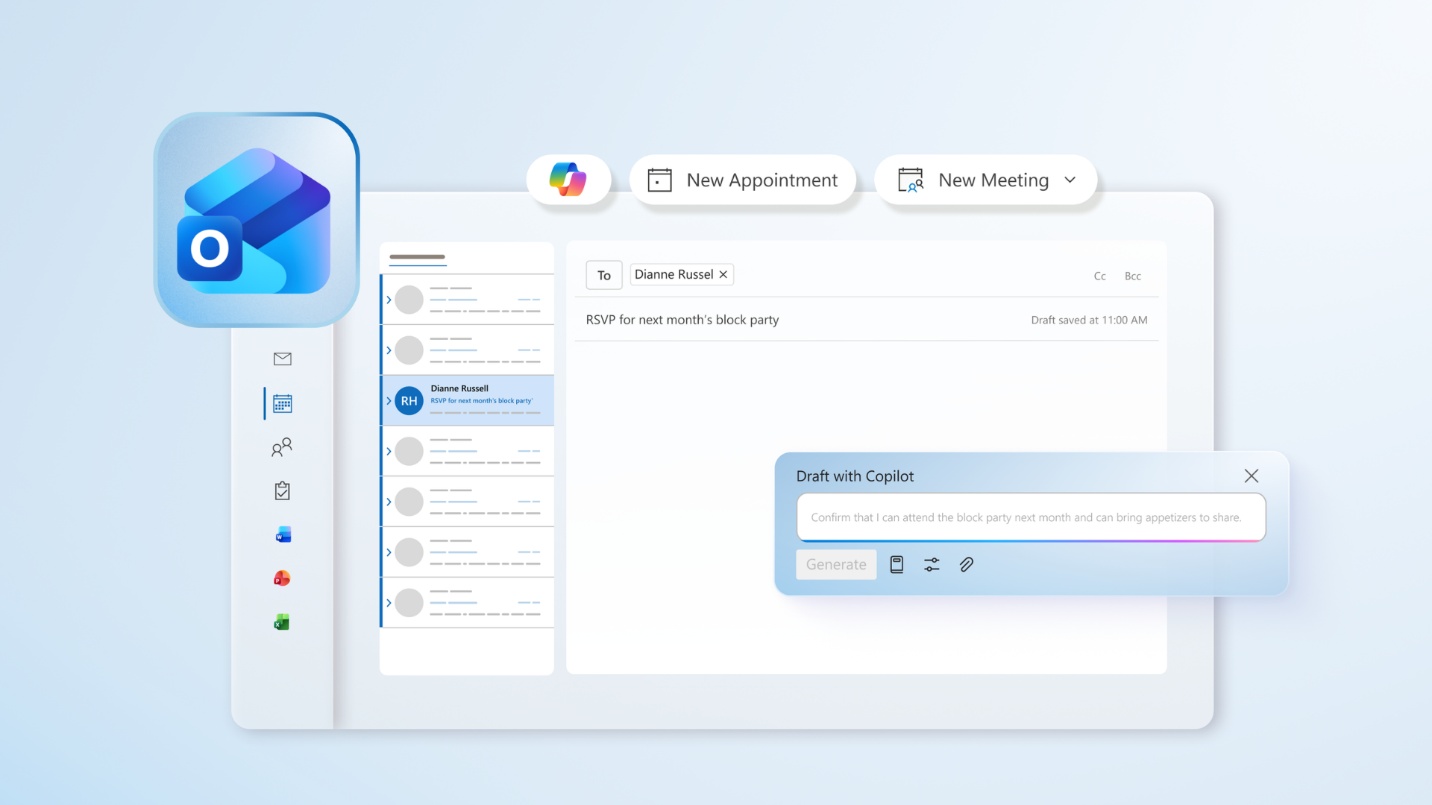
Copilot is deeply integrated into the Outlook app, allowing you to retrieve information contextually and act, all while being able to use Outlook side by side with chat. It supports conversations about your organization's data, information from the web, questions about your inbox and calendar, and even allows you to act directly in Outlook.
To access chat, sign in to Outlook with your work account and select the Copilot button located in the upper region of your Outlook app. In the prompt box, enter the following:
"Summarize my unread emails from the last 24 hours. Group by operational issues, approvals needed, and project updates. Flag risks, blockers, and deadlines today."
This prompt helps to minimize an overwhelming inbox, focusing on action items that are relevant to an operational role. By analyzing your inbox and calendar, Copilot can develop an order of operations to help you organize your day.
Note
Results depend on mailbox volume and access permissions on your work account.
Create a meeting with Click to Do
Consider a situation where you're reviewing an escalation email. To properly resolve this issue, you decide to align with stakeholders quickly. With Click to Do on your Copilot+ PC, you can quickly schedule a meeting with Microsoft Teams to resolve the issue right from the email. Unlike manual scheduling in Teams, which requires app-switching and manually copying over meeting details, Click to Do acts instantly on your current screen context to save time and maintain your workflow. Do the following:
- Open the escalation email in Outlook.
- Activate Click to Do by pressing Windows key + mouse click. You'll see a subtle visual change on screen letting you know Click to Do is active.
- View suggested actions by selecting the stakeholder's email address to see available actions.
- Select Schedule a meeting with Teams to set up a meeting and add it to your calendar.
Note
Click to Do availability varies by device, region, language, and character set. Subscription may be required.
Get conversation digests with Copilot in Teams
Copilot in Teams chats and channels helps you get up to speed on conversations by quickly reviewing the main points, action items, and decisions without having to scroll through long threads. To access Copilot in Teams, do the following:
- Go to Chat on the left side of Teams, then select a specific chat from the list.
- Select Open Copilot in the upper-right corner of the chat—you'll see the Copilot icon.
- Under the compose box to the right of your chat, select a prompt, or choose Show more to see other suggestions.
As an Operations professional, you are in many Teams channels. Copilot in Teams can help you save time by going through the posts in the channels to provide conversation digests—allowing you to focus on what's important and stay efficient. In the Copilot prompt compose box, enter the following the prompt:
"Recap key updates and action items from the #Operations, #Supply-Chain, and #Program-Updates channels. Who owns what and by when?"
This prompt analyzes the channels you mentioned and extracts key updates and action items—saving you time from having to go through every message.
Note
Copilot strictly respects user data across access and channel permissions. It will never summarize or display content from channels or resources you don't have permission to access.
Quick search assistance with Improved Windows Search
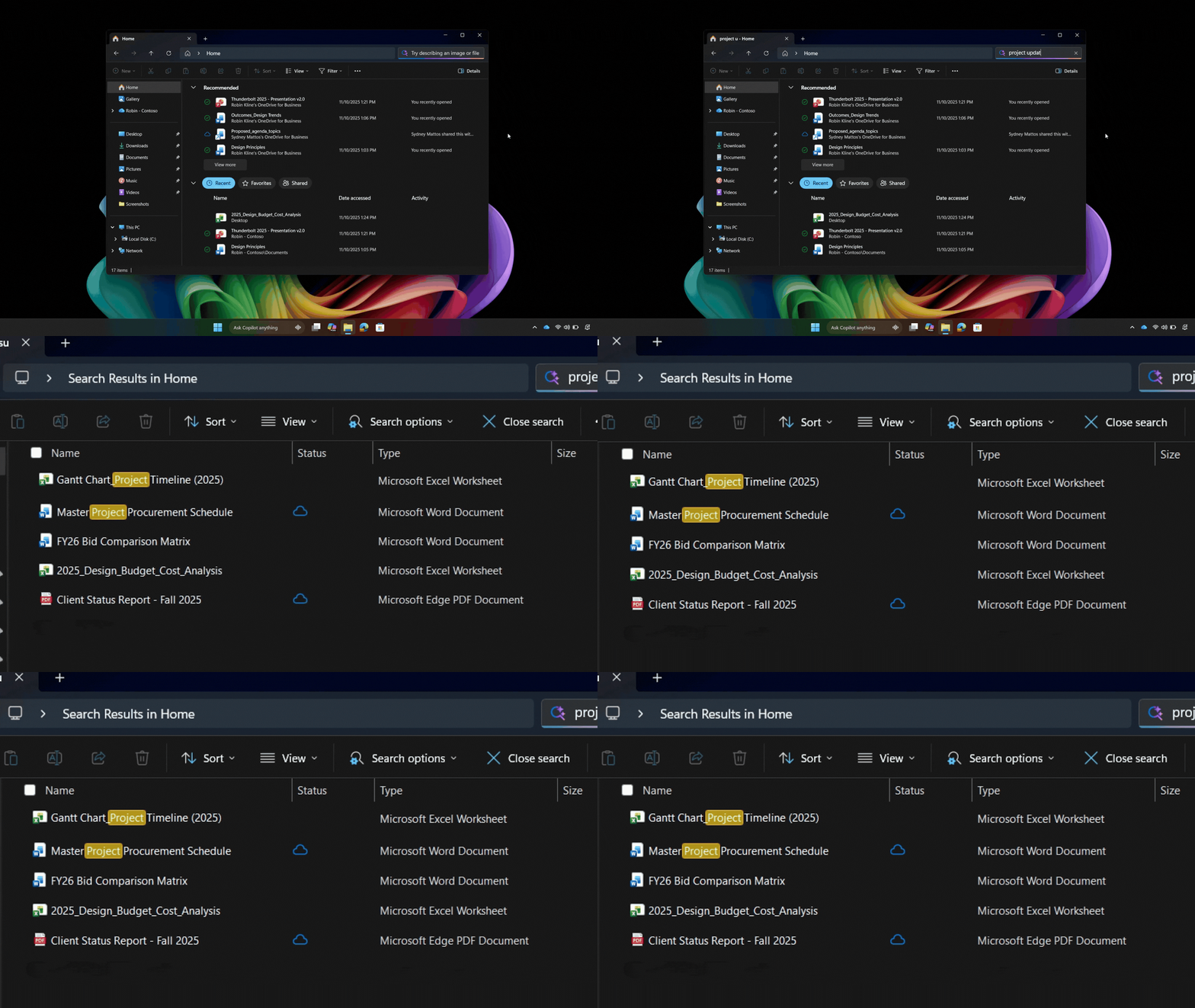
Imagine that you need to quickly open a tracker, but you don't remember the exact file name. In the past, this would have required spending time combing through various file locations, trying to remember which file was the correct one. With Improved Windows Search on your Copilot+ PC, you can find the tracker without remembering the file name. By using natural language, Improved Windows Search helps you find the file you need without digging through folders. Here's how to use it:
- Open Improved Windows Search by selecting the search box on the taskbar or pressing Windows key + S.
- In the search box, use natural language to describe prior incident reports or scripts that you're looking for, such as "Expense tracker report from last quarter."
- Improved Windows Search surfaces relevant files based on their content, not just their file name.
- If you need to narrow the results down further, select Filters, then choose Documents to focus on files only.
- Quickly confirm that you have selected the right file by hovering over the result to preview the file before opening it.
Note
- Improved Windows Search supports common file formats, including:
- Word documents
- Excel spreadsheets
- PowerPoint presentations
- Text files
- PDF files
- Image formats including JPEG, PNG, GIF, BMP, and ICO