Configure the different table properties
When creating a new table, you need to configure certain parameters called table properties.
ID and name properties
Like every object in Business Central, a table has an ID and a Name property. The ID property is a number that must be in the number range that you receive from Microsoft when you become a Dynamics 365 Business Central partner. This approach ensures that no objects have the same ID in a database.
Along with an ID, you must also give your table a name. You can use the Name property to accomplish this task. In Business Central, every table name is singular, so you'd use the name Customer and not Customers, for example. Your table must have an English name, and we recommended that you use a prefix/suffix in the name of your object so that it's unique.
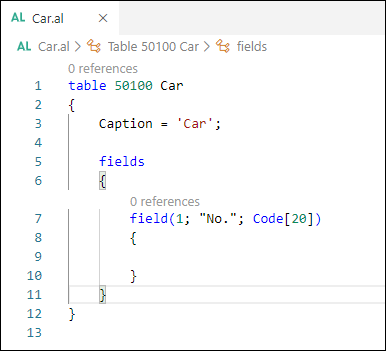
The definition of a table in AL is using the ID and the name in the
structure, for example, table [ID] [Name].
Caption property
The Caption property is the text that is displayed in the title bar of your window. This property is only visible when you run your table directly without a page. Mostly, you display table data through a page.
DataCaptionFields property
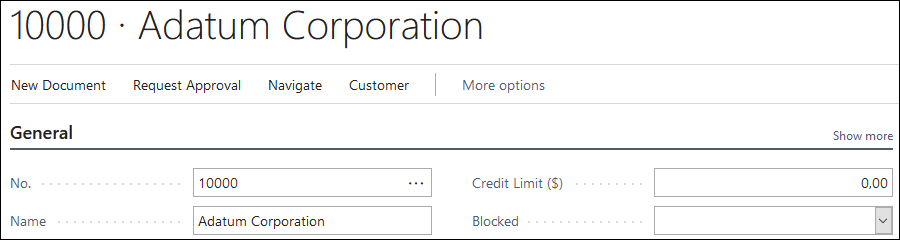
When you open a page in Business Central with customer information, for example, a title is displayed on the top of the page. This title is a combination of the ID field and the Name field of a certain table (in this case the Customer table). You can configure this table with the DataCaptionFields property.
DataPerCompany property
Companies are the largest logical structure in the Business Central database. You can choose to administer more than one company in a database. If you do choose more than one company, your data is still kept unique for each company. Consequently, you won't mix up data about customers between companies or financial data.
Basically, in all tables in your Business Central database, the DataPerCompany property is set to Yes by default. However, if you change this property to No, it can result in significant consequences. Your data will be available for all companies in the same database. Before taking this approach, investigate the consequences and discuss with your project manager what the effects might be.
DataClassification property
The DataClassification property sets the classification of the data in a table. This property can be used to adhere to security, compliance, and privacy requirements and process for collecting, storing, and using personal information.
Business Central provides some values that you can use to classify information. The default value is ToBeClassified, which indicates content that hasn't yet been given a classification. Data about customer billing information is classified as AccountData, while user data, such as an IP address or user principle name, is classified as EndUserIdentifiableInformation.
Microsoft provides this DataClassification property as a matter of convenience only. It's your responsibility to classify the data in your table appropriately and comply with any laws and regulations that are applicable to that data in a customer's or your location.
LookupPageId and DrillDownPageId properties
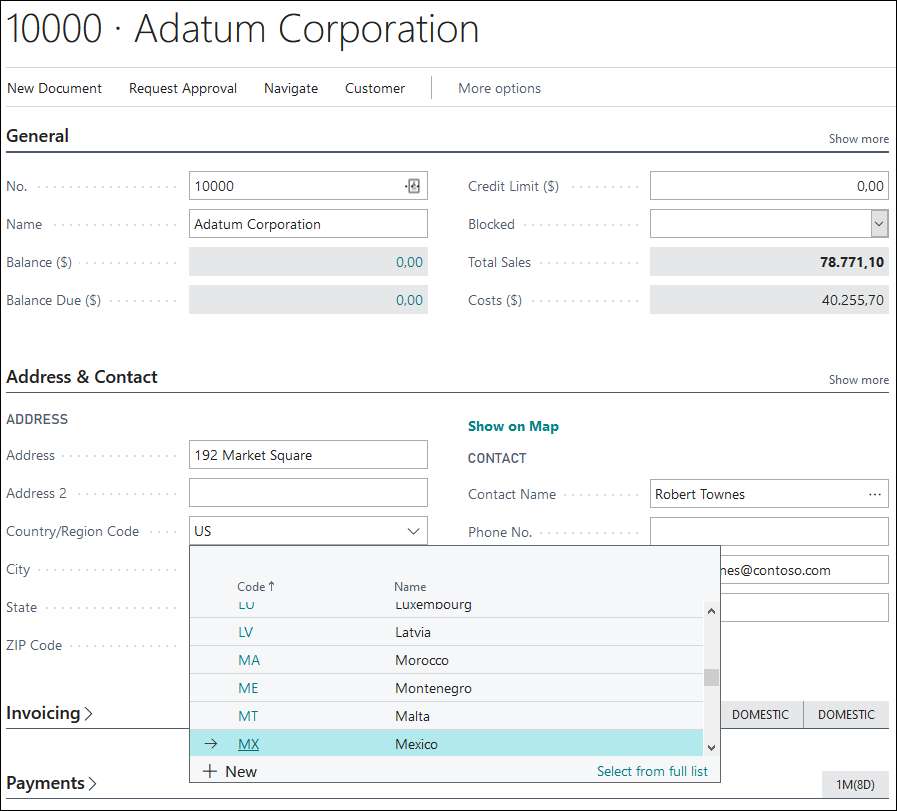
LookupPageId and DrillDownPageId are two important table properties. When a table is called from a lookup, which means that when a table is asked to show its (filtered) records (might be all its records, or might be a record set), it uses the LookupPageId property to run a page. Similar to every object in the database, a page also has an ID, which is the ID that is used in LookupPageId. As a result, Business Central knows which page to show when a table is called from a lookup.
When you open the customer card, you can select the Country/Region Code drop-down list, where you can open another table in the lookup. In this case, you are able to open tables for countries and regions.
The same scenario happens with the DrillDownPageId property. In this case, a table also needs to show records. Instead of a lookup action that displays a list with possible values, it performs a drill-down action that displays details for a certain field.
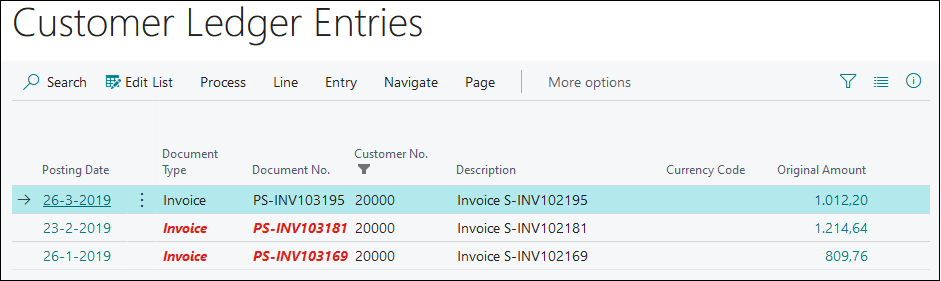
For example, on the customer card are two fields, Balance (LCY) and Balance Due (LCY), that perform a drill-down action.
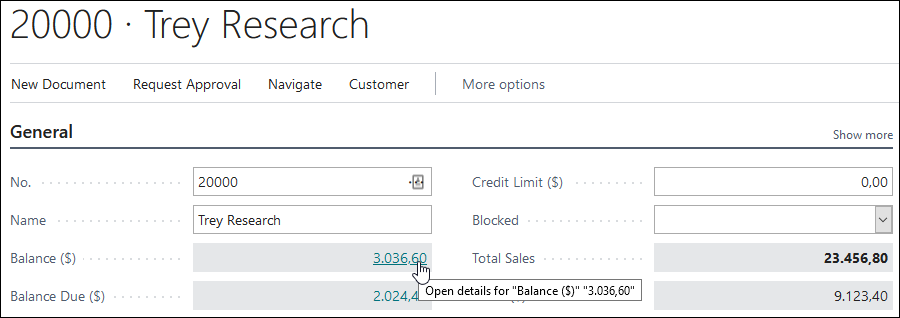
When you select one of these values, a new window appears that displays the details of the field. In this case, it displays the customer ledger entries for the selected customer.
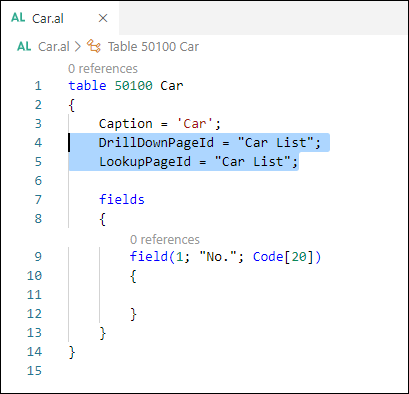
When you create a table and specify the LookupPageId and/or the DrillDownPageId property, you can use the ID of the page, but it's better to use the name of the page.
ObsoleteState, ObsoleteReason, and ObsoleteTag properties
The ObsoleteState, ObsoleteReason, and ObsoleteTag properties are properties you can set on tables, and also other objects, to indicate that these objects will become obsolete in future versions of Business Central. The ObsoleteState property marks whether the object or element is or will become obsolete (deprecated).
By coding against this property, you can use this property as a way to communicate through code to other developers which objects and elements will become obsolete over time and those which are already obsolete, enabling them to adjust their application code accordingly.
For more information about this property, take a look here: ObsoleteState property
The ObsoleteReason property specifies why the object or element has been marked as Pending or Obsolete in the ObsoleteState property. Use this property to inform developers about an object or element that will become obsolete in time, or is already obsolete. Use the ObsoleteTag property to specify additional information which can be valuable to other developers.
For more information about this property, see ObsoleteReason property.
The ObsoleteTag property specifies a free-form text to support tracking of where and when the object was marked as obsolete, for example, branch, build, or date of obsoleting the object.
Use this property to add valuable information to developers about an object
or element that will become obsolete in time or is already obsolete. For
procedures and variables, the obsolete tag can be specified as an optional
parameter in the Obsolete attribute: [Obsolete('<Reason>','<tag>')].
For more information about this property, see ObsoleteTag property.
The Obsolete Attribute specifies that a method or a variable is or will be deprecated in a future version. To mark objects and other elements of code, use the ObsoleteState Property and ObsoleteReason Property.
For more information about this property, see Obsolete Attribute.