Note
Access to this page requires authorization. You can try signing in or changing directories.
Access to this page requires authorization. You can try changing directories.
When you configure the groups claim in an access token for your application, Microsoft Entra ID has a maximum number of groups that can be returned in the access token. When the limit is exceeded, Azure provides a group overage claim, which is a URL that can be used to get the full group list for the currently signed-in user. This URL uses the Microsoft Graph endpoint. For more information about the groups claim, see Access tokens in the Microsoft identity platform.
For JSON web tokens (JWT), Azure limits the number of groups that can be present in the token to 200. When requesting an access token for a resource that has the groups claim configured, if you're a member of more than 200 groups, you'll get a group overage claim instead of getting the actual groups.
This article introduces how to get the actual user group list from a group overage claim by using a sample project.
Configure the groups claim for your application
You can configure the groups claim for your application by using the optional claims. For more information, see Configure and manage optional claims in ID tokens, access tokens, and SAML tokens.
If the application is a first-party app (Microsoft app), you can't configure the groups claim. You can only configure it with your own app registration. If you want to configure the groups claim for a client application, you must configure it in an ID token.
Download the sample project
Download the sample project MSAL.Net_GroupOveragesClaim. It shows how to get the group list from a group overage claim.
Before running the sample project
Configure an app registration for the sample project.
The sample project will perform both the public client flow and the confidential client flow, so you need to configure a web redirect (for the public client flow) and a client secret (for the confidential client flow). Because the confidential client must go to the
usersendpoint and look up the groups based on the user ID, which can be obtained from the initial sign-in token, the confidential client version needs the Microsoft Graph application permission ofGroup.Read.All. The public client just goes to themeendpoint since there's a user context.Configure the sample project to work with your tenant by updating the appsettings.json file with the appropriate values:
{
"Azure": {
    "ClientId": "{client_id}",
    "TenantId": "{tenant_id}",
    "CallbackPath": "http://localhost",
    "ClientSecret": "{client_secret}",
    "AppScopes": [ "https://database.windows.net/.default" ],
    "GraphScopes": [ "User.Read" ]
}
}
Here are explanations of the settings in the appsettings.json file:
AppScopesYou must have a scope for which the
groupsclaim has been configured.Typically, this is an API in your tenant. But in this case, adding Azure SQL Database with the user_impersonation permission works for this scenario. The scope you have added works for that API. This is because the
groupsclaim has been configured on that API.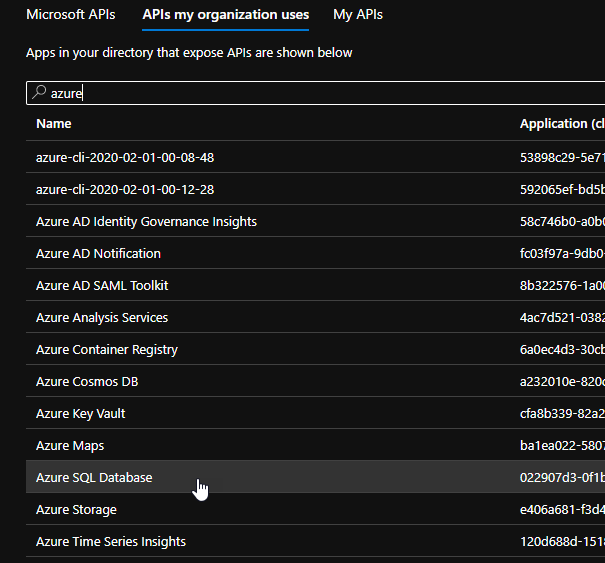
GraphScopesAdd the application permissions Group.Read.All (needed to get the group display name) and User.Read.All (needed to get the group list using the client credentials flow). You must provide admin consent for those permissions. The delegated permission User.Read should already be there. If not, add it.
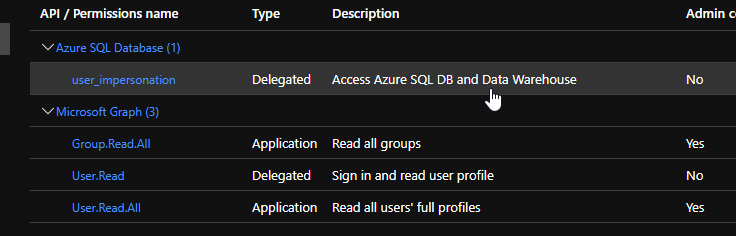
Once the app registration for this sample project is configured, add the client ID (application ID), client secret, and tenant ID into the appsettings.json file.
Run PowerShell scripts in the Create_TestGroup.ps1.txt file to create test groups (if needed).
The sample project has a text file called Create_TestGroup.ps1.txt. To run PowerShell scripts in this file, remove the .txt extension. Before running it, you need an object ID of a user to add to the test groups. You must be in a directory role that can create groups and add users to the groups. The sample project will create 255 groups in the format of
TEST_0001,TEST_0002, and so on. The object ID that you provide for each group will be added. At the end of the script, it will sign you into Azure, run the command to create the test groups, and then sign you out.Note
There's a sample cleanup method that is commented out on line 53:
Connect-AzureAD
Create-TestGroups -deleteIfExists $false
#Delete-TestGroups
Disconnect-AzureAD
Get the full user groups list using the group overage claim
Run the sample application.
Sign in to the application.
Authentication occurs in a browser because the sample application is a .NET console application.
After signing in, close the browser and you'll be returned to the console application.
After the access token is presented in the console window, copy the access token to the clipboard and paste it into https://jwt.ms to view the encoded token. It's just a user token.
If the user is a member of too many groups, the console window will display the original group overage claim and the new group overage claim for that token. The new group overage claim will be used in the .NET HTTP client request rather than the Graph .NET SDK request.

Select the access token type you want to get for Microsoft Graph. You can get an access token by using a user token for the currently signed-in user (refresh token flow) or an application token using the client credentials grant flow.
Select the
.NET HTTP Requestor theGraph .NET SDKto get the full list of the user groups.
The groups will appear in the console window:


About the code
Get_GroupsOverageClaimURL method
The sample project uses MSAL.NET (Microsoft.Identity.Client) to authenticate users and obtain access tokens. System.Net.Http is used for the HTTP client, and Microsoft.Graph SDK is used for the graph client. To parse the JSON file, System.Text.Json is used. To get the claims from the token, System.IdentityModel.Tokens.Jwt is used. The JwtSecurityToken provider is used to retrieve the group overage claim in the token.
If the token contains the claims claim_names and claim_sources, it indicates the presence of a group overage claim within the token. In this case, use the user ID (oid) and the two claims to construct the URL to the group list and output the original value in the console window. If either of the two claim values doesn't exist, the try/catch block will handle the error and return a string.empty value. This indicates that there's no group overage claim in the token.
/// <summary>
		/// Looks for a group overage claim in an access token and returns the value if found.
		/// </summary>
		/// <param name="accessToken"></param>
		/// <returns></returns>
		private static string Get_GroupsOverageClaimURL(string accessToken)
        {
			JwtSecurityToken token = new JwtSecurityTokenHandler().ReadJwtToken(accessToken);
			string claim = string.Empty;
			string sources = string.Empty;
			string originalUrl = string.Empty;
			string newUrl = string.Empty;

            try
            {
				// use the user id in the new graph URL since the old overage link is for Azure AD Graph which is being deprecated.
				userId = token.Claims.First(c => c.Type == "oid").Value;

				// getting the claim name to properly parse from the claim sources but the next 3 lines of code are not needed,
				// just for demonstration purposes only so you can see the original value that was used in the token.
				claim = token.Claims.First(c => c.Type == "_claim_names").Value;
				sources = token.Claims.First(c => c.Type == "_claim_sources").Value;
				originalUrl = sources.Split("{\"" + claim.Split("{\"groups\":\"")[1].Replace("}","").Replace("\"","") + "\":{\"endpoint\":\"")[1].Replace("}","").Replace("\"", "");

				// make sure the endpoint is specific for your tenant -- .gov for example for gov tenants, etc.
				newUrl = $"https://graph.microsoft.com/v1.0/users/{userId}/memberOf?$orderby=displayName&$count=true";

				Console.WriteLine($"Original Overage URL: {originalUrl}");
				//Console.WriteLine($"New URL: {newUrl}");


			} catch {
				// no need to do anything because the claim does not exist
			}

			return newUrl;
        }
Program.cs file
In this file, there's a public client application configuration for user sign-in and getting access tokens, and a confidential client application for application sign-in and getting access tokens (the client credentials grant flow). ManualTokenProvider is used for the Graph service client to pass an access token to the service instead of having Graph obtain it.
There's also an appsettings.json file and a class (AzureConfig.cs) to store those settings at runtime. The public static property AzureSettings retrieves settings from the configuration file using a configuration builder, similar to ASP.NET Core applications. This feature must be added as it's not native to a console application.
static AzureConfig _config = null;
		public static AzureConfig AzureSettings
		{
			get
			{
				// Only load this when the app starts.
				// To reload, you will have to set the variable _config to null again before calling this property.
				if (_config == null)
				{
					_config = new AzureConfig();
					IConfiguration builder = new ConfigurationBuilder()
						.SetBasePath(System.IO.Directory.GetCurrentDirectory())
						.AddJsonFile("appsettings.json", optional: true, reloadOnChange: true)
						.Build();

					ConfigurationBinder.Bind(builder.GetSection("Azure"), _config);
				}

				return _config;
			}
		}
Authentication provider
For the Authentication provider for the Graph service client, the sample project uses a custom manual token provider to set the access token for the client that has already obtained access tokens using MSAL.
using Microsoft.Graph;

using System;
using System.Collections.Generic;
using System.Net.Http;
using System.Net.Http.Headers;
using System.Text;
using System.Threading.Tasks;

namespace MSAL.Net_GroupOveragesClaim.Authentication
{
    class ManualTokenProvider : IAuthenticationProvider
    {
        string _accessToken;

        public ManualTokenProvider ( string accessToken)
        {
            _accessToken = accessToken;
        }

        async Task IAuthenticationProvider.AuthenticateRequestAsync(HttpRequestMessage request)
        {
            request.Headers.Authorization = new AuthenticationHeaderValue("Bearer", _accessToken);
            request.Headers.Add("ConsistencyLevel", "eventual");
        }
    }
}
Get_Groups_HTTP_Method
This method calls the Graph_Request_viaHTTP method to get the list of groups and then displays that list in the console window.
/// <summary>
		/// Entry point to make the request to Microsoft graph using the .Net HTTP Client
		/// </summary>
		/// <param name="graphToken"></param>
		/// <returns></returns>
		private static async Task Get_Groups_HTTP_Method(string graphToken, string url)
        {
			List<Group> groupList = new List<Group>();

			groupList = await Graph_Request_viaHTTP(graphToken, url);
			foreach (Group g in groupList)
			{
				Console.WriteLine($"Group Id: {g.Id} : Display Name: {g.DisplayName}");
			}
		}
/// <summary>
		/// Calls Microsoft Graph via a HTTP request.  Handles paging in the request
		/// </summary>
		/// <param name="user_access_token"></param>
		/// <returns>List of Microsoft Graph Groups</returns>
		private static async Task<List<Group>> Graph_Request_viaHTTP(string user_access_token, string url)
        {
			string json = string.Empty;
			//string url = "https://graph.microsoft.com/v1.0/me/memberOf?$orderby=displayName&$count=true";
			List<Group> groups = new List<Group>();

			// todo: check for the count parameter in the request and add if missing

			/*
			 * refer to this documentation for usage of the http client in .net
			 * https://docs.microsoft.com/en-us/dotnet/api/system.net.http.httpclient?view=net-5.0
			 *
			 */

			// add the bearer token to the authorization header for this request
			_httpClient.DefaultRequestHeaders.Authorization = new System.Net.Http.Headers.AuthenticationHeaderValue( "Bearer", user_access_token);

			// adding the consistencylevel header value if there is a $count parameter in the request as this is needed to get a count
			// this only needs to be done one time so only add it if it does not exist already.  It is case sensitive as well.
			// if this value is not added to the header, the results will not sort properly -- if that even matters for your scenario
			if(url.Contains("&$count", StringComparison.OrdinalIgnoreCase))
            {
                if (!_httpClient.DefaultRequestHeaders.Contains("ConsistencyLevel"))
                {
					_httpClient.DefaultRequestHeaders.Add("ConsistencyLevel", "eventual");
                }
            }

			// while loop to handle paging
			while(url != string.Empty)
            {
				HttpResponseMessage response = await _httpClient.GetAsync(new Uri(url));
				url = string.Empty; // clear now -- repopulate if there is a nextlink value.

				if (response.IsSuccessStatusCode)
				{
					json = await response.Content.ReadAsStringAsync();

					// Console.WriteLine(json);

					using (JsonDocument document = JsonDocument.Parse(json))
					{
						JsonElement root = document.RootElement;
						// check for the nextLink property to see if there is paging that is occuring for our while loop
						if (root.TryGetProperty("@odata.nextLink", out JsonElement nextPage))
                        {
							url = nextPage.GetString();
                        }
						JsonElement valueElement = root.GetProperty("value"); // the values

						// loop through each value in the value array
						foreach (JsonElement value in valueElement.EnumerateArray())
						{
							if (value.TryGetProperty("@odata.type", out JsonElement objtype))
							{
								// only getting groups -- roles will show up in this graph query as well.
								// If you want those too, then remove this if filter check
								if (objtype.GetString() == "#microsoft.graph.group")
								{
									Group g = new Group();

									// specifically get each property you want here and populate it in our new group object
									if (value.TryGetProperty("id", out JsonElement id)) { g.Id = id.GetString(); }
									if (value.TryGetProperty("displayName", out JsonElement displayName)) { g.DisplayName = displayName.GetString(); }

									groups.Add(g);
								}
							}
						}
					}
				} else
                {
					Console.WriteLine($"Error making graph request:\n{response.ToString()}");
                }
			} // end while loop

			return groups;
        }
Get_Groups_GraphSDK_Method
Similarly, the Graph SDK has an entry method, Get_Groups_GraphSDK_Method. This method calls Get_GroupList_GraphSDK to get the list of groups and then displays it in the console window.
/// <summary>
		/// Entry point to make the request to Microsoft Graph using the Graph SDK and outputs the list to the console.
		/// </summary>
		/// <param name="graphToken"></param>
		/// <returns></returns>
		private static async Task Get_Groups_GraphSDK_Method(string graphToken, bool me_endpoint)
        {
			List<Group> groupList = new List<Group>();

			groupList = await Get_GroupList_GraphSDK(graphToken, me_endpoint);
			foreach (Group g in groupList)
			{
				Console.WriteLine($"Group Id: {g.Id} : Display Name: {g.DisplayName}");
			}
		}
Get_GroupList_GraphSDK method
This method determines whether to use the me endpoint or the users endpoint to get the group list. If you use the client credentials grant flow to get the access token for Microsoft Graph, use the me endpoint. If not (for example, a delegated flow is used for the access token), use the users endpoint. Regardless of the method used, the code handles paging because, by default, only 100 records per page are returned. Paging is determined via the @odata.nextLink value. If there's a value for that property, the full URL is called for the next page of data. For more information about paging, see Paging Microsoft Graph data in your app.
/// <summary>
		/// Calls the Me.MemberOf endpoint in Microsoft Graph and handles paging
		/// </summary>
		/// <param name="graphToken"></param>
		/// <returns>List of Microsoft Graph Groups</returns>
		private static async Task<List<Group>> Get_GroupList_GraphSDK(string graphToken, bool use_me_endpoint)
        {

			GraphServiceClient client;

			Authentication.ManualTokenProvider authProvider = new Authentication.ManualTokenProvider(graphToken);

			client = new GraphServiceClient(authProvider);
			IUserMemberOfCollectionWithReferencesPage membershipPage = null;

			HeaderOption option = new HeaderOption("ConsistencyLevel","eventual");

			if (use_me_endpoint)
            {
                if (!client.Me.MemberOf.Request().Headers.Contains(option))
                {
					client.Me.MemberOf.Request().Headers.Add(option);
                }

				membershipPage = await client.Me.MemberOf
					.Request()
					.OrderBy("displayName&$count=true") // todo: find the right way to add the generic query string value for count
					.GetAsync();
            } else
            {
                if (!client.Users[userId].MemberOf.Request().Headers.Contains(option))
                {
					client.Users[userId].MemberOf.Request().Headers.Add(option);
                }

				membershipPage = await client.Users[userId].MemberOf
					.Request()
					.OrderBy("displayName&$count=true")
					.GetAsync();
            }

			List<Group> allItems = new List<Group>();

			if(membershipPage != null)
            {
				foreach(DirectoryObject o in membershipPage)
                {
					if(o is Group)
                    {
						allItems.Add((Group)o);
                    }
                }

				while (membershipPage.AdditionalData.ContainsKey("@odata.nextLink") && membershipPage.AdditionalData["@odata.nextLink"].ToString() != string.Empty)
                {
					membershipPage = await membershipPage.NextPageRequest.GetAsync();
					foreach (DirectoryObject o in membershipPage)
					{
						if (o is Group)
						{
							allItems.Add(o as Group);
						}
					}
				}

            }

             return allItems;

		}