Note
Access to this page requires authorization. You can try signing in or changing directories.
Access to this page requires authorization. You can try changing directories.
Summary
MSOAID is a tool that you can use to diagnose authentication issues. You can reproduce the issue while you run MSOAID to collect logs and diagnostic information for Microsoft support engineers to analyze.
Download and run MSOAID
Download MSOAID for Windows.
Extract the contents of the .zip file.
Right-click the executable file (MSOAID-Win.exe), and select Run as administrator.
Note: You don't have to restart Office apps before you run MSOAID.
Select the diagnostic categories that you want MSOAID to collect.

(Optional) Select Configure for HTTP/HTTPS packet capture (Fiddler), and then configure the following settings:
- To secure the packet capture, enter a password in the Archive password field that's at least 12 characters long. Make sure to share this password with your Microsoft support contact.
- If you're troubleshooting an issue in an Exchange On-premises environment that has Extended Protection enabled, enter the root domain that's used by the Exchange URLs in the Exchange Onprem Extended Protection root domain field. For example, if the URLs are
autodiscover.contoso.comandmail.contoso.com, entercontoso.com. Leave this field blank if Extended Protection isn't enabled or the issue doesn't involve an Exchange On-premises environment.
Select Next, and follow the prompts until MSOAID indicates that the diagnostic collection is started.
Reproduce the issue that you have to troubleshoot in Office or Windows.
Select Finish, and wait for MSOAID to stop collecting diagnostics.
To copy the location of the diagnostics that are collected by MSOAID, select Copy Path. The file is usually saved to the %TEMP% folder of the administrator account that you use to run MSOAID.
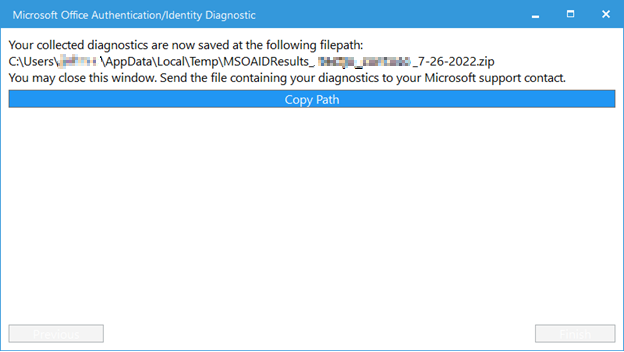
Send the diagnostics to your Microsoft support contact. You can also include the msoaid.log file that's saved in %TEMP% in Windows.
Data collected by MSOAID
| Diagnostic name | Description |
|---|---|
| Office logs | These logs are generated by Office apps. Microsoft support engineers can use the logs to understand what the apps were doing when your issue occurred. The logs might include usernames or URLs that Office apps try to access. |
| HTTP/HTTPS packet capture (Fiddler) | MSOAID uses Fiddler, a licensed third-party software, to monitor network activities. Fiddler logs include the contents of all HTTP/HTTPS traffic to and from your computer when MSOAID is active. These logs also include traffic from sources other than Office, such as web browsers and instant messaging clients. Don't use this diagnostic when your computer is sending or receiving HTTP/HTTPS traffic that shouldn't be shared with Microsoft. |
| WAM / Microsoft Entra client logs [Windows only] | These logs are generated by Windows about authentication. They include information about how your computer is configured, such as usernames or domain names, and your sign-in history. |
| Office Identity registry hive [Windows only] | This is metadata about the accounts that are signed in to Office. It may include your personal information that's contained in the account that you use to sign in to Office, such as your name and email address. It might also include some URLs that Office accesses, such as for Microsoft SharePoint or Exchange Server. |
| Office Services Manager cache [Windows only] | This is metadata about the services that are connected to the Office apps, such as OneDrive or SharePoint. It might include the same personal information as the Office Identity registry hive. |
| Office Roaming cache [Windows only] | This is metadata about the Office settings that are shared between devices. |
| Office Config Service cache | This is metadata about how the Office apps access Microsoft cloud-based services in your region. |
| Screenshots (Problem Steps Recorder) [Windows only] | MSOAID uses the Problem Steps Recorder tool in Windows to capture screenshots when you use your mouse and keyboard. The images enable Microsoft support engineers to see what you see (including multiple displays) when you reproduce the issue. |
| Windows build version [Windows only] | This is the exact Windows version that your computer is running. |