Note
Access to this page requires authorization. You can try signing in or changing directories.
Access to this page requires authorization. You can try changing directories.
Symptoms
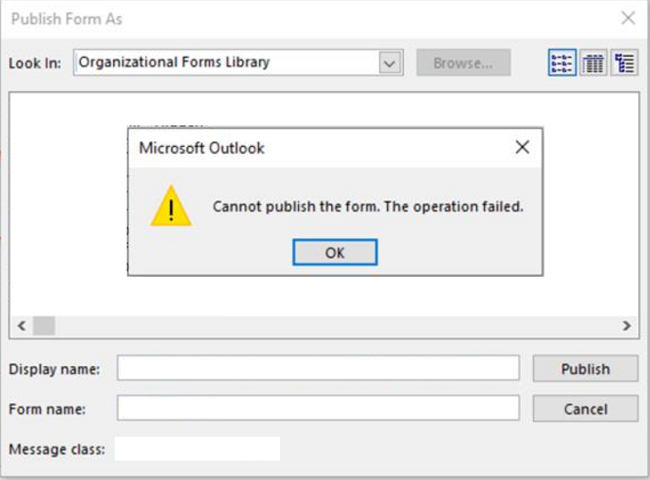
When you publish a form through Outlook to any Forms Library (such as the Organizational Forms Library in public folders or a user's mailbox), you receive the following error message:
Cannot publish the form. The operation failed.
Cause
This issue might occur if an antivirus software or a Microsoft Outlook add-in interferes with the Outlook publishing process.
Resolution
To resolve this issue, configure antivirus exclusions, as detailed in Virus prevention. If the issue persists, disable Outlook add-ins by using the following steps.
Important
Follow the steps in this section carefully. Serious problems might occur if you modify the registry incorrectly. Before you modify it, back up the registry for restoration in case problems occur.
Open Registry Editor as an administrator. To do this, select Start, enter regedit, right-click Registry Editor in the search results, and then select Run as administrator.
Navigate to each of the following registry subkeys, and then change the
loadbehaviorvalue to 0 for all non-Microsoft add-ins:HKEY_CURRENT_USER\Software\Microsoft\Office\Outlook\AddInsHKEY_LOCAL_MACHINE\Software\Microsoft\Office\Outlook\AddInsHKEY_LOCAL_MACHINE\Software\WOW6432nodeHKEY_CURRENT_USER\Software\Policies\MicrosoftHKEY_LOCAL_MACHINE\Software\Policies\Microsoft
Restart Outlook, and publish the form again.
If the issue isn't resolved, collect the following information, and then contact Microsoft Support to identify which process is locking Outlook.
Collect minifilter drivers
Open a Command Prompt window as an administrator, and then run
FLTMCto list the file system drivers (minifilter). Here's an example of the output: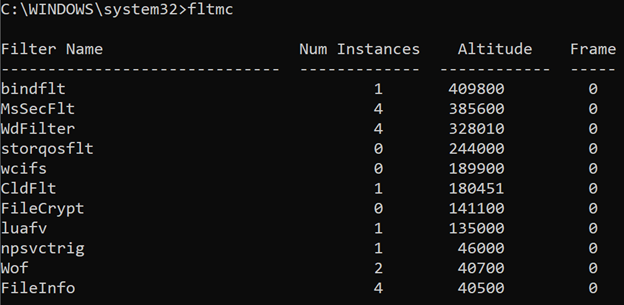
Do a Procmon capture for the process:
- Download Process Monitor.
- Save the tool locally, and extract the files.
- Double-click Procmon.exe to start Process Monitor.
- Reproduce the issue, switch to the Process Monitor window, and then select the magnifying glass icon on the toolbar to stop the log capture.
- Select File > Save > All Events, and then save the Process Monitor log in PML format.
- Share the PML file with Microsoft Support for analysis.