Note
Access to this page requires authorization. You can try signing in or changing directories.
Access to this page requires authorization. You can try changing directories.
Symptoms
The "Allow access requests" setting is enabled for your SharePoint Online site.
When users who have Full Control permissions to the site select Access requests and invitations in the settings for the site, they receive one of the following error messages:
- Access Denied
- You can't access this item.
- You don't have permission to access this item.
Also, when users browse to the Access Requests list and select Approve or Decline to process a pending request, they receive one of the following status messages:
- Sending approval
- Request approval failed
Cause
These issues occur because the affected users are not site admins (previously called site collection administrators) or members of the Owners group for the site. Only users with these specific permissions can process requests to the Access Requests list. For users who are members of the Owners group for the site, an another requirement is that the Owners group must have Full Control permissions to access the Access Requests list.
Resolution
To resolve the issues, assign site admin permissions to the affected users or add them to the Owners group for the site. Additionally, the Owners group must have Full Control permissions to access the Access Requests list.
Use one of the following solutions.
Solution 1: Assign Site admin permissions
To provide a user with site admin permissions, see Manage site admins.
Solution 2: Add the user to the Owners group for the site
Use the following steps:
Note: You must have the Manage Permissions permission level on the site to edit the Owners group for the site.
Find the Owners group for the affected site collection.
If the Owners group for the site collection doesn't exist, select Grant Permissions, enter the name of the Owners group for the site in the Share dialog box, and then select Share.
On the affected site, select Settings > Site settings.
Select Site permissions.
Select the Owners group for the site, and then select New.
In the Share dialog box, enter the user account to add to the group, and then select Share.
Test to verify that the user can now access the Access Requests list, and approve or decline requests.
Owners group must have permissions to the Access Requests list
If the Owners group is changed or was removed from the Access requests list, you must re-enable permissions to the list for the Owners group. To make these updates, you must have the Manage Permissions permission level for the affected site and also have access to the Access Requests list.
Use the following steps:
Navigate to Access Requests in your browser.
Press the F12 key to open the F12 Developer Tools window, and Ctrl + F5 to refresh the page.
Select the Debugger tab.

In the search box on the right side of the page, type pagelistid:, and then press Enter.
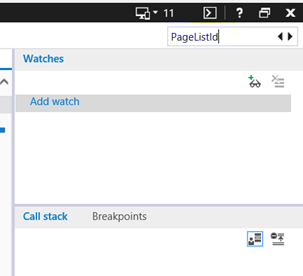
Copy the GUID that follows the pageListId located in the listedit.aspx page. The GUID is enclosed between braces.

In the address bar of the browser, enter '<your_tenant_URL>/_layouts/15/ListEdit.aspx?List=<{GUID}>'.
Example:
https://contoso.sharepoint.com/_layouts/15/listedit.aspx?List=d078a4df-3c52-4b23-8c28-e9561a243f0cIn this example, 'https://contoso.sharepoint.com' is the tenant URL and the GUID is the value from step 5.
On the Settings page, select Permissions for this list, and select the Owners group.