Note
Access to this page requires authorization. You can try signing in or changing directories.
Access to this page requires authorization. You can try changing directories.
Debugger visualizers are a Visual Studio feature that provides a custom visualization for variables or objects of a specific .NET type during a debug session. Debugger visualizers are accessible from the DataTip that appears when hovering over a variable, or from the Autos, Locals, and Watch windows.
Note
This article uses the VisualStudio.Extensibility SDK. For help choosing between VisualStudio.Extensibility and the legacy VSSDK, see Choose the right extensibility model.
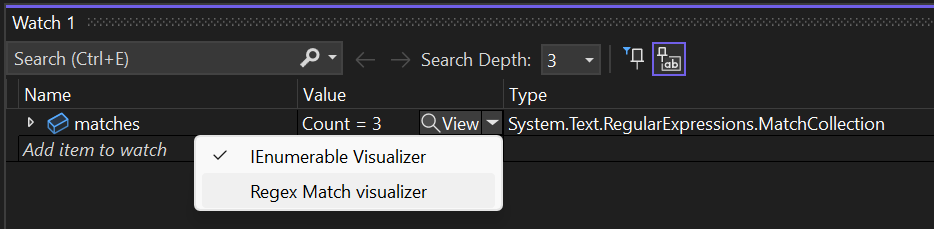
Full example
The complete implementation is in the sample:
// Copyright (c) Microsoft. All rights reserved.
// Licensed under the MIT license. See LICENSE file in the project root for full license information.

namespace RegexMatchVisualizer;

using System.Text.RegularExpressions;
using System.Threading;
using System.Threading.Tasks;
using Microsoft.VisualStudio.Extensibility;
using Microsoft.VisualStudio.Extensibility.DebuggerVisualizers;
using Microsoft.VisualStudio.RpcContracts.RemoteUI;
using RegexMatchVisualizer.ObjectSource;

/// <summary>
/// Debugger visualizer provider class for <see cref="Match"/>.
/// </summary>
[VisualStudioContribution]
internal class RegexMatchDebuggerVisualizerProvider : DebuggerVisualizerProvider
{
    /// <inheritdoc/>
    public override DebuggerVisualizerProviderConfiguration DebuggerVisualizerProviderConfiguration => new("%RegexMatchVisualizer.RegexMatchDebuggerVisualizerProvider.DisplayName%", typeof(Match))
    {
        VisualizerObjectSourceType = new("RegexMatchVisualizer.ObjectSource.RegexMatchObjectSource, RegexMatchObjectSource"),
    };

    /// <inheritdoc/>
    public override async Task<IRemoteUserControl> CreateVisualizerAsync(VisualizerTarget visualizerTarget, CancellationToken cancellationToken)
    {
        var regexMatch = await visualizerTarget.ObjectSource.RequestDataAsync<RegexMatch>(jsonSerializer: null, cancellationToken);

        return new RegexMatchVisualizerUserControl(regexMatch);
    }
}
Tip
See the full working sample: RegexMatchDebugVisualizer ↗
Related concepts: Remote UI, Contributions and configurations, and Create your first extension
Understand the example
Get started
To get started, create a VisualStudio.Extensibility extension project by following Create your first extension.
Every extension starts with an Extension entry point that defines ExtensionConfiguration metadata:
[VisualStudioContribution]
internal class MyExtension : Extension
{
    public override ExtensionConfiguration ExtensionConfiguration => new()
    {
        Metadata = new(
            id: "MyExtension.01234567",
            version: this.ExtensionAssemblyVersion,
            publisherName: "Contoso",
            displayName: "My debugger visualizer extension"),
    };
}
Create the debugger visualizer provider
Add a class that extends DebuggerVisualizerProvider ↗ and apply the VisualStudioContribution ↗ attribute to it:
[VisualStudioContribution]
internal class StringDebuggerVisualizerProvider : DebuggerVisualizerProvider
{
    public override DebuggerVisualizerProviderConfiguration DebuggerVisualizerProviderConfiguration => new(
        "My string visualizer",
        typeof(string));

    public override async Task<IRemoteUserControl> CreateVisualizerAsync(
        VisualizerTarget visualizerTarget,
        CancellationToken cancellationToken)
    {
        string targetObjectValue = await visualizerTarget.ObjectSource.RequestDataAsync<string>(
            jsonSerializer: null,
            cancellationToken);

        return new MyStringVisualizerControl(targetObjectValue);
    }
}
This code defines a new debugger visualizer for string values:
DebuggerVisualizerProviderConfigurationdefines the visualizer display name and supported .NET type.CreateVisualizerAsyncis invoked when the user opens the visualizer. It usesVisualizerTarget↗ to retrieve data and returns a Remote UI control that Visual Studio shows in a popup window.
The same configuration object is where you declare details such as the target types, visualizer display names, VisualizerObjectSourceType, and whether the visualizer opens as a modal dialog or as a non-modal tool window.
Target multiple types
The configuration property can target multiple types when it makes sense to share the same UI, view models, and visualizer object source. A common example is a tabular visualizer that supports DataSet, DataTable, DataView, and DataViewManager.
public override DebuggerVisualizerProviderConfiguration DebuggerVisualizerProviderConfiguration => new(
    new VisualizerTargetType("DataSet Visualizer", typeof(System.Data.DataSet)),
    new VisualizerTargetType("DataTable Visualizer", typeof(System.Data.DataTable)),
    new VisualizerTargetType("DataView Visualizer", typeof(System.Data.DataView)),
    new VisualizerTargetType("DataViewManager Visualizer", typeof(System.Data.DataViewManager)));
Work with the visualizer object source
The visualizer object source is a .NET class that the debugger loads into the process being debugged. Your debugger visualizer retrieves data from it through VisualizerTarget.ObjectSource ↗.
The default visualizer object source supports:
RequestDataAsync<T>(JsonSerializer?, CancellationToken)↗ for strongly typed dataRequestDataAsync(CancellationToken)↗ forJToken
The default implementation uses Newtonsoft.Json ↗ for serialization. If the target type is already serializable, or if you can make your own type serializable, this default flow is often enough.
Use a custom visualizer object source
If the type to be visualized can't be automatically serialized by Newtonsoft.Json, create a custom visualizer object source.
- Create a new class library targeting
netstandard2.0. If required, you can target a more specific framework such asnet472ornet6.0. - Add a package reference to Microsoft.VisualStudio.DebuggerVisualizers ↗ version 17.6 or later.
- Create a class that extends
VisualizerObjectSource↗ and overrideGetData.
public class MyObjectSource : VisualizerObjectSource
{
    public override void GetData(object target, Stream outgoingData)
    {
        MySerializableType result = Convert(target);
        SerializeAsJson(outgoingData, result);
    }

    private static MySerializableType Convert(object target)
    {
        // Convert the debuggee object into a serializable type.
        throw new NotImplementedException();
    }
}
If you're following the Regex sample, RegexMatchObjectSource converts Match into a serializable RegexMatch shape before the provider requests it.
Use custom serialization
Use VisualizerObjectSource.SerializeAsJson to serialize objects with Newtonsoft.Json without adding a direct Newtonsoft.Json dependency to the object-source library. The method loads the Newtonsoft.Json assembly in the debuggee process via reflection.
If you decide to reference Newtonsoft.Json directly, use the same version referenced by Microsoft.VisualStudio.Extensibility.Sdk. In most cases, it's better to use DataContract and DataMember attributes for shared types instead of relying on Newtonsoft.Json-specific types.
You can also implement your own serialization format and write directly to outgoingData.
Add the visualizer object source DLL to the extension
Add a ProjectReference so the object-source project builds before the extension is packaged, and add a Content item so the DLL is copied into the extension output.
<ItemGroup>
  <Content Include="pathToTheObjectSourceDllBinPath\$(Configuration)\netstandard2.0\MyObjectSourceLibrary.dll"
           Link="netstandard2.0\MyObjectSourceLibrary.dll">
    <CopyToOutputDirectory>PreserveNewest</CopyToOutputDirectory>
  </Content>
</ItemGroup>

<ItemGroup>
  <ProjectReference Include="..\MyObjectSourceLibrary\MyObjectSourceLibrary.csproj" />
</ItemGroup>
You can also use net462 or netcoreapp subfolders if the object-source library targets those frameworks, but netstandard2.0 is preferred when possible.
Keep the object-source library's dependency graph as small as possible. If it depends on other DLLs that the debuggee doesn't already load, include those DLLs in the same extension subfolder.
Configure the provider to use the custom object source
After the object-source DLL is packaged, update DebuggerVisualizerProviderConfiguration to point to it:
public override DebuggerVisualizerProviderConfiguration DebuggerVisualizerProviderConfiguration => new(
    "My visualizer",
    typeof(TypeToVisualize))
{
    VisualizerObjectSourceType = new(typeof(MyObjectSource)),
};
public override async Task<IRemoteUserControl> CreateVisualizerAsync(
    VisualizerTarget visualizerTarget,
    CancellationToken cancellationToken)
{
    MySerializableType result = await visualizerTarget.ObjectSource.RequestDataAsync<MySerializableType>(
        jsonSerializer: null,
        cancellationToken);

    return new MyVisualizerUserControl(result);
}
If you intentionally avoid an assembly reference from the extension to the object-source project, configure VisualizerObjectSourceType with the assembly-qualified name instead of typeof(...). The Regex sample uses that pattern.
Work with large and complex objects
If retrieving all data in one parameterless RequestDataAsync call isn't practical, use RequestDataAsync<TMessage, TResponse>(TMessage, JsonSerializer?, CancellationToken) ↗ to exchange messages with the object source.
This pattern is useful for large collections because each RequestDataAsync call has a five-second timeout. A common approach is to request entries one at a time:
for (int i = 0; ; i++)
{
    MySerializableType? collectionEntry =
        await visualizerTarget.ObjectSource.RequestDataAsync<int, MySerializableType?>(
            i,
            jsonSerializer: null,
            cancellationToken);

    if (collectionEntry is null)
    {
        break;
    }

    observableCollection.Add(collectionEntry);
}
On the object-source side, override TransferData instead of GetData:
public class MyCollectionTypeObjectSource : VisualizerObjectSource
{
    public override void TransferData(object target, Stream incomingData, Stream outgoingData)
    {
        var index = (int)DeserializeFromJson(incomingData, typeof(int))!;

        if (target is MyCollectionType collection && index < collection.Count)
        {
            var result = Convert(collection[index]);
            SerializeAsJson(outgoingData, result);
        }
        else
        {
            SerializeAsJson(outgoingData, null);
        }
    }
}
DeserializeFromJson reads the message that the provider sent through incomingData.
When a visualizer performs more complex message exchanges, it's often better to pass the VisualizerTarget ↗ to the remote user control so it can request data asynchronously while the control is loading, or later in response to user interaction:
public override Task<IRemoteUserControl> CreateVisualizerAsync(
    VisualizerTarget visualizerTarget,
    CancellationToken cancellationToken)
{
    return Task.FromResult<IRemoteUserControl>(new MyVisualizerUserControl(visualizerTarget));
}
Open visualizers as tool windows
By default, debugger visualizers open as modal dialogs in the foreground of Visual Studio. If the user wants to continue interacting with the IDE, they must close the modal visualizer first.
If you set Style = VisualizerStyle.ToolWindow, the visualizer opens as a non-modal tool window and can remain open for the rest of the debug session. If you don't set Style, the default is ModalDialog.
public override DebuggerVisualizerProviderConfiguration DebuggerVisualizerProviderConfiguration => new(
    "My visualizer",
    typeof(TypeToVisualize))
{
    Style = VisualizerStyle.ToolWindow
};
When a visualizer opens as a tool window, it must subscribe to the VisualizerTarget.Changed event. Tool windows don't block the user from resuming execution, so the debugger raises notifications whenever the debug target changes state. When the target isn't available, calls to ObjectSource fail with VisualizerTargetUnavailableException.
internal class MyVisualizerUserControl : RemoteUserControl
{
    private readonly VisualizerDataContext dataContext;

#pragma warning disable CA2000 // Dispose objects before losing scope
    public MyVisualizerUserControl(VisualizerTarget visualizerTarget)
        : base(dataContext: new VisualizerDataContext(visualizerTarget))
#pragma warning restore CA2000 // Dispose objects before losing scope
    {
        this.dataContext = (VisualizerDataContext)this.DataContext!;
    }

    protected override void Dispose(bool disposing)
    {
        if (disposing)
        {
            this.dataContext.Dispose();
        }
    }

    [DataContract]
    private class VisualizerDataContext : NotifyPropertyChangedObject, IDisposable
    {
        private readonly VisualizerTarget visualizerTarget;
        private MySerializableType? _value;

        public VisualizerDataContext(VisualizerTarget visualizerTarget)
        {
            this.visualizerTarget = visualizerTarget;
            this.visualizerTarget.Changed += this.OnStateChangedAsync;
        }

        [DataMember]
        public MySerializableType? Value
        {
            get => this._value;
            set => this.SetProperty(ref this._value, value);
        }

        public void Dispose()
        {
            this.visualizerTarget.Dispose();
        }

        private async Task OnStateChangedAsync(object? sender, VisualizerTargetStateNotification args)
        {
            switch (args)
            {
                case VisualizerTargetStateNotification.Available:
                case VisualizerTargetStateNotification.ValueUpdated:
                    Value = await this.visualizerTarget.ObjectSource.RequestDataAsync<MySerializableType>(
                        jsonSerializer: null,
                        CancellationToken.None);
                    break;
                case VisualizerTargetStateNotification.Unavailable:
                    Value = null;
                    break;
                default:
                    throw new NotSupportedException("Unexpected visualizer target state notification");
            }
        }
    }
}
Available is raised after the RemoteUserControl is created and just before Visual Studio shows the tool window. ValueUpdated indicates that the expression was successfully re-evaluated at the current break state and the UI should refresh. Unavailable indicates that execution resumed or that the expression couldn't be re-evaluated after execution stopped.
Update the visualized object value
If VisualizerTarget.IsTargetReplaceable ↗ is true, the visualizer can update the debuggee value by calling ReplaceTargetObjectAsync ↗.
await visualizerTarget.ObjectSource.ReplaceTargetObjectAsync(
    newValue,
    jsonSerializer: null,
    cancellationToken);
The visualizer object source must override CreateReplacementObject:
public override object CreateReplacementObject(object target, Stream incomingData)
{
    // Read the replacement value from incomingData.
    return newValue;
}
Tips
✅ DO
- Put extension metadata in
ExtensionConfigurationand contribution settings inDebuggerVisualizerProviderConfiguration. - Use
netstandard2.0for the object-source project unless you have a specific reason to target another framework. - Use
DataContractandDataMemberon shared data types. - Package the object-source DLL and any required dependencies with the extension.
- Use paged
RequestDataAsynccalls for large or expensive objects. - Handle
VisualizerTarget.Changedwhen opening as a tool window.
❌ DON'T
- Don't reference VisualStudio.Extensibility packages from the object-source project.
- Don't assume every type can be serialized by the default object source.
- Don't leave a tool-window visualizer unaware of
Unavailablenotifications. - Don't forget that
RequestDataAsynccalls can time out after five seconds.
🔧 Troubleshooting
| Symptom | What to check |
|---|---|
| Visualizer doesn't appear | Verify the provider class has [VisualStudioContribution] and that DebuggerVisualizerProviderConfiguration targets the correct .NET type. |
RequestDataAsync fails or times out |
Move large data retrieval to TransferData and page the data across multiple calls. |
| Custom object source isn't found | Confirm the DLL is copied into the extension's netstandard2.0 folder and VisualizerObjectSourceType points to the correct type or assembly-qualified name. |
| Tool-window visualizer throws when debugging continues | Handle VisualizerTargetStateNotification.Unavailable and avoid ObjectSource calls until the target is available again. |
Next steps
- Explore the full RegexMatchDebugVisualizer sample ↗.
- Learn more about Remote UI.
- Review Contributions and configurations.
- Compare models in Choose the right extensibility model.