Note
Access to this page requires authorization. You can try signing in or changing directories.
Access to this page requires authorization. You can try changing directories.
We're excited to announce the availability of the Visual Studio 2026 April update. This release marks the beginning of a new era for Visual Studio with deep platform integration of AI, stronger fundamentals, and improved performance.
Download Visual Studio 2026 Insiders to enjoy these new features and improvements.
Version 11723.189
Released on April 28, 2026
| Top bug fixes | From the community |
|---|---|
| Error while using Add-Migration in nuget console in Visual Studio Insiders | Feedback ticket |
TypeScript 7 (Native Preview) Known Issues
TypeScript 7 brings significant performance improvements to Visual Studio, and we're continuing to refine the experience.
Here's what we're actively working on:
IntelliSense. You may notice completions not appearing in some cases. In
.cshtmlfiles, the TypeScript completion list may not appear inside a<script>tag. When accepting a completion for the last argument of a function, the closing parenthesis may be removed. Pressing Ctrl+Space can work around this. Code Actions & Refactoring. Quick fixes (Ctrl+.) are not available yet. Only Copilot AI-based suggestions may appear. The Organize Imports command (Ctrl+R, Ctrl+G) is also not available. Navigation & Search. The navigation bar dropdowns at the top of the editor do not show document symbols. Find All References (Shift+F12) shows a flat list without semantic grouping (read/write/declaration), and cross-file references may be incomplete. Code search results may show mismatched titles and descriptions. CodeLens. Reference counts (e.g., "19 references") do not appear above interface and class declarations. Hover tooltips. Hover tooltips are missing the symbol icon and have different text coloring compared to the previous language service. Snippets. Insert Snippet (Ctrl+K, Ctrl+X) does not work in JavaScript files. JSDoc. Typing/**above a function with parameters does not auto-generate the JSDoc template with@paramentries. Formatting. Unchecking "Format on open block {" in Tools > Options > Text Editor > JavaScript/TypeScript > Formatting does not take effect. Task List. If a TypeScript file contains both a TODO comment and a variable named "TODO", the Task List may incorrectly show duplicate tasks. File and folder rename. Renaming a file or folder in a TypeScript project does not consistently update import paths in other files. File watching. When files are modified outside of Visual Studio, changes are not detected until the file is opened and modified inside the IDE. Errors from external edits will not appear in the Error List.We appreciate your feedback as we work toward full parity. Please report any issues through Help > Send Feedback in Visual Studio.
Version 11716.218
Released on April 21, 2026
| Top bug fixes | From the community |
|---|---|
| F# Empty string matching in code quotations causes FS0452 | Feedback ticket |
| Github Copilot for Azure extension Query Azure Resource Graph tool fails | Feedback ticket |
Features
Released on April 14, 2026.
IDE
System dark/light themes 📣
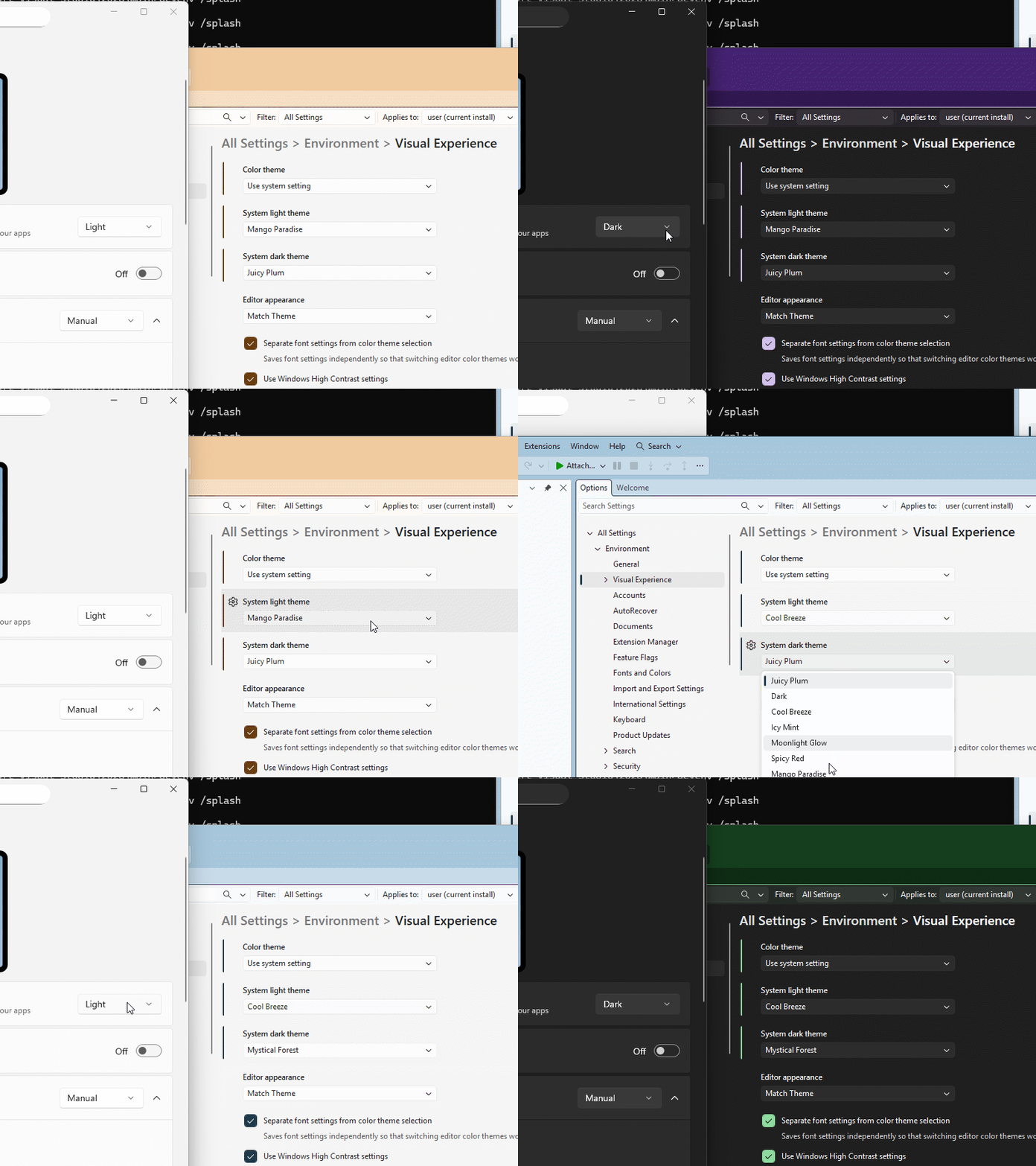
Automatically switch Visual Studio themes when your system moves between Light and Dark mode, keeping your IDE in sync with your environment.
You might prefer a lighter, higher-contrast theme during the day and a darker theme at night. Visual Studio now automatically switches between your selected Light and Dark themes when your system setting changes, keeping your IDE in sync with your environment.
How to use it
- Open Tools → Options → Environment → Visual Experience
- Set Color theme to Use system setting
- Select a System Light theme and a System Dark theme
Visual Studio applies the corresponding theme automatically when your Windows theme changes.
📣 See feature ticket to share your feedback and continue the conversation.
GitHub Copilot
View and manage Agent Skills
Browse, edit, and locate all your Copilot Agent Skills from the chat window.
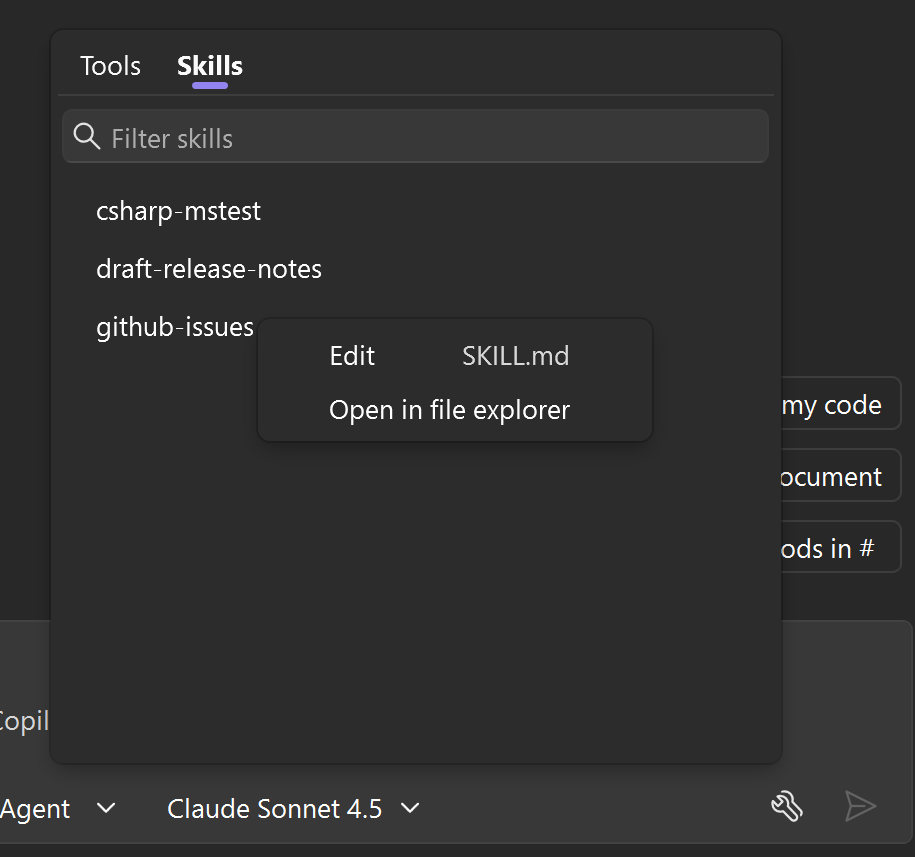
You can now view all your Agent Skills in one place. By clicking the tools icon on the bottom right corner of your chat window, you can open a dedicated skills panel that lists every skill discovered from your workspace and user profile, making it easy to see what's available at a glance.
From the panel, you can manage skills directly without leaving Visual Studio:
- Edit a skill - click the three-dot menu (⋯) on any skill to open and edit it directly in VS.
- Open file location - use the same menu to jump straight to the skill file on disk.
- Search a skill - use the search bar at the top to quickly find a specific skill by name or keyword.
This builds on the Agent Skills support introduced earlier, giving you a more user-friendly way to browse and maintain your skills. Try it out and share your feedback!
Multi-file summary diff for Copilot changes
Review all Copilot changes across multiple files in a single summary view with granular accept and undo controls.
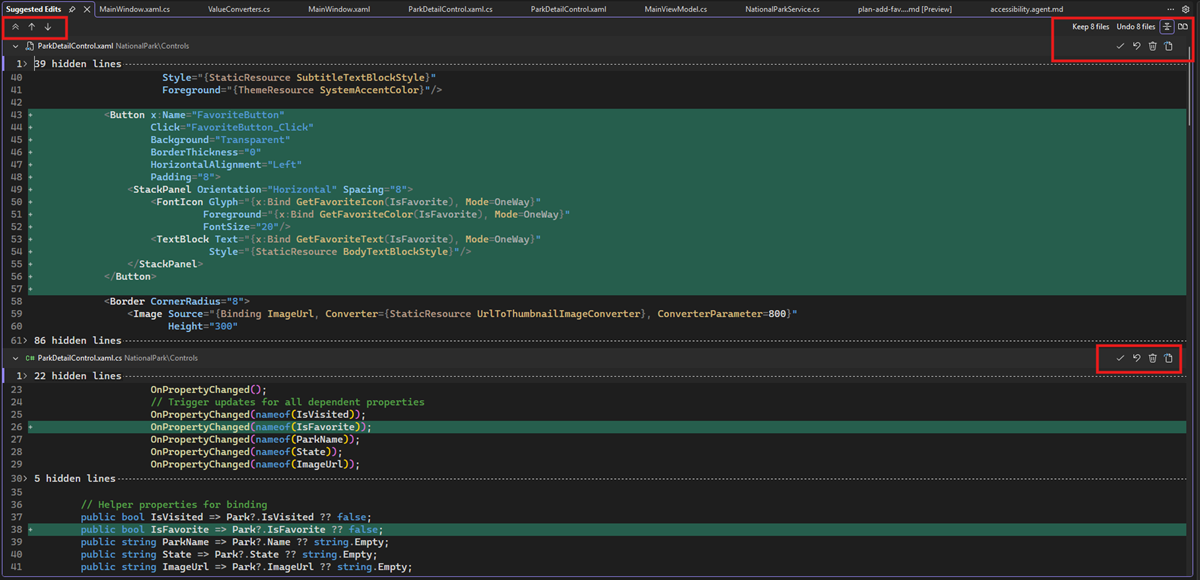
When Copilot edits multiple files, you don't need to review each one separately anymore. The new multi-file summary diff view shows all changes in one place.
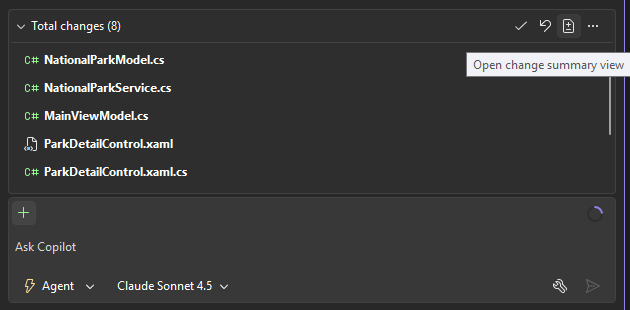
Click the Open Changes Summary button in the Copilot Chat working set after Copilot finishes editing. You'll see a single tab with all changed files and their diffs together.
You can accept or undo changes at different levels:
- Across all files at once
- On a per-file basis
- Per individual diff chunk
You can also open any file separately to see its full context.
Use the controls in the top-left corner to:
- Collapse all file contents to see only file headers for a quick overview
- Navigate between diff chunks using the next and previous buttons to jump through changes quickly
This view makes it easier to understand what Copilot changed across your codebase and gives you precise control over which edits to keep.
Context window indicator
See how much context Copilot is using and optimize it with one-click summarization.
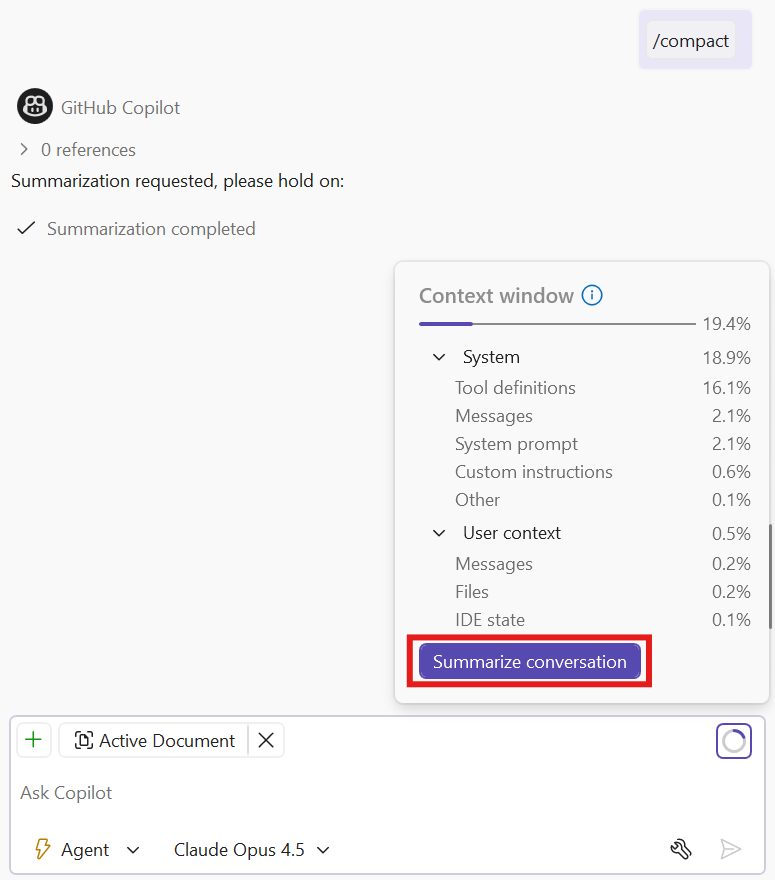
When you chat with Copilot, it tracks your conversation history, attached files, and other context to give you relevant responses. This is called the context window, and it has a limit. Once it fills up, Copilot may lose track of earlier parts of your conversation.
You can now see exactly how much of that context window you've used with the new context window indicator.
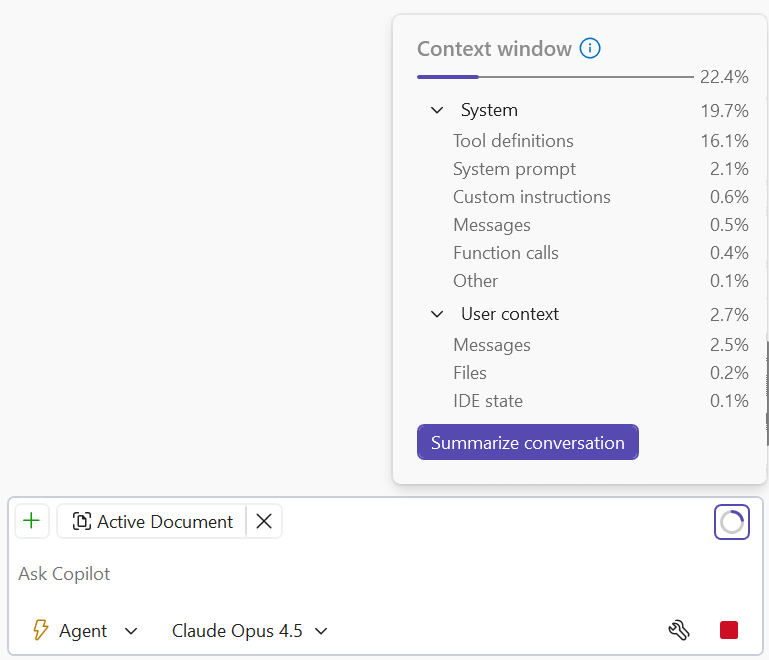
Look for the ring icon in the upper right corner of the Copilot Chat prompt box. This mini donut chart fills up as your conversation grows, showing you at a glance how much context you've consumed.
Click the indicator to see:
- Exact percentage of context used
- Detailed breakdown of what's contributing to the context
- Summarize conversation button to compact your conversation and free up space
When your context is running low, click Summarize to compress earlier parts of your conversation. This lets you keep chatting without losing important context or starting a new conversation.
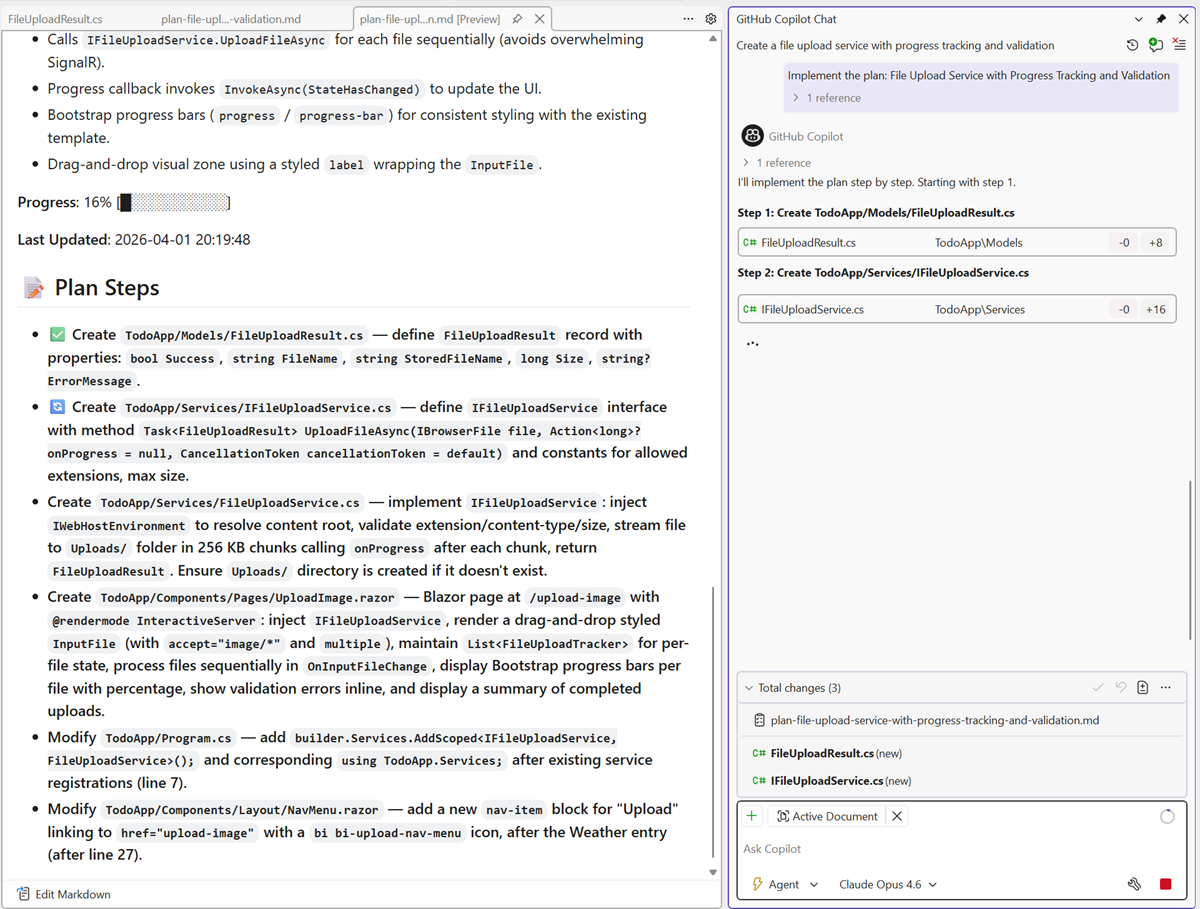
Plan before you build with Planning mode
Create and iterate on implementation plans before making any code changes.
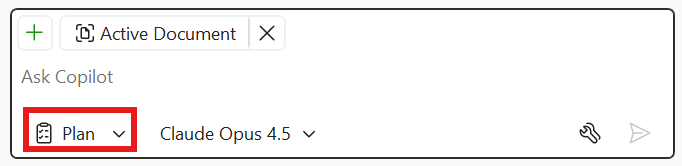
Sometimes you want to think through an approach before diving into code. The new Planning chat mode lets you collaborate with Copilot on an implementation plan - without making any changes to your codebase.
How it works
When you select Planning mode, Copilot follows a two-step process:
- Explore and clarify - Copilot uses read-only tools to understand your codebase and asks clarifying questions. For straightforward tasks, it drafts a plan immediately.
- Draft and refine - Copilot creates a detailed implementation plan that you can review, discuss, and refine together.
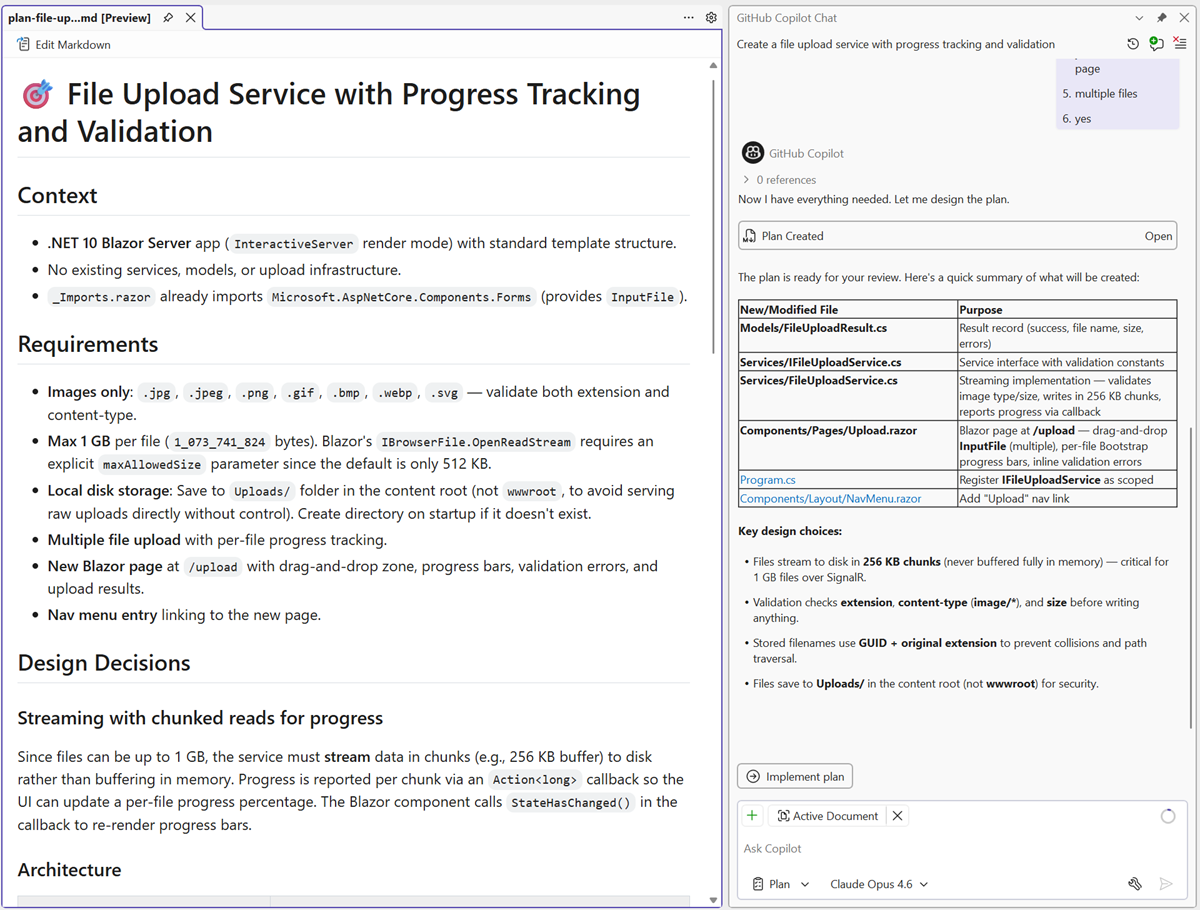
When you're ready, click Implement plan to hand it off to Agent mode for execution.
Plans are saved as markdown
Copilot saves every plan as a markdown file in your repo at
.copilot/plans/plan-{title}.md. This file is the single source of truth. You can edit it directly in your editor or refine it through chat. Copilot detects your changes and keeps the plan in sync.When to use Planning mode
- Big features - Break down complex work into clear steps before writing code.
- Unfamiliar codebases - Let Copilot explore and explain before proposing changes.
- Team collaboration - Share plans as markdown files for review before implementation
Git tooling
Multi-file summary diff 📣
View file changes in a unified diff for fast comprehension.
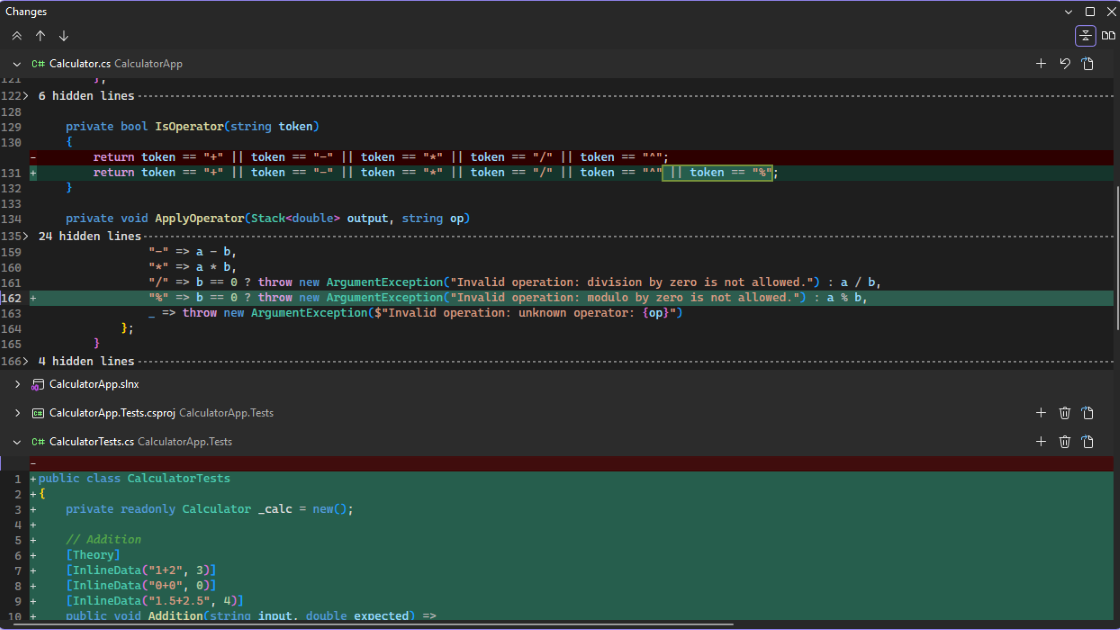
Multi-file summary diff displays all changed lines from several files in one unified view, so you can quickly grasp the scope of a commit or pull request without jumping between files.
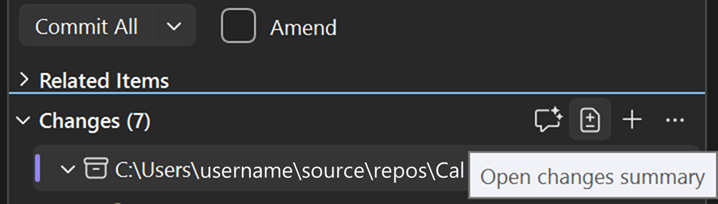
You'll see the Open changes summary button in several places:
- Git Changes
- Commit details in Git → View Branch History
- Pull requests in View → Git Repository window
The pull requests list is currently only available in Visual Studio Insiders with the preview feature View pull requests for a Git repository.
📣 See feature ticket to share your feedback and continue the conversation.
Add commit to Copilot Chat
Attach commit context to Copilot Chat directly from the IDE.
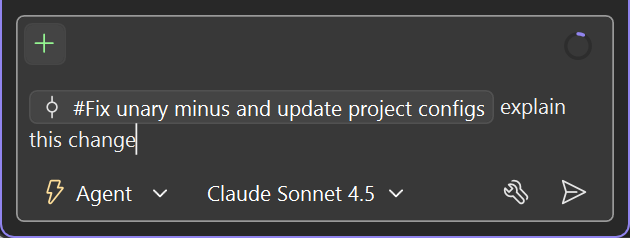
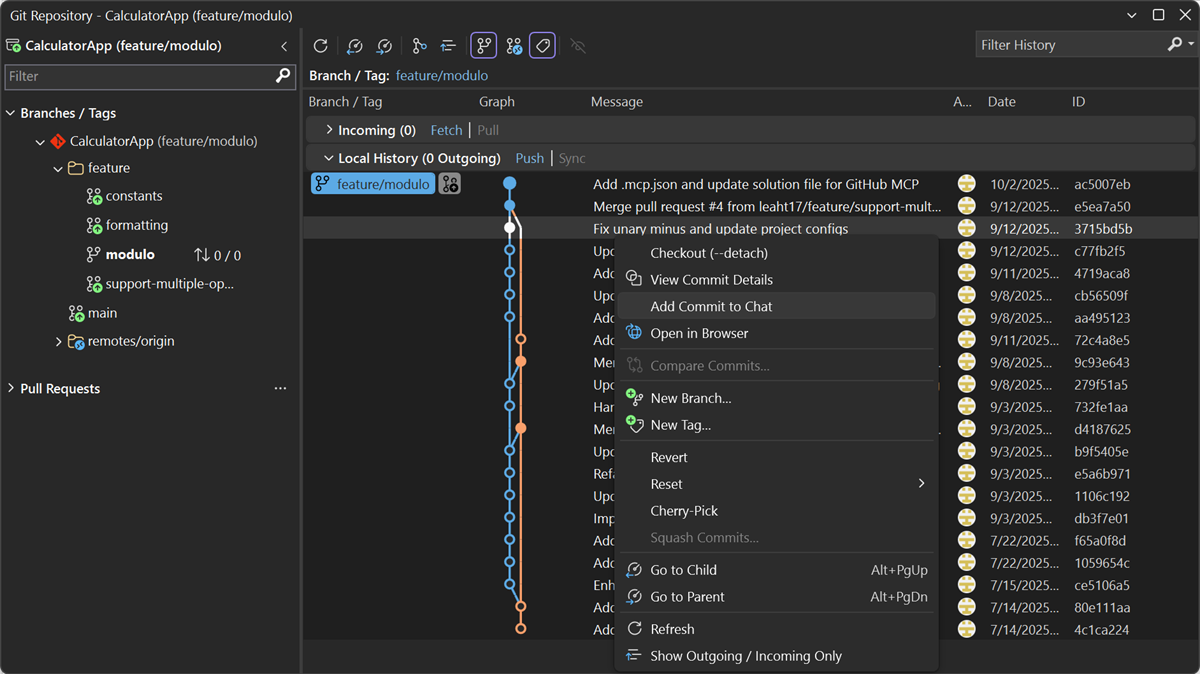
Reviewing a commit and want Copilot's help understanding it, spotting issues, or basing new edits off of it? Instead of hunting down the commit ID and pasting it into Chat, you can now right-click a commit and add it directly as context in Copilot Chat.
You can find this command in the following surfaces:
- Git History (Git > View Branch History)
- File History (Right-click a file in Solution Explorer, then Git > View History)
- Annotate (Blame) (Right-click in the editor, then Git > Annotate (Blame))
You can also multi-select commits to attach several to chat at once.
Copilot receives the commit as context, so you can ask things like explain this change, does this introduce any issues, or write a similar change for this other file.
Commit message instructions moved
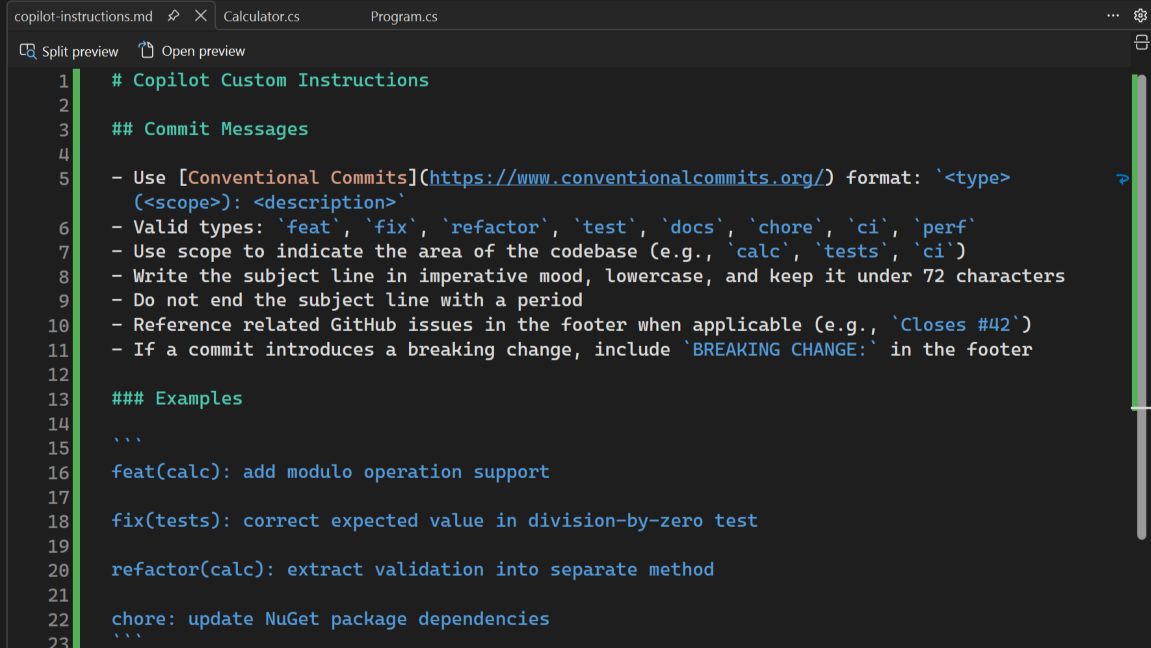
Commit message custom instructions now use the Copilot instructions file instead of the Visual Studio setting.
If you've been using the Commit message custom instructions text input under the GitHub → Copilot → Source Control Integration setting to tailor Copilot-generated commit messages, that setting will no longer apply. Going forward, commit message instructions are managed through the Copilot custom instructions file.
This brings commit message instructions in line with how other Copilot custom instructions work across your repository, keeping everything in one place.
Set up custom instructions
Add your commit message instructions to your repository's Copilot instructions file. For full setup details, see Add repository instructions.
Review code with the Git agent in Copilot Chat
Start a code review from Copilot Chat and see results in the Visual Studio review experience.
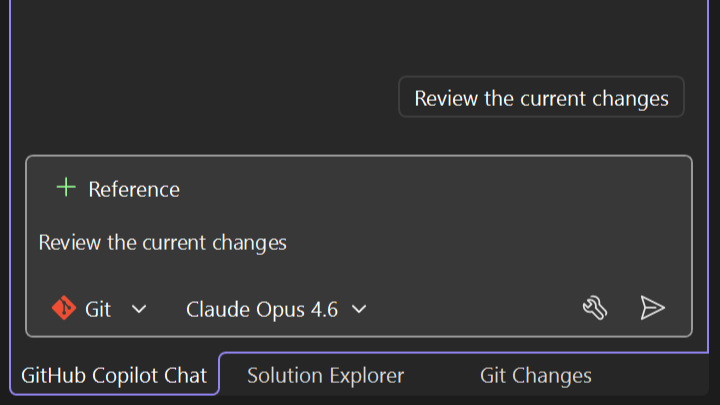
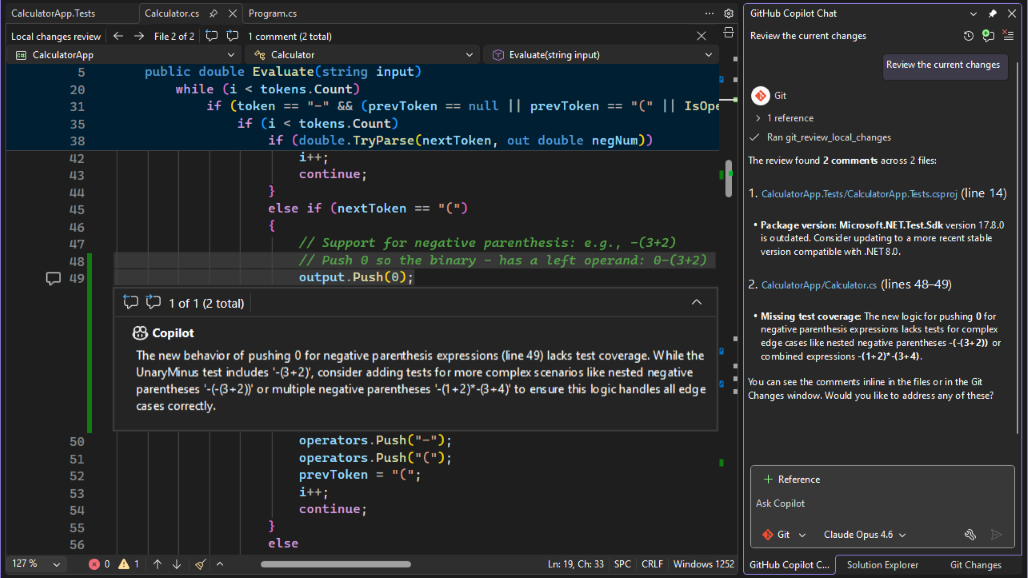
You can now review your code through the Git agent in Copilot Chat. Switch to the Git agent and ask it to review your changes.
The agent analyzes your uncommitted changes using GitHub Copilot Code Review and displays inline comments in the editor and the Git Changes view. You can then continue the conversation in chat to discuss findings, ask for explanations, or work through suggested edits.
To learn more about the code review experience, see Review local changes with Copilot Chat.
C++
MSVC Build Tools v14.51
Improved C++23 support, performance, and many bug fixes.
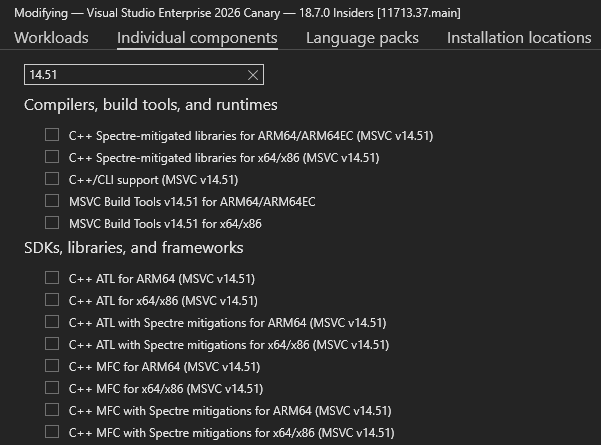
Microsoft C++ (MSVC) Build Tools version 14.51 is now available and is installed by default with the C++ desktop and gaming workloads. To check if it's installed simply make sure one or both of these components are checked in the installer:
- MSVC Build Tools for x64/x86 (Latest)
- MSVC Build Tools for ARM64/ARM64EC (Latest)
You can also select one of the components labelled with the v14.51 version number to pin your installation to this version.
The version number printed by cl.exe and link.exe will be at least 14.51.36231.
The stable release of v14.51 will receive 9 months of servicing fixes, as described in New release cadence and support lifecycle for Microsoft C++ Build Tools.
See below for a complete list of what's new.
C++ Standards Conformance
The frontend team continued implementing C++23 and C++20 features and fixing conformance issues:
- C++23 Implementations: Please see the C++23 Support in MSVC Build Tools 14.51 blog post for details.
- Consteval Improvements: Multiple fixes to
constevalfunction handling, constexprnew/deletein modules, initializer list backing arrays,/experimental:constevalVfuncVtablebehavior now enabled by default, and better error diagnostics for failed constant expressions.- Coroutine Improvements: Coroutine-related globals refactoring, and deprecation of experimental coroutine headers.
- Parser Modernization: Recursive descent parser now handles
[[attributes]], with continued improvements to error recovery and removal of legacy token accessors.- C Language Improvements: Added
_Atomicqualifier support, removed incorrect diagnostics for C99 flexible array members, and added__typeof__support for function types.Code Generation
The backend optimizer received significant investment across many areas:
- Sample-based profile guided optimizations: Support for sample-based profile guided optimizations with supporting tools. More details to follow in a future blog post.
- Static Single-Assignment (SSA) optimization improvements: Implemented dozens of new algebraic simplification patterns, including ternary operator patterns, arithmetic patterns, and min/max.
- Common Subexpression Elimination (CSE): Improve CSE of loads of
[x + C]through if/else joins, redundant stores, and has improved multibyte aliasing checks.- Scalar Replacement of Aggregates (SROA): More aggressive unpacking of structures.
- Loop Optimizations: Linear Function Test Replace (LFTR) signedness fixes and counted loop optimizations when the primary induction is used after the loop.
- Inlining: Extended limited call-site inlining, and improved propagation of parameter type information when inlining.
- Copy Propagation: Multiple improvements to copy propagation for integer constants and sequential copies.
- Strength Reduction: Implemented reduction of conversions as a strength-reduction optimization.
- Predicate and Jump Threading: Improvements to predicate-based optimizations for eliminating bound checks, including better use of predicates from min patterns.
- Stack Layout: The compiler now prefers pushing callee-saved registers onto the stack over using shadow slots, reducing function prologue/epilogue overhead.
- PGO: Improved per-function size/speed trade-offs to mitigate unrepresentative profiles and PGO trimming improvements.
- Restrict Pointers: Added support for restrict pointer semantics to enable additional aliasing optimizations.
- Pattern matching optimizations: New patterns for
MSUB/MADDgeneration,ADC/SBBfor conditional add/subtraction, andCMOVE/NEvariants.- Intel APX: Preview support of Intel APX (Advanced Performance Extensions) in the MSVC toolchain. More details to follow.
ARM64 & SVE
- SVE (Scalable Vector Extension) Support: Major new feature bringing ARM SVE to MSVC, including frontend type support for SVE scalar and aggregated types, intrinsic lowering, callee-saved register unwinding, variadic function parameter passing, header file installation, and tryblock/funclet support. Multiple ICE and miscompilation fixes were addressed.
- Shrink Wrapping: Fixed multiple issues including epilog-only fragment unwind info, codegen bugs with chkstk killing X15, and multi-entry shrink wrap regions.
- Code Quality: New patterns for
CSEL pow2, 0 + ORR → CSET + ORR_SHIFT, optimizedNEON_DUPR, removed redundantNEON_INSRafterNEON_DUPR, ARM NEON patterns for x264, instruction fusion improvements, register retyping after globregs, and function alignment tuning.- DIA SDK: Full SVE support in the debug interface, including
RtlpGetSveContextPointersandIDiaStackWalkHelper3.SIMD & Vectorization
- SLP Vectorizer: Improvements to Superword Level Parallelism (SLP) vectorization:
- Scalar reduction vectorization
- Generic and oversized vector instruction support
- Permute optimizations and oversized select support
- Vectorizer Improvements: Hoisting of vectorized inner loop pointer overlap checks to parent loops, character-count loop support, non-contiguous memory access support for 2-byte data types, and improved low trip count heuristics on ARM64.
- AVX/SSE: AVX512
memcpy/memset, AVX2memcmpoverride, AVX10.2, and vectorized bitmasking patterns for x264.Linker & PDB
- DIA: COM initialization thread safety, and SVE support.
- PDB Fuzzing: Triggered PDB fuzzing from nightly builds.
- SPGO: Sample-based profile guided optimizations available for use.
Standard Library (STL)
On GitHub, the microsoft/STL repo tracks its status with a high level of detail; see the Changelog for MSVC Build Tools 14.51. Notable library features that are newly available:
- P0429R9 -
<flat_map>- P1222R4 -
<flat_set>- P2255R2 - Type Traits To Detect References Binding To Temporaries
- P2590R2 - Explicit Lifetime Management
- P2674R1 -
is_implicit_lifetimeOther notable changes:
- We've massively overhauled
<regex>to fix long-standing correctness and performance problems that have been present since its initial implementation in VS 2008 SP1. After almost two decades, the stack overflows are finally fixed!- We've continued to add and improve SIMD-vectorized STL algorithms, using SSE4.2 and AVX2 for x64/x86, and (newly shipping in MSVC Build Tools 14.51) using NEON for ARM64/ARM64EC.
- We've implemented 18 LWG issue resolutions.
- We've removed long-deprecated non-Standard features, such as TR1,
<hash_map>,<hash_set>,<experimental/filesystem>,stdext::checked_array_iterator, andstdext::unchecked_array_iterator.All of this has been possible thanks to our amazing GitHub contributors.
AddressSanitizer (ASan)
- ARM64 Support: Improved ASan for ARM64 support with comprehensive library packaging, interception fixes, and false-positive resolutions.
- SanitizerCoverage: Fixed blocklist handling, codegen issues, and forward declarations to ensure sancov initializers are invoked.
- Performance: Cached walked heaps for performance improvements during shadow memory operations.
Modules & IFC
- IFC Version Update: The MSVC frontend generates IFC files according to the 0.44 version of the IFC specification.
- Concurrency Fix: Fixed a use-after-free race in concurrent IFC debug record resolution.
Static Analysis
- EspX Consolidation: Merged EspX and its extensions like CppCoreCheck into a single DLL, simplifying deployment.
- Bug Fixes: Fixed false positives from inexact location dereference, and a number of internal compiler errors (ICE) under /analyze.
ARM64EC & ARM64X
- Coroutine Support: Fixed missing entry thunks for coroutine outlinees and ramp functions.
- ICF: Improved identical COMDAT folding (ICF) optimization in ARM64X binaries.
- Volatile XMM: Fixed ARM64EC volatile XMM assignment.
Diagnostics
- Fixed C4319 not being emitted when compiling C code.
- Removed incorrect diagnostics for C99 flexible array members.
- Warning C4789 improved to reduce false positives.
Debug Info
- Enabled debug info pruning to reduce PDB sizes.
Tickets Fixed
The following customer-reported issues were fixed in this release:
- __builtin_bit_cast Internal compiler error
- typeof not working with function types
- Must_inspect_result false positive (C++)
- _statusfp scheduled before floating point operations
- "LINK : error LNK2001: unresolved external symbol" after upgrading to VS 17.14.5
- "REX.B NOP" is interpreted as "XCHG EAX,R8d" by the CPU, but VS 2026 disassembles it as a NOP
- [/permissive-] and template implies error C3688: invalid literal suffix '_s'
- [17.14.15] [Feedback] C++ dynamic debugging initialises static locals incorrectly
- [ARM64] Subtraction and comparison of ULONGLONG's uses W registers
- [C++] min/max ternary logic expression broken in combination with integer type promotions
- [C++20 Modules] Error LNK2001 when importing a static class/struct member from a module from a DLL
- [Neg] [accepts invalid] Pointer-to-member of base class as template argument
- [Neg][std:c++20] Deleting of templated class-specific operator new is not detected by constraints
- [Neg][std:c++latest] One can modify a capture in non-mutable lambda via C++ deducing this
- [permissive-] No CopyElision performed when initializing via initializer list
- [permissive-] std::enable_if compile error after updating from 17.13 to 17.14
- [permissive-][Regression] Issue in specific conditions with modulo operator in variadic template with "/permissive-" after version 19.32.
- [permissive-][Regression] msvc error C1001: Internal compiler error (compiler file 'msc1.cpp', line 1589)
- [Permissive-][Regression] No ADL in default member initializer due to local free function
- [Regression] FUNCSIG is empty for an auto lambda assigned to a std::function
- [Regression] "warning C5287: operands are different enum types" even with an explicit cast
- [Regression] C2106 '=': left operand must be l-value Visual Studio 2026 Insiders [11206.111]
- [Regression] cl: internal compiler error on relatively simple, bit-manipulation code
- [Regression] Empty compound literal array causes internal compiler error
- [regression] error C2593 caused by static operator[] in C++23 mode
- [Regression] fatal error C1001: Internal compiler error
- [Regression] Incorrect code generation for &= in 17.14
- [Regression] Incorrect math result using boost::rational and google test
- [Regression] Internal compiler error in VS2022 17.10+
- [Regression] Internal compiler error when trying to compile simple C++ program
- [regression] lambda capture nonmovable by reference doesn't work since MSVC17.4
- [Regression] msdia140.dll ver 14.50.35719.0 CDiaSymbol::get_virtual always returns false
- [Regression] MSVC 19.44.35207.1 C2352 when calling base class method
- [Regression] MSVC 19.51 miscompiles ffmpeg for arm64
- [Regression] MSVC 2026 pointer subtraction of consecutive members of struct with same type leads to unexpected value
- [Regression] MSVC crashes when there are at least 65536 template parameter in a parameter pack in CTAD
- [Regression] problems with Visual Stdio 2022 17.14.15 update - LINK : fatal error LNK1000
- [Regression] v.19.50 x64 optimizer generates incorrect code with /O2 and /EHs
- [Regression] Visual Studio compiler falsely optimize branch in code under v143 and v145 toolsets
- [Regression] VS2026 generates incorrect FP code
- [[Regression]Neg][std:c++latest] Lambda with deducing this parameter of unrelated type is wrongly permitted
- [Regression][Office] InitAll in VS2026 in initializing a pointer in a vector
- [Regression][std:c++20] Forward type declaration doesn't work during type specialization if the forward-declared type name is ambiguous
- [Regression][std:c++20] ICE on CTAD for alias template with
std::array- [Regression][std:c++20] Internal compiler error when using conditionally-copyable types
- [Regression][std:c++20] Rejects valid qualified type name involving lambda in decltype
- [Regression][std:c++20] Silent Bad CodeGen: Regression in Lambda Capture Constant Folding (v143, v145)
- [Regresssion] INTERNAL COMPILER ERROR: MSVC V19.50.35615 for x64
- [ssa-patterns-vect] Arm64 optimization bug for expf
- [std:c++17] Internal Compiler Error when defining C++17 static data member of template and its constructor takes certain arguments
- [std:c++20] "CL.exe" exited with code -529706956.
- [std:c++20] [Regression] rejects valid operator call
- [std:c++20] alias template deduction guide doesn't work in c++20
- [std:c++20] An inline friend function template cannot access the template arguments of the class template (C2065)
- [std:c++20] Binary left fold expression in return type leads to compilation error
- [std:c++20] C++ explicit variable template instantiation causes internal compiler error when using precompiled header
- [std:c++20] C++/CLI - inline namespace does not work
- [std:c++20] C++/CLI: ::typeid cannot be used on builtin types
- [std:c++20] C++20 requires requires clause with non-type template parameter inconsistently generates strange compiler error
- [std:c++20] C++20: consteval fails to compile
- [std:c++20] C7602 false positive, constant template parameter constraint bug
- [std:c++20] Can't allocate heap memory at compile time
- [std:c++20] Cannot forward declare class in internal module partition (C++20)
- [std:c++20] Cannot pass one consteval function as an argument to another consteval function
- [std:c++20] Cannot use a pointer on immediate function within constant expression
- [std:c++20] Class template argument deduction for alias template fails
- [std:c++20] Compiler-generated code for certain C++ coroutines give unexpected warnings and refer to negative line numbers
- [std:c++20] constant expression is not considered constant in immediate function
- [std:c++20] Consteval code does not compile in MSVC
- [std:c++20] Error C2100 is incorrect for non-generic lambda expressions
- [std:c++20] Error C2514: class template cannot be constructed
- [std:c++20] error C7535 due to rvalue reference when a constructor delegates to another constructor
- [std:c++20] ICE when indexing into an NTTP multidimensional c-array on MSVC 14.44.35207
- [std:c++20] If constexpr and require do not check for the existence of members correctly
- [std:c++20] Including a header with #pragma system_header from an external include directory treats the whole translation unit as an external header
- [std:c++20] Internal compiler error (ICE) on manipulating with pointer to immediate function
- [std:c++20] Internal Compiler Error when specializing on floats
- [std:c++20] Making a call on consteval lambda's returned function leads to error C7595
- [std:c++20] MSVC fails to compile C++20 template lambda with consteval specifier
- [std:c++20] MSVC incorrectly deduplicates two different member pointers (&Case01::a, &Case02::num) passed as auto non-type template parameters
- [std:c++20] MSVC rejects valid program involving inheriting conversion function from a closure type with no capture
- [std:c++20] No warning C4706 for assignment to std::unqiue_ptr used as a condition
- [std:c++20] Removal of placemarker tokens incorrectly removes surrounding whitespace with /Zc:preprocessor
- [std:c++20] requires requires constraint on a member function treats a base call like a static call
- [std:c++20] Runtime stack corruption reported with std::visit
- [std:c++20] source_location() returns wrong value.
- [std:c++20] std::is_constructible gives incorrect answer for arrays in C++20
- [std:c++20] std::source_information::current() outputs different location in consteval context
- [std:c++20] std::source_location::current().function_name() produces empty string when used as default argument value
- [std:c++20] Unable to call a consteval function from another one
- [std:c++20] Using a dependent qualified name as a default argument for a constraint template type parameter breaks the MSVC compiler
- [std:c++20] When _ASSERTE is given an expression with '"', it results in internal compiler error
- [std:c++20] Wrong error C3640 in getting a pointer on a pure virtual function
- [std:c++20] Wrong overload called due to rvalue reference leading to a recursion
- [std:c++20][Neg] Deduction of class template arguments picks up wrong constructor
- [[std:c++20]Neg][Regression] Regression, array access on result on ternary incorrectly returns a prvalue
- [std:c++20][Regression] C++ 20 modules C1001: Internal compiler error
- [std:c++20][Regression] C++: Array reference is incorrectly calculated leading to access violation or wrong memory address being accessed
- [std:c++20][Regression] Cannot partially specialize template across C++20 module
- [std:c++20][Regression] Failed to specialize function template for abstract type after SFINAE call on type
- [std:c++20][Regression] Internal Compiler Error Found in MSVC 14.44.35207
- [std:c++20][Regression] Internal compiler error when when using a bad return type in a template user defined conversion function
- [std:c++20][Regression] Internal Compiler Error while compiling C++20 coroutine code
- [std:c++20][Regression] Invalid Operation: FP optimization bug
- [std:c++20][Regression] Spurious C2102 error initializing static inline constexpr member with partial designated initializer list
- [std:c++20][Regression] STL hardening checks (_MSVC_STL_HARDENING) are not optimised away (2)
- [std:c++20][regression] template function specialization and decltype compiler discrepancies
- [std:c++20][Regression] VS 17.12 regression, ICE with structured bindings and lambda in constexpr variable template instantiation
- [std:c++20][Regression] When a throwing expression appears somewhere in a lambda capture list,
noexcept(<lambda expression>)gives incorrect result- [std:c++20][Regression]VS2026 regression: lambda cannot access local constant
- [[std:c++23preview]std:c++latest][Regression] Spurious compiler error C2872 when building with C++23preview
- [std:c++23preview]C++/CLI & C++23 - multidimensional managed arrays don't work
- [std:c++latest] #pragma warning(disable) not working in nested headers used with header units
- [std:c++latest] Anonymous unions in unnamed namespaces are incorrectly required to use static
- [std:c++latest] Buggy __declspec(selectany) constant initialisation across C++ modules
- [std:c++latest] C++ modules compile error when using a using declaration from a different module
- [std:c++latest] C2355 is wrongly triggered when local class is defined in a static member function
- [std:c++latest] C4389 is triggered when comparing a bitfield member of one bit with a bool
- [std:c++latest] Can not initialize array with consteval constructed elements
- [std:c++latest] Compiler crashes with C1001 error when using CTAD in a nested type with template dependent noexcept
- [std:c++latest] Compiler error with constexpr user-defined literals in a requires expression
- [std:c++latest] CTAD with designated initializer doesn't compile
- [std:c++latest] Deleted function disables ADL in immediate context
- [std:c++latest] Enum names publicly imported into class declaration with using-enum-declaration (using enum) are lost across module boundaries
- [std:c++latest] error C3535: you can't deduce the type for "auto" from "overloaded-function"
- [std:c++latest] error C7595: call to immediate function is not a constant expression
- [std:c++latest] Error parsing function declaration taking a function pointer and having an empty init list as a default argument
- [std:c++latest] Extra blank line output with /E and #warning
- [std:c++latest] False positive warning C4305 when using a defaulted non-type template parameter
- [std:c++latest] Fold expression fails to expand full pack in nested template after C7515 fix
- [std:c++latest] Function Specialisation and Concepts Causes an Ambiguous Call to Overloaded Function
- [std:c++latest] ICE using Boost.PFR with C++ modules (vs-17.14.0-preview1)
- [std:c++latest] ICE while compiling mp-units
- [std:c++latest] ICE with modules and if consteval
- [std:c++latest] ICE with template deduction guide
- [std:c++latest] ICE: writer.cpp:542 the impossible happened when using folly + modules
- [std:c++latest] identifier not found in nested fold expression
- [std:c++latest] In msvc V145, the BUG triggered when using intra-class members in constraints in templates within classes
- [std:c++latest] Interaction between no_unique_address and has_unique_object_representations is incorrect
- [std:c++latest] Internal compiler error when linking c++20 module
- [std:c++latest] Internal compiler error when using C++ modules
- [std:c++latest] Internal compiler error. (compiler file 'D:\a_work\1\s\src\vctools\Compiler\CxxFE\sl\p1\c\trees.c', line 19104)
- [std:c++latest] Mixins pack fold expressions error
- [std:c++latest] MSVC : Nested struct depending on outer class template parameters fails as NTTP within the class scope (C2993)
- [std:c++latest] MSVC fails to compile (working) code involving template metaprogramming
- [std:c++latest] Nested lambdas errors out in msvc with labeled structured binding
- [std:c++latest] Note that follows warning C4477 is inaccurate for size_t, redux
- [std:c++latest] Overload resolution fails for enum non-type template parameters
- [std:c++latest] Parameter pack with reference to C array issue
- [std:c++latest] Unable to deduce argument type to std::optional
- [std:c++latest] Unions are not layout-compatible despite containing layout-compatible data members
- [std:c++latest] Universal CL.exe Crash (Exit Code -1073741819) with Nested std::filesystem::path in C++17+
- [std:c++latest][Neg] The destructor is private, but compiler allows create an object on stack.
- [std:c++latest][regression] Apparent C++ parser bug - emits C2143 + C2451 (+ optional C2530 + C3531) if range-for expression inside a template function contains a lambda
- [std:c++latest][Regression] C3520 when expanding template parameter pack in a member function template of a class template
- [std:c++latest][Regression] Can't use templated alias instance if the parser first sees the instantiation of the alias in a template class
- [std:c++latest][Regression] Internal Compiler Error in latest versions of MSVC when compiling specific fold expression
- [std:c++latest][regression] Internal compiler error involving member function pointer, multiple inheritance and constexpr passthrough function.
- [std:c++latest][Regression] Internal Compiler Error with Lambda and Constexpr Reference in Visual Studio 2026 ( CL.exe Version 19.50.35722 for x64 )
- [std:c++latest][Regression] Lambda cannot access local constant
- [std:c++latest][regression] MSVC 14.50.35503 Internal Compiler Error [Visual Studio 2026 Insiders]
- [std:c++latest][Regression] Overload resolution failing with a class template specialization
- [std:c++latest][Regression] Regression (Compile Error) when using modules and fmtlib
- [std:c++latest][Regression]Incorrect result when struct contains a [[no_unique_address]] member
- [std:c++latest][regression]Using an initializer list as a template argument when an incompatible overload exists results in error C2440
- [std:c++latest][Regression]Warning C4864 incorrectly raised when calling overridden non-template member functions of the template base class
- [std:c++latest]C++ IntelliSense and the compiler complain about the wrong variable being const
- [std:c++latest]Ternary operator does not propagate temporary operand to the resulting rvalue reference.
- [std:c++latest]Using an elaborated-type-specifier to refer to an enum whose underlying type is not int results in errors C3432 and C3433
- [std:c11] MSVC incorrectly warns that C99 flexible array members are a nonstandard extension (zero-sized arrays)
- ARM64 /EHa incorrect code motion
- ARM64 issue with static initializers and destructors and /OPT:ICF
- ARM64EC: Crash when calling C++ function in DLL containing OpenMP pragmas, from C# app through DllImport
- arm64x forwarding dll does not support DATA
- ASAN_VCASAN_DEBUGGING is broken in 17.14.3 Preview 1.0
- Bitfields with a bool type at the beginning are broken in C mode
- C++ Compiler crash with fabsf in loop with optimization (/O2 /Ob /Ot) and /fp:precise
- C++ constexpr pointer subtruction incorrect result
- C++ Dynamic Debugging Null String Literals
- C++/CLI C2668 Ambiguous Call in .NET 9 and later
- C++/CLI rethrowing .NET exception crashes with .NET Framework 4.8 in x64
- C1001: Internal compiler error with 64-bit optimized builds of recent VIM using VS 17.14
- C1090: PDB API call failed, error code '3'
- C2034 (about overwide bit-fields) shouldn't be an error in C++ modes
- C4319 not emitted when compiling C code
- C4756 related issues in VS 2022
- colocated locals/parameters with overlapping lifetime 14.40.33814 and newer
- CTime throws error in timezones behind GMT. Changes in VS 15.8 produced a regression
- CTime::CTime fails with year 1900
- Dangling pointer in cpp file atlmfc Visual Studio occsite.cpp
- Default member initializers for bit-fields doesn't work when importing struct (or class) from a module
- Erroneous warning C5061: the use of a comma operator as a subscript expression has been deprecated
- EXE compiled with ASAN (and ASAN libs and DLLs sometimes hangs during exit
- Failure to optimize redundant DUP, SMOV sequence (ARM64)
- Fatal error C1001: Internal compiler error
- GC collects during method call on c++/cli ref class
- Guarded_by_ on a static local variable reports an annotation syntax error
- Illegal code is accepted due to rvalue reference leading to a recursion
- Improper concatenation of Unicode string literals
- Incorrect Code writing bitfield
- Incorrect initialization of nested aggregate member with unrelated member's value
- Incorrect instructions generated in AVX2
- Incorrect switch-case generation on arm64 target
- Incorrect template argument deduction for function called with argument this from out-of-line, ref qualified member function.
- Internal compiler error for ternary expression with non copyable type and throw
- internal compiler error in msvc 14.50.35717
- Internal compiler error in type_traits and operator bool in derived class
- Internal Compiler Error targeting ARM64 with VS 2026 18.0 Insiders
- Internal compiler error when enabling Code Analysis (/analyze) with variadic templates + SAL
- Internal compiler error when using OpenMP and try/catch in same function with /clr enabled
- Internal Compiler Error with C/C++ Optimizing Compiler Version 19.50.35710 for ARM64
- Internal Compiler Error with C/C++ Optimizing Compiler Version 19.50.35722 for ARM64
- Internal Compiler Error with C++ template template parameters and missing template keyword
- KASAN drivers fail to link referencing wide string functions (wcscat, wcscpy, wcsncpy)
- Keywords MUST NOT be translated in errors, warnings or suggestions.
- lambda-nested decltype of lambda triggers C2011
- Linker shouldn't warn for differing Arm64EC "icall push thunks" that are equivalent
- Long octal formatted strings DoS the user's machine and cause C1060
- MFC static lib reports memory leak
- Microsoft.VCToolsVersion.v143.default.txt in 17.2 is not updated from 17.1
- Miscompilation of
svset_neonq(arm_neon_sve_bridge.h) with 19.50.35722 for ARM64- Miscompilation of AArch64 SVE loop (Version 19.50.35722 for ARM64)
- Missing destructor call when /Zc:nrvo is enabled (/O2 and /std:c++20)
- Misuse of _BitScanForward result can crash the compiler
- Modules: using-declarations leak from exported functions
- MSDIS is incorrectly decoding some xchg instructions as nop
- MSVC fails to bind a noexcept function to template instantiated with a noexcept signature
- MSVC fails to generate INCP (and friends) - Version 19.50.35722 for ARM64
- MSVC fails to generate MLA/MAD (Version 19.50.35722 for ARM64)
- MSVC fails to optimize LASTA idiom (Version 19.50.35722 for ARM64)
- MSVC generates an incorrect C6001 warning
- MSVC x64: _mm_shuffle_ps incorrectly optimized away after vcvtpd2ps at /O1 or /O2
- New C++ Dynamic Debugging feature occasionally causes link error 1136
- noexcept deduction is not working (CWG 2355)
- Not implemented mandatory copy elision in ternary operator
- Observing non-deterministic output when building UCRT for CHPE builds
- Optimisation is missed during UB-safe negation
- Performance regression on hash calculation with custom hash function when switching to msvc 17.14.7
- PGO instrumentation runtime crash on ARM64
- Placement operator new[] in <vcruntime.h> should be marked _MSVC_CONSTEXPR
- Poor x64 code generation for range for loop on member array
- Raw string literals have a limit of ~16380 characters
- SAL2 analyzer fails to handle shared_locks for Guarded_by annotation
- Sanitizer Coverage Blocklist Broken
- Sanitizer Coverage Produces Bad Codegen for C++ binaries
- SIMD Code optimization bug
- specialization of static template function requires static to be specified; clang warns it should not
- SSA CSE conflates different pointers
- Standard Library Modules: Random number machinery emits bogus error C2512
- Static local thread epoch has incorrect TLS offset when using /dynamicdeopt, resulting in crash
- std:c17 and unsized arrays != LOVE
- string literal concatenation with different encoding prefixes fails
- template function not found
- Ternary operator unnecessarily requires copy constructor
- Unexpected error C7595 reported
- Unexpected result while compiling consteval function
- Unused compile-time constant in x64 release build causes access violation in compiler during linking stage
- Using 17.14 toolset one of our projects generates a LNK1120 link error
- VC++ 17.6 preview 1 ARM64EC compiler ICEs when it encounters __vectorcall keyword
- VisualCppTools.14.50.35724 PdbCopy.Exe Arm64 Pdb Copy Crashes
- Volatile local variable is assumed to not change on x64
- Volatile variable not read after write
- VS 17.14.13 Bad codegen for x64 SIMD register not set up correctly
- VS18.0 Insiders MSVC ICE in MFC message map of a class with virtual base
- vs2022 optimization error
- VS2026 MSVC Warning C4865 lies about underlying type change with /Zc:enumTypes
- Windows SDK is missing #include
<utility>in atlcom.h- x64 compiler crash while compiling Mesa source file with optimizations
- x64 Emulator crash when an ARM64EC thread calls an x64 coroutine that calls another ARM64EC coroutine
Top bug fixes
| Top bug fixes | From the community |
|---|---|
| MCP Registry Not Using Correct URL | Feedback ticket |
| GitHub Copilot running Powershell commands in Copilot terminal ends in pending state | Feedback ticket |
From our entire team, thank you for choosing Visual Studio! For the latest updates, resources, and news, check out the Visual Studio Hub and stay in touch.
Happy coding!
The Visual Studio team
Note
This update may include new Microsoft or third-party software that is licensed separately, as set out in the 3rd Party Notices or in its accompanying license.