Note
Access to this page requires authorization. You can try signing in or changing directories.
Access to this page requires authorization. You can try changing directories.
The Reports page is a centralized collection of reports from your organization. Depending on your role and permissions, the page can include Microsoft-provided reports, reports you created, reports shared with you, and reports available through delegated access.
For supported reports, eligible users can create, customize, and save report versions directly in Viva Insights.
How to access the Reports page
Open the Viva Insights web app.
On the left, select Reports.
To filter the collection, select All reports, My reports, or Shared with me.
To open a report, select View report or select the report name.
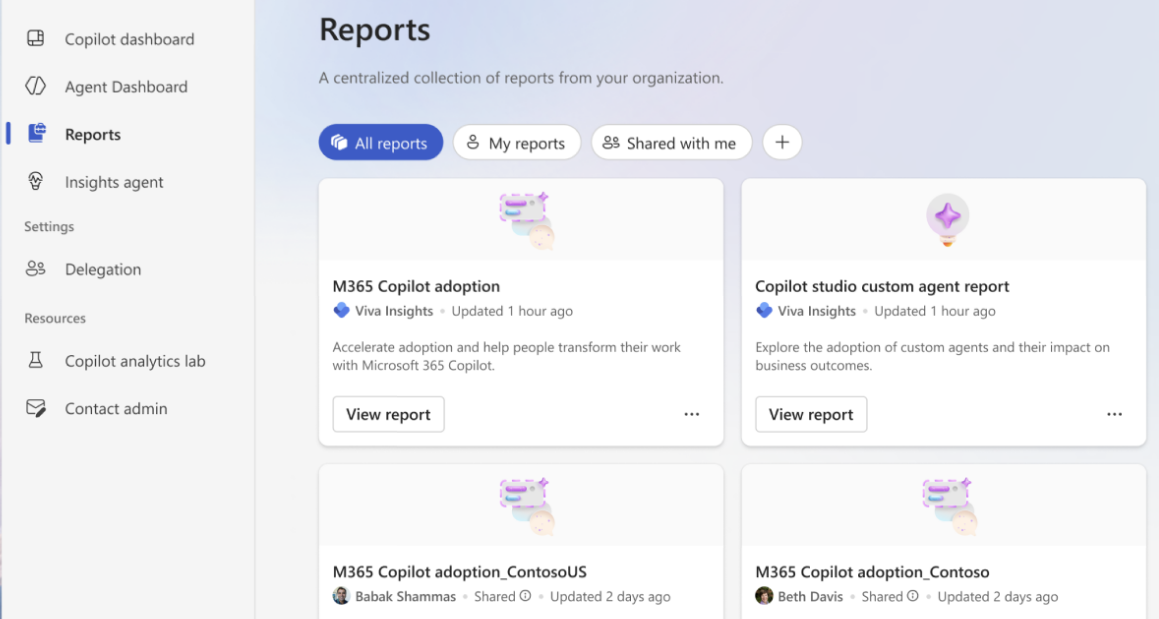
How to navigate the Reports page
How filters work
| Filter type | What it shows |
|---|---|
| All reports | The consolidated set of reports available to you, including Microsoft-provided reports, reports you created, reports shared with you, and other reports available through your permissions. |
| My reports | Reports you created or own. |
| Shared with me | Reports another authorized user, such as an analyst, shared with you. |
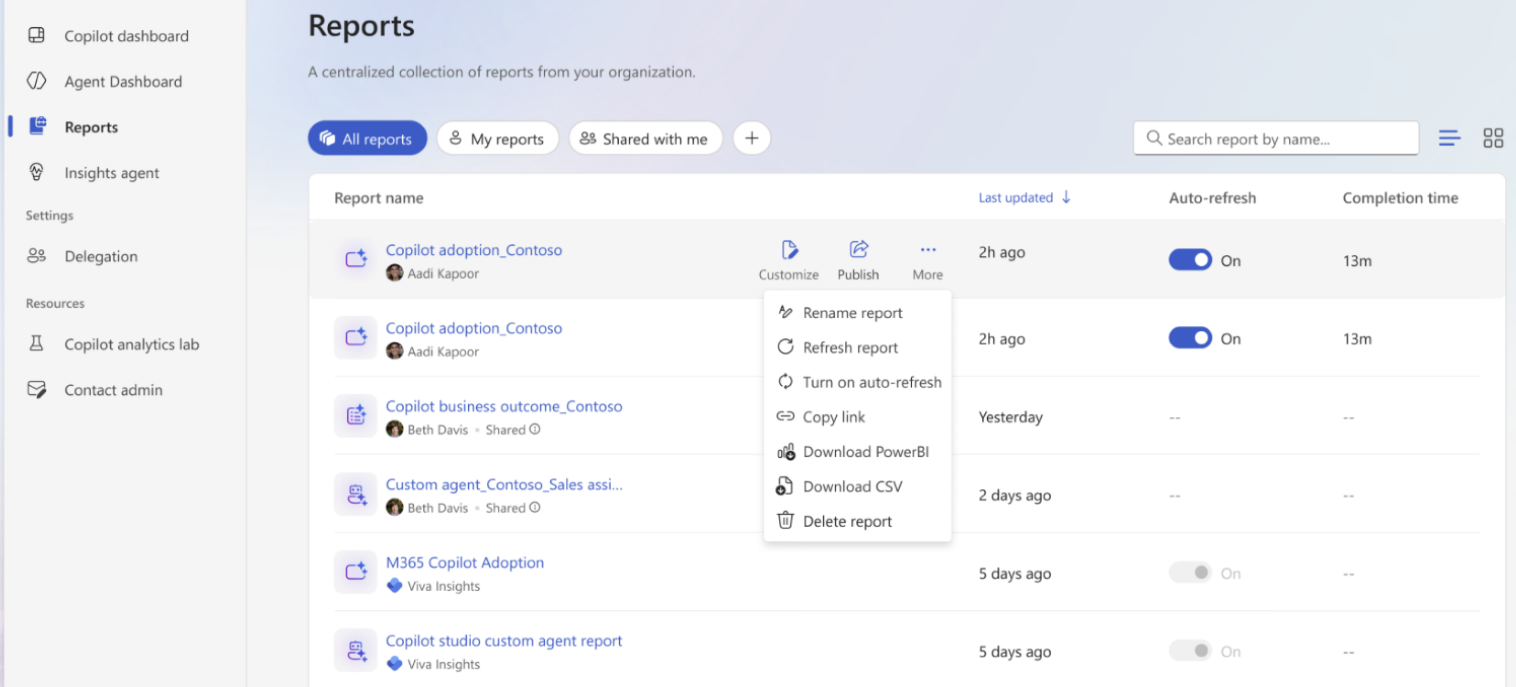
Switch between grid view and list view
Use the view toggle to the right of the search box to switch between a card-based grid view and a detailed list view. Your preferred view is saved for future visits.
Use the grid view to scan report cards, descriptions, ownership, and status.
Use the list view to compare report names, last-updated time, auto-refresh status, completion time, and available management actions.
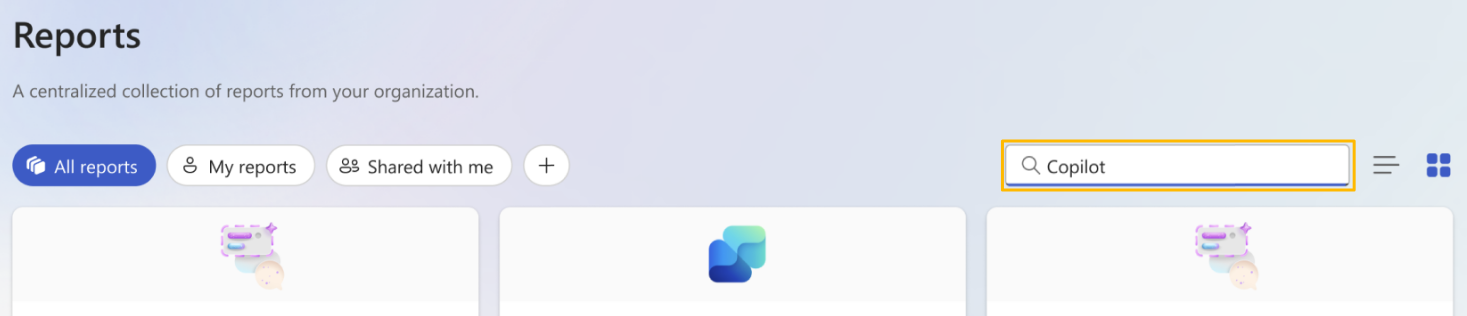
Search reports
Enter a report name or keyword in the search box to show matching reports. You can search among the reports that are currently displayed.
Use a distinctive report-name keyword, such as "Copilot," "adoption," or "agent."
Clear the search box to return to the full collection of reports.
Use advanced filters
Use advanced filters to filter a large report collection. Select the "+" icon to filter by:
- Report type
- Report category
- Power BI template, such as the Copilot adoption report, Copilot Studio agents report, Sales agent adoption report, or Copilot business impact report
- Created by
Select the "x" on an individual filter to broaden the results, or clear all the filters to return to the full report collection.

Page actions
Available actions depend on the report type, ownership, role, feature policy, and data permissions. Microsoft-provided source reports and reports owned by other users might have fewer available actions.
| Action | What it does |
|---|---|
| View report | Opens the report in the embedded Power BI app. |
| Customize | Opens supported report-authoring controls so you can change the period, filters, organizational attributes, visuals, or layout. |
| Publish | Makes an analyst-created report available to authorized recipients. Learn more. |
| Rename report | Changes the displayed name of an owned report. |
| Refresh report | Starts an on-demand refresh so the report uses the latest available data. |
| Turn on auto-refresh | Enables automatic report refresh. The list-view toggle shows whether it's on or off. |
| Copy link | Copies a link to the report. |
| Download Power BI | Downloads the report as a Power BI file, when supported. |
| Download CSV | Downloads supported report data as a .csv file. |
| Delete report | Removes an owned report. |
How to interpret report information
The information shown for each report can vary by view and report type. Report cards can show, for example, the report name, owner or source, shared status, and last updated time. The list view shows auto-refresh status and completion time.
| Information | Meaning |
|---|---|
| Report name | The displayed name of the report. |
| Owner or source | The person who created the report, or Viva Insights for Microsoft-provided reports. |
| Shared | Indicates that the report has been shared with authorized recipients. |
| Last updated | The most recent successful report update time. |
| Auto-refresh | Indicates whether scheduled automatic refresh is enabled for the report. |
| Completion time | The duration of the most recent report refresh or generation operation. |
How to create and customize reports
Use the steps below to create customized versions of supported reports, such as the Copilot adoption and Copilot Studio agents reports. Not every report supports customization.
On the Reports page, find a supported report.
Select Create, Customize, Copy, or Add.
Choose the reporting period, if available.
Apply filters and organizational attributes.
Customize supported report visuals, pages, and layout.
Review the customized report and save it with a unique name.
Important details to consider
Existing controls still apply. Creating or customizing a report does not expand access to its data. Existing governance, security, privacy, role, delegation, partition, and permission controls still apply.
Source reports remain unchanged. Creating a customized version does not modify the Microsoft-provided report or a report shared by another user.
Who can create and customize Power BI reports
The reports and actions available to you depend on your assigned Viva Insights role, data scope, delegated access, analyst partitions, and feature access policies.
| Role | Data scope | Report capabilities |
|---|---|---|
| Chief Officer | Tenant-level scope authorized for the role | View supported reports and create, customize, save, and manage owned reports. Customized reports are private to the owner and authorized delegates. |
| Group Manager | Permitted team or reporting hierarchy scope | View and customize supported reports within the permitted scope. Customized reports are private to the owner and authorized delegates. |
| Delegate | Scope of the Chief Officer or Group Manager who granted delegation | Create, access, and manage customized reports on behalf of the supported leader, without gaining a broader data scope. |
| Viva Insights Analyst | Assigned analyst partitions | Use existing Analyst Workbench capabilities. Save reports privately or share them within assigned partitions, consistent with partition permissions. |
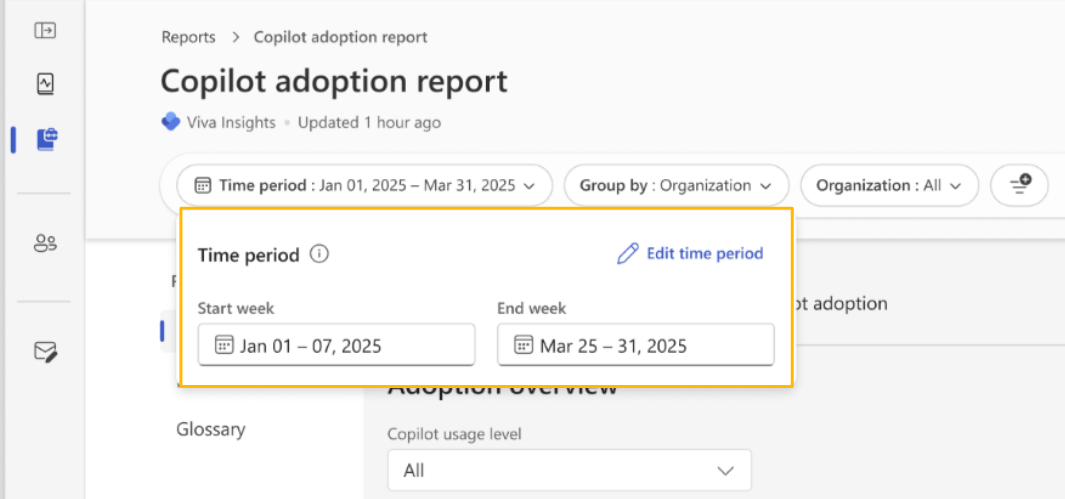
Change the reporting period
Some supported reports let you select a reporting period of up to 13 months. This doesn't replace the time windows used by other Viva Insights dashboards, queries, or reports. The actual period might be shorter due to the report design, data availability, licensing, retention, or privacy requirements.
Select Time period.
Select the start and end period, within the maximum period supported by the report.
Apply the period and review the updated results.
Apply filters and organizational attributes
Use report filters to focus on an organizational population already within your authorized scope. Available attributes depend on the report and on the organizational data configured by your organization. They might include:
Organization or business unit
Department or function
Geographic region or location
Role, level, layer, or other approved organizational attributes
Report-specific Copilot, product, or agent dimensions
Filters narrow data; they don't grant access to people or groups outside your role, delegation, or analyst partition. Results can be blank or suppressed when a filter produces a group below the applicable privacy threshold.

Customize visuals, pages, and layout
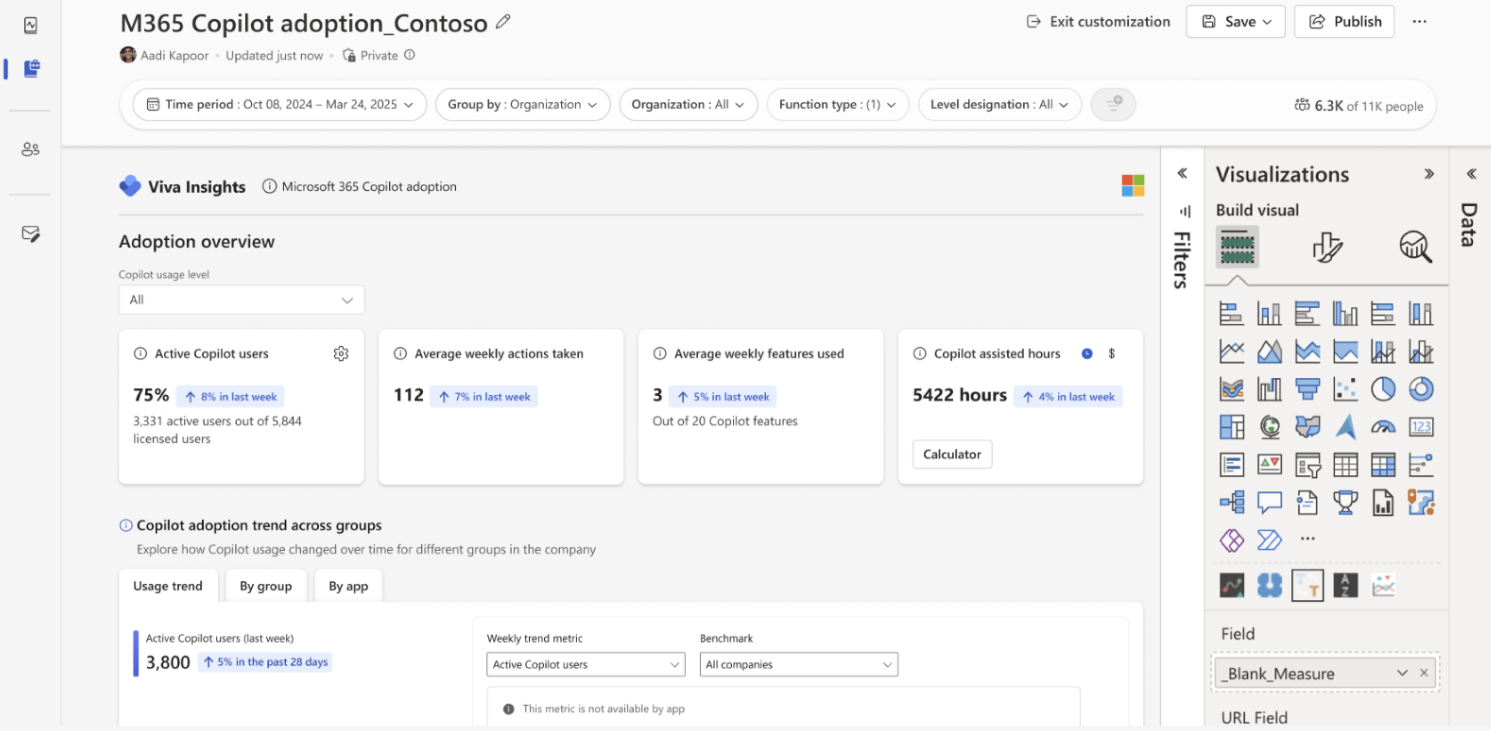
Use the options in the embedded editor to customize the visuals and rearrange the report. The embedded experience is not the full Power BI Desktop authoring environment; you can only use fields, metrics, dimensions, visual types, and formatting options available by the report. You can:
Review or change the supported visuals and their configuration
Rearrange or resize report elements where the editor allows it
Organize report pages using the page actions exposed by the editor
Check that titles, labels, and legends remain visible and understandable
Confirm that filter selections don't make the report misleading
How to save, rename, and delete reports
Save a customized report
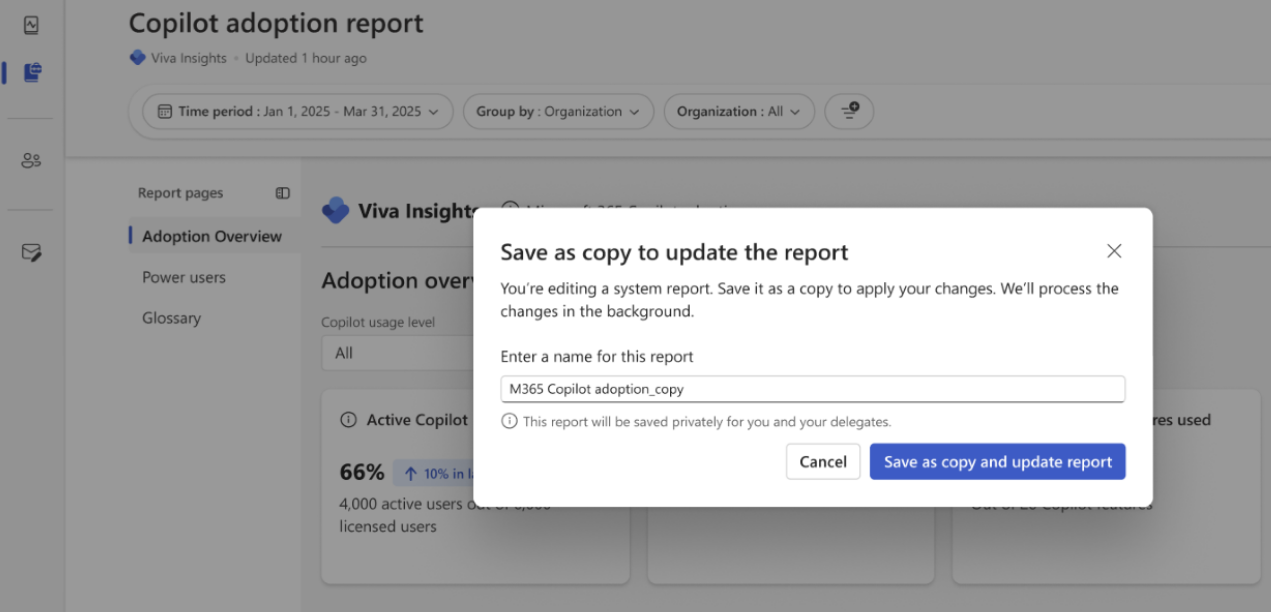
Save the report after choosing its reporting period, filters, organizational attributes, visuals, and layout. A saved report appears on the Reports page for its owner and remains subject to the owner's current role and permitted scope.
Use a name that identifies the purpose, population, and period.
Saving a customized report doesn't change its source report.
Rename a report
Rename reports you own. Renaming a report only changes the display name; it doesn't change the data scope, privacy settings, or sharing permissions.
Example: Copilot adoption - Finance - FY26 Q4
Delete a report
Delete a report to remove a customized report that you own. You can't delete a Microsoft-provided report or a report that was only shared with you. Deleting a customized report doesn't delete the source template.
Publish an analyst report
Viva Insights Analysts can publish or share reports within their assigned partitions, consistent with existing partition permissions. Reports can also be saved privately. Publishing doesn't make data available outside the analyst's permitted partitions. Learn more.
Privacy, permissions, and delegated access
Existing Viva Insights governance, security, privacy, and permission controls also apply to customized reports. Customization changes how authorized data is presented; it doesn't change the maximum authorized population.
Chief Officers and Group Managers
Customized reports created by Chief Officers and Group Managers are private by default. They are visible only to the report owner and the owner's authorized delegates.
Delegates
Delegates can create, access, and manage customized reports on behalf of the leaders they support. Delegation doesn't create an independent entitlement and can't exceed the delegating user's permitted data scope.
Viva Insights Analysts
Analysts retain existing Analyst Workbench capabilities. They can save reports privately or share them within assigned partitions. Recipients don't gain access outside their existing permissions.
Privacy protections
Minimum group size and team size requirements
Aggregation, de-identification, masking, or differential privacy where applicable
Organizational exclusions and opt-out settings
Role, delegated scope, and analyst partition boundaries
Suppression of results that don't meet applicable thresholds
Manage availability with Viva Feature Access Management
No administrative action is required for rollout. The "Report Customization" control is enabled by default. Administrators can enable or disable the capability at the tenant, group, or user level through Viva Feature Access Management (VFAM).
The feature access policy controls whether an otherwise eligible user receives report customization capabilities. It doesn't replace Viva Insights role assignment, delegation, analyst partitions, report permissions, or privacy settings.
Before publishing administration instructions, confirm the exact policy name, policy precedence, propagation time, required admin role, and what happens to previously saved reports when customization is disabled.
Troubleshooting
| Issue | Solution |
|---|---|
| No reports are available | Confirm role assignment, report availability, analyst sharing, delegation, environment support, and eligible data. |
| Customize or Add is missing | Confirm that the report is supported, rollout has reached the tenant, Report Customization is enabled, and the user has an eligible role. |
| A report can't be renamed or deleted | Confirm that the current user owns the report. Microsoft-provided and view-only shared reports can't be managed as owned reports. |
| A link recipient can't open the report | Copying a link doesn't grant access. Confirm the recipient's report permission, Viva Insights role, and data scope. |
| A filter returns no results | Confirm data coverage and whether the selected population meets privacy thresholds. |
| Refresh is slow or results appear old | Review the Last updated and Completion time fields. Source data processing and service conditions can delay results. |
| Download actions are missing | Confirm that the report type supports the download and that organizational permissions allow it. |
Limitations
Only supported reports can be customized.
The reporting period is up to 13 months only where supported.
The embedded editor is not equivalent to Power BI Desktop.
Filters can't expand the user's authorized data scope.
Leader and manager reports are private to the owner and authorized delegates.
Analyst sharing remains constrained by assigned partitions.