Note
Access to this page requires authorization. You can try signing in or changing directories.
Access to this page requires authorization. You can try changing directories.
Important
Some identification capabilities are for public preview customers only. Features in preview might not be complete and could undergo changes before becoming available in the broader release. This preview feature allows personal data processing. See the "Previews" section of the Microsoft Products and Services Data Protection Addendum for more information.
Identification is the set of capabilities that lets your organization move from anonymized metrics to known users - surfacing named employees (identified outputs) when added precision is needed and permitted.
Identified outputs let you act on adoption data with precision instead of stopping at organization-wide averages. For example, you can:
Identify champions and power users - Find the people already getting real value from Microsoft Copilot and learn from what they do
Target training and change management - Direct adoption enablement to the specific teams and employees who need it most
Measure rollout impact - Connect Copilot usage to outcomes for named groups to gauge the impact of your rollout
Feature availability
Identification is available for the following Viva Insights features:
Consumption Dashboard data export and Consumption Dashboard insights
Copilot Dashboard data export (Public Preview)
Agent Dashboard data export (Public Preview)
How access is governed
Because identified outputs reveal named users, identification is a sensitive capability. Access is governed by a dedicated Viva Feature Access Management (VFAM) policy, so administrators decide exactly who in the organization can identify users and view identified outputs.
VFAM lets you enable or disable specific Microsoft 365 and Viva features for chosen groups, users, or your whole tenant - tailoring the deployment to your regulatory and business requirements.
Set the VFAM policy for identification
Only a Microsoft 365 Global Administrator or an AI Administrator can create and manage identification access policies. Either role can perform every step, in both the Microsoft 365 admin center and PowerShell.
Open the Microsoft 365 admin center.
On the left, select Settings > Viva > Feature access management.
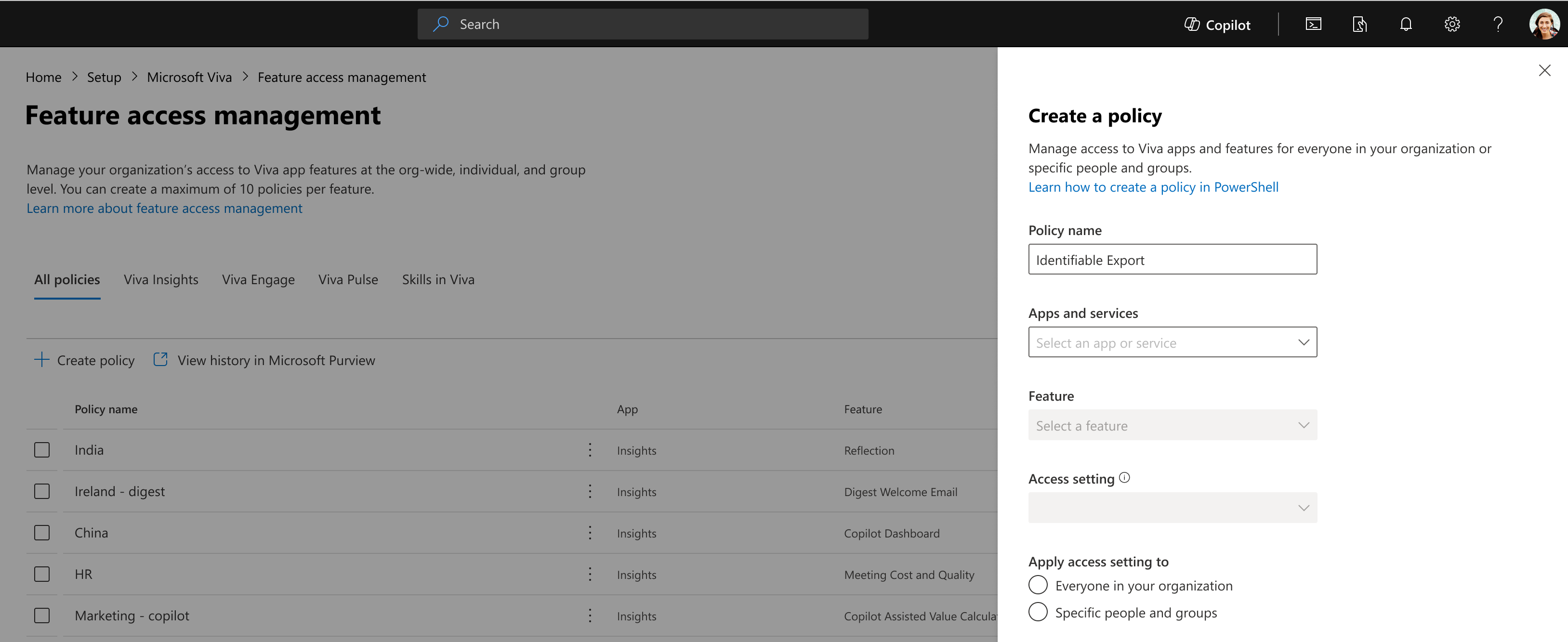
Two ways to configure a policy
| Method | How it works |
|---|---|
| Microsoft 365 admin center | A no-code, point-and-select experience. Go to Settings > Org settings > Viva feature access, select Viva Insights, choose the identification feature, and add a policy. |
| PowerShell | Scripted control using the Exchange Online Management module (Add-VivaModuleFeaturePolicy) - ideal for automation and repeatable rollouts. |
Two ways to scope a policy
| Scope | Best for | Limits |
|---|---|---|
| Group or user level | Pilots, phased rollouts, and specific cohorts. Targets Microsoft Entra groups or individual users. | Up to 20 users/groups per policy; up to 10 policies per feature. |
| Tenant level | A global default applied to everyone in the organization. | One tenant-wide policy per feature. |
Both methods write to the same policy store, so a policy created in the Microsoft 365 admin center is visible and manageable in PowerShell, and vice versa.
Learn more about how to configure feature access, including feature IDs and policy management.