Note
Access to this page requires authorization. You can try signing in or changing directories.
Access to this page requires authorization. You can try changing directories.
Overview
The Learning agent in Microsoft Copilot brings CAISY: Conversation AI Simulator from Skillsoft directly into the flow of work. CAISY is an AI-powered tool that provides interactive, scenario-based simulations for employees to practice crucial business and leadership conversations - coaching, change management, customer service, sensitive feedback, executive presentations - in a safe, realistic environment. After each session, learners receive immediate feedback to build skills for the next challenging interaction.
This article shows administrators how to enable Skillsoft CAISY role plays for their organization in Learning agent and shows learners the ways the Learning agent surfaces role play.
Following sections describe how to configure each provider, including licensing requirements and setup steps.
Access and setup requirements
To enable and manage 'Skillsoft CAISY Conversation AI Simulator Role Play' in Learning Agent, ensure the appropriate administrator roles and licenses are assigned.
Administrator requirements
- Roles required:
- Global Administrator
- Knowledge Administrator
Learner requirements
To access and use LinkedIn Learning role play:
- An active LinkedIn Learning Enterprise or Premium subscription.
- A Microsoft Copilot license assigned.
Skillsoft connection details
Administrators must collect following Skillsoft connection details before starting the setup
- Organization ID– Skillsoft Percipio organization identifier.
- Service account key– API key generated by Skillsoft for authentication.
- Data center endpoint URL– Skillsoft Percipio API endpoint (for example,
api.percipio.com).
Setup: Admin configuration
Configuration
Use this section to enable the CAISY: Conversation AI Simulator provider, control which learners can access role plays, and manage the experience after setup.
Step 1: Open Manage Learning agent
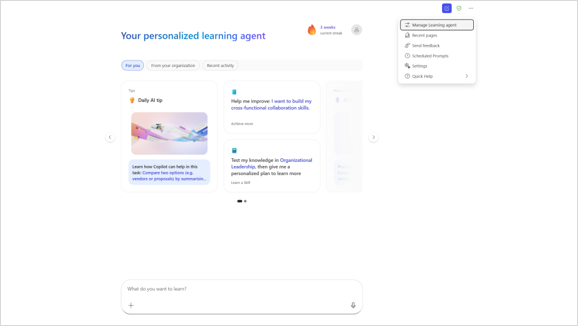
- Open Microsoft Copilot and launch Learning Agent.
- From the top-right corner, select the More options (...) menu.
- Select Manage Learning Agent.
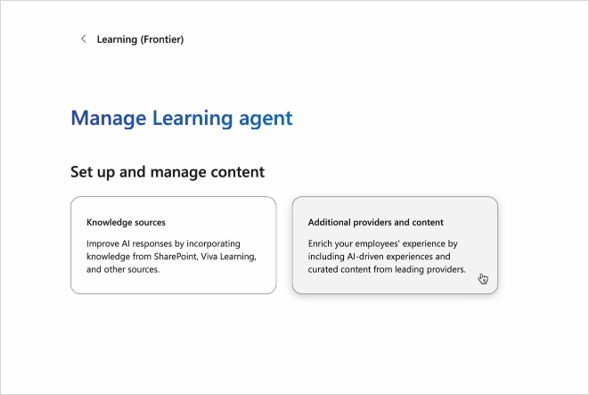
The Manage Learning agent page shows two configuration areas under Set up and manage content: Knowledge sources and Role play.
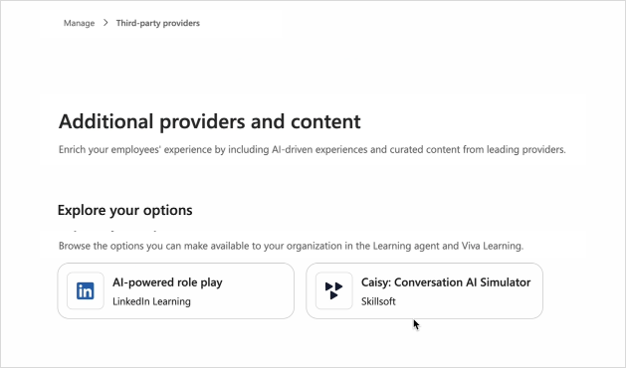
Step 2: Open 'Additional Providers' and content and choose CAISY: Conversation AI Simulator
On the Manage Learning agent page, select 'Additional Providers' and content. The 'Additional Providers' and content page opens. Under Explore your options, you see the role play providers available.
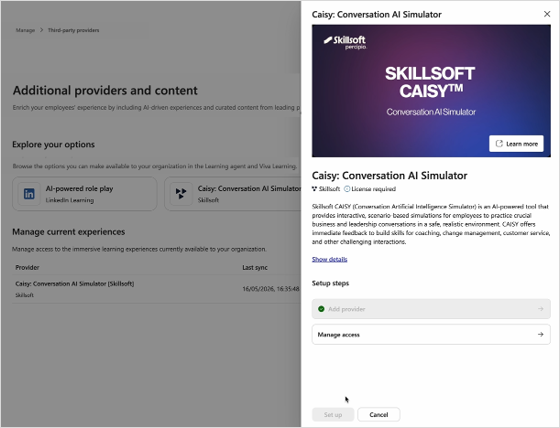
Select the CAISY: Conversation AI Simulator tile (Skillsoft).
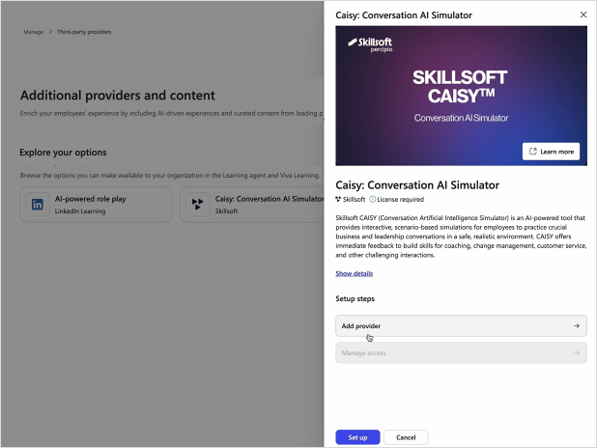
A side panel opens with provider details. Select Show details to view the Privacy policy, Terms and conditions, and Learn more link. The License required indicator confirms your organization must have an active Skillsoft Percipio subscription.
Step 3: Add the provider
In the side panel under Setup steps, select Start setup, then Add provider.
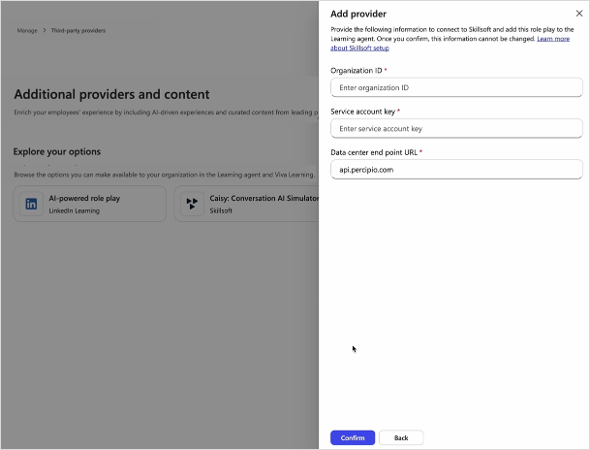
In the Add provider panel, enter your Skillsoft connection details:
- Organization ID.
- Service account key—API key from Skillsoft.
- Data center endpoint URL (for example,
api.percipio.com).
Select Confirm.
Note
All three fields must be completed. Once confirmed, values can't be modified without removing and adding the provider again.
After adding the provider, the side panel shows a confirmation and enables Manage access.
Step 4: Manage access
By default, all learners in the organization can use CAISY role plays.
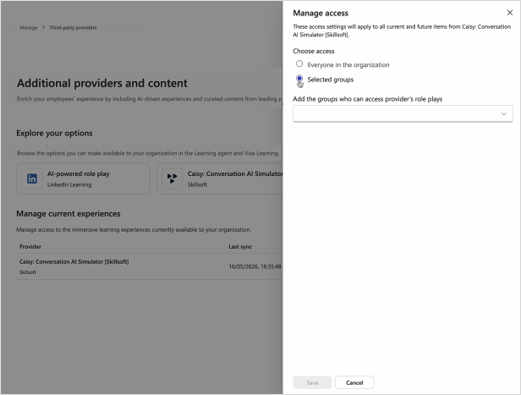
- Select Manage access from the Setup steps or provider menu.
- From the Manage access panel, choose one of the following:
- Everyone in the organization: all licensed users have access
- Specific groups: only selected Microsoft 365 or Entra groups have access
- If selecting Specific groups, add one or more groups.
- Select Save.
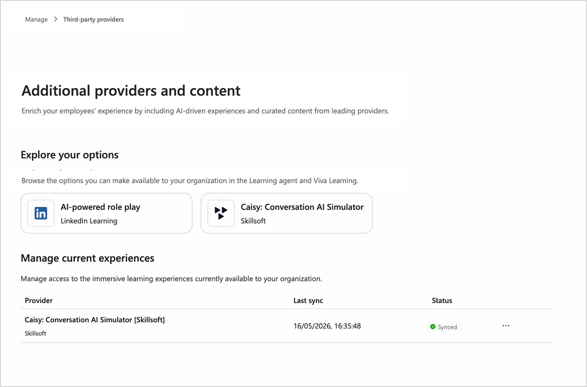
After configuration, a confirmation message appears indicating availability.
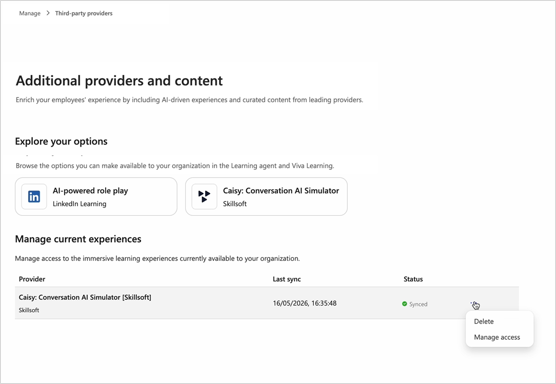
The provider appears under Manage current experiences with sync status.
Note
Initial sync may take up to 24 hours. While status is Pending, role play recommendations aren't visible.
Manage access to role play
Admins can update access at any time.
- Locate the CAISY provider under Manage current experiences.
- Select the overflow menu (...), then choose Manage access.
- Modify access and select Save.
Note
Access settings apply to all current and future scenarios.
Remove the provider
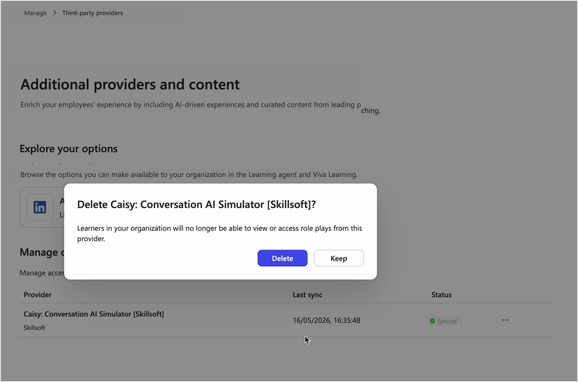
- Locate the CAISY provider under Manage current experiences.
- Select the overflow menu (...), then choose Delete.
- Confirm deletion.
Note
Changes are reflected in Viva Learning. A valid Viva Learning license is required.
Warning
Deleting the provider removes access to role play experiences for all users.