Note
Access to this page requires authorization. You can try signing in or changing directories.
Access to this page requires authorization. You can try changing directories.
Overview
AI Skills Navigator brings Microsoft's curated AI and Copilot learning content into Learning Agent. Learners can discover Microsoft Learn courses, videos, skilling sessions, and credentials alongside your organization's learning content.
AI Skills Navigator is enabled by default when you set up Learning Agent. Administrators can choose whether credentials and Microsoft YouTube videos appear, or turn off AI Skills Navigator for the organization.
This article explains how to manage these settings.
Access requirements
Administrator requirements
- Roles required: Either of the following:
- Global Administrator
- Knowledge Administrator
Learner requirements
- A Microsoft Copilot license, or Copilot Chat included with a Microsoft 365 subscription.
Choose which content types appear
To reach the AI Skills Navigator settings:
In Microsoft Copilot, open Learning agent.
In the top-right toolbar, select the overflow menu (...), then choose Manage Learning agent.
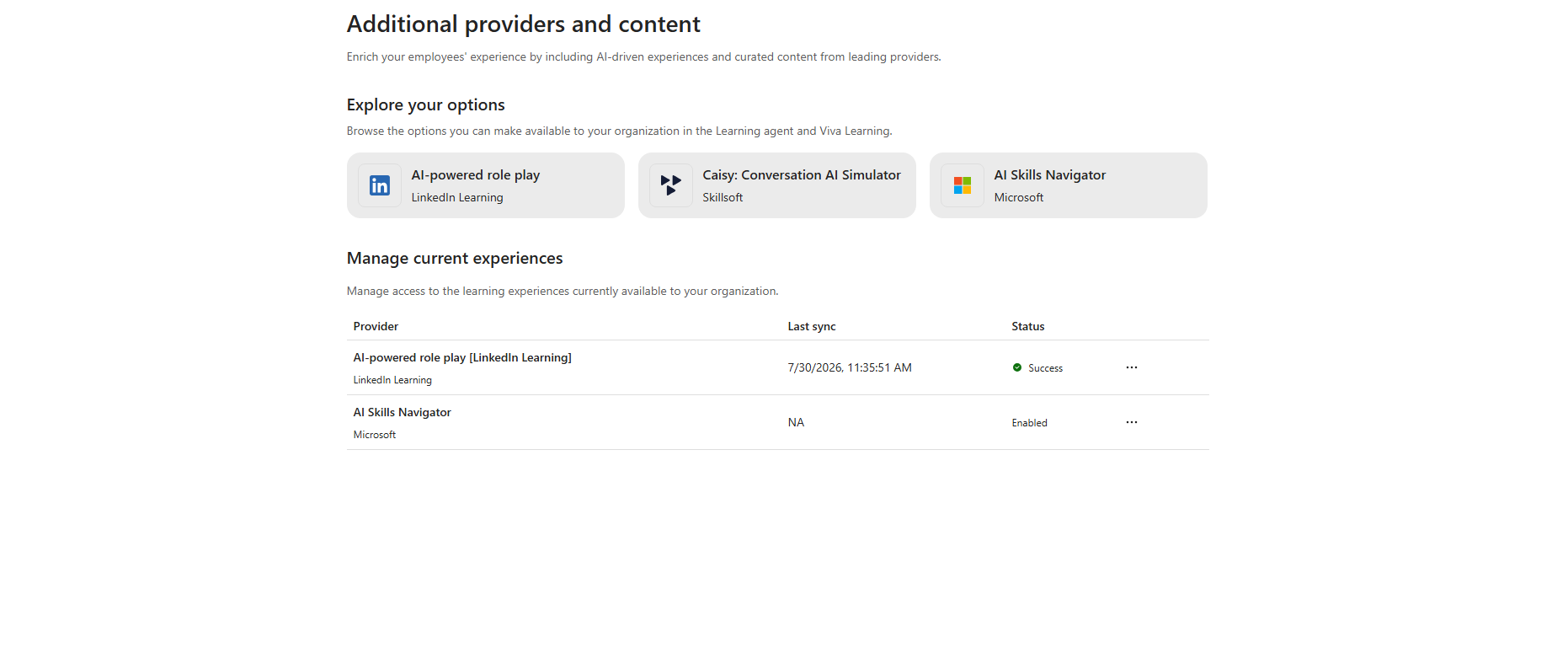
Select Additional providers and content. Under Manage current experiences, find AI Skills Navigator (Microsoft).
To pick which content types are shown:
Do one of the following:
- Select the AI Skills Navigator tile under Explore your options, then in the side panel under Setup steps, select Manage content types.
- Under Manage current experiences, select the overflow menu (...) next to AI Skills Navigator, then choose Manage content types.
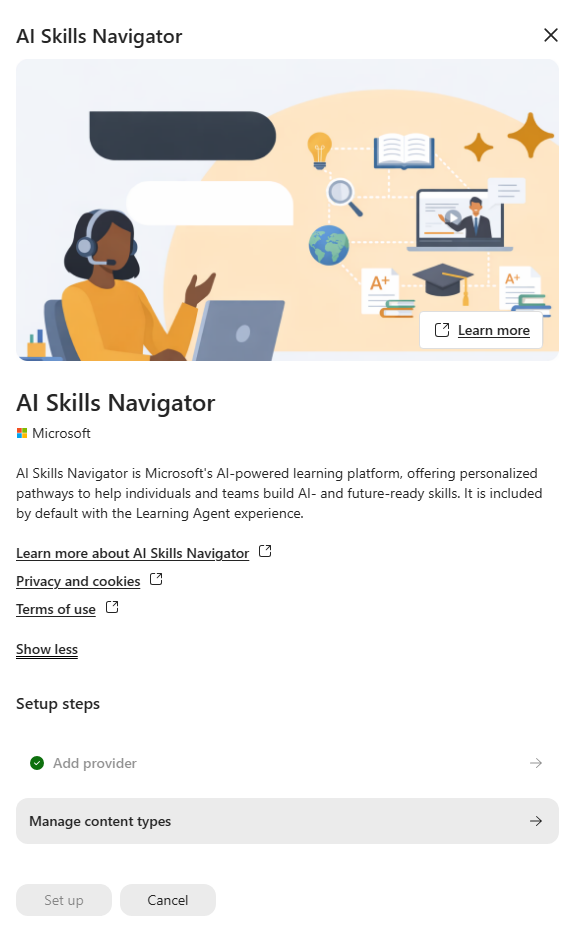
On the AI Skills Navigator content panel, turn each content type on or off:
- Credentials. Professional certifications and applied skills.
- Microsoft YouTube videos. Microsoft-curated video content hosted on YouTube. Note that this content is subject to YouTube's privacy and service terms.
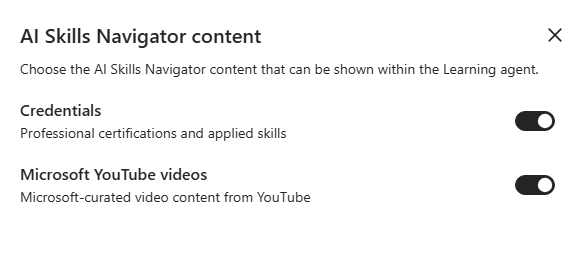
Select Save to save your choices.
Content types are turned on by default. Turning one off removes only that category from the Learning agent. The rest of AI Skills Navigator stays available.
Note
Content changes take effect on the next refresh of the Learning agent.
To turn off AI Skills Navigator entirely for your organization instead, select the overflow menu (...) next to it under Manage current experiences and choose Delete. This removes all its content, including credentials and Microsoft-curated videos, from the Learning agent for everyone.