Note
Access to this page requires authorization. You can try signing in or changing directories.
Access to this page requires authorization. You can try changing directories.
If you encounter any failures in your provider setup or during a daily sync, you can view the error details by going to your provider view and selecting View Details.
You then see the issue details window, which includes error description and steps needed to address the issues. You must fix all errors to ensure a successful synchronization. Warnings don't block synchronization but still need attention. User experience varies based on the provider.

You can also download the ingestion logs from logs tab on manage providers to see details of the ingested data. Each integration supports different type of data logs. For more information, refer to the detailed article on logs generation.

Provider integration logs
Integration logs helps admins understand the different states of data ingestion from learning provider to Viva Learning. The logs help admins to troubleshoot missing data issues in Viva Learning. Viva Learning supports different kind of logs for different providers. The logs are refreshed after the sync cycle is complete for a particular provider.
To have access to the logs, you need to have Azure global admin or knowledge admin role.
Steps to generate logs
To access integration logs, go to Manage providers > Logs. You can download logs for last 30 days only.
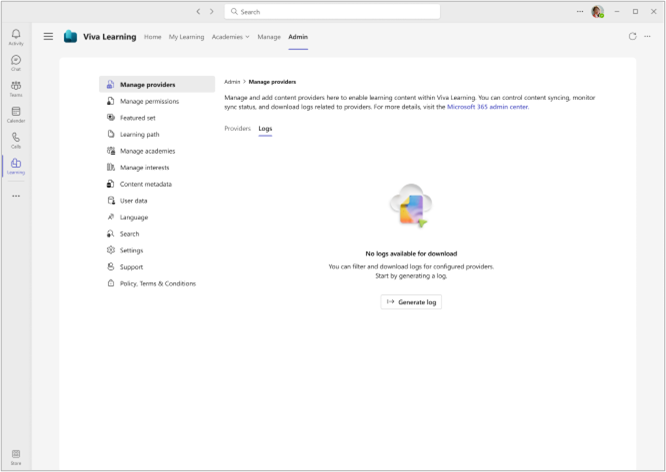
To generate a new log file, click on "Generate log" select the provider, log type and time range for which you want the logs.

Once generated, you can download logs from Manage provider canvas. Depending on the file size, it might take some time to generate the log file.
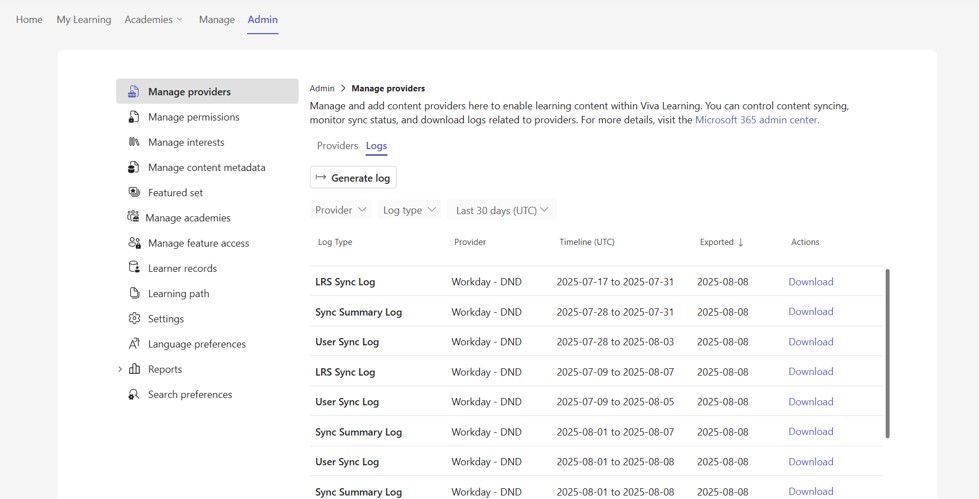
To select logs from existing log generation requests, you can use the filters available on log page. These requests are available for 30 days to download again. The IngestionContext refer to the data source/API used to fetch the data.
Types of logs available to download
Each provider has different kinds of logs available for download. It depends on the kind of data supported by the integration. Following are the data types for which logs are available.
Sync Summary logs
Sync Summary logs give you an overview of current and historical sync cycle. You can check the success and failed state of sync and failure message if any.
Correlation ID in logs refer to the unique sync cycles.
In column SyncType as "UserMapping", the "TotalItemsCount" refers to the total numbers of users for which Viva Learning is running mapping logic. "SuccessfulSyncItemsCount" refers to the count of users for which mapping was available.
In column SyncType as "Assignments", the "TotalItemsCount" refers to the total numbers of assignment and self-enrolment records available for sync. "SuccessfulSyncItemsCount" refers to the count of objects, which were successfully updated in Viva Learning

Catalog logs
Catalog logs have list of records, which were not ingested (Failure logs) and the reason for failed ingestion.
User logs
This log type consists of ingestion information about user data. You get all successfully ingested records along with deleted records for the selected period. You can refer user logs to check for reason for a user not being mapped. In addition to this, you can also check the licensing change information via user logs. Following is some of the key use cases of user logs, refer to "More Details" column to filter these scenarios:
Check user mapping status
Check licensing status
Check user delete status

LRS Logs
LRS (Learner record sync) logs consists of information about failed Learner records, which consists of assignment and self-enrolments. One of the key reason for failed LRS record ingestion is missing required attributes. You can refer to "MoreDetails" column to know details about failed LRS ingestion.
