Note
Access to this page requires authorization. You can try signing in or changing directories.
Access to this page requires authorization. You can try changing directories.
Context-based redirection enables you to control redirection behavior based on user and session conditions. By using authentication context, you can define when specific client capabilities are allowed or restricted based on factors such as user role, device compliance, or network location. This control helps ensure that sensitive data is only accessible when the session meets the required level of trust.
You can apply authentication context to control the following redirections:
- Control clipboard redirection.
- Control drive and storage redirection.
- Control printer redirection.
- Control USB redirection.
Select a tab for your product. Your selection is used for all product-specific steps in this article.
To configure context-based redirection for Windows 365:
- Create a Conditional Access authentication context.
- Create a Conditional Access policy that targets the authentication context and specifies the required sign-in conditions. Assign the policy to a user group.
- Create a Windows 365 Remote Connection Experience policy in Microsoft Intune that maps the authentication context to the redirections you want to control. Assign the policy to a device group that contains the target Cloud PCs.
After you configure context-based redirection, connect to a targeted Cloud PC and verify that the redirections behave as expected.
Context-based redirections support full desktop sessions in Windows App on Windows, web browsers, Android, iOS/iPadOS, and macOS. Windows 365 support is limited to Windows 365 Enterprise and Windows 365 Flex dedicated mode.
Create the Conditional Access authentication context
Authentication contexts are shared identifiers between Microsoft Entra Conditional Access and context-based redirection policies. An authentication context doesn't grant or block redirections. It enables Azure Virtual Desktop or Windows 365 to evaluate whether the Conditional Access requirements associated with that authentication context are satisfied before enabling the configured redirections.
For more information, see Conditional Access authentication context.
- Sign in to the Microsoft Entra admin center.
- Select Entra ID > Conditional Access > Authentication contexts.
- Select New authentication context.
- Enter a name and description for the authentication context.
- Select Publish to apps, and then select an available value from the ID list.
- Select Save.
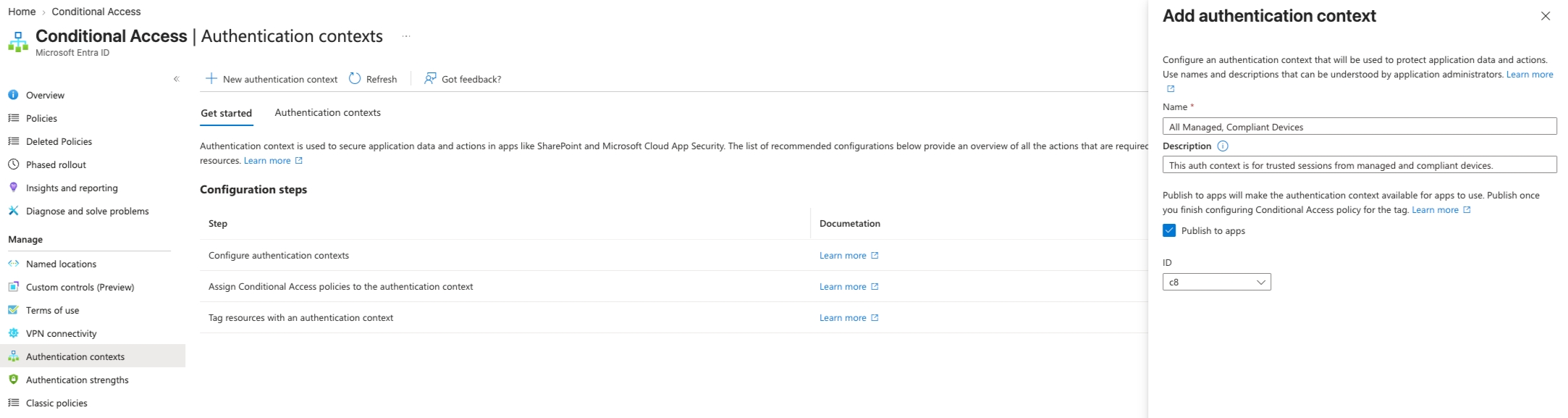
In this example, an authentication context named All Managed, Compliant Devices is published for use in Conditional Access policies. The authentication context acts as a label that connects the Conditional Access requirements to context-based redirection settings. Make a note of its name and ID. You use the same authentication context when you create the Conditional Access policy and configure the product-specific redirection settings.
Create the Microsoft Entra Conditional Access policy
- In Conditional Access, select Policies.
- Select New policy.
- Enter a name for the policy.
- Under Users or workload identities, include the users or groups to which the policy applies.
- Under Target resources, select Authentication context, and then select the authentication context you created.
- Under Grant, select Grant access > Require device to be marked as compliant > Select.
- Set Enable policy to On.
- Select Create.
The following example policy requires the targeted users to connect from a compliant device:
| Setting | Value |
|---|---|
| Users or workload identities | Targeted users or groups |
| Target resources | Authentication contexts |
| Authentication context | Selected authentication context |
| Grant access | Enabled |
| Require device to be marked as compliant | Selected |
| Require all selected controls | Selected |
| Enable policy | On |
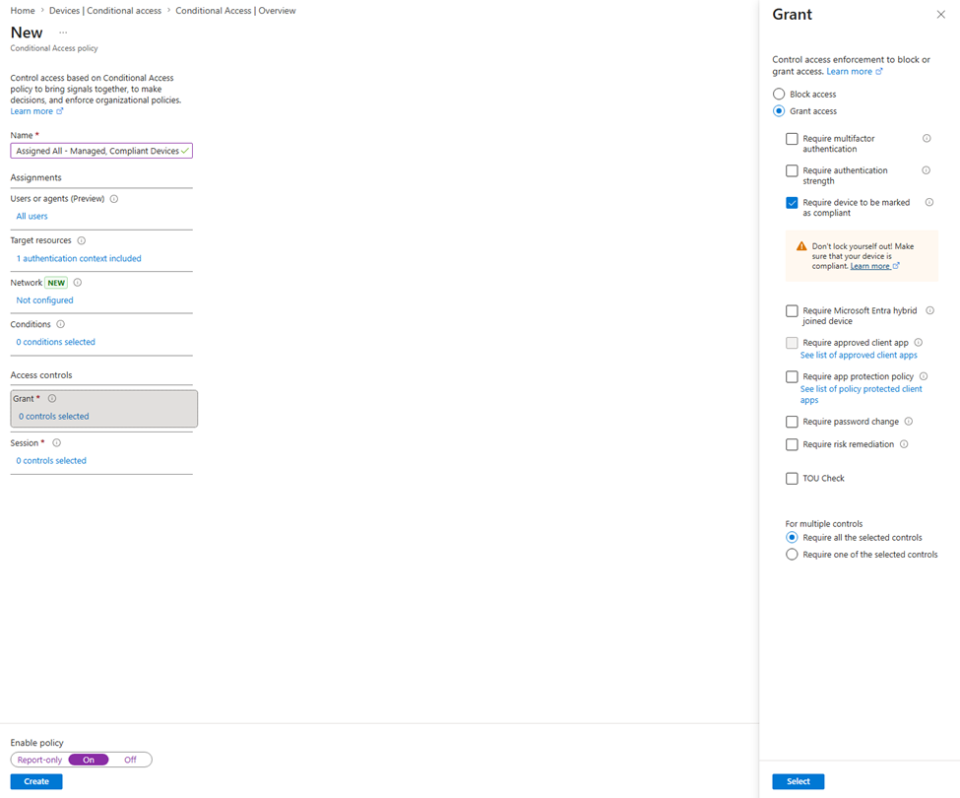
Users connecting from compliant devices now satisfy the authentication context requirement. Next, associate the authentication context with the redirections you want to control.
Configure redirections for your product
For Windows 365, create a Remote Connection Experience policy in Intune to associate the authentication context with specific redirections.
Important
Assign the Remote Connection Experience policy to device groups that contain Cloud PCs, not user groups. Context-based redirection is enforced at the device level.
Sign in to the Microsoft Intune admin center.
Select Devices > Manage Windows 365 Cloud PCs > Cloud PC Settings.
Select Create > Remote Connection Experience.
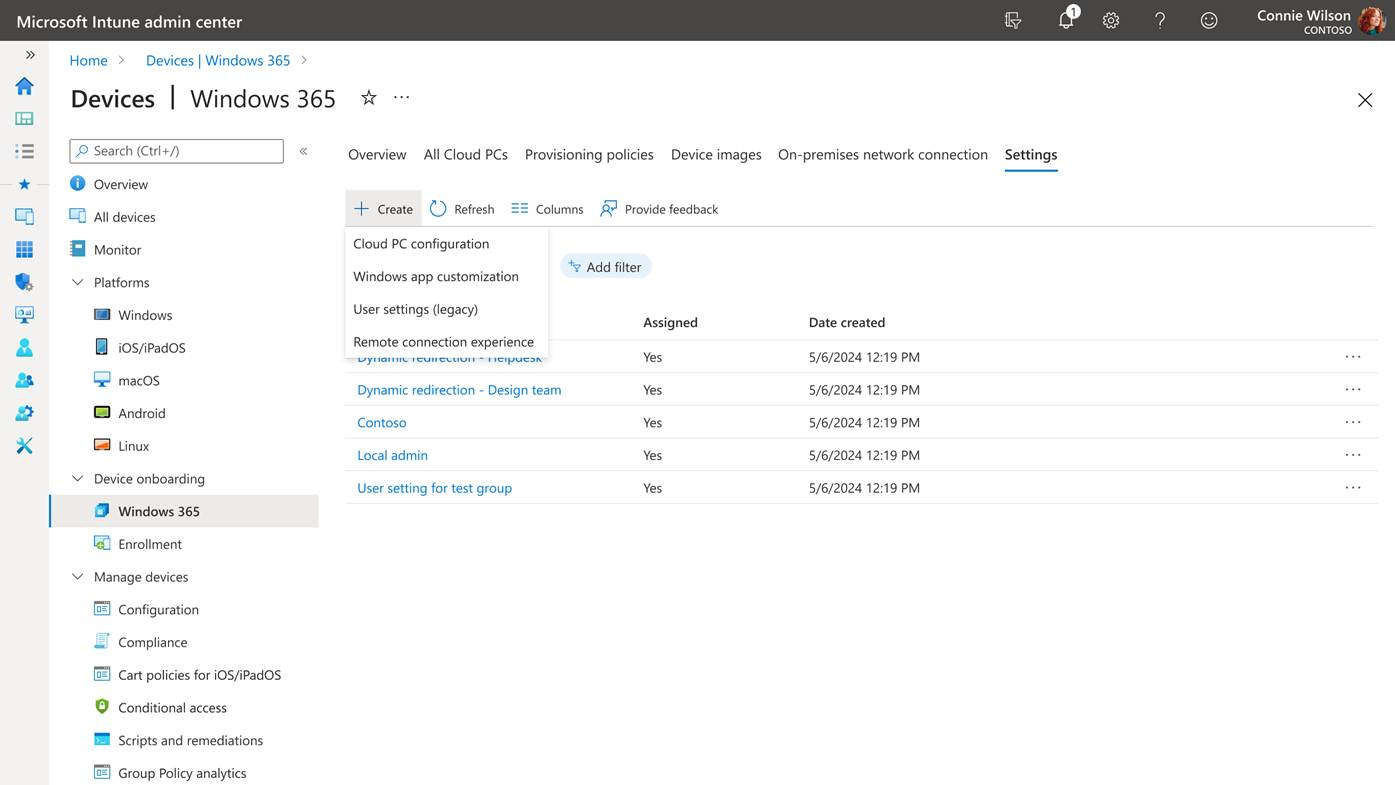
On the Basics page, enter a name and description, and then select Next.
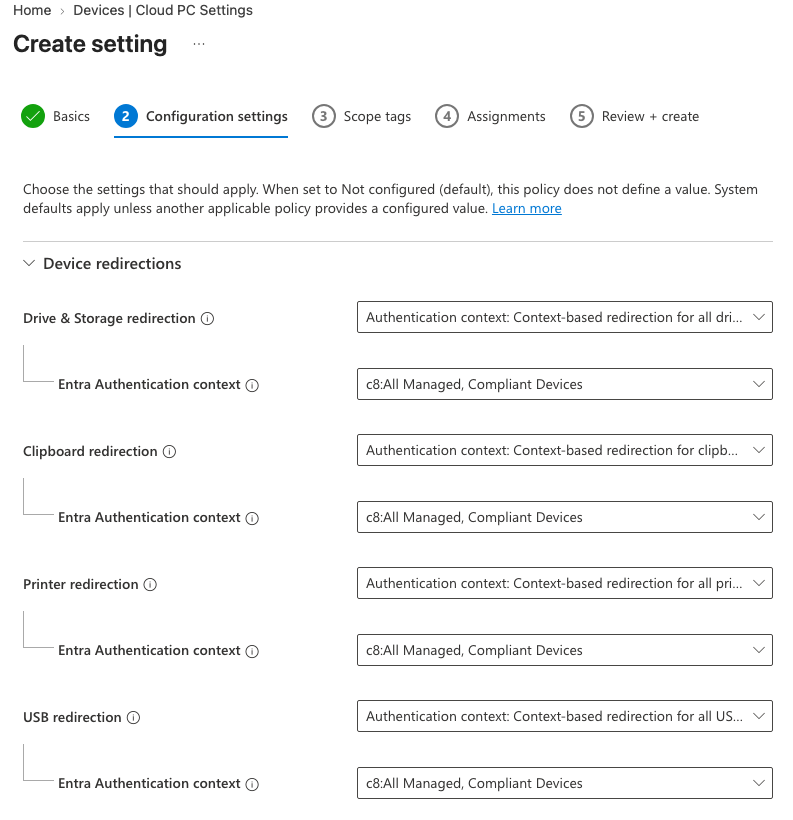
On the Configuration settings page, expand Device redirections. For a targeted redirection, select Authentication context: Context-based redirection.
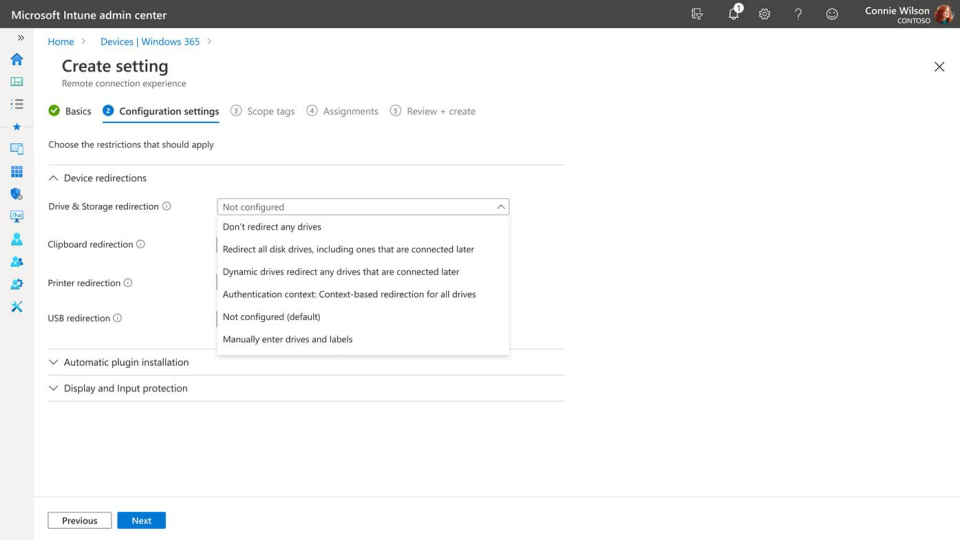
In the Entra Authentication context list that appears, select the authentication context you created. Repeat this step for each redirection you want to control.
On the Scope tags page, select any scope tags to apply, and then select Next.
On the Assignments page, select Add groups, select the device groups that contain the Cloud PCs, and then select Next.
On the Review + create page, select Create.
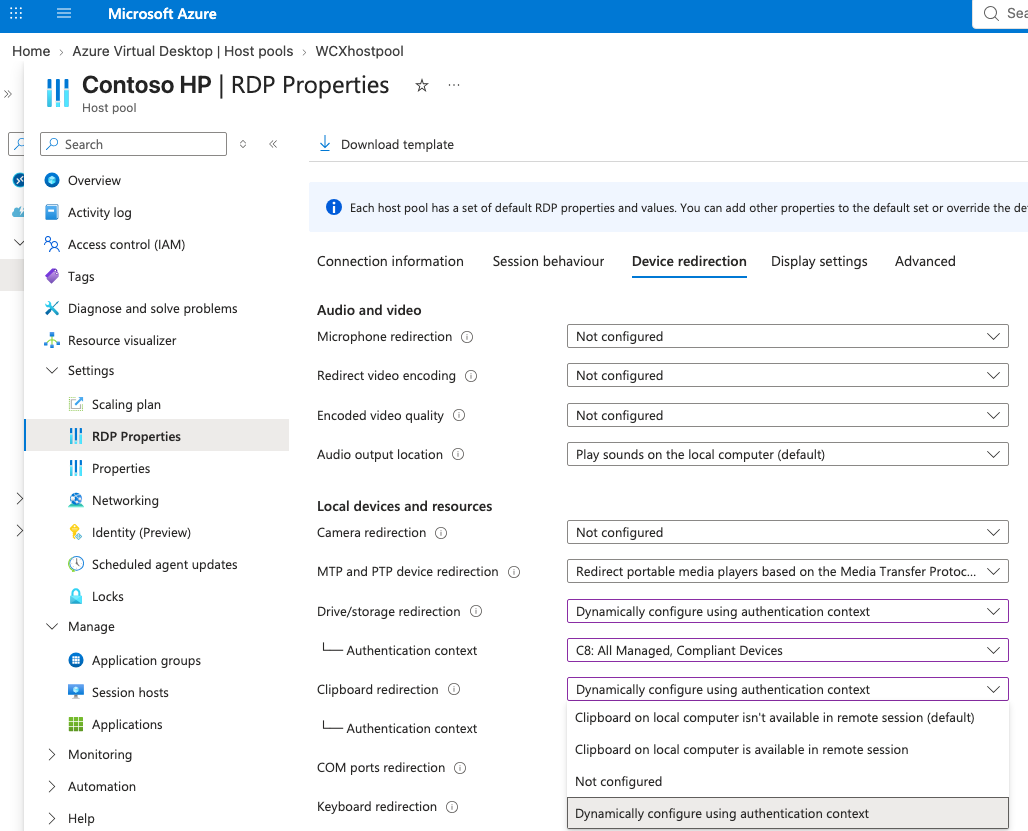
Validate context-based redirection
- Connect to the targeted Cloud PC from a managed, compliant device that satisfies the Conditional Access policy.
- Verify that the configured redirections are available in the remote session.
- Connect to the same Cloud PC from a bring-your-own-device (BYOD) or noncompliant device that doesn't satisfy the policy.
- Verify that the configured redirections are restricted or unavailable.
If the expected behavior doesn't occur, review:
- The Conditional Access policy assignment and authentication context.
- The device compliance status in Microsoft Entra ID and Intune.
- The Windows 365 Remote Connection Experience policy assignment.
- Existing redirection policies that might override the configuration.
You can validate individual redirections by using the guidance in the following articles:
- Clipboard: Verify whether copy and paste work between the local device and remote session.
- Drive and storage: Configure drive redirection over the Remote Desktop Protocol.
- Printer: Configure printer redirection over the Remote Desktop Protocol.
- USB: Configure USB redirection over the Remote Desktop Protocol.