Note
Access to this page requires authorization. You can try signing in or changing directories.
Access to this page requires authorization. You can try changing directories.
Important
Display protection is in preview. For legal terms that apply to features that are in beta, preview, or otherwise not yet released into general availability, see the Supplemental Terms of Use for Microsoft Azure Previews. Visit this page to learn more about previews in Windows 365
Applies to:
- Windows 365 Cloud PCs
- Azure Virtual Desktop session hosts
Overview
Display protection is a component of Output Protection, part of the broader Input and Output Protection feature set. It helps protect display output on Windows 365 Cloud PCs and Azure Virtual Desktop session hosts against unauthorized screen capture and recording from endpoint-resident threats.
When enabled, display protection helps safeguard sensitive information displayed in a remote session by encrypting the display stream from the Cloud PC to the endpoint device. The encrypted content can be decrypted and rendered only within a trusted environment on the endpoint, using either hardware-based or software-based protection technologies. When compatible GPU hardware is available, decryption occurs directly within the device's GPU (both discrete or integrated are supported). Otherwise, protected software-based rendering is used. This approach helps reduce the risk of unauthorized screen capture or display interception on the endpoint device while maintaining a seamless user experience.
Note
Input protection is a separate component of Input and Output Protection that protects keyboard input against keylogger threats. Input protection is configured independently from display protection. For more information, see Input Protection.
How display protection works
Display protection secures the display path between the remote session and the endpoint device. The feature includes:
- Protected display rendering: The display stream is encrypted end-to-end before it leaves the Cloud PC and is decrypted and rendered only within a trusted, protected path on supported endpoint devices.
- Trusted endpoint requirement: Only supported Windows App clients that meet the required protection level can access protected sessions.
- Configurable protection levels: Organizations can require either software-backed or hardware-backed display protection, with optional HDCP enforcement for connected displays.
- Session-specific protection: Protection applies only to the remote session being viewed and doesn't alter behavior on the Cloud PC itself.
Supported configurations
This feature supports the following configurations:
- Cloud PC or session host: Windows 365 Cloud PC or Azure Virtual Desktop session host running a supported Windows client OS version or Windows Server.
- Supported clients: Windows App on Windows, when running on a physical Windows 11 device.
- Not supported clients: Virtual endpoint devices (VMs), macOS, iOS, Android, web browsers.
Prerequisites
Before you configure display protection, ensure the following requirements are met:
- Windows App: Version 2.0.1236.0 or newer on Windows. Update to the latest version from the Microsoft Store.
Configure display protection
Enable display protection only for the Cloud PCs or Azure Virtual Desktop session hosts you want to include in preview validation. Use the relevant configuration path for Azure Virtual Desktop or Windows 365.
Display protection levels
Both Azure Virtual Desktop and Windows 365 support the following protection levels:
| Level | Description |
|---|---|
| Not configured | Display protection isn't enabled for the Cloud PC or session host. |
| Hardware or software enforcement | The Cloud PC or session host attempts to create a hardware-protected display channel. If hardware protection is unavailable, it falls back to software protection. |
| Hardware enforcement required | The Cloud PC or session host requires a hardware-protected display channel. If the endpoint can't meet that requirement, the connection is blocked and the user sees an error. |
Configure display protection for Azure Virtual Desktop
For Azure Virtual Desktop, add the display protection RDP property in the host pool advanced settings:
In the Azure portal, open the target host pool.
Go to RDP properties > Advanced tab.
Add the following RDP property:
enableWindowsCloudIODisplayProtection:i:<value>Where
<value>is:0(not configured),1(hardware or software enforcement), or2(hardware enforcement required).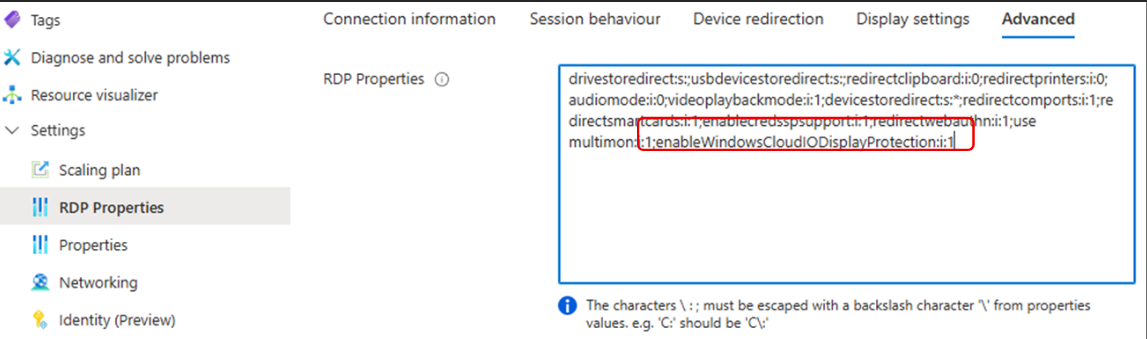
This property enables server-side verification that Display Protection is enforced on the endpoint.
Configure display protection for Windows 365
For Windows 365, configure display protection in Microsoft Intune:
Sign in to the Microsoft Intune admin center.
Go to Devices > Manage Windows 365 Cloud PCs > Cloud PC Settings.
Under IO Protection, select the desired level for Display Protection.
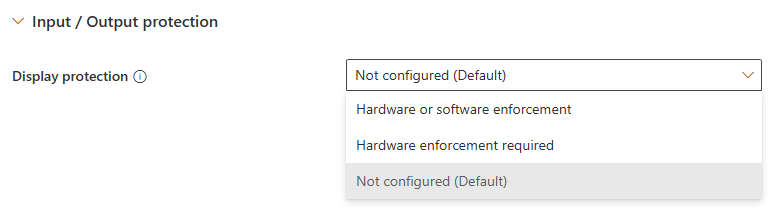
When you enable display protection or change its level in Intune or in host pool RDP properties, the setting is delivered to the endpoint device through the connection (RDP) properties and is cached on the device. To apply an updated configuration immediately, select Refresh in Windows App. Otherwise, configuration changes can take up to 8 hours to reach an endpoint.
If a connection is unexpectedly blocked with an incompatible-client error (0x204 with extended code 0x11f5) shortly after you enable or change display protection, select Refresh in Windows App to pull the latest configuration, or wait for it to propagate—up to 8 hours—and then try to connect again.
Validate protection
After you configure display protection on the target Cloud PCs or session hosts:
- From a Windows 11 physical endpoint, open Windows App (version 2.0.1236.0 or newer).
- Connect to a Cloud PC or session host that has display protection enabled.
- Verify that the connection succeeds without an error message.
- Attempt to use a screen capture tool on the endpoint while the remote session is active. The captured content from the remote session should be blocked or appear blank.
To monitor display protection across your tenant, use Cloud PC monitoring (preview) and review the DisplayProtectionState connection event on the Connection health page. For steps, see Monitor Input and Output Protection.
Error codes and failure messages
If display protection can't be established, the connection might be blocked and an error appears on the endpoint. The following screenshot shows an example of an incompatible client error:
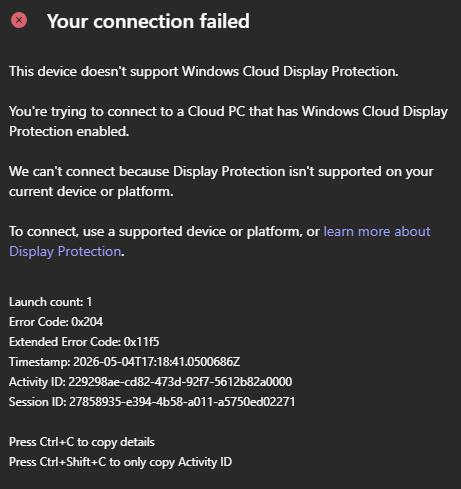
The following table lists common error codes and their causes.
| Error code | Extended code | Description | Common causes |
|---|---|---|---|
0x204 |
0x11f5 |
Incompatible client. The client platform or version doesn't support display protection. | Connecting from iOS, macOS, or Android. Windows App version older than 2.0.1236. Display protection was recently enabled or changed and the endpoint hasn't received the updated configuration yet (select Refresh in Windows App, or allow up to 8 hours to propagate). |
0x204 |
0x11f6 |
Policy not met. The Cloud PC or session host rejects the connection because the client doesn't meet the required security policy. | Endpoint defaults to software-based protection. Lack of GPU support or bad GPU configuration. Remote machine requires hardware-only enforcement. |
0x110 |
— | HDCP requirements not met. Physical display outputs don't support the required HDCP policies. | Old docking stations. USB display adapters and DisplayLink docks without HDCP. VGA cables (no HDCP support). Non-HDCP monitors. |
If you encounter an error that doesn't match the codes listed here, contact Microsoft support and provide the activity ID, timestamp of the failure, and steps to reproduce the issue.
Limitations and considerations
- Physical devices only: Display protection requires a physical Windows 11 endpoint. Virtual machines aren't supported as endpoint devices.
- Supported clients: Windows App on Windows is the only supported client for display protection.
- Not supported clients: Virtual endpoint devices (VMs), macOS, iOS, Android, web browsers, and other non-Windows App on Windows clients, including Windows 365 Link devices.
- DisplayLink and USB display adapters: Displays connected through DisplayLink or other USB graphics adapters aren't supported, because they don't provide the protected display path and typically lack HDCP support. Protected sessions can't be shown on these displays, so the connection might be blocked (error
0x110) or protected content might not render. Connect protected sessions to a display driven by the endpoint's built-in GPU, such as an HDMI, DisplayPort, or USB-C DisplayPort Alt Mode output. - Performance with software-based protection: When hardware-based protection isn't available, the session uses software-based protection. Software-based protection can increase the time needed to establish a session compared to hardware-based protection. For the best experience, use endpoints with a compatible GPU that supports hardware-based protection.
- Maximum resolution: Display protection supports resolutions up to 4K (3840 x 2160). Higher resolutions aren't supported for protected sessions.
Related features
- Input Protection: Protects keyboard input against keylogger threats. Input protection is a separate component of Input and Output Protection and is configured independently from display protection.
- Enable screen capture protection: A separate screen capture protection feature for Azure Virtual Desktop.
- Watermarking: Adds visible watermarks to remote sessions to discourage photo-based screen capture.