Note
Access to this page requires authorization. You can try signing in or changing directories.
Access to this page requires authorization. You can try changing directories.
Windows App supports administrator-configured settings that control app default behaviors without requiring manual user configuration. Administrators can configure these settings using either:
Microsoft Intune Settings Catalog, which enables centralized configuration of managed Windows devices.
Group Policy using the Windows App administrative template (ADMX), which enables centralized configuration of domain-joined Windows devices through Group Policy. Group Policy can be used for devices that aren't enrolled in Microsoft Intune.
The Windows App administrative template includes the same policy settings that are available through Microsoft Intune Settings Catalog. Administrators can use either management solution based on their organization's device management strategy.
The following Windows App settings can be configured:
Admin Release Ring Policy
Automatically create Windows App shortcuts to desktop
Automatically log off users after inactive interval
Skip First Run Experience (FRE)
Turn off automatic updates for Windows App
Note
- Windows App administrative policies are device-scoped policies.
- Some Windows App settings have existing registry-based configuration equivalents. For managed devices, we recommend configuring these settings through the Microsoft Intune Settings Catalog rather than modifying the registry directly.
- When both an administrative policy and a legacy registry value are present, Windows App reads the policy-managed value first. If no policy-managed value is present, Windows App will fall back to the corresponding legacy registry value.
Windows App settings using Microsoft Intune Settings Catalog
Before you begin, ensure that:
Devices are enrolled in Microsoft Intune.
Devices running Windows 10 and later.
Windows App is installed on the target devices.
Your account has sufficient permissions to create and assign device configuration policies in Microsoft Intune.
Configure Windows App policy
Sign in to the Microsoft Intune admin center.
Select Devices > Configuration > Create > New policy.
Configure the following settings:
Platform: Windows 10 and later
Profile type: Settings catalog
Select Create.
On the Basics page, enter:
Name: A descriptive name, such as Windows App settings.
Description: Optional description for the policy.
Select Next.
On the Configuration settings page, select Add settings.
In the Settings picker, search for Windows App.
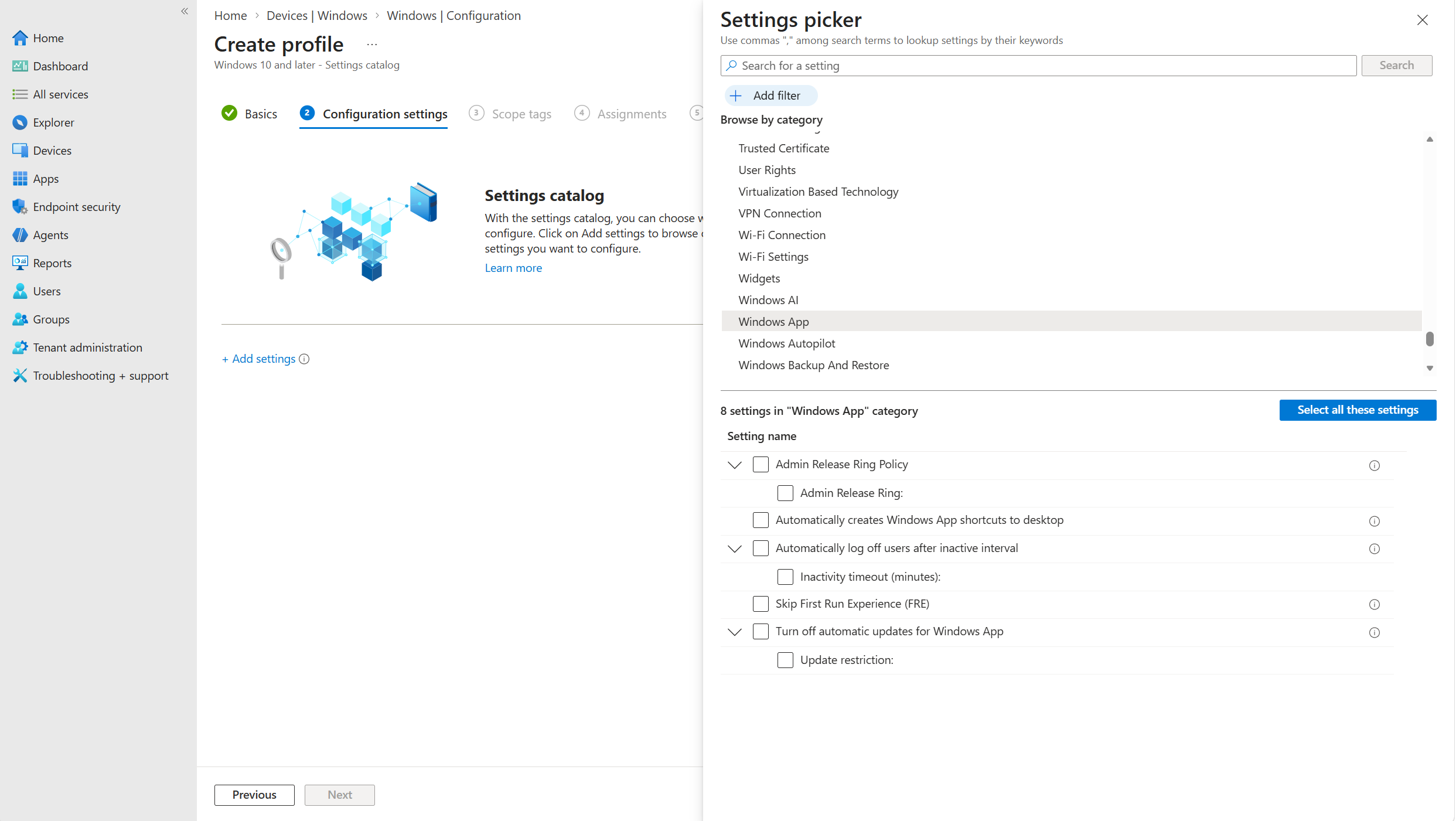
Select the settings you want to configure. Refer to the Windows App settings section for detailed information on the specific settings.
Configure the required values.
Select Next.
Assign the policy to the required device groups.
Review your settings and select Create.
After the policy is deployed, you can verify the policy by:
Open Devices > Configuration in the Microsoft Intune admin center.
Select the policy.
Review the following monitoring reports:
Device status
User status
Per-setting status
You can also validate applied settings on a device by reviewing the corresponding policy registry locations.
Windows App settings using Group Policy
Organizations that manage Windows devices using Group Policy can configure Windows App settings using the Windows App administrative template (ADMX). The Windows App administrative template exposes the same Windows App policies that are available through the Microsoft Intune Settings catalog.
Note
All Windows App administrative policies are computer-scoped policies and apply to the device regardless of which user signs in to Windows App.
Before you begin, ensure that:
Devices are running Windows 10 and later.
Windows App is installed on the target devices.
The Windows App administrative template (ADMX) is available in the Group Policy environment.
The administrator is a member of the Domain Admins security group in an Active Directory (AD) domain.
Configure Windows App policy
Download the latest Windows App administrative template files and extract the contents of the
.cabfile and.ziparchive.-
- On your domain controllers, copy and paste the following files to the relevant location, depending if you store Group Policy templates in the local
PolicyDefinitionsfolder or the Group Policy Central Store. Replacecontoso.comwith your domain name, anden-USif you're using a different language.
Filename:
windowsapp.admxLocal location:
C:\Windows\PolicyDefinitions\Central Store:
\\contoso.com\SYSVOL\contoso.com\Policies\PolicyDefinitions
Filename:
en-US\windowsapp.admlLocal location:
C:\Windows\PolicyDefinitions\en-US\Central Store:
\\contoso.com\SYSVOL\contoso.com\Policies\PolicyDefinitions\en-US
On a device you use to manage Group Policy, open the Group Policy Management Console (GPMC) and create or edit a policy that targets your devices.
To verify that the Windows App administrative template is available, browse to Computer Configuration > Policies > Administrative Templates > Windows App. You should see policy settings for Windows App available for you to configure.
- On your domain controllers, copy and paste the following files to the relevant location, depending if you store Group Policy templates in the local
Refer to the Windows App settings section for detailed information on the specific settings.
Windows App settings
The following Windows App settings can be configured by administrators through Microsoft Intune Settings Catalog, or the Windows App Group Policy ADMX template.
Admin Release Ring Policy
Controls which Windows App release ring is used on the device. Use this setting to standardize Windows App updates across your organization.
Configuration options
| Value | Description |
|---|---|
| Public | Uses Generally Available Windows App releases. |
| Insider | Uses Windows App Insider releases. |
| Not configured | Windows App uses its default release-ring behavior. |
When this policy is configured, users cannot change the release ring from within the Windows App.
Note
This policy is device-based. Changing the user account in the Windows App doesn't change the applied release-ring policy.
Automatically create Windows App desktop shortcuts
Controls whether Windows App automatically creates desktop shortcuts for Azure Virtual Desktop RemoteApps that are configured for shortcut creation. For a shortcut to be created the RemoteApp must be configured for desktop shortcut creation in Azure Virtual Desktop and this policy must be enabled on the device. Windows App creates shortcuts after the user signs in and resource discovery completes.
Configuration options
| Value | Description |
|---|---|
| Enabled | Creates desktop shortcuts for eligible administrator-enabled RemoteApps. |
| Disabled | Prevents automatic shortcut creation. |
| Not configured | Windows App doesn't enable shortcut creation through policy. |
Note
- This policy provides device-level targeting. Azure Virtual Desktop determines which RemoteApps are eligible, while Intune determines which devices automatically receive shortcuts.
- This policy provides device-level targeting. Azure Virtual Desktop determines which RemoteApps are eligible, while Intune determines which devices automatically receive shortcuts.
- If an administrator begins managing a shortcut that was previously user-created, the shortcut becomes administrator-managed, and the end user can no longer pin or unpin that resource.
Automatically log off users after an period of inactivity
Automatically signs users out of Windows App after a specified period of inactivity. This setting is intended for shared-device and kiosk scenarios where users might leave the Windows App signed in. When the user is signed out, Windows App clears the cached sign-in information so subsequent users can't access that data.
Configuration options
| Value | Description |
|---|---|
| Enabled | Signs users out after the configured inactivity period. |
| Disabled | Disables automatic logoff. |
| Not configured | Automatic logoff isn't configured through policy. |
Inactivity timeout (minutes):
Specify the number of minutes of inactivity before the Windows App automatically signs the user out. The minimum allowable value is 1.
Note
Automatic logoff signs users out of the Windows App only. It doesn't sign users out of their remote session.
Skip First Run Experience (FRE)
Controls whether the Windows App displays the First Run Experience when launched for the first time. When enabled, users are taken directly to the Connection Center.
Configuration options
| Value | Description |
|---|---|
| Enabled | Skips the First Run Experience. |
| Disabled | Shows the First Run Experience. |
| Not configured | Uses the default Windows App behavior to show the First Run Experience. |
Turn off automatic updates for Windows App
Controls automatic update behavior for the Windows App. Administrators can allow updates or restrict updates from specific update sources.
Configuration options
| Value | Description |
|---|---|
| Turn on updates | Allows all Windows App updates. |
| Turn off updates from all locations | Prevents updates from all supported update sources. |
| Turn off updates from Microsoft Store | Prevents updates from Microsoft Store. |
| Turn off updates from non-Store CDN locations | Prevents updates from non-Store CDN locations. |
| Not configured | No update policy is enforced. |
Note
This policy only applies to Windows App update mechanisms. Update behavior from individual distribution channels may still depend on the update source being used.